In this Article:
| For customers outside of the U.S., the tipping options selected will display on the payment device rather than the Guest Facing Display. |
Watch this video or follow the steps below to enable digital receipts for cash payments.
- In Toast Web, navigate to Payments > Payment methods > Payment options.
- In the Cash section, for the Digital Receipt Dialog setting, select Yes, show the receipt dialog after each cash payment (Digital Receipts only).
- Next to Cash Receipt Options, select Prompt for Receipt Options or Always Print Receipt to ensure a digital receipt will be offered to the guest.
- Save and publish your changes.
Back to top
| For guests paying with a debit or credit card, the payment line item will be labeled “Card” for physical and digital receipts. If surcharging is enabled, Toast’s Credit Card Surcharging product will automatically print or display the necessary disclosures on checks and receipts for your credit card surcharge. For more information on credit card surcharging, see:
|
After enabling digital receipts in Toast Web, you’ll need to enable digital receipts on each individual POS device, too.
- On the main menu of the Toast app on your POS, select Device Setup from the Setup section.
- Select Digital Receipts, and then select Yes, use digital receipts. Make sure to Save your changes.
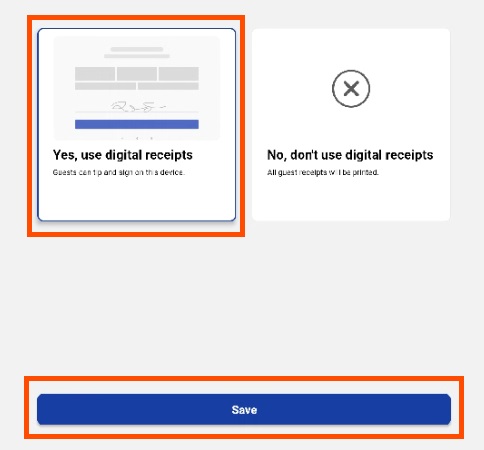
- Once digital receipts have been turned on, there will be an additional setting available in Device Setup: Always Print Receipt. This setting will do as indicated and print a closed check receipt after every transaction.
- Note: On the Payment Selection screen on your POS, you can turn digital receipts on or off for a single transaction without impacting the device-level settings, using the overflow menu:
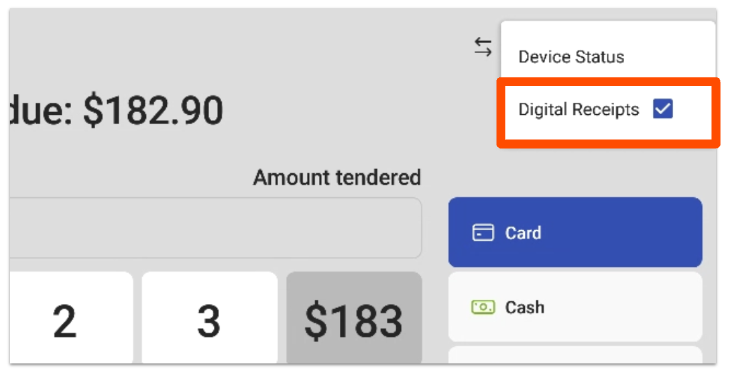
Back to top
Watch this video or follow the steps below to enable or disable tips for digital receipts.
- In Toast Web, navigate to Payments > Payment methods > Payment options.
- Under the Digital Receipt Options header, for the Tips Enabled setting, select either Yes, show the tip dialog, or No (to disable tips).
- Save and publish your changes.
Back to top
To change the tip screen settings, such as your tip percentages or dollar amounts, any defaulted selections, or manager approval rules for tip amounts, follow these steps:
- In Toast Web, navigate to Front of house > Order screen setup > UI options.
- Scroll down to the Tipping section. Follow the prompts to select a tipping option, or enter your customized tip percentages and/or amounts.
- Save and publish your changes.
|
Tip / Tax
|
Choose if the tip should be calculated before or after tax.
|
|
Choose Tip Options
|
Show tips options in percentages or in dollar amounts:
-
Percentages only - Recommended tip amounts will be shown in pre-set percentages. If you choose this option, you can enter three percentage values or accept the pre-set amounts.
-
Dollar only - Recommended tip amounts will be shown in pre-set dollar amounts. If you choose this option, you can enter three dollar values.
-
Percentage/dollar mix - If you choose to display both tip percentages and dollar amounts, set the threshold for when the suggested amount should switch from the suggested dollar to the suggested percentage. Note: Fixed dollar amounts will only display on digital receipts.
|
|
Default Tip Selection
|
Choose the default tip selection for guests, or select None.
-
One tip amount - whether it is a dollar, percentage, or both.
-
No tip - Which defaults to no tip being selected and the guest can sign.
-
None - This will require the guest to choose a tip button before submitting their signature
|
|
Significant Adjustments to Tips Require Approval
|
Select Yes or No to choose if a manager has to approve large changes to tip amounts. If enabled, define the value of a significant change.
|
Back to top
Combining the tip and signature screen on the digital receipt dialog can be helpful for quick-service restaurants where customers tend to sign first and realize they missed their opportunity to tip. To configure this option, follow these steps:
- In Toast Web, navigate to Payments > Payment methods > Payment options.
- In the Default Receipt Options section, for the Tip & Signature Flow setting, select Use the combined Tip & Signature Screen. Note that if the legacy tip screen is selected, the default tip will not be an option on the guest checkout screen.
- Save and Publish your changes.
Back to top
|
Toast Loyalty is currently only available for restaurants located in the United States.
|
Guests can also choose to sign up for Toast Loyalty through digital receipts. Use the following workflow to set up this feature:
- In Toast Web, navigate to Payments > Payment methods > Payment options.
- In the Cash section, under Receipt Options, select Yes for the Rewards Signup setting.
- In the Credit section, you can select Yes for Rewards Signup as well.
- Save and publish your changes.
Now when your guests are presented with a digital receipt, they will be given the option to sign up for Toast Loyalty.
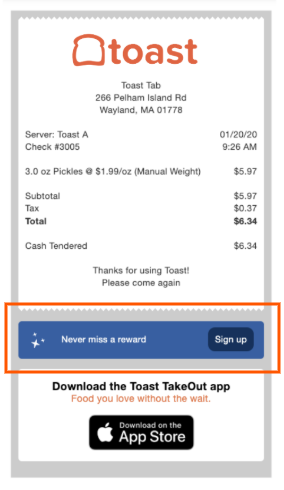
Guests can also enroll in your rewards program by providing their email address or phone number at the point of purchase. After paying for their meal, a prompt will appear asking them if they’d like to join the program. The field for email or phone will depend on your Toast Loyalty setup. Learn more in this Toast Central article, Get Started With Toast Loyalty.
Back to top


