In this Article:
Menu-Specific Pricing Overview
The menu-specific pricing strategy allows you to set different prices depending on where the menu the item is ordered from (e.g. an entree might cost $10 from the Lunch menu, but $15 from the Dinner menu). This is helpful for adjusting prices between lunch and dinner menus, or between in-store and third-party ordering menus. The menu-specific pricing strategy is also commonly used for happy hour menus (see the section below for specific setup recommendations).
Note: Menu-specific pricing as outlined in this article requires some extra considerations if you are using xtraCHEF. If your items are the same on both menus (e.g. 1.5 oz of vodka on your regular menu and 1.5 oz of vodka on your happy hour menu), it should function as expected. However, if you're going to have different portions with menu-specific pricing (e.g. lunch pasta and dinner pasta), they need to be listed as separate items.
If your restaurant uses Toast Multilocation Management (MLM), see our platform guide for additional considerations: Menu-specific prices for multi-location restaurants.
From the item details page in your menu editor, select Menu Specific Price for the Pricing Strategy setting. You'll set your Base Price for the item, and then a Menu Prices table will appear where you can change the price of that item when it appears in other menus. Technically, you only need to enter a price for each menu that contains the menu item you're editing, but it's a best practice to enter a price for all menus in case you add the menu item to another menu in the future. Save and publish any changes.
Back to top
Happy Hour Pricing Setup
If a menu isn't built initially with time-specific pricing to support a happy hour, it may be a bit cumbersome to reprice every item one by one, especially with large drink menus. Instead, what we can do is create a new happy hour menu that duplicates the appropriate items but prices them differently according to the menu they reside in. To set up happy hour pricing, watch the video or follow the instructions below.
Video overview showing how to build happy hour menus.
- In Toast Web, navigate to Menus and open your menu editor to create a new menu called HAPPY HOUR.
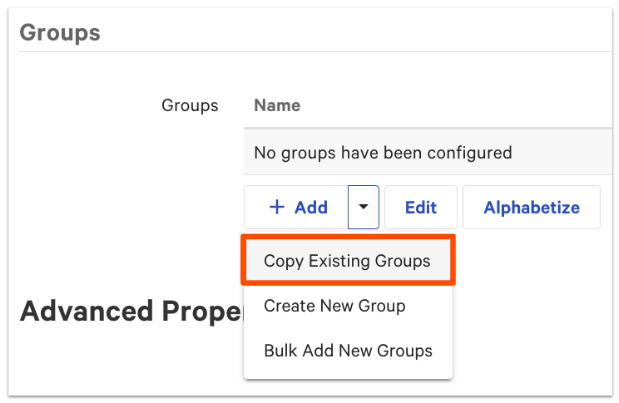
- After creating the menu, copy the menu groups that contain items you'd like to price differently for a Happy Hour. This will be a shallow copy, so do not click the deep copy button. The word (Copy) will appear next to the name of the copied group. Rename it so you can tell it apart from the group you copied it from. For example, House Margaritas (Happy Hour)
Notes:
- Make sure you are making a copy of the menu group, and not an individual item. Creating a shallow copy of a menu group means that a new group is created but the items are still the same. That means any inventory updates to an item on your Happy Hour menu will reflect on your regular menu as well.
- If you make a copy of an individual menu item, then a new item will be created and you will have to manually update inventory for both the original and the copied item.
- Deep copies can be created to reprice a menu item without affecting the original menu item's price. However, we do not recommend this configuration as it will result in duplicate items in your items database. Additionally, if the pricing method used in the original menu is not the base price, you'll be unable to convert the pricing to menu-specific pricing.
- After the copy, save your changes.
- Now, navigate to Menus > Bulk management > Price editor. Note: The Price Editor tool can only be used to update the prices of items or menus -- not modifiers.
- Select the checkboxes next to the copied groups in your Happy Hour menu and select the Update button to convert the appropriate menu groups to menu-specific pricing. Ensure that you've selected every item in the menu group. At the top of the price editor, you'll see confirmation of how many items you've selected to update.
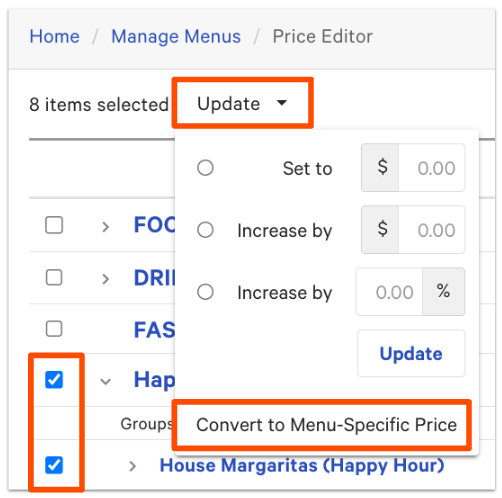
Each item will now have a label next to the price to signify that it's using Menu-Specific Pricing.
- After converting your items to menu-specific pricing, you can use the Increase By field to increase or decrease the price by a dollar amount or percentage. To reduce a price by a dollar amount or percentage, place a hyphen in front of the dollar amount to represent the minus symbol (e.g. $3.00). Then select Update. Make sure to save your changes once the prices update.
- Lastly, we can change the time and availability of the menu so it will only appear during your restaurant's happy hour. To do so, navigate to Menus and select your HAPPY HOUR menu.
- Scroll down to the Availability section. Use the settings to select the days of the week and time of day that this menu should be visible on your POS. Learn more in this Toast Central article: Set Menu Availability.
- When complete, be sure to save and publish your changes.
If only specific locations (e.g., patio or bar) should display the Happy Hour menu, you can hide the menu by default for all devices, and then adjust the menu's visibility on a specific POS device (under Device Settings). To learn more, see Configure Hidden Menus.
When using menu-specific pricing, you will still have items that live in two menus. For example, if you offer a margarita at a discounted price for happy hour, it may live in both your drink menu and your happy hour menu. Your servers will have to be trained to ring in the right menu item based on whether a purchase qualifies for the discount. This kind of setup can be useful in situations where drinks at the bar may be discounted but drinks in the dining room are not. Likewise, if a discount is offered for appetizers in-house but is the full price to those who are carrying out, menu-specific pricing can offer you the flexibility of ringing in items at two different price points.
With a happy hour menu setup, to prevent discounts from applying to ineligible merchandise, Toast recommends that you create manual discount buttons for eligible checks instead of auto-applying discounts, and exclude merchandise items from Happy Hour menus.
If your restaurant is part of a multi-location management group and you need to create shared happy hour menus across time zones with location-specific and time-specific pricing, see this Toast Central article for instructions: Configure Location-Specific Pricing for MLM.
Back to top


