| This article covers legacy Cash Drawer functionality. An updated version of Cash Drawer functionality is currently in limited release with select customers. If the Cash Drawer experience on your Toast POS differs from what is described here, please refer to the Cash Drawers Technical Documentation for details on the new functionality. |
Interested in adding a cash drawer to your restaurant? Navigate to Toast Shop now!
In this Article:
Cash Drawer States
Cash drawers for a restaurant are listed in the Cash Drawers screen on the POS. You can access this screen through the main menu on the device by navigating to Cash Management and selecting Cash Drawers.
A cash drawer can be in one of the following states:
- Active - The cash drawer is in use and taking cash payments
- Open - The cash drawer is not in use. The drawer is not taking cash payments but will accept other types of cash transactions, such as Cash In or Pay Out entries. The drawer has not been closed, so the expected balance has not been entered into the POS.
- Closed - The cash drawer is not taking cash payments or other cash transactions. The bills have been counted and the actual closing balance has been entered into the POS.
You can change the state of cash drawers as needed during restaurant business hours. For example, you can re-open a closed drawer so that it becomes an open drawer, adjust the cash balance to resolve a cash discrepancy, and then close the drawer again.
Back to top
An active cash drawer is used by restaurant employees to make cash entries. You can see active drawers listed on the Cash Drawers screen on your Toast device.
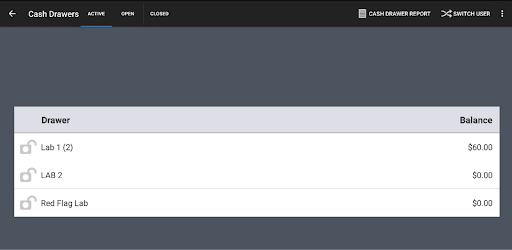
On this page, you will see:
-
The name of each active drawer
-
A lock icon - If the icon is locked, an employee's name will be visible showing who is attached to that drawer
-
Expected amounts for each drawer (if the user viewing this page has the 3.18 Cash Drawers (Full) permission)
Select any active drawer to see the following information:
-
Starting Balance - Amount of cash in the drawer at the beginning of the shift
-
Balance - Current amount of cash expected to be in the drawer.
-
Date - Timestamp of each cash entry.
-
-
Amount - The amount added or removed in any particular cash entry.
-
User - Name of the employee who made the cash entry. Users are not listed for cash payments.
At the bottom of the screen are buttons for Cash Drawer Operations. Read more about these buttons in Using Cash Drawers During Your Shift.
Next to the Active Drawer tab is the Open Drawers tab. Open drawers are those that have been "replaced" with a new Active Drawer at some point throughout a shift but have not been counted and closed. Essentially, Open Drawers are drawers on hold until they're closed. Selecting the name of an open drawer displays additional details about the drawer in question. This page matches the information that you see on the Active Drawer screen.
Back to top
Closed drawers are active or open drawers that have been counted and closed out using the Close Drawer button. Closed drawers cannot accept any type of cash entries, but can be re-opened to adjust the balance or replaced.
The Closed Drawers tab will show you all closed drawers for the day and the time they were closed. Depending on user permissions, you will also be able to see the balance. To see the balance, users must have the 3.18 Cash Drawers (Full) permission.
Selecting any closed drawer will show you all of the drawer's cash entries while it was open. At the top of the screen, you'll see:
-
Starting Balance - How much was assigned to the drawer when it was created
-
Closeout Balance - Amount entered into the POS when closing the drawer
-
Balance - Total amount of cash in the drawer


