In this Article:
Cash Drawer Troubleshooting Video
Check out this Toast Edu Short video that may help troubleshoot if your cash drawer is not opening.
|
You must have the 7.1 Terminal Setup permission in order to access Setup > Device Setup > Open Cash Drawer.
|
Cash Drawer Troubleshooting Steps:
- Make sure that your drawer isn't locked or jammed.
- Check your cables. Remember your cash drawer works in tandem with the attached receipt printer. There is a cable that runs from the back of the printer to the bottom of the cash drawer. Make sure that these cables are connected and secure. Oftentimes a loose cable will cause the cash drawer to not open.
- Once you've inspected your hardware and everything looks good, check out a couple of device settings on your POS. Check that your cash drawer is assigned to the right terminal. Do this as a manager by navigating to Device Setup > Cash Drawer > Select the cash drawer you have assigned > Select No sale.
- If it opens, you're good to go.
- The very last setting you want to check lives under Device Setup. On your main menu navigate to Device Setup. > Select Open cash drawer and make sure that it's set to Automatically open cash drawer when a cash payment is made.
- If it's set to no, that could be why your cash drawer is not opening.
Check out Toast's Shift Review technical documentation for information.
Back to top
|
You must have the following permissions in order to access End of Day, Drawer History, and Shift reports:
- 3.18 Cash Drawers (Full)
- 4.1 Sales Reports
- 4.3 Labor Reports
|
If the cash in a cash drawer doesn't add up to the expected balance, Toast recommends checking a few locations in Toast Web to find and solve the problem:
- Check the End of Day report.
Access the End of Day report by navigating Reports > Cash and loss management > End of day in Toast Web. Change the setting from All receipts to Cash only to only see cash movement for the day. Pay special attention to the Cash Drawer column and look for any payments that didn't go to a drawer and should have or vice versa.
- Check the Drawer History report.
View this report by navigating to Reports > Cash and loss management > Drawer history. This report allows you to break down the details of each cash drawer and each employee who had cash-in-hand transactions.
Select the View button at the bottom of a cash drawer column (labeled by the printer it's connected to e.g. Bar 170) and then scroll down to see each action taken on this drawer during a shift. Make sure all tip-outs and payouts were physically taken out of the correct drawer. You might use the Update Entries button to solve cash discrepancies by adding entries or updating balances, but mistakes made by using this button can complicate things further, so proceed with caution.
- Check the Shift report.
Review the Shift report by navigating to the Reports > Employee performance > Shifts. This report can help you track discrepancies in expected deposits.
Additionally, scroll to the Open Shifts section and ensure all employees have successfully closed their shifts. Any shift reviews left incomplete can contribute to cash discrepancies.
-
Use the Cash Activity Audit Report to review entries like cash drops and negative balances, linking discrepancies to specific employees or events.
-
Leverage the Cash Drawer History report to identify and correct variances between Expected Deposit and Actual Deposit by updating entries where necessary.
Back to top
| You must have the 7.1 Terminal Setup permission in order to access Setup > Device Setup > Open Cash Drawer. |
If the issue of having an amount for cash in the drawer and cash in hand arises:
- First, check your POS device settings under Device Setup.
- Make sure the receipt printer with the drawer you'd like the cash reported to is selected.
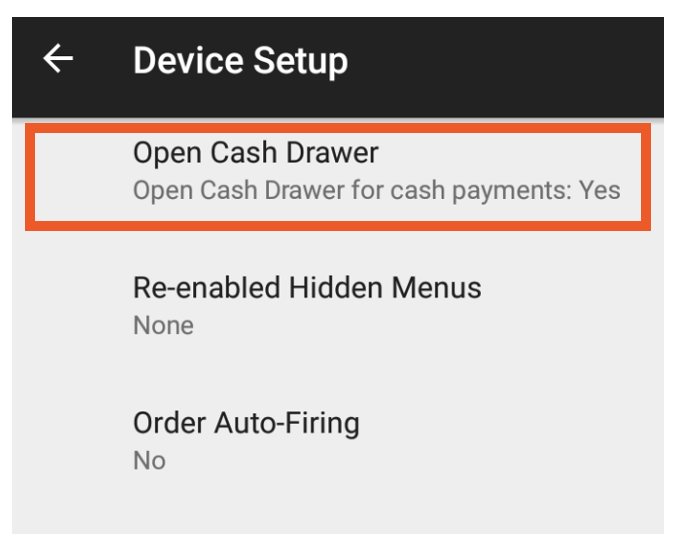
- Also, verify the correct option for Open Cash Drawer is selected (Yes). If not, edit the setting and select the Automatically open drawer option.
Now, find and fix the check(s) causing the problem:
| You must have the 4.1 Sales Reports permission in order to access Reports > Payments > Payments in Toast Web. |
- Find the cash payment that was incorrectly reported by navigating to Reports > Payments > Payments in Toast Web.
- Use Show/hide columns drop-down menu to select Cash Drawer, generating a new column that will show you which drawer, if any, each cash payment was reported under. This column will be blank for cash payments that were tracked as cash in hand.
- Once you locate a payment that was reported incorrectly, pull up that check on the POS to void the erroneous payment before re-adding the cash payment from a device that has the appropriate cash drawer settings to reflect where that payment is actually going (either into a specific drawer or into the server's on-hand cash bank).
- Now that you've updated and closed the problem check(s), go back to Shift Review to verify that it has been updated to accurately reflect the location of cash sales, either in hand or in a drawer, as desired.
Back to top
Check out these troubleshooting details:
- The cash drawers you have been supplied with from Toast work in tandem with the attached receipt printer. There is a telephone cable that runs from the port on the back of the cash box to the port at the back of the printer.
- In the Toast app's Device Settings, you can enable or disable whether or not that tablet specifically opens the drawer automatically when a payment is taken using cash. If the device setting is set to No, the cash drawer will not open.
To fix this:
| You must have the 7.1 Terminal Setup permission in order to access Setup > Device Setup > Open Cash Drawer. |
- On the main menu of the Toast app, navigate to Setup > Device Setup.
- Select the Open Cash Drawer option and set it to Yes. If the Open Cash Drawer is already configured to Yes and the drawer is still not opening, continue on with the steps below.
- Check the connecting cables. Verify that the cable that runs from the cash box to the printer is securely connected on both ends. If not, secure the connection and try to open the drawer again.
- Ensure the attached printer is online and functioning normally. If device-level settings appear to be correct, then the issue typically stems from the attached printer.
- Check your device's network connection. Stationary terminals should be connected to the same secured network as your printers via a physical Ethernet connection, with Wi-Fi turned off. If your location has Toast Go®s that you would like to be able to open the cash drawer, these Toast Go®s will need to be connected to the same network via Wi-Fi.
Back to top
My Shift Review Shows Open Checks but They Are Closed
During a shift review, some checks may show as open when in fact they are all closed. This is a common syncing issue, we highly advise that you wait until the end of the day for all the checks to properly sync.
Back to top
|
You must have the following permissions in order to correct a shift review that was left open:
- 3.18 Cash Drawers (Full)
- 4.1 Sales Reports
- 4.3 Labor Reports
|
If a shift review was not completed, cash may not have been collected or tips paid out.
If the shift review is for today, check out the steps in this Toast Central article, Shift Review Overview, to re-open closed shifts.
The steps below are for a shift review that is in the past and cannot be re-opened from the POS anymore.
- Navigate to Reports > Cash and loss management > Drawer history in Toast Web.
- Select View under the Cash Drawer you would like to make adjustments to, and then select Update Entries.
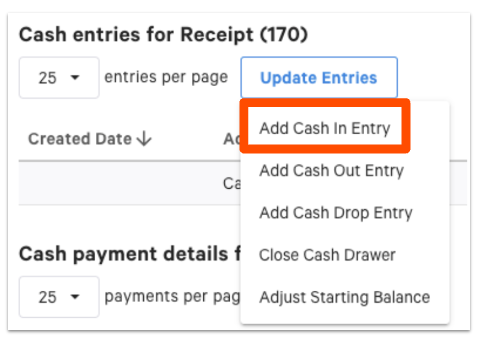
- A window will open right below the View row. To add a cash collected amount select Add Cash in Entry then Cash Collected.
- Select the server the cash was collected from as well as the amount and any comments. Select Submit.
- To tip an employee, select Add Cash Out Entry then Tip Out where you will have the same option to input the amount, select a server, and add a comment. Select Submit.
- Cash In Entry: This can be used for adding a cash amount that was physically placed in the cash drawer, but not properly tracked in the cash drawer
- Cash Out Entry: This can be used for removing a cash amount that was incorrectly tracked to the cash drawer, but the cash was not physically placed into the cash drawer.
Back to top
|
You must have the 6.6 Restaurant Operations Setup permission to access UI options and the 1.12 Shift Review Sales Data permission to review detailed sales data in your own shift review or in the restaurant-wide shift review.
|
Toast has a setting that allows you to calculate cash in hand and cash in the drawer separately. This can affect how an employee's shift review calculates cash received by an employee and may be a cause of a cash discrepancy. It is important to train employees on completing their shift reviews and proper cash declaration to prevent calculation errors. Review your shift review settings by visiting Customize Shift Review Settings.
Back to top
Troubleshooting Issues With Cash in Hand
Cash in Hand refers to cash collected by employees during their shift without relying on a physical cash drawer. Below are common issues that happen surrounding Cash in Hand and troubleshooting steps for proper resolution.
Back to top
Back to top


