|
Only use the IP address change steps below if you have a printer with a static IP purchased prior to July 2021. All new printers purchased after that date will come configured with a DHCP IP address and will not need to be changed. Your printer will automatically connect to your network and you'll be prompted through setup steps. Check out this Toast Central article, Printer Setup Overview for more information.
|
In this Article:
- Begin by plugging in the power supply into the TP200 Toast Printer's orange Power In USB-C port.
- Plug the USB-C to USB-C cable from the printer's red "Power Out" port to your Toast terminal. A diagram of the ports on your printer is shown below.
- USB ports for optional peripherals such as scanners or scales
- USB-C To Stand port
- 2 Ethernet switch ports
- Internet In port for internet connection
- USB-C Power In port
- Cash Drawer cable port

- Next, turn on the power to the terminal. Once the printer is successfully on, a green light will appear.
- Navigate to Settings on the Toast terminal and check the Ethernet setting to verify 192.168.192.XXX has been entered.
- If your network administrator uses a different IP scheme, the terminal should match this scheme.
- The printer has a default IP setting of 192.168.192.200 unless your printer was pre-configured by the Toast Configuration Center. If that is the case, the IP address should match your restaurant IP scheme.
- Open a web browser from the Toast terminal. Then, type in the IP address of your printer into the URL address bar of the browser: 192.168.192.200
- A configuration window for the printer will open.

- Select the Configure Interface button. A window will open requesting a username and password. Enter the Username "Toast". For the password, use the serial number of the device*. The serial number can often be found on a label on the bottom or side of the device. Capitalize any letters in the serial number.
- If the serial number of the device does not work for the password, try using "Toast" as the password.
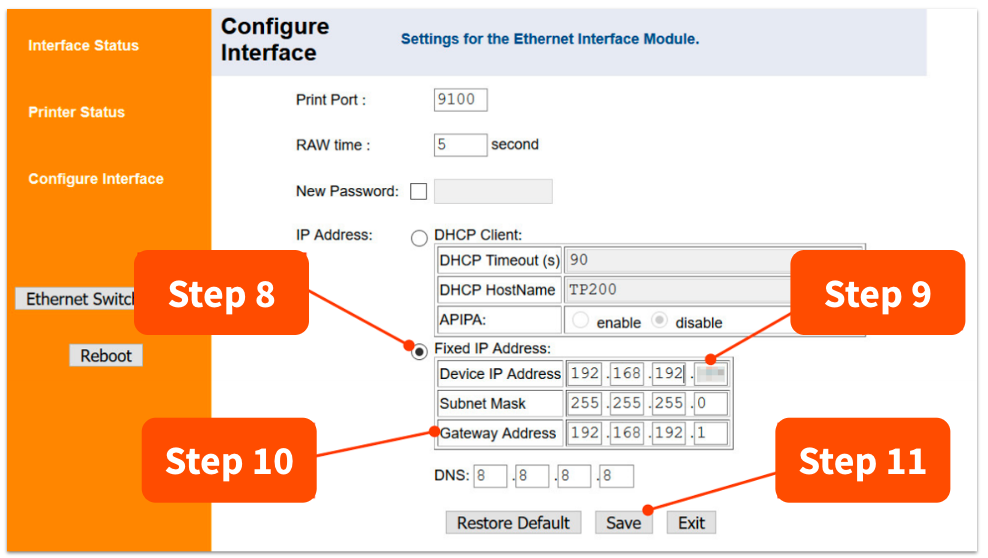
- Under the IP Address section, select Fixed IP Address.
- On the Device IP Address line, type in the printer's new IP address to 192.168.192.XXX with the XXX being an open number from 170 to 255.
- The numbers listed in the picture are examples only.
- Then, verify the Gateway number is 192.168.192.1
- Select the Save button.
- On your Toast Printer, hold the Feed button while pressing the Power button. The printer should print a long configuration page.
- The IP address listed should now be 192.168.192.XXX, the subnet should be 255.255.255.0, and the Gateway should be 192.168.192.1
Nice work! You've successfully changed your Toast printer's IP address.
Back to top
Before updating the IP address on any printer, it's important to locate the current one on the printer you are working with. This can vary from printer to printer, but below are the steps you'll need to take per printer to ensure you are getting the IP address that is currently assigned.
Epson T20, Epson M30 & Epson T88V
- Turn the power switch to the Off position. Note: The power switch is located on the bottom right corner of the printer.
- Press and hold down the Feed button.
- Turn the power switch back to the On position (while still holding the Feed button).
- Release the Feed button once the printer begins to print. A receipt will print out with the printer's IP address on it, along with other configuration settings.
Epson U220B & Epson L90
- Rotate the printer so you are facing the back side where the Ethernet cord is connected.
- Locate the pin-sized hole next to the Ethernet port.
- Insert the tip of a pen into the pin-sized hole and hold the pen there until the printer starts to print (approximately 10 seconds). A receipt will print out with the printer's IP address on it, along with other configuration settings.
Back to top
Now that you have the current IP address of your printer, proceed to check the following settings before updating the IP address.
- The printer must be powered on.
- The printer must be connected to the Toast network.
- If there's another printer with the same IP address, turn off that printer.
If all of the above items are checked, you may proceed to update the IP address using the steps below:
- Locate and launch the web browser on your terminal or handheld device.
- A Toast Flex terminal or handheld device connected to your Toast secured network is recommended to complete this process, as the web browser on Elo devices may encounter issues accessing the required Epson configuration menu. If you're unsure which hardware you have, check out this Toast Central article: Identify Your Toast Hardware.
- Enter the current IP address that you got from the printer's printed receipt into the address bar (where you'd normally type in a website URL). Note: If you're using Google Chrome, you might see a page saying, "Your connection is not private." If so, select Advanced and at the bottom of the page select Proceed to [IP address].
- A sign in pop-up will appear. Use the Username "epson" and Password "epson". If that doesn't work, the Password is the serial number of the device. The serial number can be found oftentimes on a label under the device. Select Sign in.
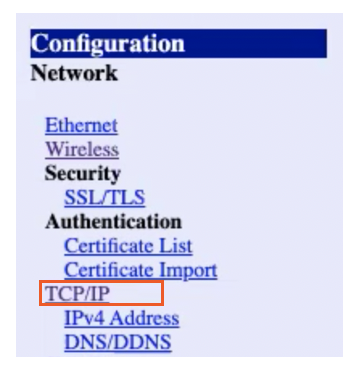
- Navigate to TCP/IP Settings under Configuration.
- Enter the new IP address for the printer in the IP Address field.
- Ensure the settings are set to Manual (or Static) and not Auto (Dynamic/DHCP) for the Acquiring the IP Address field.
- Select Submit.
- Select Reset.
- Turn the printer off and back on again.
Nice work - your printer's new IP address is live! For these changes to be reflected on the POS, ensure that the correct changes are also applied under Payments > Checks & receipt setup > Printers and cash drawers in Toast Web.
Back to top
How to Resolve and Prevent IP Address Conflicts Between Printers
When multiple printers share the same IP address, it can lead to connectivity and printing issues. This problem is common in office networks and systems like Toast, where networked printers rely heavily on IP configurations. Below, we explore the common causes, methods to resolve the conflicts, and preventive measures to avoid future issues.
- Routers Misconfiguring Devices: When printers are connected to the wrong router, they may be assigned the same IP address, causing conflicts.
- Power Outages: Following a power outage, printers can sometimes revert to default IP configurations. This issue is typically caused when printers are set to dynamic IP configurations instead of static ones.
- Network Connection Issues: Printers displaying a default IP address like 192.168.192.169 often indicate a lack of proper network connection.
Back to top
Steps to Resolve Printer IP Conflicts
- Power Cycling:
- Turn off all affected printers.
- Leave them powered down for at least 20 seconds.
- Power each printer back on, one at a time. Allow each printer to acquire a new unique IP address before restarting the next device.
- Feed Test for IP Reassignment:
- Power off a printer.
- Hold the "Feed" button and turn it back on.
- A printed slip will display the printer's assigned IP address. Verify that it is unique.
- Repeat this process for all printers.
- Resetting to Dynamic IP Configuration:
- Set each printer to use the network’s dynamic IP configuration settings. This ensures automatic assignment of IPs, reducing conflicts.
- Confirm Network Cables and Switches:
- Verify that all Ethernet cables are properly connected and not loose.
- If wall ports are used, try testing the port with another device or reset the network switch.
Back to top


