Allow guests to support your restaurant & drive cash flow with digital and physical gift cards that are easy to sell, track, and use.
In this Article:
Check a Gift Card's Balance Overview
Depending on the information you have, there are several ways to locate a guest’s gift card information in Toast POS, Toast Web, or the Toast Gift Card Lookup site.
Please note the Toast Gift Card Lookup Site is currently in limited release with select customers. If you do not see this feature yet, stay tuned for a future update.
Gift card swiping is not currently available for customers in Canada, Ireland, and the U.K.. |
Back to top
To locate a gift card balance on Toast POS:
- Navigate to the order screen on your POS.
- On the right side of your screen, select the Gift Cards button.
- Select Balance Inquiry.
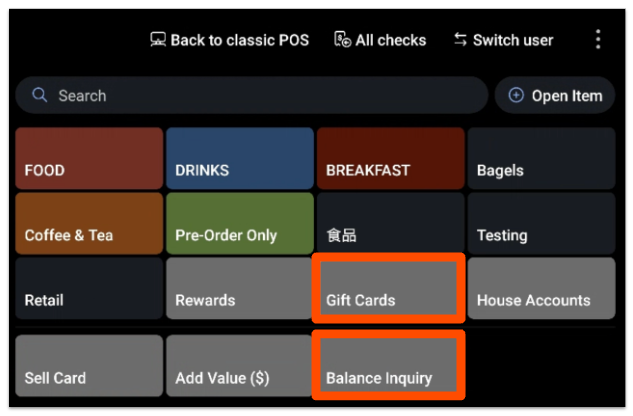
You can key in the guest's gift card number or scan their unique QR code. You can also select the Lookup option to search for a guest's name, email, or phone number and any related gift cards they may have. Select Done to show your results. The balance inquiry results will appear with the card's dollar balance.
Back to top
For your guests to view their gift card numbers and balances, the 16-digit Toast gift card number must be searched, not the imported card number. If you have imported gift cards from a previous service, you can allow your guests to use your Toast Gift Card Lookup site to find their gift card number and associated balance by following these steps:
- In Toast Web, navigate to Payments > Gift cards > Gift card setup.
- Scroll to the Search by imported numbers section.
- Select Are my card numbers secure? to check if your gift card numbers included imported gift card numbers. The results will show right below the button.
- Then, if you wish to enable this feature, select the Search Cards by Imported Numbers on the Public Lookup Page, read the disclaimer and select Yes, I understand and accept the risk.
- Save and publish your changes.
Need a refresher on importing gift cards into Toast? Check out this Toast Central article: Import Gift Cards.
Back to top
Your Toast Gift Card Lookup Site link can be found on your Restaurant info page in Toast Web (Takeout & delivery > Toast order sources > Restaurant info). Be sure to post it on your website and social media pages so guests can find it easily.
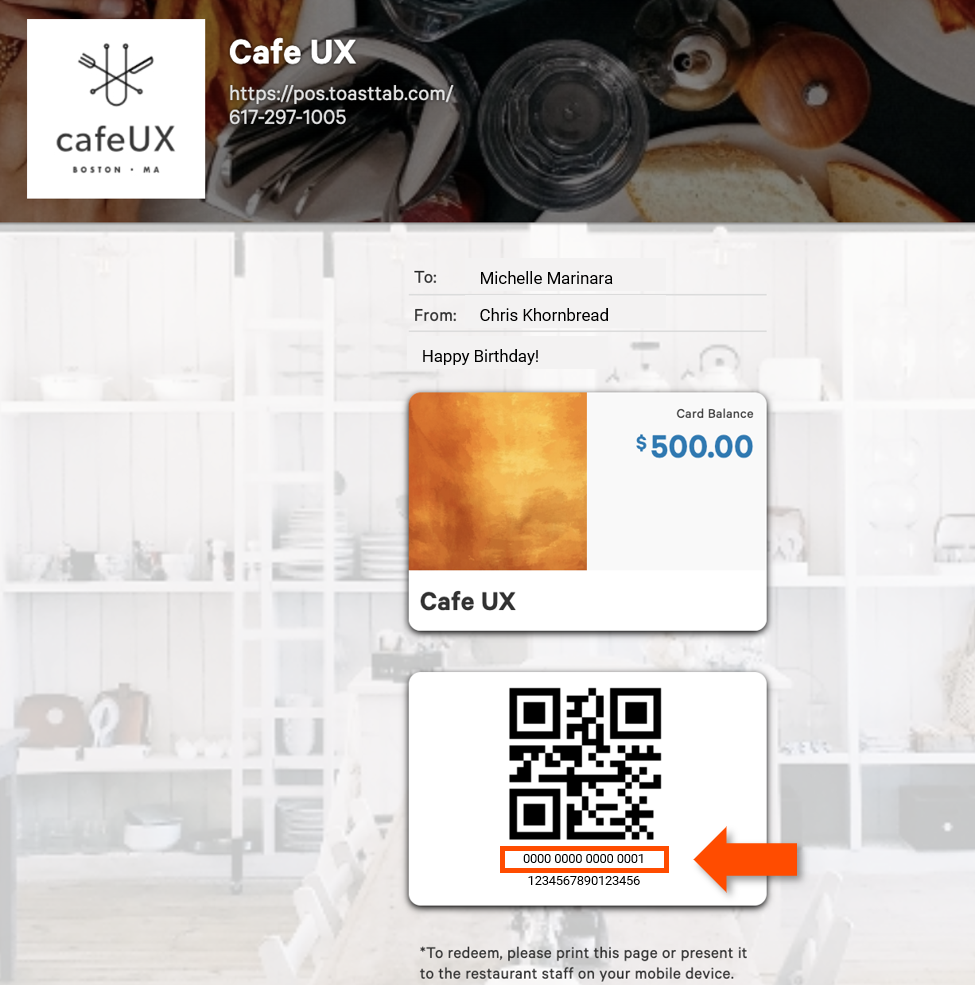
On your Toast Gift Card Lookup site, guests can enter their 16-digit gift card code into the Card Number field and select the reCAPTCHA checkbox. When finished, guests will select Submit to be directed to their unique gift card page.
The guest's 16-digit Toast gift card number will be displayed underneath the QR code and contain spaces after every fourth digit. If your restaurant has Toast Online Ordering enabled, this code can be redeemed as payment for guest online orders.
To get additional information on tracking gift cards sold and redemptions, view the Gift Card Liabilities Report. Gift card liabilities determine what liability transfer is occurring within the organization between locations as gift cards are redeemed at locations that do not own that liability. The redemption store always owes the amount for accepting the original store's gift cards and honoring that liability.
Back to top
The PIN number is located in the original email or text message the guest received when their card was sent, but if a guest contacts the restaurant looking for this number, it can be found by navigating to Reports > Payments > Gift Card Balances OR Gift Card Transactions.
Once on the Gift Card Balances or Gift Card Transactions page, navigate to the applicable card by searching for the card number, and select the card to see Card Details. If the card has a PIN number associated with it, it will be listed here.
You can share this link on your restaurant's website or social media pages so guests can check the balance of their eGift card or add value to their eGift card online.
Note: The PIN number is not needed for Local by Toast or branded app usage.
Back to top
...By Check Number or Credit Card Number
- Navigate to Payments > Transactions & refunds > Find checks & issue refund.
- If searching by check number, enter the check number in the provided field and select a check date, then select Search. The gift card number(s) will be displayed on the Order details page based on the search parameters entered.
- If searching by credit card number, select the Find by credit card tab and input the last four (4) digits of the card number.
...By Transaction Date
- Navigate to Reports > Payments > Gift card transactions.
- Use the View filter to update the date range as needed and use the search bar to look up your guest's gift card information.
- Select the transaction from the list to view the Order Details page.
...By Checking the Gift Card Balances Report
- Navigate to Reports > Payments > Gift Card Balances.
- Use the report filters as needed. Then, select the download icon next to the show/hide columns tab to export the report.
- Once downloaded, you can filter the report and do a lookup using the last four digits of the card number or the gift card purchase date.
...By Checking the Item Details Report
If you have the gift card purchase date, you can use the Item Details report to look up your guest’s gift card. To access the Items Details Report:
- Navigate to Reports > Menus > Item details.
- Use the report filters as needed. Then select the Show / hide columns tab and put a checkmark next to Deferred to locate your guest’s gift card information.
Back to top
Add Value to an Existing Gift Card on the POS
To add value to an existing gift card from the ordering screen, follow the steps below:
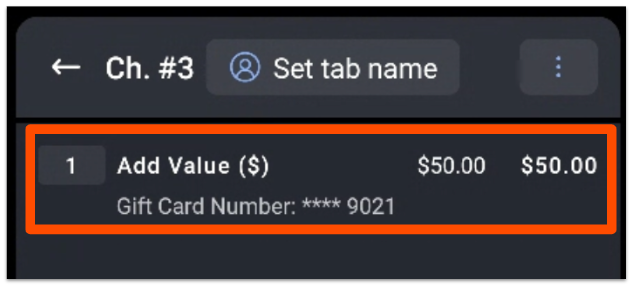
- Select the Gift Cards button, then choose Add Value ($).
- Enter the amount the customer would like to add to their gift card and select Next.
- Locate the guest's gift card account by either keying in their card number, scanning their unique QR code (eGift card), or swiping their gift card.
- The added value will then appear on the order screen and is ready for payment.
Back to top
Adjust Gift Card Balances in Toast Web
You can adjust gift card balances in Toast Web from the Gift card balances report. This allows managers to make adjustments remotely, and to multiple cards if necessary.
To locate your guest’s gift card balance in Toast Web:
- Navigate to Reports > Payments > Gift Card Balances.
- Locate and select the gift card number that you'd like to adjust.
- Select Adjust Balance.
- Enter a value to increase the gift card balance. You can enter a negative (-) sign before the number to reduce the gift card value by a certain amount.
- Select Save.
- Repeat this process for other gift cards as needed.
Back to top
Additional Resources


