Learn how to configure delivery fees and minimums when using your own drivers. If you use Toast Delivery Services (TDS), see Toast Delivery Services Overview to learn more about delivery fees and minimums.
In this Article:
Watch this short video or follow the steps below:
Learn how to set delivery fees using your own drivers.
- Log in to Toast Web and navigate to Payments > Service charges.
- Select the +Add button.

- A new screen will appear, allowing you to decide the necessary configurations. Select Yes for Delivery and add the Waive Fee Threshold and Delivery Distance Threshold if applicable.
- Name: Name of the service charge. Example: "Delivery Fee."
- Charge Type: Fixed Percent, Fixed Amount (dollar), Open Amount (user enters dollar amount each time this service charge is applied)
- Charge Percent/Amount: How much will be charged depending on whether a percentage or dollar amount is selected.
- Apply After Amount Threshold: After any order reaches this dollar amount, this service charge will automatically be added to the check.
- Assign to Check Owner (Gratuity)?:
- If set to Yes, this service charge will be charged as a mandatory gratuity and paid to the driver.
- If set to No, this service charge will not be charged as a mandatory gratuity paid to the driver; it will instead be included in the Net Sales for the day (think of this option like a delivery fee).
- Learn more in Get Started With Service Charges and Mandatory Gratuity.
- Taxed?: If Yes, the Service Charge will be included in the taxable amount of the check. If No, the Service Charge will NOT be included in the taxable amount of the check.
- Delivery?: If Yes, then this service charge will automatically be assigned to the check when the Dining Option is set to delivery.
If Delivery? is set to Yes, advanced options will appear.
-
- Waive Fee Threshold: This fee will automatically get applied to a check after the dining option is set to delivery. After this dollar amount, the fee will automatically be removed (but can be manually reapplied).
- Delivery Distance Threshold: This fee will only be applied if the distance is greater than or equal to the entered distance AND the dining option is set to delivery. This distance is calculated in terms of driving distance from your restaurant to the delivery address, not on proximity.
Note: Distance is automatically calculated in miles for Customers in United States and United Kingdom and kilometres for customers in Canada and Ireland.
You can now set up multiple delivery fees and choose whether they are considered employer-kept service charges or mandatory gratuities. You can also set up multiple mileage-based service charges and delivery zones around your restaurant. Note: When configuring service charges for a delivery fee based on mileage, it does not need to have Delivery? selected in the service charge configuration. Anything marked Delivery? will apply to any delivery order and override the delivery threshold.
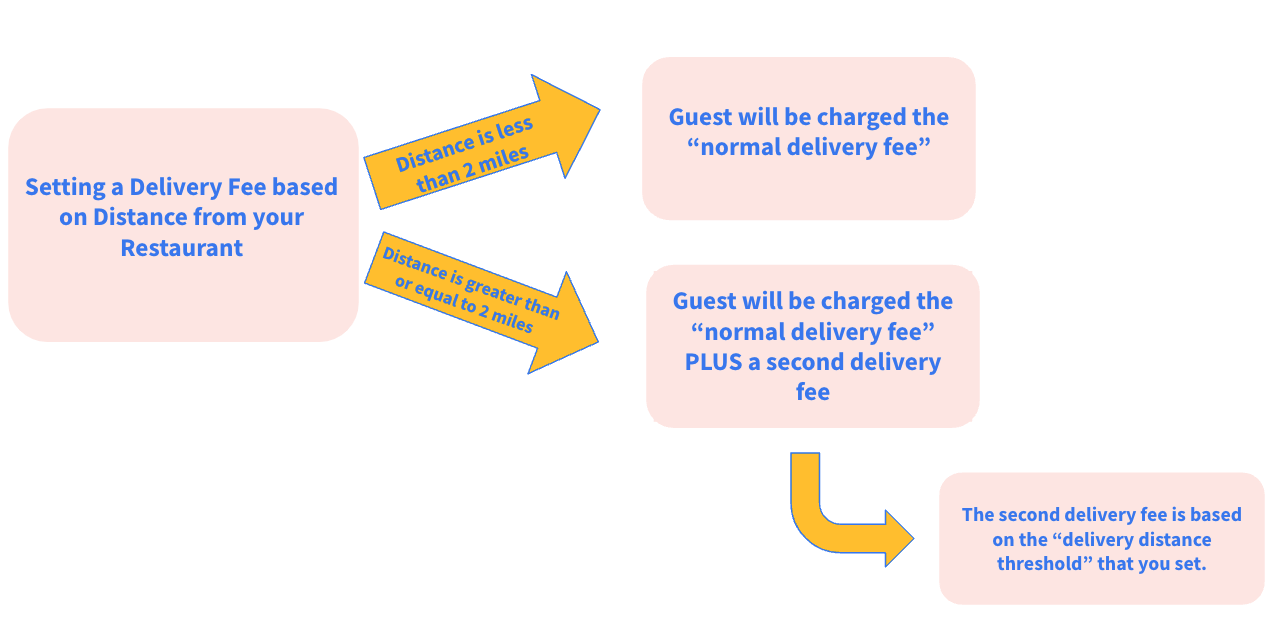
Above is an example of how delivery fees will be structured based on the delivery distance from your restaurant. In this example, the distance that would incur the second delivery fee equals or exceeds 2 miles. You can choose what distance the second delivery fee incurs by inputting a value in the Delivery Distance Threshold.

- Save and Publish your changes.
Back to top
Applying a delivery minimum for online orders is a quick and easy process.
Note: Delivery Orders taken in-house will need to manually enforce the minimum amount for deliveries.
- In Toast Web, navigate to the Takeout & Delivery > Online ordering.
- Under the Approval header, select Use rules to enable the Approval Rules header. Here, you can decide if orders should be sent directly to the kitchen. In the Trigger Amount field, enter the minimum amount the customer must spend for a delivery order.
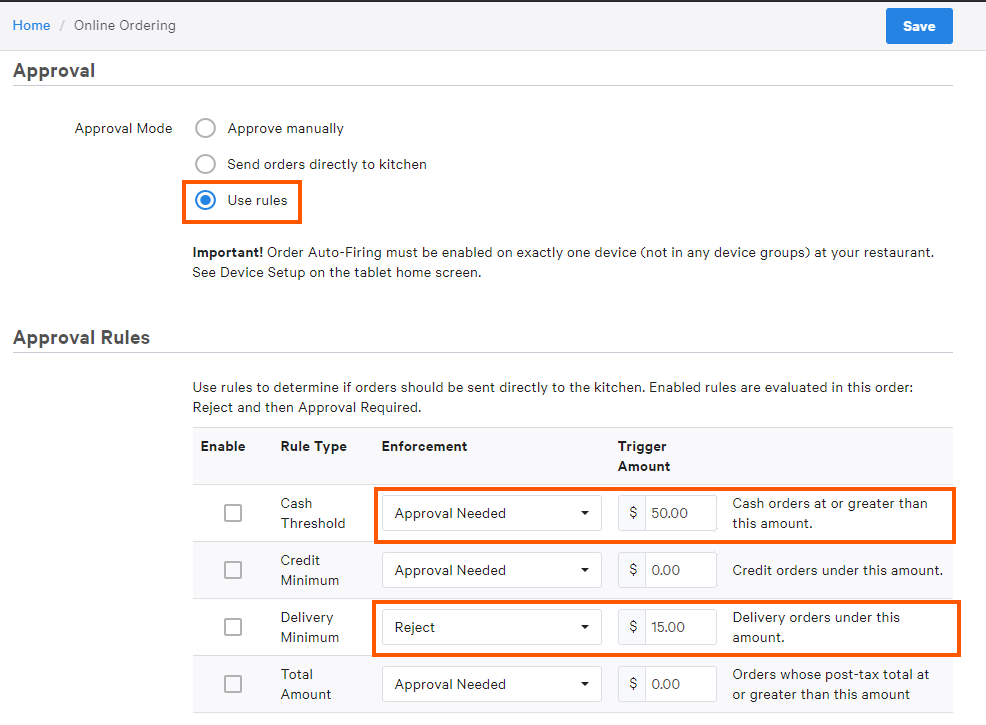
- Approval Needed - If the order does not meet the minimum amount required, the manager will need to manually approve/reject the order and the customer will be notified directly.
- Reject - If the order does NOT meet the minimum for delivery online, the customer will not be able to proceed to the checkout process.
- Save and Publish your changes.
Back to top


