Looking for a live training experience with a Toast Training Expert? Sign up for a live Toast Classroom session to help you set-up and get started with Multilocation Management 201! Select the button below to sign up.
Toast Classroom - Multilocation Management 201
In this Article:
For restaurants using Toast's Enterprise suite, menus can be "copied" and shared with other restaurants in a couple of different ways. Here, we will outline our recommendations, in order, to duplicate portions of your menu and share it with other restaurant locations.
Note: This functionality is only available to restaurant owners/operators with restaurant group-level edit permissions. Those with local menu edit permissions may not be able to reproduce the steps listed below. For more information on permission sets for Toast's Enterprise suite, check out our technical documentation: Assigning restaurant group-level permissions.
If your restaurant does not use Multi-location Management (MLM), please contact our Customer Care team to copy menus between locations.
Back to top
If you're using a menu or menu group that is targeted by a restaurant group and would like to alter its content to fit a particular location, we recommend creating a version of that menu/menu group. Creating a version allows you to alter the menu groups or items offered at that location without affecting the offerings of other locations using the shared menu--all while keeping your reporting clear of duplicate menu entities.
This can be useful if you want to utilize the same cocktail menus as your sister restaurant but offer fewer drinks. Or, you can use the same dinner menu but add a few location-specific items using local ingredients. For more information on versions, check out our technical documentation: Versions.
- In Toast Web, navigate to Menus > Bulk management > Advanced properties.
- Navigate to the menu or group you wish to version and select it.
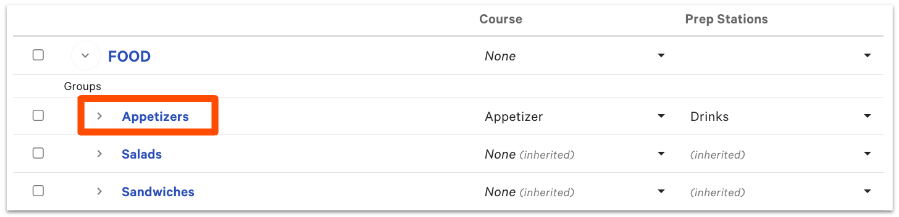
Note: We typically recommend versioning menu groups if you want to customize the items used for each location and versioning the menu only if it's availability needs to be altered for a particular location (see Set Menu Availability to learn more).
- On the following page, select + New Version.
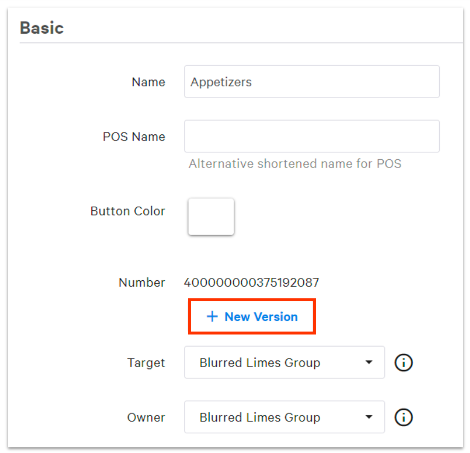
- On the pop-up menu that appears, use the drop-down menus to select the appropriate Target and Owner for this version. Need a refresher on targets and owners? See this technical documentation: Key enterprise concepts.
- Select Submit.
- Save and publish any changes once you're finished.
You've created a menu version! From the Advanced properties page, it can be spotted using the Number column. Versions will have the same number for multiple menu entities.
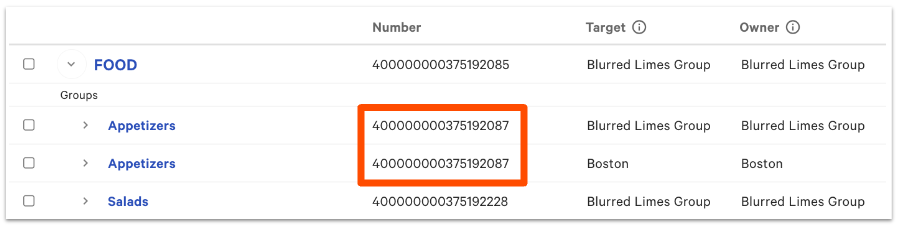
If you want to further customize this version, click into the menu or group and add/remove menu groups or items. Then, be sure to save and publish your changes.
To create multiple versions at once, use the items database. Check out more in this Toast Central article, Use the Items Database to View and Manage Menus.
Back to top
Copies of existing menus can be made and shared with other restaurant locations by changing the target and owner fields. However, we typically don't recommend this method of sharing menu information because it will create duplicate menu entities that will appear in your reporting.
This can be useful if you need to create a separate online ordering menu that includes different menu and menu group names to make the ordering process more guest-friendly. Or, if you need to create a duplicate of an existing menu with a different menu availability schedule.
- In Toast Web, navigate to Menus > Menu management > Edit menus.
- Find the menu you'd like to copy, and then select the three-dot overflow menu to the right of the Owner column.
- Select Copy.
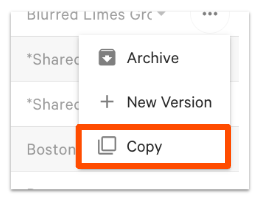
- Refresh the page and the copy will appear below with "(Copy)" in the title. You may then change the Target and Owner fields to share this menu with other locations within your restaurant group.
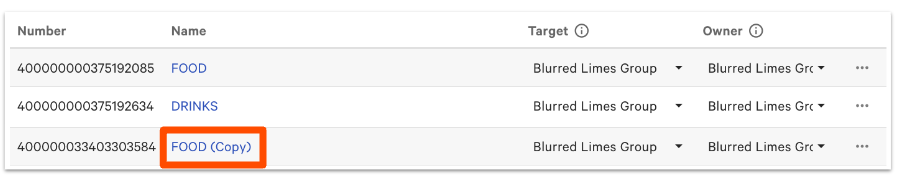
Note: The items within the menu will remain "shallow copied", meaning changes made at the item level will affect other menus where that item is used. To change menu groups and items without affecting the original menu entity, learn more about creating a "deep copy" in this Toast Central article, Reuse or Copy Menu Groups, Items, and Modifiers.
If you don't have restaurant group permissions and you attempt to copy a menu targeted at the restaurant group level, you won't be able to edit the items within the menu, as they will remain targeted at the restaurant group level.
Back to top


