Learn essential Toast Web configurations for going live! Select the button below to start this learning path.
Getting Started with Toast Web
In this Article:
|
Toast’s menu item feature is not intended to configure or enable credit card surcharges. You may not use menu items to add any fee or other amount that does not represent an item offered for sale during your business. Customers attempting to use the menu item feature to assess credit card surcharges bear a risk of non-compliance. Noncompliance may result in card network fines or other liabilities under state law. You are responsible for any noncompliance from using the menu item feature.
|
Toast makes managing and creating items for your menu easy. Creating items follows the same pattern as creating menus and menu groups, except you can assign a price to the item. Once groups have been created, items can be added to your menu inside those groups.
Before creating a new menu item, make sure to check that the item doesn't already exist elsewhere in your menus. Creating multiple versions of the same menu item can result in a cluttered menu setup that is hard for servers and guests to use, inaccurate menu reporting, and more time spent on menu maintenance. If the item already exists on your menu somewhere else, consider reusing it in your new menu by using the Add Existing option. Learn more here: Reuse or Copy Menu Groups, Items, and Modifiers.
Note: When you select a group to add items, you'll also see additional settings, such as pricing, modifiers, and subgroups. To learn more about these menu management features, please review these additional resources.
- In Toast Web, navigate to Menus > Bulk management > Advanced properties
- Then, expand the menu and select the name of the group you'd like to add an item to.
- Navigate to the Items section on the group details page.
- Select +Add.
- Enter the Name and the Price in the text fields.
- Save and publish your changes.
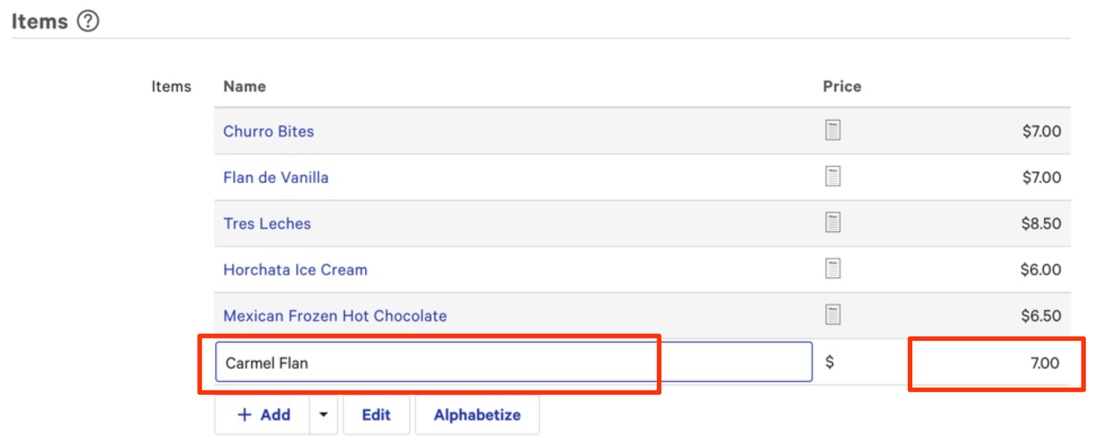
Note: Menu availability (the days/times a menu is available on your selected ordering channels) can not be adjusted at the menu group or item level. This means you cannot add a new menu item that is available on different days or times than the rest of the menu. Learn more here: Set Menu Availability.
Back to top
If you're building your menu from scratch, you can manually input menu items using a spreadsheet and the Bulk Add Items feature.
To add menu items in bulk:
- Once on your menu group (such as "Appetizers"), scroll to the Items section and select the drop-down next to the + Add button.
- Select Bulk Add New Items.
- Using the format at the top of the Bulk Add New Items prompt, copy and paste your menu items from an Excel sheet.
- Select Add to add your items in bulk.
Back to top
If needed, add items in Toast to other groups in your menu.
- Select the arrow next to the + Add button to open a dropdown menu.
- Select Add Existing Items.
- Use the search bar to type in the name of the desired items. Once the item(s) appears in the search results below, select the desired item(s). Note that you may also search for an item using its POS Name or Kitchen Name.
- Once the desired item(s) are chosen, select Done to add them to your menu group.
Note: If you want to add an item that is similar to an existing item but with a different price or item name, Toast recommends creating that as a new item instead of adding the existing item to a new menu or group.
Back to top
You can make changes to your menu item settings from any of the menu editing tools, but Advanced properties allows you to look at your entire menu at once and apply changes to more than one menu element. Navigate to Menus > Bulk management > Advanced properties and quickly manage key settings including menu visibility, tax rates, prep stations, and sales categories. Learn more here: Use Advanced Properties to Edit Your Menus in Bulk.
You can also use the Price editor to update prices of menu items in bulk. To learn more, see this Toast Central article: Use the Price Editor Tool.
To make edits without immediately publishing them, adjust visibility settings during your edits (so that the menus you're editing aren't visible anywhere) and switch the menu back to visible after finalizing changes. This ensures live menus remain unaffected. Learn more: Manage Your Menu Visibility Settings.
Back to top
Item buttons can be arranged in any order. You can do this directly from Toast Web or by using Quick Edit Mode on your terminal. It's common to arrange the most popular items to the top of the group for easy access for servers. To change the item order from your computer or laptop, follow these steps:
- Navigate to the menu, menu group, or subgroup you want to organize.
- Scroll down to the Items list, and select Edit at the bottom.
- Select the six dot (⋮⋮) icon next to any item name, and then drag to rearrange the order of the item. Alternatively, you can select Alphabetize at the bottom of the Items list to quickly organize the entire list.
- Select Done when finished.
- Save and publish your changes.
Back to top
Easily edit the name of Items in Toast Web. Navigate to the item details page, and make your desired changes to the Name, POS Name, or Kitchen Name. Not sure what the difference is? Check out this Toast Central article: Customize Menu Item and Modifier Names for POS and KDS.
Back to top
Items in Toast cannot be deleted, only archived. If an item is removed using the steps below, it'll still be accessible via the items database.
- In Toast Web, navigate to the Menus > Bulk management > Advanced properties.
- You can just expand the menu and select the name of the menu group with the item you'd like to remove.
- Scroll down to the Items section and select Edit.
- Select the X icon next to each item you wish to remove. Select Done when finished.
- Save and publish your changes.
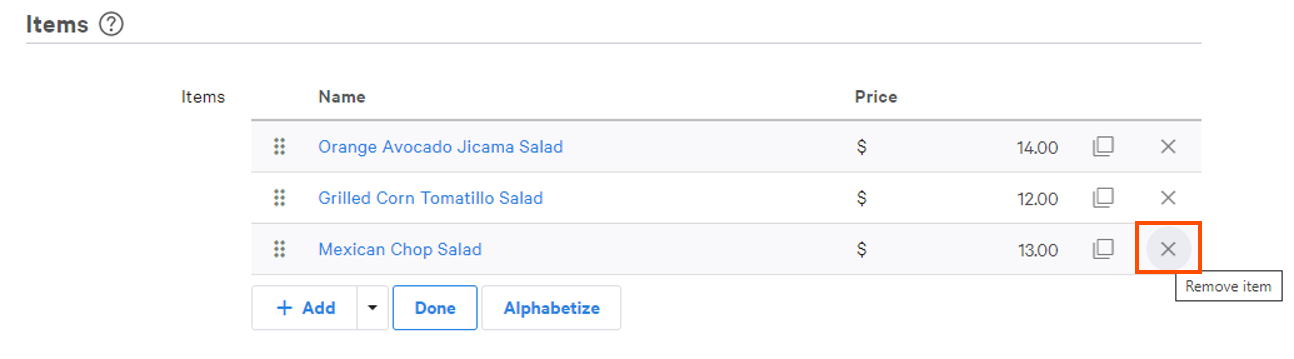
Note: If you're not temporarily removing this item and you don't anticipate the need to keep it in your Items Database, check out Use the Items Database to View, Archive, Restore, and Version Menus.
Are you looking for more resources on menu engineering and best practices? Check out this video below!
Unlock the secrets of menu engineering to analyze and improve your menu items and increase your restaurant's profit. Learn the key concepts of profitability and popularity and how to calculate crucial restaurant metrics without needing a finance degree. Then, discover how to analyze your menu's data to make informed decisions and categorize menu items into four types of performers: dogs, puzzles, plowhorses, and stars. Understand why each type is important and how to maximize their value. Plus, hear real-time from restaurateurs. Finally, after analyzing your menu, get actionable tips and tricks from Toast POS to enhance your menu's performance.
Back to top


