Looking for a live training experience with a Toast Training Expert? Sign up for a live Toast Classroom session to help you set up and get started with Menu Basics! Select the button below to sign up.
|
The following steps will walk you through setting up modifier groups and options in Toast Web with the legacy menu feature. For step-by-step instructions on how to set it up using the menu builder, check out this Toast Central article: Manage Menus with the Menu Builder.
|
Menu hierarchy overview for modifier basics.
Modifiers enhance flexibility for menu items by allowing customizations such as toppings, sides, or preparation styles. They can also manage pricing for add-ons or optional choices, creating a dynamic guest ordering experience.
- Modifier group - a collection of individual modifier options. Modifier groups are only needed to help organize modifier options. These groups will not print on receipts or tickets. "Meat Temperature" is a modifier group in this example.
- Modifier option - individual options used to change, add to, or further define items that are being ordered. Modifier options are what are actually selected when placing an order. Modifier options will print on a receipt or ticket. The meat temperature options such as "Rare" and "Medium Rare" are the modifier options in this example.
There are three levels where modifier groups can be applied:
-
- Group level
- Subgroup level
- Item level
Modifier groups applied at the group or subgroup level are considered a "parent" modifier for all items in that group. For instance, "Side Choice" (like fries or side salad) might be placed on the group or subgroup level so any menu item in that group/subgroup can be customized to add a Side Choice.
Modifier groups at the item level allow for your guests to make changes to an item. For example, you may have a "Meat Temperature" modifier group that includes "Rare", "Medium Rare", etc. as the modifier options. If this group only applies to your "Carne Asada" menu item, you'd apply this group on the item level. The image below is an example of how the modifier groups described above would appear within your menu hierarchy:
Note: You can preview how your menus will look on your POS using the
View POS Layout feature in the
Menu manager or Menu builder. To learn more, see
Can I preview how my menus will look on my POS?.
A few more features of modifie
Modifiers can have flexible pricing strategy to account for free modifiers, upcharges, or price reduction.
Modifiers can be tailored to specific menus needs. Here are a few scenarios where you might be able to use modifiers in your menus:
- Drink customization
- Allow guests to select one option from several, such as the brand of tequila in a margarita.
- Create a modifier group for Tequila. The modifier options will be the individual brands you provide your guests (e.g. Don Julio, Patron, Casamigos, etc.). The modifiers can be priced differently if needed.
- Salad dressings or add-ons
- You can set these modifiers as optional if desired.
- Meat temperature
- Pizza toppings
Back to top
Creating a modifier must be done in Toast Web. Group/subgroup-level modifiers are added from the group/subgroup details page, while item-level modifiers are added from the item details page.
Creating modifiers starts with creating a modifier group. These are created in much the same way as creating menus, groups, and items, and can be added, deleted, renamed, and re-ordered in the same way.
- Navigate to the appropriate group, subgroup, or item details page for the modifier you want to add (go to Menus > Menu management > Menu manager to find your desired menu entity).
- When you select a menu, group, subgroup, or item on the Menu manager, a settings panel will appear on the right side of the screen.
- Select the +Add new button under the Modifier groups section. This will bring up the modifier group details page.
- Name your modifier group, then select your desired settings. In the Modifiers section, type in the Name of your modifier and then select + Add to create a new modifier in this group. For example, if you created a "Dressing" modifier group, you might make modifier options like "Ranch", "Vinaigrette", or "No Dressing".
- In the Modifier group settings section, you can determine whether selecting a modifier from this groups is Optional or Required, include a POS prompt that displays this modifier group to a server before they can continue with the order, or allow guests to select more than one modifier. If guests can select more than one modifier, you'll be able to designate the maximum number of chosen modifiers (if applicable) and whether a single modifier can be selected more than once.
- Select Save and Publish all changes when you're finished.
To access additional settings like default modifiers and display ordering priority, select the Advanced settings button at the top of the modifier group details page.
-
Default modifiers
-
Override? - (optional) allows you to override the default modifier option if this modifier group is in use already on your menu. Note: It is common to use this on the item level.
-
Default modifiers - (Optional) If the check box for Override? is selected, you can select a default modifier from the modifier group that will automatically be selected when placing an order.
- For example, the House Salad could be set to have Ranch dressing as the default modifier, and it will automatically add Ranch to the order. However, if you have a guest who would prefer the House dressing instead, the server can still select the preferred dressing.
Note: If a modifier group uses pre-modifiers, you'll need to choose if it uses the global default or if you've created a separate group of pre-modifiers for this specific modifier group. To learn more, check out this Toast Central article: Create and Manage Pre-Modifiers.
On the modifier group details page, you can make selections that apply to the entire modifier group, including:
- Name, POS name, and Button color
- Modifier Pricing
- Modifiers (the modifier options within the group)
- Making modifiers required or optional
- Include a POS prompt
- Allow guests to select more than one modifier
- and Channel visibility settings
The modifier pricing strategy determines how modifiers within that group are priced. On the modifier group details page, in the Pricing section, you'll see a setting that asks How are modifiers in this group priced? The available options are:
- No charge. This is a good option for modifier groups made up entirely of complementary items, like a mandatory salad dressing.
- All modifiers share the same price. If you select this option, you'll see an additional section with settings where you can set the pricing strategy for this modifier group.
- Each modifier has a unique price. If this option is chosen, you'll be able to set the prices for each modifier option individually by selecting the modifier from the list and entering the price on the modifier details page.
Additional modifier group settings can be accessed by selecting Advanced settings at the top of the modifier group details page:
As always, be sure to save and publish any changes you make to your modifier groups to push your changes to your POS.
Back to top
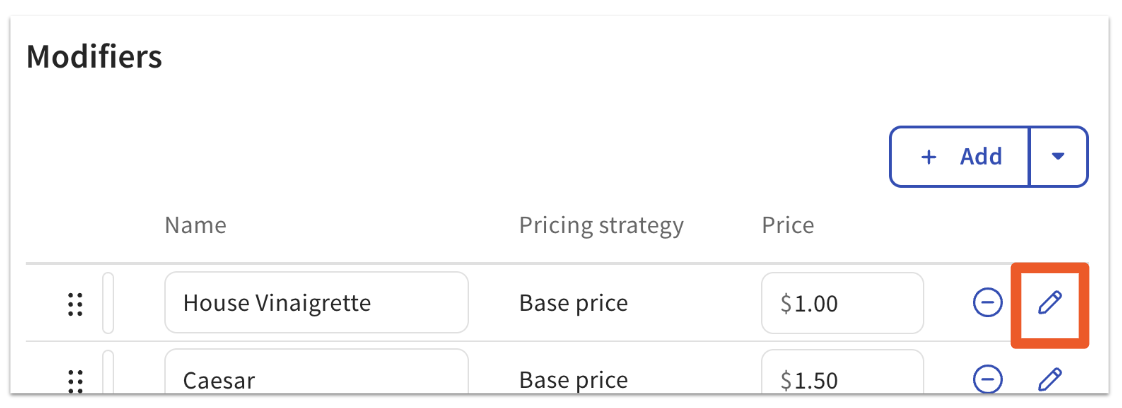
Selecting the pencil icon next to an individual modifier option when you're on the modifier group details page will bring up the option to edit modifier settings such as name, calories, POS button color, and modifier price.
Duplicate modifiers are commonly used in bakeries, coffee shops, bagel shops, wing shops, or BYO-style restaurants to:
- Select multiple flavors with a dozen bagels or donuts (e.g., 6 plain, 6 everything)
- Select multiple sides within a combo meal (e.g., 2 sides of mac & cheese, 1 side of coleslaw)
- Select multiple sauces within an order of wings (e.g., 2 ranch, 2 barbecue)
- Select multiple toppings to a salad, bowl, or taco (e.g., 2 feta cheese, 2 carnitas)
For more information on setting up duplicate modifiers, check out Set Up and Use Duplicate Modifiers.
For some items or groups, you may be able to re-use modifiers you've already built out in your menu. For example, perhaps "Bone-in Wings" and "Chicken Tenders" use the same sauce options, or the "Sandwiches" group and "Lunch Specials" group use the same set of side options. To re-use a modifier group, see the steps below:
- Navigate to the menu group or item you wish to add a modifier group to.
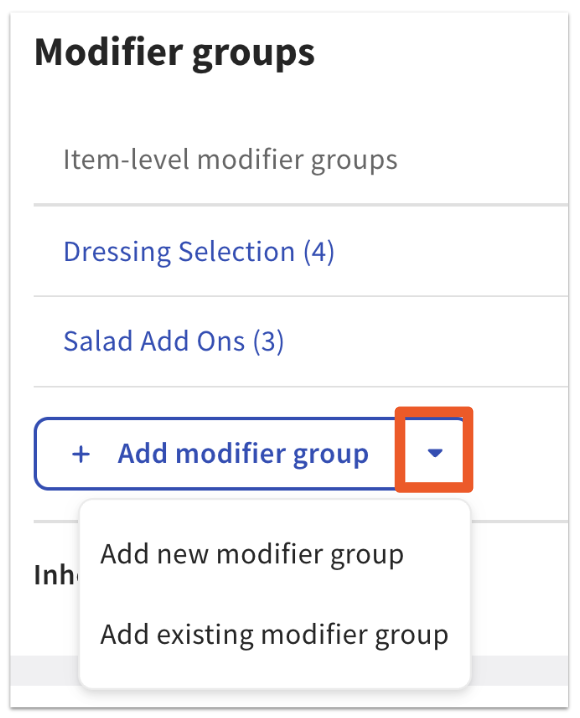
- Scroll down to the Modifier groups section and select the down arrow next to the + Add modifier group button.
- Select Add existing modifier group.
- On the pop-up screen, use the search bar to type in the Name or POS Name of the modifier group you want to use here.
- Select the group(s) from the search results and select Add modifier groups when finished.
- Save and publish your changes.
If you'd rather create a copy of an existing modifier group to change its pricing or behavior elsewhere in your menu, check out this Toast Central article to learn about the copy & deep copy functionality for Toast menus: Add or Copy Menu Items and Modifiers.
Back to top
You may want to require a server to select a modifier, for example, if a guest orders a salad and you always want to have your server ask them what type of dressing they would like.
Watch the video below for an overview of how to adjust modifier behavior. Instructions in the edit menus workflow begin at 0:58.
Menu modifier behavior overview.
There are a couple of ways you can change modifier behavior in Toast:
-
If you’d like to make these changes in the menu builder tool, navigate to the menu group you’d like to adjust. Then, select the pencil icon. Under modifier group settings, you can select optional or required. If you select Optional, the Include a POS prompt option will allow you to display the modifier group before a server carries on with the order.
- You can also make changes to the behavior by selecting the modifier group and scrolling to the properties section.
There are two settings that control modifier behavior:
-
Required - Staff and/or guests must make a selection and they won't be able to send this item to the kitchen without a modifier selection.
- Optional - This modifier group is optional. Instead, the staff member or guest will need to select the modifier group for it to show and to enter any modifiers.
- If you choose this modifier behavior, you'll see the ability to Include a POS prompt (previously referred to as "Optional - Force Show"). This setting means the modifier group will automatically show when the item is added to a check. A selection is not needed or required though, and staff and/or guests will be able to skip over if they'd like to.
To learn more about modifier behavior and some common use cases for each, check out this Toast Central article, Configure Modifier Behavior.
Back to top
You can customize your modifiers further in several ways:
- Default modifiers can be set for items with an already selected list of modifiers. For menu items with common modifiers, a default modifier list may improve POS entry. This feature can be found by navigating to Front of house > Order screen setup > UI options in Toast Web and scrolling down to the Show Default Modifiers? setting. Learn more in this Toast Central article, Create Default Modifiers.
- You have the option to have the default modifiers to be printed or shown on a ticket by selecting your preferred setting via Front of house > Order screen setup > UI options > Show Default Modifiers?.
- Modifier Group Sorting will list modifiers on the order in a specific order regardless of which order the modifiers were added. This is helpful when the order of modifiers is important for order prep stations. To learn more about this features, check out this Toast Central article, Configure Modifier Display Options.
Back to top
There may come a time when you'll have to remove a modifier group. For example, you're no longer adding "Additional Toppings" to your "House Salad" item, so you need to remove the modifier group and all of its options from Toast.
- In this case, you'd find and select your House Salad menu item on the Menu manager (Menus > Menu management > Menu manager). This will bring up the House Salad settings panel on the right side of the screen.
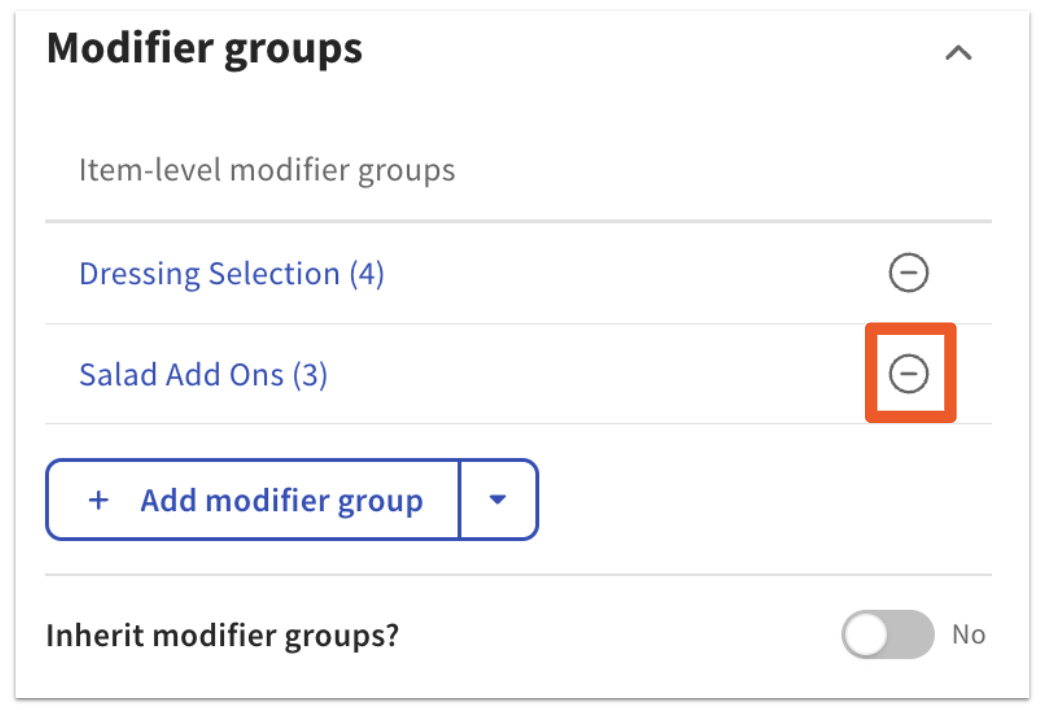
- Scroll down to the Modifier groups section and find the Salad Add Ons group.
- Select the (-) icon on the right side of the modifier group to delete it.
- Save and Publish all changes to push them to all of your devices.
The same can be done to delete an individual modifier by opening the modifier group and selecting the (-) icon under the table of modifier options.
You can always restore these menu entities at a later time. Check out the following Toast Central articles for more information:
Back to top
Troubleshoot Modifier Groups
Empty modifier groups can cause issues for your staff taking orders on POS, or guests attempting to place an order online or on one of your third-party ordering platforms, like DoorDash, Grubhub, or Uber Eats. An example of an empty modifier might be one named Add Condiment(s), but which contains no selectable options, such as Ketchup or Mustard.
Empty modifier groups might:
- cause synchronization errors with third-party integrations like the aforementioned
- affect the visibility of entire menus on integration platforms
- create issues in both the POS system and online ordering
You can rectify these issues by adding selectable options, or removing the modifier group entirely.
If you seem to be missing modifiers, check your visibility settings. If the modifiers are supposed to be visible to the POS but you don't see them when you select an item, make sure that the modifier behavior is either set to Required or Optional - Force Show. See the Edit Modifier Group Settings section for instructions.
Back to top


