In this Article:
You can customize your online ordering website to include information about your restaurant, images of your choice, and a description. For a guided walkthrough of this setup in your Toast account, select the button below.
You can customize your online ordering page with your restaurant's description and images and item images and descriptions by following the steps below:
- Log in to Toast Web and navigate to Takeout & delivery > Toast order sources> Restaurant info.
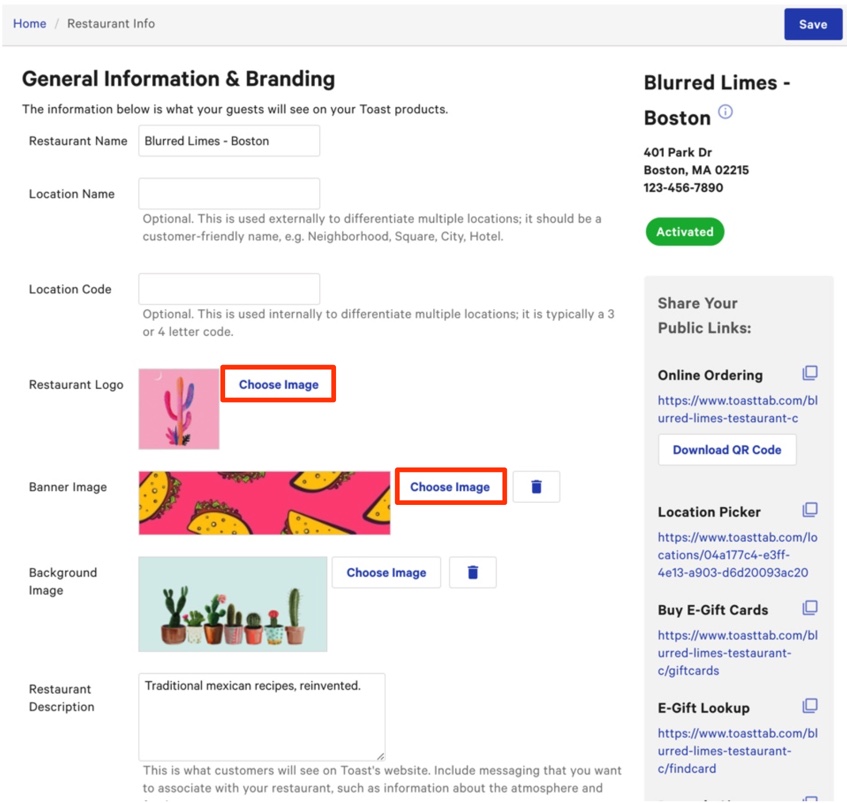
- From here you can enter your restaurant's information such as Restaurant Name, Location Name, and even a Restaurant Description for your guests to see.
- Next, upload or update your Restaurant Logo and Banner Image by selecting Choose Image next to each option to further customize your site. Specifications for these images are:
- Restaurant Logo: Square image at least 180px x 180px (1:1 aspect ratio)
- Banner Image: At least 1920px x 1080px (16:9 aspect ratio)
- Note: Images can be either PNG or JPEG files.
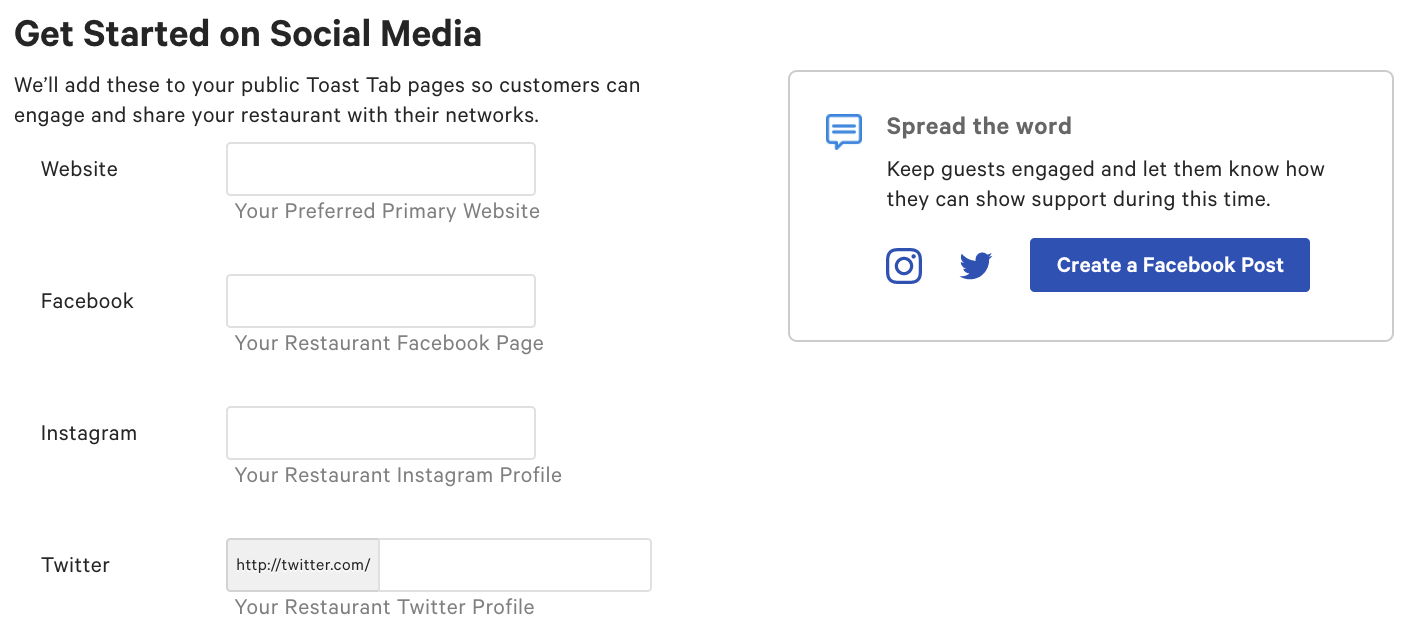
- Further down the page, you'll be able to add your Website URL, Facebook Page URL, and Twitter Account to be displayed on your online ordering site.
- Next, locate your Toast Tab Page URL and add it to your restaurant's website.

- Then Save and Publish your changes.
Note: Toast will normally default to your guest's recent Takeout/Delivery option instead of prompting for Takeout/Delivery every time they visit your Online Ordering page. If you would like to prompt for either Takeout (Pickup) or Delivery every time a guest visits your page, then add /?mode=fulfillment to the end of the URL shared on social media or linked to your website (not added to the custom Toast Tab Page URL in the Restaurant Info page). For example, the URL would be: https://toasttab.com/blurred_limes/?mode=fulfillment.
A restaurant's Online Ordering URL can be customized to specifically relate to the restaurant. This can be handy if a restaurant is going through a name change or if they want to shorten the URL.
- In Toast Web, navigate to Takeout & delivery > Toast order sources > Restaurant info.
- Locate the Toast Tab Page section and enter your desired URL into the text box.
Note: This will only edit the URL after http://toasttab.com/

- Then Save and Publish your changes.
- Navigate to the Share Your Public Links section and select the link under Online Ordering to see how your guests will view your site. Restaurants can also select Download QR Code to download the specific QR code to their Online Ordering page. By easily printing it or adding it to the restaurant's website, guests can scan the QR code and see the restaurant's menu with the ability to order.

- You can then see how your guests view and interact with your site.
Use the Location Picker
The Location Picker is useful to organize your restaurant info if there are several restaurants in your group.
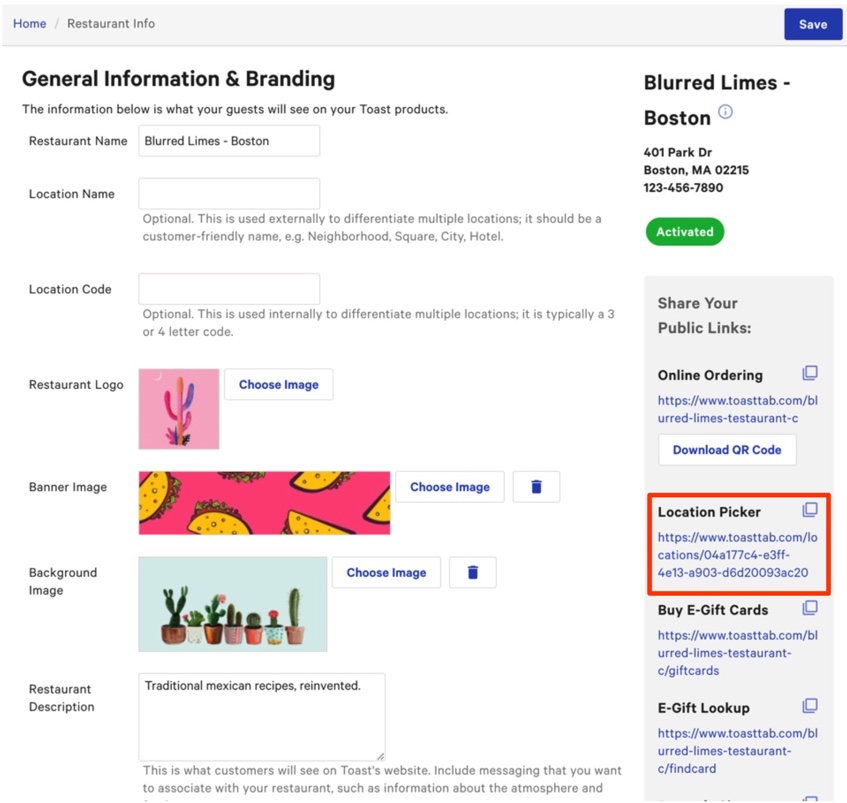
Unfortunately, the background image and logo were pulled from a random location in the restaurant group. That means a different logo may appear when guests use the Online Ordering page. The best way to manage that is to have every location use the same images in the back-end under background info. Ensure the background image has a high resolution to prevent blurriness on the Online Ordering page.
Note: If you're not seeing one or more of your restaurant locations in the Location Picker, navigate to Takeout & delivery > Branding & customization > Branding and customization configuration. Scroll to the bottom of the last tile named Settings. Expand the drop-down menu and select each location that was not present on the Location Picker. Save and Publish your changes. Once you return to the Location Picker, you may need to refresh your page to see your changes. Learn about adding a location to the location picker here: Online Ordering: Add a Location to the Location Picker.
Your restaurant's website is one of your most visible marketing assets, so showcasing your online ordering options is extremely important. If you want to add an Order Online button to your website, our article Adding Digital Ordering Buttons to your Website has buttons to download with the corresponding HTML.
Back to top


