In this Article:
Video overview of using discounts on the POS.
Individual menu items can be discounted from the ordering screen. There are two ways you can discount an item on a check. Both are listed below.
Note: An employee must have the 3.1 Discounts permission in order to have access to comp items and apply discounts as listed below. If an employee without that permission attempts to use a discount, they will need to enter a manager passcode.
To discount an item on a check:
- Select the item you wish to discount. Then, select Discount Item.

- Select the discount you'd like to apply to that item, which is preconfigured in Toast Web. If the discount is either an open $ or %, then one more screen will show up and you'll have to enter the amount you would like to discount.
In the example below, we want to discount $3.00 from the $13.00 Tune Crudo, which shows as a 23.08% discount.

Should the option require a manager passcode, you'll be prompted to enter in that information. Otherwise, the discount will be applied and visible as a line item below being discounted on the ordering screen.
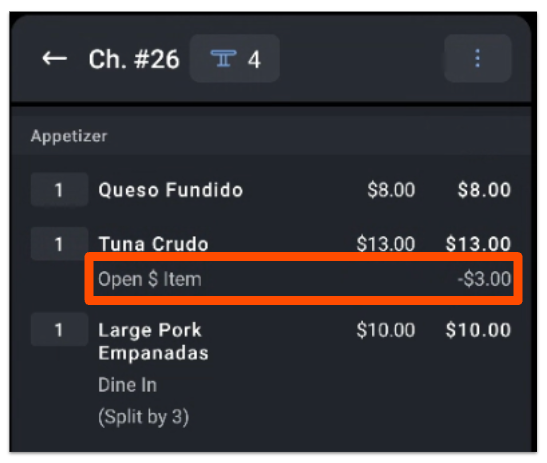
Another way you can discount an item on a check:
- While on the check, select/highlight the item you want to discount and select Discount at the bottom of the check details, next to the Pay button.
- Follow the steps listed above.
Here are some of the options that you may want to configure on your Discounts page. Learn more about configuring and applying multiple discounts in this Toast Central article, Get Started With Discounts.
- Comp Item - Quickly comp the item entirely (100%). This may be used if a guest is dissatisfied with the item.
- Open Dollar - Key in the dollar amount by which to discount the item.
- Open Percent - Key in the percent amount.
Back to top
You can apply a discount to an entire check from the ordering screen.
- Add all the items to the check and then select Discount at the bottom of the check details, as shown below.

- The discount options screen will appear to the right of the check with options to Apply to Check or Apply to Item.
- Apply to Check will be selected by default and will display all eligible check-level, combo, and preconfigured discounts.

- Select a discount. If the discount is either an open $ or %, then one more screen will show up and you must enter the amount you would like to discount. In the example below, we chose to comp 20% of the check which will be reflected in the check details after selected.

You'll be prompted to enter that information if the option requires a manager passcode. If not, the discount will be applied and visible as a line item below the item being discounted on the ordering screen.
Note:
- A manager or other administrator may configure additional discount options.
- Discounts are applied to the pre-tax total. For example, if a check is discounted to $50 be it via an item or check discount, then the total will be taxed based on $50.
Back to top
To learn more about adding a discount after taking payment, check out the Negative Balance is Due on a Check section of this Toast Central article, Get Help With Checks That Will Not Close on POS.
To remove a discount, first select the item with the discount applied. Then select the same
Discount button on the right side of your screen. The discount will then disappear.
Back to top


