In this Article:
Allowing guests to select the same modifier more than once is a strategy commonly used in bakeries, coffee shops, bagel shops, wing shops, or BYO-style restaurants to:
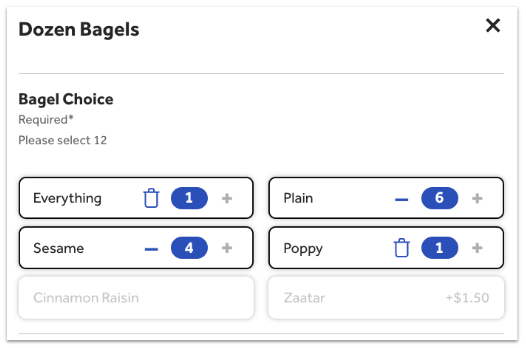
- Select multiple flavors with a dozen bagels or doughnuts (e.g. six plain, six everything)
- Select multiple sides within a combo meal (e.g. two sides of mac & cheese, one side of coleslaw)
- Select multiple sauces within an order of wings (e.g. two ranch, two barbecue)
- Select multiple toppings to a salad, bowl, or taco (e.g. two feta cheese, two carnitas)
Multiple modifier selections will respect modifier pricing. If a specific modifier costs an extra $1.50 and your guest selects it three times, they will be charged $4.50. If you've enabled quantity tracking on the item, multiple modifiers will reduce the item's stock count accordingly.
To set up your modifier group to allow guests to select the same modifier more than once, follow these steps:
- In Toast Web, navigate to Menus > Bulk management > Advanced properties.
- Use the arrow (>) icons to expand your menus until you see the modifier group you'd like to update.
- Select name of the modifier group to open the modifier group details page.
- Scroll down to the Modifier group settings section, and for the Allow guests to select more than one modifier? setting, choose More than one modifier can be chosen. If you've made this a required modifier, you'll also be able to set the minimum # of selections and a maximum # of selections.
- For the Can the same modifier be added to an item more than once? setting, select By default, the same modifier can be added more than once in this group. This would allow a guest to select three everything bagels in a dozen, for example.
- Save and publish your changes.
There might be an instance where you want to limit how many times guests can select one specific modifier. For example, if you have a special bagel flavor of the day and you don't want guests to select it multiple times. On the modifier group details page, you can make modifier-level adjustments to specific modifiers within that group.
If you have a modifier group where you only want one modifier option to be selected more than once, you'll enable multiple modifier selection for the modifier group as a whole by following the steps above, then follow the steps below on all of the modifier options that can only be selected a single time.
- Start by selecting the modifier group from the Advanced properties page in the Menus section of Toast Web.
- Scroll down and select the name of the modifier you'd like to disable multiple selection for. This will bring up the modifier details page specific to this modifier option.
- Scroll down to the Modifier settings header and select No, this modifier cannot be selected more than once for the Can this modifier be selected more than once when ordering? setting.
- Save and publish your changes.
Back to top
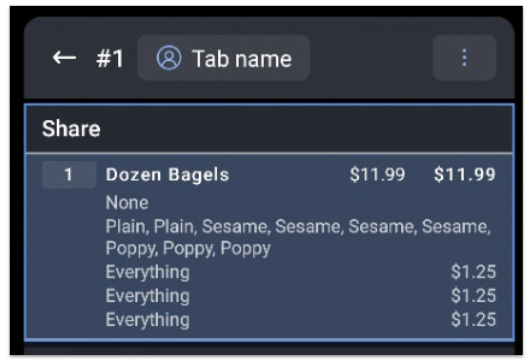
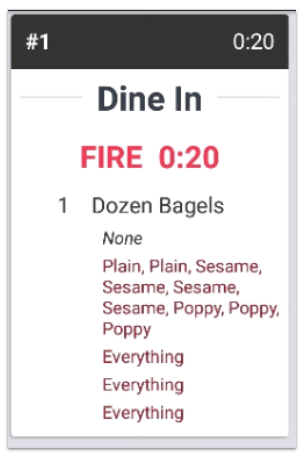
When your modifier groups are set up to allow guests to select the same modifier multiple times, it may show up differently on your POS, kitchen screens, and Toast Online Ordering page based on the settings you've chosen. See the sections below to understand how they will appear.
Want to group together similar modifier selections? See the Consolidate Modifiers section of this Toast Central article, Configure Modifier Display Options.
Back to top
Yes, you can set up multiple modifier selection to work with Local by Toast, Toast Mobile Order & Pay®, and third-party ordering integrations such as Uber Eats and Doordash (but not Grubhub).
Toast is not currently able to price based on the number of times a modifier is selected after a certain point. However, if the modifier is priced (i.e., not free), then the price will multiply as expected.
Yes, the current limit for modifier selection is 24.
No, if a modifier has nested selections, selecting same/multiple of the top-level modofier is not supported. To learn more about nested modifiers, check out this Toast Central article: Build Nested Modifiers (Add Modifiers to a Modifier).
Back to top


