| Article Body | In this Article:
Time Entry Management Overview
| What's changed? In short, the new Time Entry Management page gives you quick access to edit clock in times, clock out times, and declared tips. What's more, you can check an employee's scheduled hours against their actual hours worked if you use a scheduling integration (such as Sling by Toast). Locate this page right away by selecting Time entry management from the Quick Actions menu on your Toast Web dashboard. |
Reviewing and editing the hours your employee worked and using that data to help submit payroll is a critical workflow in Toast Web. That's where Toast's new Time Entry Management feature can help! By providing more robust information related to an employee's time entries in our simplified Shift Details, the system helps you manage labor costs by:
- Managing labor costs with missed break reporting and schedule variance data
- Comparing data across days and locations to enhance decision-making and improve operational efficiency
- Saving time with features like in-line editing so you can spend your valuable time addressing other operational items
Back to top
How Time Entries Work in Toast Web
When an employee clocks in and out of a shift or break in Toast POS (or if you have bi-directional time clock configured through the Sling app or kiosk) a time entry is instantly created to Toast Web. You can then access it via the Time Entry Management page and Time Entry reporting. Some considerations when reviewing:
- All checks under an employee's name must be closed out in order for the employee to be able to clock out on the POS terminal.
- An employee's open shift can be closed manually via the Time Entry Management page if they have completed their shift review or their shift was closed by the nightly auto-clock out.
- If a time entry is edited for an employee who completed a shift review, the shift will be re-opened and the shift review must be completed again.
- If you delete an employee's time entry, not only it will reopen the shift review, but it will also remove the employee's tip out and cash collected entries from the cash drawer history report.
- If any of your employees were clocked out by the system, they are considered "auto-clock outs." Correcting auto-clock outs can help your business maintain accurate data around employee clock in and clock out times.
- If your employee clocks out of their shift without clocking out of their break first, typically there will not be a "clock out" time captured for the break. Our system does not consider a shift clock out a break clock out.
Note: If you use Toast Payroll, familiarize yourself with how Toast Web and Toast Payroll handle time entries via their integration. Toast Payroll: Manage Timesheets has more information.
Back to top
Time Entry Management and Report Navigation and Permissions
- To access the new editable time entries page in Toast Web, select Time entry management from the Quick actions menu on the homepage.
- You can also access other labor reports via the reporting side navigation from Time entry management.
- To access your restaurant's historical time entry data and wage & pay information, navigate to Reports > Employee performance > Time entry reporting.
- To view time entries, users must have an account and profile in Toast Web and the 4.3 Labor Reporting permission.
- To make changes to time entries, a user must have an account and profile in Toast Web and the 3.14 Edit Time Entries permission.
Back to top
View the New Time Entry Management Page
| Since this page is no longer a part of the Labor Summary collection, any filters applied to other labor reports do not directly transfer to this report. They must be applied separately from other employee performance reports. |
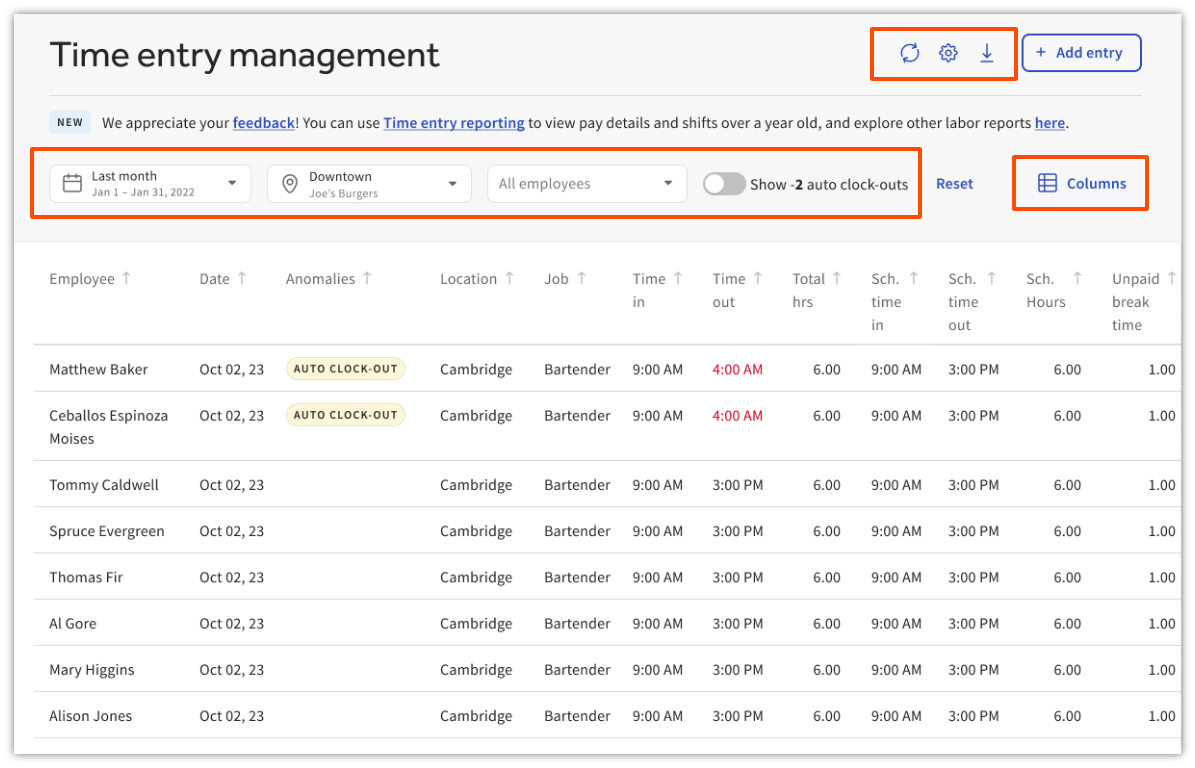
- The date range drop-down menu is the same as other reports and will adjust which time entries you see.
- You can view shifts within the past 12 months. There are date presets such as Last 2 weeks, 3 months, 6 months, etc., that you can also select from.
- If you need to view data older than one year, use the Time Entry Report (select the link under the calendar) to view time entries up to 25 months old.
- If you need to access or download time entries or clock-in information that is older than two years, contact Customer Care via the Toast Now app for entries older than that.
- The location drop-down menu within the Time Entry Management page lets you select all time entries within a restaurant group or location for which you have appropriate permissions. You may select multiple locations at once. This function is separate from the system-wide location drop-down.
- The Select employee drop-down menu allows you to locate specific employees. If the selected date range has shifts for archived employees, they will be shown in this list in gray.
- The Columns button lets you add or remove information on the page.
- Four items have been removed from this data filter: Regular Pay, Overtime Pay, Total Pay, and Wage. To view these fields, access the Time Entry Report. Navigate to Reports > Employee performance > Time entry reporting.
- Three buttons appear in the top right corner (visit the section below for + Add entry):
- The circle arrow icon refreshes the page for the most current data directly from your POS devices.
- The gear icon opens a Report Settings page. For now, you're given an option to change the spacing and font size.
- The download icon will download whatever information is on the page (with filters applied).
Back to top
Shift Details
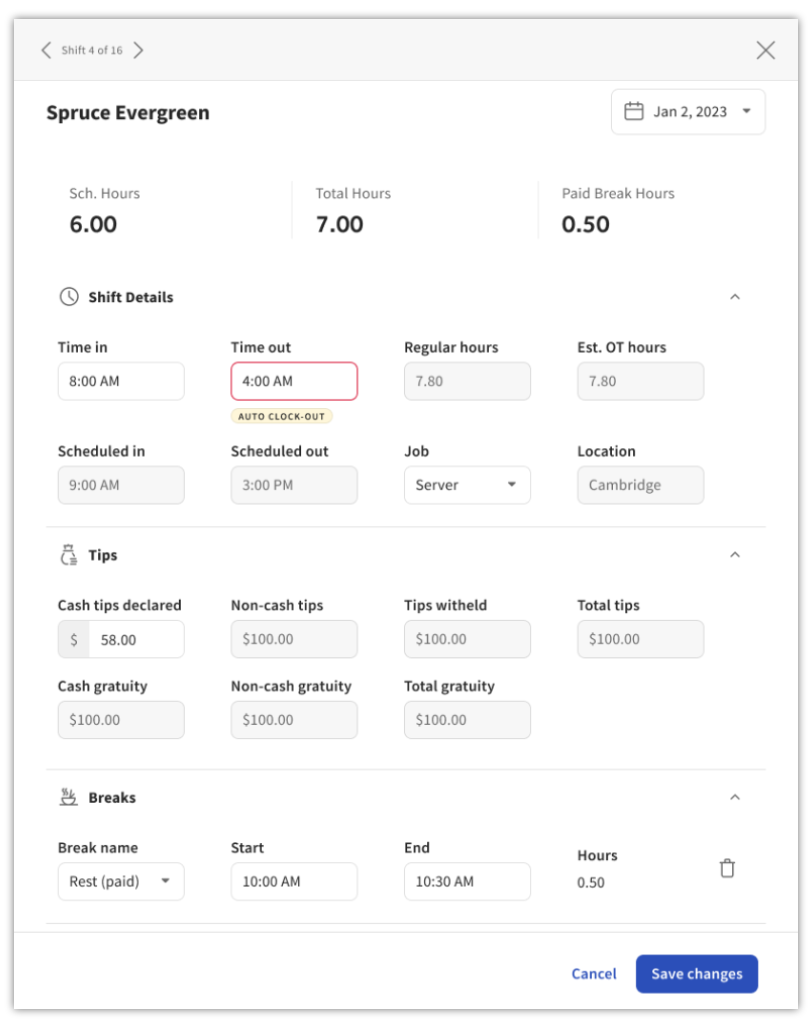
Get a more detailed look at your employee's shift using the Shift Details menu. To view the Shift Details, select an employee's shift by selecting the row next to their name on the Time Entries Management page. Some features of this view include:
- Sch. hours: If your location is connected with a scheduling integration partner, the Sch. Hours field will show the employee's information for the corresponding shift. Interested in exploring this feature? Try Sling by Toast for free!
- The Sch. Time in and Sch. Time out fields are extensions of this feature and will only populate when a scheduling integration is connected. When these are missing or incorrect, the error lies in the scheduling software integration and not Toast.
- Regular hours: Reflects the hours worked by your employee, excluding any daily overtime hours.
- Est. overtime: These hours are based on the work week start date and overtime rule settings in Toast Web (not Toast Payroll or other payroll integrations).
- Tips: These are the tips collected by the employee via their sales. The Tips field reflects pre-pooled amounts (the Toast Tips Manager report reflects post-pool values, if applicable). If the employee's shift is still open, these amounts may not be final.
- This section will only display if the corresponding job of the shift is a tipped job.
- Breaks: In order for breaks to appear in your shift details, you have to have your settings configured for breaks. This section will display all breaks taken.
- If missed break tracking is enabled, it will also display breaks your employee did not take, but was eligible to take.
- If break acknowledgement tracking is enabled, this page will also display your employee's break acknowledgement response.
Back to top
Edit an Employee's Time Clock Entries and Breaks
There are several ways to edit your employee's clock in, clock out, breaks, and declared tip amounts as they relate to their worked shifts.
From the POS Terminal
Managers can update employee time entries for the current work week on the POS by navigating to the main menu of the Toast app and selecting Review Employee Shifts under the Manager Activities section.

On this screen, you'll see Active shifts at the top and Closed shifts below, with total payments, cash in hand, and non-cash tips information displayed for each employee.
To adjust a time entry on the POS:
- Navigate to Manager Activities > Review Employee Shifts on the POS.
- Select the shift you'd like to adjust, and make your desired change.
- For active shifts, you can make a change to the Clock in time, or select Clock out to clock out for the employee. Shifts must be closed before employees can be clocked out, so when selecting the Clock out button you'll be automatically redirected to the shift review screen.
- For closed shifts, you can clock out an employee, adjust the clock in or clock out time, declare cash tips, or remove the clock out time. If shift review hasn't been completed, the Declare cash tips button will not be available.
- To reopen a shift, select Remove next to the Clock out time and then select Save changes.
- Be sure to select Save changes if any adjustments have been made.
Note: You won't have the ability to remove the clock in or clock out time for your own shift.
Back to top
From the Time Entry Management Page
- The Anomalies column shows irregularity detected in shift data and is displayed passively when managers review completed shifts.
- The most interesting feature of the new experience is in-line time entry editing. By hovering over Time in, Time out, or Cash tips decl. (declared) fields on this page, you can fill in a blank box or adjust a filled-in box. This is the easiest way to edit or update a time entry.
- Some considerations when editing or adding data on this page:
- Fill in a blank box or edit a filled-in box.
- Time must be entered in a 12-hour format.
- Select the adjacent checkmark or hit Enter on your keyboard to save any adjustments made.
Back to top
From the Time Entry Shift Details
If you need to edit additional fields unavailable via in-line editing, select the row of the shift, clicking anywhere outside of the editable fields.
- Review scheduled hours compared to clock in/clock out data. In order to evaluate on time performance, you can compare an employee's scheduled shift hours against actual hours worked. This will also help you better forecast and build your schedules accordingly.
- To delete a shift and its time entries from the Time Entry Management page, open the shift details and select the Delete button in the lower-left corner.
- Add or edit break clock in/clock out data
- Add or edit declared cash tips
- Edit the job assignment of the shift
Back to top
From the Time Entry Report
| With the introduction of the new Time Entry Management page, this feature will be removed in time. To access this page, select the Time entry reporting hyperlink from Reports > Employee performance > Time entry management. |
- From the legacy Time Entries report, select the time entry you wish to update.
- Select Edit. This will allow you to modify Time in, Time out, Job (if more than one is assigned to an employee), or Cash tips declared (if the employee collects sales/tips).
- Use the + Add another break button if you want to indicate a break in their total time worked.
- The Delete button allows you to delete the time entry entirely instead of making edits.
- Select Save changes.
Back to top
Create a Shift
- To create a new time entry, select + Add Entry. Once you've added the shift details, select Save entry.
- Be aware of your company's pay period when adding new time entries. If a pay period's hours have been submitted and/or processed through your payroll system, those hours will not be included in your employee's paycheck.
- If you receive an error that a time card has already been created for an employee, but you are unable to see it on the Time Entry Management page, it may be due to an employee clocking in at midnight or before on the previous day and working into the day you are viewing. To view the time entry, expand your date filter to include the day prior and you should see it.
- The system will automatically set the location to the one you're logged into in Toast Web, but this can now be changed without having to back out and correct your filter/location.
- When creating a shift, the drop-down menu options are conditional on your respective selections. For example, after you select a location, only employees who have a profile at that location will appear in the Employee drop-down menu. Similarly, when an employee is chosen, only locations where their profile is active will appear in the Location drop-down.
- An employee's shift cannot be added when they don't exist at a location or they are not assigned a job. Jobs will only appear if the selected employee is assigned to those jobs. To assign a job to an employee, read the Update Employee Jobs section of Add and Employees and Wages for Toast POS.
- There are guardrails in Toast Web that prevent you from adding a non-valid time entry. These include:
- Shifts cannot be over 24 hours long
- The time out must be later than the time in
- The cash tips amount must be valid (numbers and punctuation only; no need to enter a $ sign)
- The shifts you create for a single employee cannot overlap. If an employee is already working 6:00 PM - 10:00 PM, but they are working a different job role from 3:00 PM - 6:00 PM, you must make the first shift end at 5:59, or the second shift start at 6:01.
- However, this overlap is not true for Sling by Toast where overlapping entries are allowed.
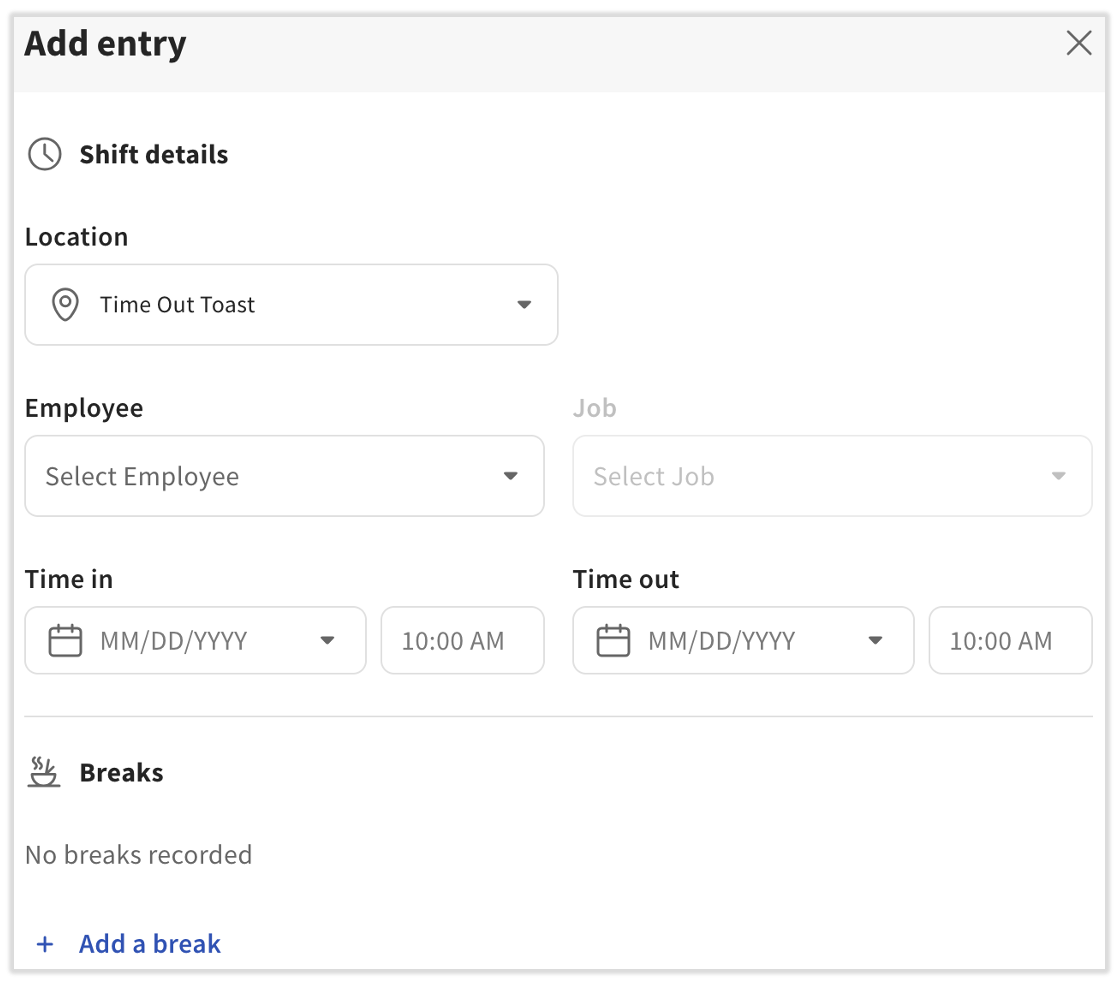
- From the Time Entries Report, select + Add entry.
- Select an Employee from the drop-down and fill in the rest of the shift details as needed.
- If applicable, you should also select the appropriate restaurant location from the drop-down.
- Select Save entry to finish.
Note: If you receive an error that a time card has already been created for an employee, but you are unable to see it on the Time Entries report, it may be due to an employee clocking in at midnight or before on the previous day and working into the day you are viewing. To view the time entry, expand your date filter to include the day prior and you should see it.
Back to top
|
|
|---|


