The following features in Takeout / Delivery setup are available and were created specifically to support the unique operating needs of bakeries and catering-style restaurants.
The Scheduled Orders section under Takeout/Delivery Setup in Toast's back-end will allow you to better manage scheduled orders and keep track of guests coming in and out to pick up orders.
In this Article:
This section of Toast's back-end will assist restaurants (such as bakeries or catering-style restaurants) with heavy use of scheduled orders to manage the order and pick-up process better.
- Log in to Toast Web and navigate to Takeout & delivery > Availability > Takeout/delivery.
- Scroll down to the Scheduled Orders section.
Back to top
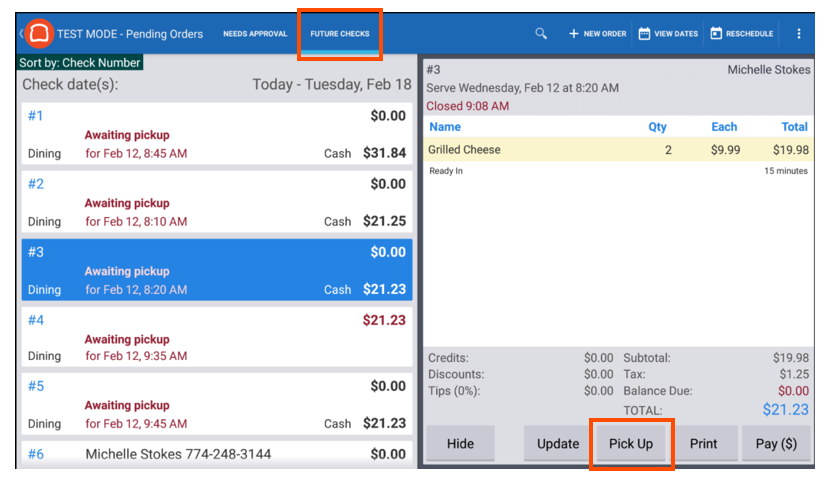
The Pick up mode setting will allow you to mark scheduled orders in the Future Checks tab as "picked up".
By selecting On in Pick up Mode, a Pick Up button will replace the "Fire Now" button on the Future Checks screen after the order has been fired to the kitchen.
The Pick Up button will only appear on eligible orders after the order meets the following criteria:
- Order is paid in full
- Order is scheduled for the current day
- Order has been sent to the kitchen in one of four ways:
- Automatically sent via "Auto-send Future Orders" functionality (see below)
- Manually sent via "Bulk Print Kitchen Ticket" functionality (see below)
- Auto fired based on existing prep time setup
- Manually fired using "fire now" button
Note: Only the auto-firing device can use the “Fire Now” button, and this button is always disabled on non-auto firing devices, BUT all devices should have the ability to mark orders as “Picked Up”.
To mark an order as "picked up", select the order and choose the Pick Up button, which will remove the order from the Future Checks tab and change the order status to "picked up." Only orders that have been with a picked-up status will leave the Future Orders tab.
Close Out Day with Pickup Mode
A new line item will appear in Close Out Day mode with Pickup Mode enabled. The number of orders scheduled for pickup on the current day but have not been marked as picked up will be displayed.

Select View Orders to manage orders still awaiting pickup. Here are some options:
- Manually select pickup for each outstanding order
- Schedule for another day
- Select Auto Resolve, which will automatically mark orders as picked up
Back to Top
The auto-send functionality allows scheduled orders to be sent to the kitchen immediately. This is useful if your operation requires advanced prep time for items such as dough or baked goods.
For setup, go to Takeout/Delivery and scroll down to Scheduled Orders.
For the two setting options below:
- Printed Tickets - Kitchen tickets will print to the Expo/Prep stations(s) immediately.
- KDS Tickets - Tickets will appear on the expediter screen in a Hold state until auto-fired.
If Send scheduled orders to the kitchen when created is set to:
- Send to the kitchen as soon as they are created. Orders will not print again - Scheduled orders will be sent to the kitchen immediately upon order creation, regardless of the scheduled time for the order.
- Send to the kitchen as soon as they are created, within a period of time. This will not affect orders created and due outside of this time - Scheduled orders will be sent to the kitchen immediately upon order creation only if the creation time falls within the configured threshold.
- Once this option is selected, you are able to choose how many hours in advance to send scheduled orders to the kitchen. If the threshold is set to 0, all scheduled orders will send immediately, otherwise, the order will only send according to the kitchen threshold range.
- Do not send as soon as they are created - Scheduled orders will not be sent to the kitchen when created and will instead fire based on the configured prep time.
Back to top
The Manual Prep Time Input feature allows you to control whether a prep time is required when scheduling a future order in POS. Orders will fire based on prep time input. Enable this feature by selecting On. If you would prefer not to enable this feature, select Off.
Back to top


