All-in-one Property Management System. Designed to streamline operations of all aspects of your property including reservations, revenue management, front desk, back office, housekeeping, maintenance, group reservations, and owners.
| This integration requires a Hotel PMS Integration subscription, which can be purchased on Toast Shop. |
Key Features:
- Offers customizable solutions tailored to the specific needs of individual properties, whether they are small boutique hotels or large resort chains. Their systems are scalable to accommodate growth and evolving business requirements, ensuring long-term operational success.
In this Article:
- To enable Resort Data Processing with Toast, log into Toast Web and navigate to Integrations > Integration management > Browse & purchase integrations.
- Enter Resort Data Processing in the Search field and select Add Now.
- If your account doesn’t have one of the Restaurant Management suites, you’ll be directed to Toast Shop so that you can select the suite that best meets your needs and gives you access to Toast Partner Integrations.
- Some integrations can be added without the Restaurant Management Essentials suite. These integrations will display an Add Now button in the integrations portal and can be added at no cost at any time.
- Review the data scope visibility terms and conditions and select Confirm to accept. See the Toast Partner Integrations Data Scope Visibility Overview article for more information.
Back to top
As with all PMS/hotel integrations, Resort Data Processing requires the following configuration items to be setup in Toast Web:
- Sales Categories
- Other Payment Options
- Receipt Setup
Back to top
To ensure accurate revenue tracking through the Resort Data Processing Hotel/Property Management System integration, it is crucial to assign Toast POS sales categories to every menu item before completing the full PMS setup and configuration process.
This assignment of sales categories can be managed at different levels: inherited from menus or menu groups, or individually for specific items, using either advanced properties, menu editing features, or the menu builder tool.
Within the Resort Data Processing hotel system, these sales categories are linked to corresponding revenue categories in order to precisely track revenue from each menu item posted on a guest's folio. Without assigning sales categories, no revenues will be reflected in the integration.
Note: Sales categories must be configured and mapped to menus, menu groups, and/or menu items in Toast Web for every location leveraging any Hotel/PMS integration before the PMS integration can be fully configured.
Back to top
As a part of the integration setup, Toast will be creating the following necessary Resort Data Processing Other Payment Options, for you:
- Room Charge: for Room Charge transactions when fully online. This one is connected to the integration provider.
- Room Charge - Offline: when in offline mode/during an outage, provides a way for customers to continue transactions for later processing and closing.
Back to top
Receipt Setup
Changes to your location’s receipt setup allows your hotel guests to provide their hotel room information directly on their receipt, so servers and restaurant administrators can update the related hotel information. This information will most likely include the guest’s name, hotel room, and signature.
To set up receipts for hotel PMS integrations:
- Log into Toast Web, and navigate to Payments > Check & receipt setup > Guest receipt setup.
- Select the receipt name.
- Scroll down to the Advanced section.
- Next to Display room charge prompt on receipts, select Yes to add lines for a hotel guest's room number and name, to printed receipts.
- Once finished, select Save then Publish Now.
Once the setting had been saved and published, receipts will print like the image below:
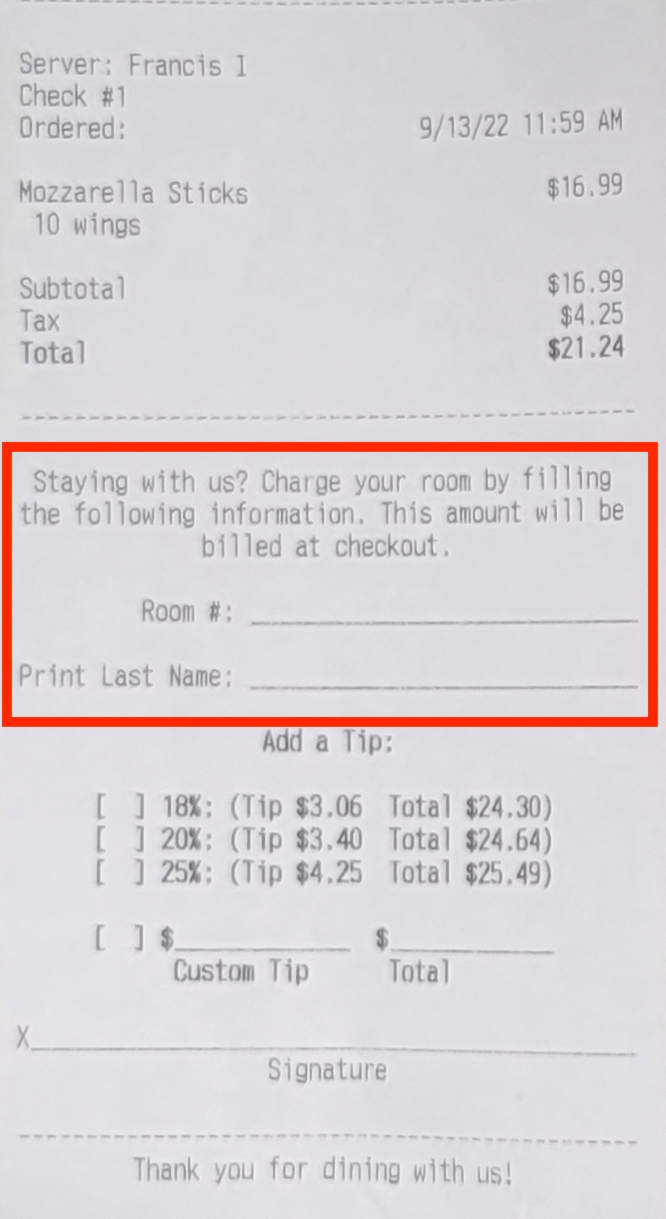
If you wish to remove the room charge lines from their receipts, follow the steps above, then select No next to Display room charge prompt on receipts. Then select Save and Publish Now.
Back to top
You can contact the Resort Data Processing support team by:
Back to top


