Now that you have subscribed to Toast Email Marketing, let’s begin creating a campaign! If you haven’t subscribed to email marketing yet, see Get Started With Toast Email Marketing for your first steps!
Before launching your first email marketing campaign, check out this quick video below to ensure you're ready!
Get started with launching your first Toast Email Marketing campaign.
- Activate Email Marketing by accessing the Marketing Hub and selecting Complete Profile to input basic information such as your reply-to email and restaurant website.
- Enable Automated Emails. Navigate to the Campaigns tab and enable relevant automations, such as welcome and miss you campaigns, to drive sales in the background.
- Note: The Miss You and Welcome emails are only triggered when a guest places an order. Miss You and Welcome emails will not be sent to uploaded subscribers.
- Use the Subscriber tab to upload contact lists. Select Add Subscribers to upload contacts generically or use the New Custom List button for specific lists. If you don't have contacts, activate online ordering, loyalty programs, or digital receipts to collect emails.
- Plan your campaigns and explore upcoming holidays and available email templates in the Marketing Hub to plan future campaigns effectively.
- Implement Best Practices:
- Define your campaign objective, audience, and call to action.
- Craft compelling subject lines and clear, concise email bodies.
- Include a clear call to action and, optionally, provide incentives to encourage action.
In this Article:
Launch Your Toast Email Marketing Campaign
- In Toast Web, navigate to Marketing > Email marketing > Campaigns, or select Create new > Email campaign from your Marketing Hub.
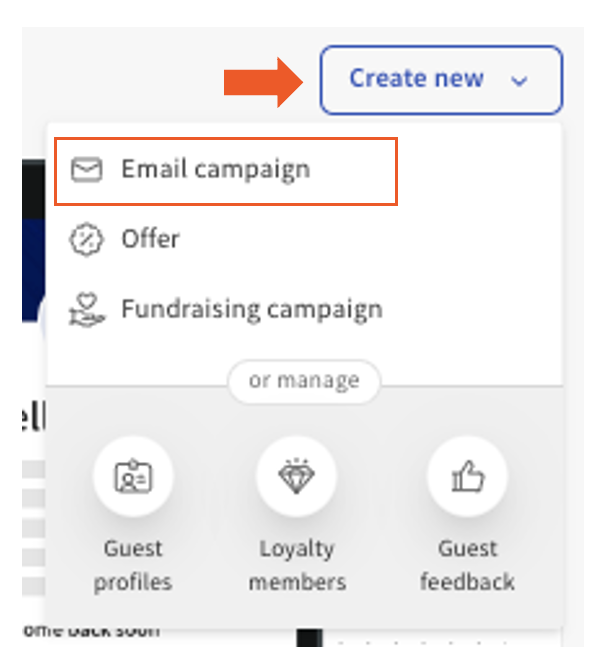
- Now, let’s determine what campaign type works best for your restaurant:
|
One-time campaign
|
Automated campaign
|
- Ideal for existing restaurants that have an existing marketing database.
- Holidays, specials, unique menu items, promotions.
- Contact a specific guest list.
|
- Ideal for new and existing restaurants that want to build a loyal fan base
- Not time-sensitive.
- Promote gift cards, Online Ordering, Loyalty, Reservations, etc.
|
Back to top
Set Up a One-Time Campaign
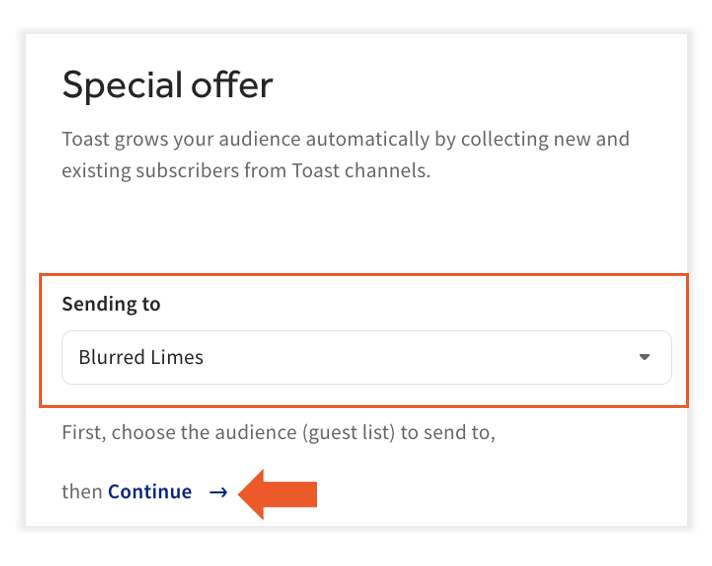
- Select One-time from the top of the page and select one of the many templates available. For this example, we’ll choose Special offer.
- Next, select your audience from the Sending to drop-down menu then select Continue.
- Enter the following information:
- Reference campaign name - this is not visible to guests. This is so you can easily identify your campaign on your Marketing Dashboard.
- Email subject - guests will see this in their inbox
- Promotion (optional) - promotions must be created prior to adding them to any campaign. See Get Started With the Offers Dashboard for more information.
- Then, select Edit Content to customize the email template for your restaurant.
- Now. let's follow the steps in this article for Design Your Email Layout.
- Note: Restaurants set up in the same management group will appear in Toast Marketing together. You may want to remove a restaurant from appearing alongside other restaurants in the Marketing module. To remove a restaurant from Toast Marketing, the restaurant needs to be separated from the Restaurant Management Group. To do this, start a live chat here with our Customer Support team. Chat is available in Toast Web and Payroll Web (blue support button in bottom right of every page) and the Support tab in the Toast Now app.

- For more information on how to contact support view "How to Contact Customer Support" or go to support.toasttab.com.
Set Up an Automated Campaign
Bringing guests back to the restaurant lies within your ability to use the customer data available to you within Toast POS to create an automated email marketing strategy. These "set it and forget it" campaigns can help you increase revenue by increasing the frequency of visits from existing guests and driving additional sales from lapsed guests.
- Choose a template under Automated. Then, one of the following:
- Remind guests to visit again: Email guests who have not visited in a while and encourage them to come back. These campaigns help keep guests engaged and returning.
- Welcome new guests: Email guests who provide their email for the first time to welcome them to your community. This is a great place to include links to your website, online ordering page, or social media.
- Recognize high-spending guests: Engage with your high-spending guests and let them know that you appreciate them.
- Thank repeat guests: Thank and reward guests who visit regularly. These campaigns are a great way to share promos as a thank you.

- Next, review your audience. Toast will collect guest email addresses when placing orders using the listed tools and add them to your marketing audience automatically. Should you wish to include additional guest email addresses from a previous system, select Upload Subscribers. To move on to the next step, select Continue.
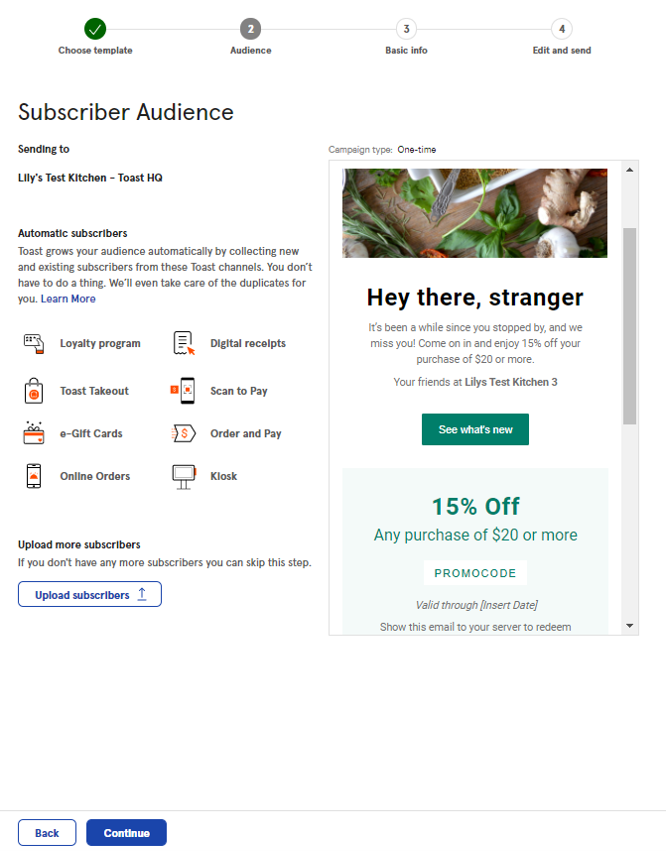
- Select Edit Content to customize the email template for your restaurant.
- Now, let's follow the steps in this article for Design Your Email Layout.
Configure Automations
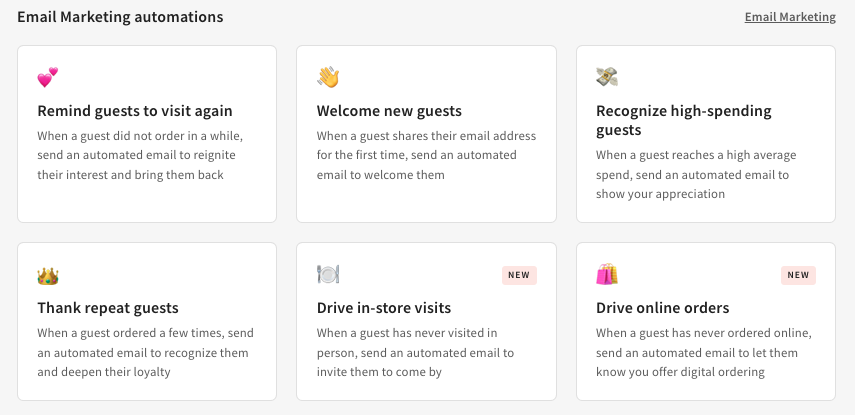
Easily activate, edit, and view performance using the pre-built modules Automations section in the Marketing Hub.
|
Campaign Type
|
Description
|
|
Remind guests to visit again
|
Guest emails are collected through the Toast platform. New emails send daily.
|
|
Welcome new guests
|
When a guest shares their email address for the first time, send an automated email to welcome them.
|
|
Recognize high spending guests
|
When a guest reaches a high average spend, send an automated email to show your appreciation.
|
|
Thank repeat guests
|
When a guest ordered a few times, send an automated email to recognize them and deepen their loyalty.
|
|
Drive in-store visits
|
When a guest has never visited in person, send an automated email to invite them to come by.
|
|
Drive online orders
|
When a guest has never ordered online, send an automated email to let them know you offer digital ordering.
|
|
Follow up with your guests
|
Thank your guests for their business and encourage them to return.
|
| Drive Loyalty Enrollment | Encourage your guests to join your loyalty program and reap the benefits it offers. |
- Log in to Toast Web and navigate to Marketing > Automations.
- Once the campaign is selected, enter the trigger information.
- Save and publish any changes.
- Once complete, you will receive an activation confirmation.
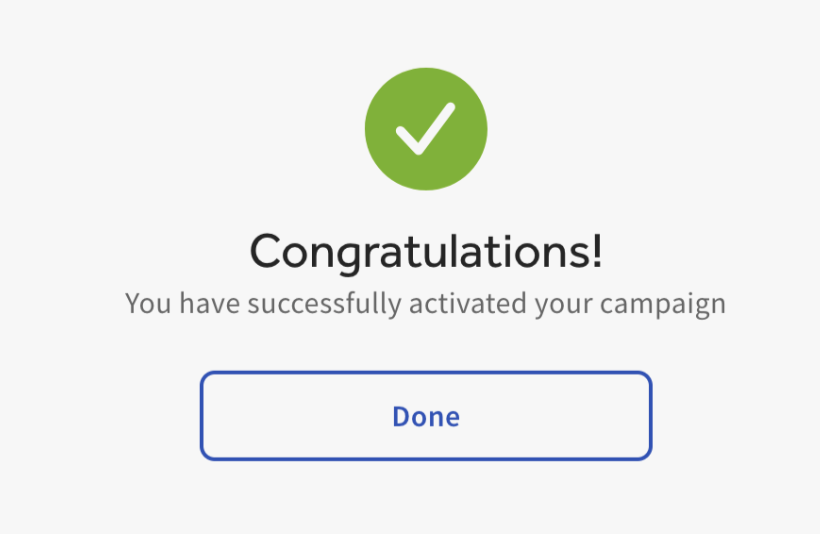
Want to see how your automation is performing? From the Automations homepage, select an active campaign under Active automations. Here, you can see the following:
- Sales so far
- Sent to (Guests who completed a purchase from your store in the last day or guest emails are collected through the Toast platform. New emails send daily.)
- Campaign type
- Status
If you would like to make edits to your campaign, simply select Stop campaign > Edit Email Content. Save and publish any changes made. Note: The campaign must be stopped before any edits can be made.
Back to top
Design Your Email Layout
This is the moment we've all been waiting for! Creating an eye-catching email design is crucial to adopting your email campaign. Not a graphic designer? No problem. Our email builder provides many template blocks where you can enter text, upload content, or change the background image. Follow the steps below to learn how to customize each section and drag and drop additional content into your email layout.
Back to top
Customize Individual Sections
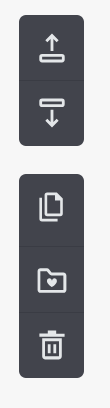
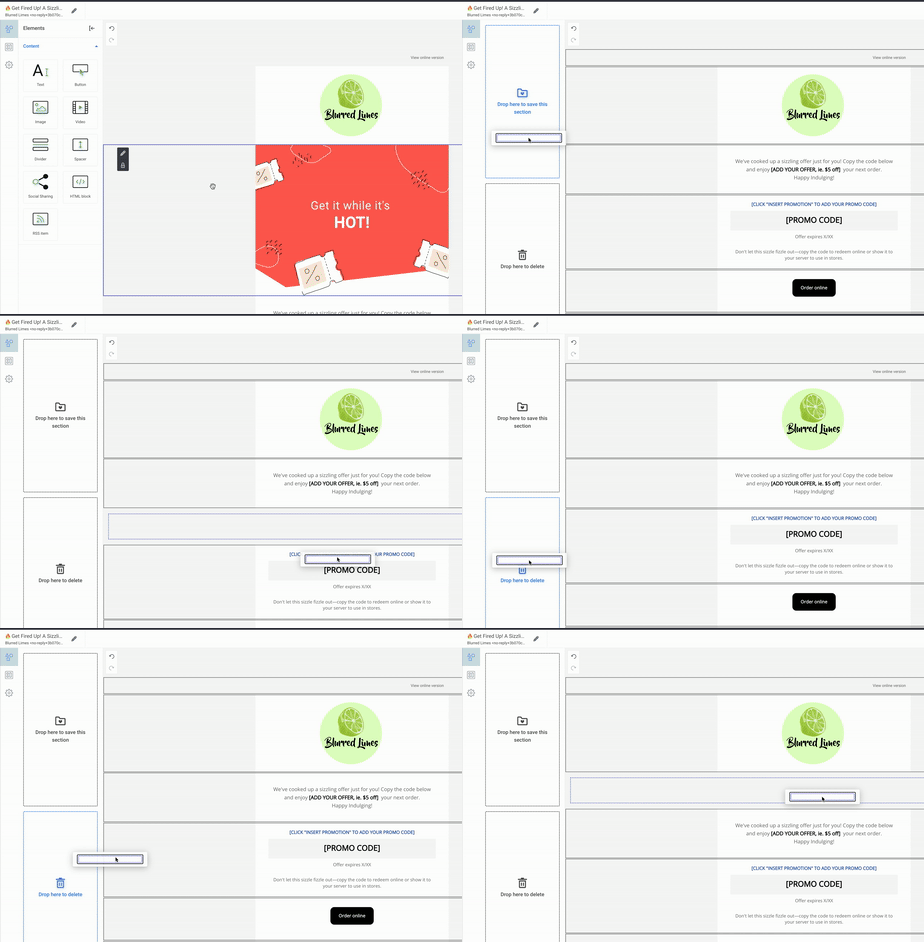
- To remove sections from the current email template, you can drag and drop to save them for later use or delete them. The trash can icon can also be used to delete a section, and the folder icon can be used to save a section for later use.
- To duplicate a section, select the dual-document icon.
To move the section to appear in another part of the email, use the up and down arrow icons on the right side of the block or select and hold a section to drag it up or down with your mouse. - To replace an image, select the image and then select the document icon in the top-left of the block.
- Choose your desired image and Save to finalize your changes.
- To edit your Preview text, select the Edit icon, then the Preview text field, and enter a new message. Remember, this is the subsequent text that appears after your subject line in the diner's inbox. Use this opportunity to summarize the content and purpose of the email, especially on mobile devices. It should complement your subject line and draw attention to your campaign.
- Select the edit icon (pencil) on the left side of the content block.

Note: To edit the Sender name, preview text, or the Reply-To email address of your ongoing email, select the pencil icon in the top left corner of the screen. After making your changes, select Save.
Back to top
Add New Sections & Call-To-Actions
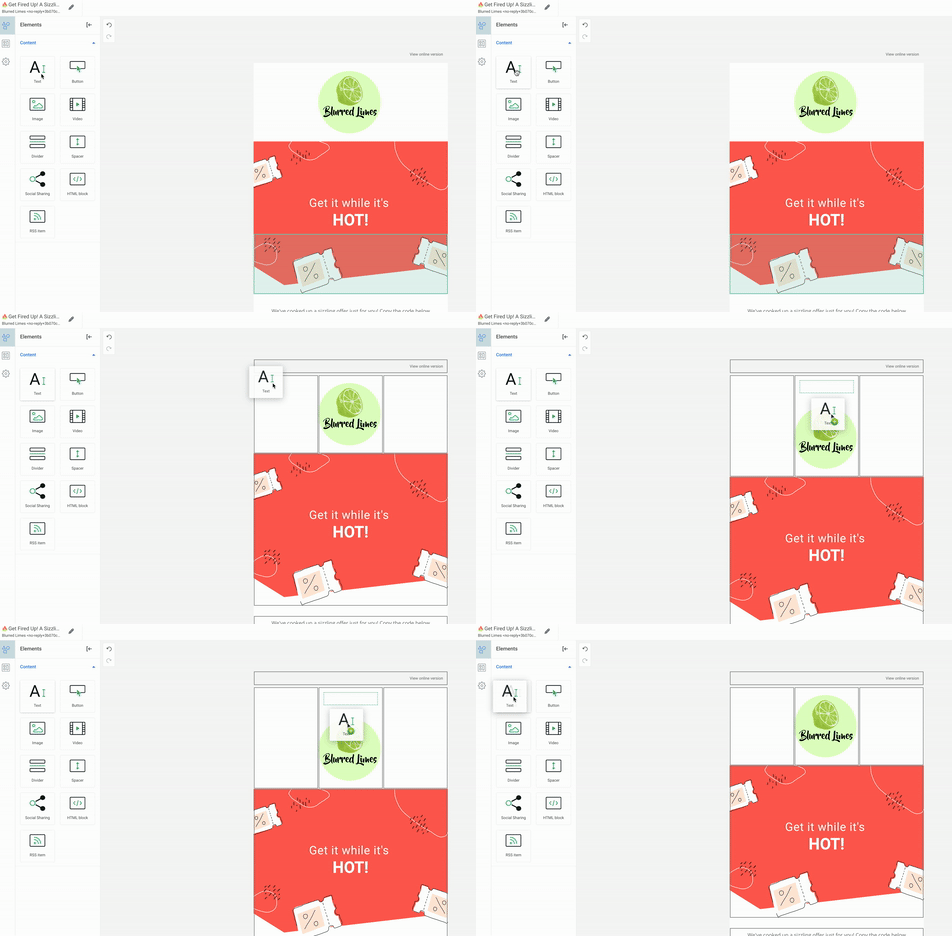
- Drag and drop a column selection into the body of your email.
- Drag and drop any desired content blocks into your new section.
- Follow the prompts to upload them or insert content accordingly.
- To add a call-to-action button to your email, drag and drop a button from the content panel into the desired email section. Then, enter the text you would like to appear on the button. This is where you can direct your guests to: "Check out our menu!" "Order Now!" or "Reserve a Table!" for example.
- After you've entered an action button for guests to take, paste the URL (web address) for the page you want your diners to be directed to. For example, consider pasting your restaurant's online ordering web address (URL) if you offer online ordering. Or, if you allow guests to redeem loyalty points on online orders, consider pasting your reward card look-up link to let guests view their balance.
- To change the color, border, and padding of your call-to-action button, select the pencil icon and make a selection from the dropdown menu.
Back to top
Saved Call to Action Buttons
Within the email editor, you can also utilize the saved call to action buttons by selecting Layout > Saved. You will have the option of the following:
- Gift Card Section
- Loyalty Section
- Online Order Section
- Takeout Section
Note: These links are pre-populated and specific to your restaurant.
Back to top
Finalize Your Email Design
Select Preview & Test to view a proof of the email, or send yourself a test mail. When finished, select Save, then Continue to save your changes to the template! It's that easy!
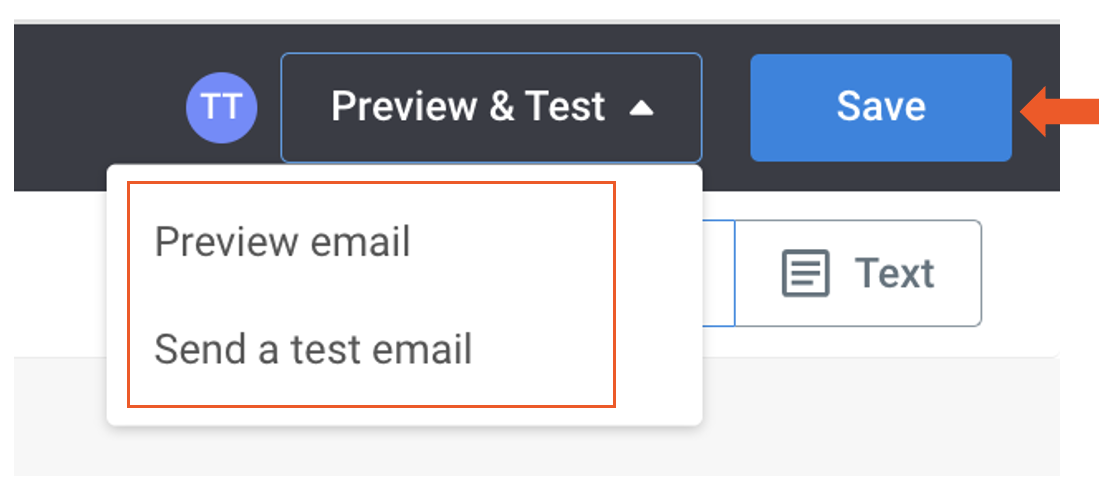
Note: If you select Preview email, you can view your email in both mobile and desktop form.
Back to top
Send Your Campaign
Congratulations! You've designed a beautiful email for your guests. Now what? It's time to review your campaign details and send them out to your guests. Follow the steps below to complete a final review and either send or schedule a date for your email to be sent.
- From within the email builder, select Continue to finalize your changes. Note: Selecting Continue brings you back to the screen with the campaign information. Only after saving the email template is the Continue button enabled.
- Then, select one of the following send options at the bottom of the page:
- Send Test: Enter your email address to send an example email before sharing this campaign with guests. When finished, select Send.
- Schedule: Select a date and time for your email campaign to be sent. When finished, select Schedule.
- Send Now: This will send your email campaign to eligible guests immediately.
Note: Email marketing campaigns may experience potential delays when handling a high volume of subscribers.
Back to top
Measure Success
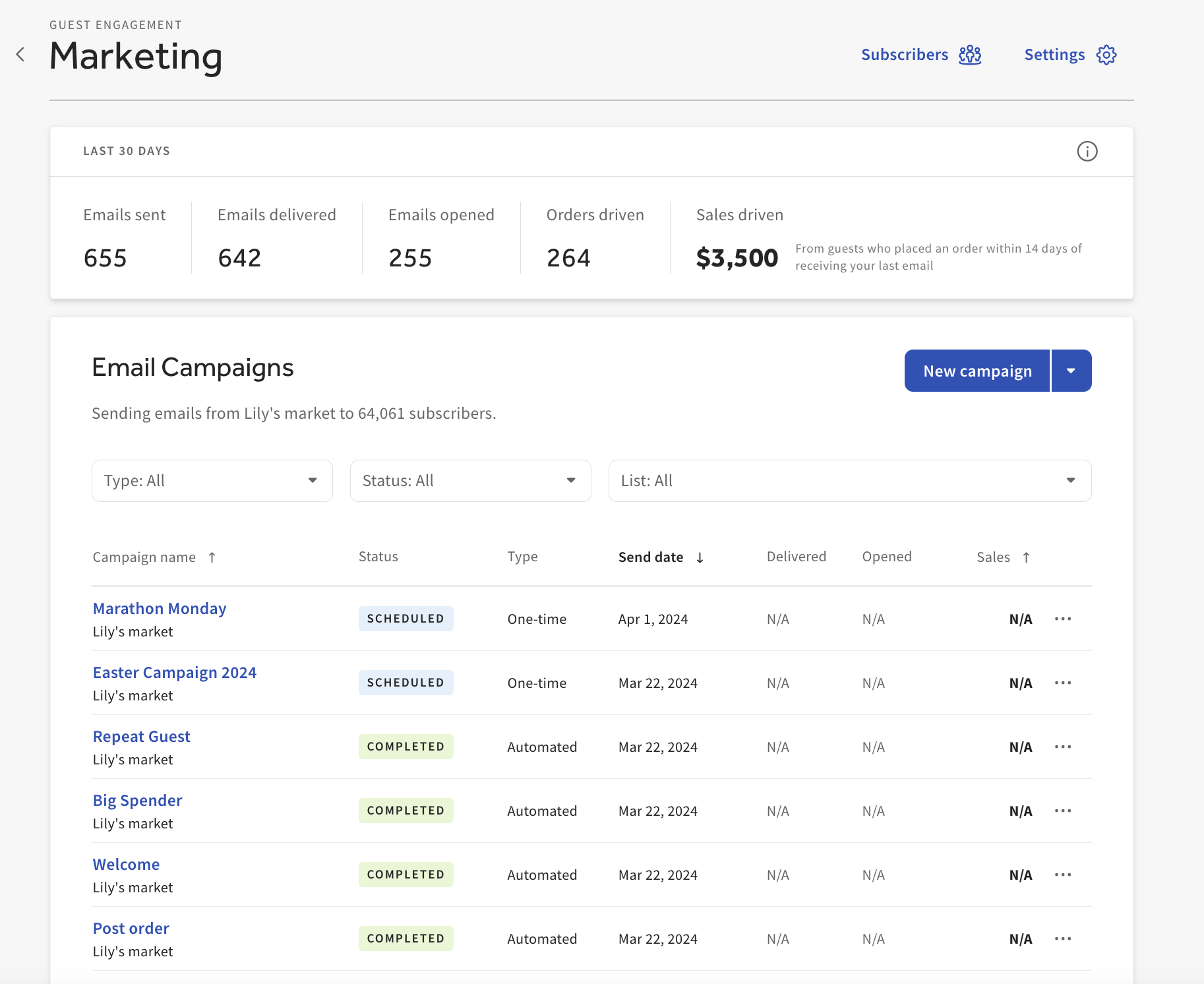
Now that you've sent out your first email campaign, let's discuss the results. The email marketing dashboard lets you filter all campaigns by Automated or One-time campaigns and their current sending status. You will get a full overview of campaigns for the last 30 days and a breakdown of any active, scheduled, scheduled, or completed campaigns.
|
Status
|
Definition
|
|
Updated date
|
The recipient's servers successfully sent and accepted the email
|
|
Delivered
|
The total number of emails sent in the campaign. This number should closely match the guests targeted in your contact list.
|
|
Opened
|
Displays the number of unique 'opens' based on the total number of emails delivered. This is a good indicator of how many people read your email.
|
|
Sales
|
Displays the number of sales associated with that campaign. Learn more about estimated sales for email marketing here.
|
Select the three-dot icon on the right of any campaign on the dashboard, then Details, for more information on that campaign. The information overview on the selected campaign is below:
|
Status
|
Overview
|
|
Blocked
|
We have preemptively blocked these recipients in anticipation of a delivery error. This avoids causing an error on the recipient's server that would hurt your sender's reputation.
|
|
Soft Bounced
|
Emails are considered "bounced" when they cannot be delivered to the recipient. A soft bounce is a temporary issue, such as the recipient's inbox being full or there being a connection timeout. Don't worry; we will automatically try to resend the email in these cases. If the email is not delivered after three days, it is marked as a bounce.
|
|
Hard Bounced
|
Emails are considered "bounced" when they cannot be delivered to the recipient. A hard bounce is a permanent delivery error caused by an invalid email address. Hard bounces negatively impact your sender's reputation and are automatically blocked for ninety days.
|
|
Retrying
|
This can include soft-bounced emails attempting to be delivered to the recipient.
|
|
Opened
|
The percentage of unique 'opens' is based on the total number of emails delivered. This is a good indicator of how many people read your email.
|
|
Clicked
|
Accounts for successfully delivered emails with at least one click (excluding those clicks where an unsubscribe occurs).
|
|
Unsubscribed
|
The unsubscribe rate is related to the number of delivered emails and indicates the number of people who opted out of your list using the unsubscribe link.
|
|
Marked as Spam
|
The percentage of emails reported as spam based on the total number of emails delivered. The recipient takes this action upon receiving your email, which can harm your reputation. Note that transactional emails with a clear call-to-action are less likely to be marked as spam.
|
Additional Resources for Email Marketing Campaigns


