Offer your own contactless delivery without having to hire drivers so that you can minimize your overhead costs while providing a better guest experience.
| Toast Delivery Services® can be powered by either Uber Direct or DoorDash Drive. Uber Direct and DoorDash Drive are white-label delivery services, meaning drivers deliver Toast Delivery Services® orders from Toast Online Ordering. For more billing information, see Toast Delivery Services® Automated Billing Overview. |
In this Article:
An overview of setting up Toast Delivery Services®.
If you have a subscription to Toast Online Ordering your Toast Delivery Services® set up checklist will be visible in Toast Web.

- Begin with the Toast Delivery Services onboarding page.

- Next, select your delivery provider, then select Continue.

- Next, select Activation and publish.

- Once the Activate and publish button is selected, TDS and the following will automatically be enabled:
- Create a business and store entity on Uber Direct and DoorDash Drive.
- Create the Toast Delivery Services dining option in Toast Web. See Configure Dining Options in Toast Central for more information
- Create a “TDS Driver” employee with the job role “Delivery Service Driver”
- Create a $3.99 delivery service charge
- Note: A reminder that you should not change this employee, as TDS tips will be assigned to them. Toast Online Ordering must be turned on for guests to place orders.
- If your setup checklist on the Toast Web homepage shows these Toast Delivery Services® setup steps as complete (with a green check), you can select the button again to continue through the workflow.
- Select Finish to complete your setup.
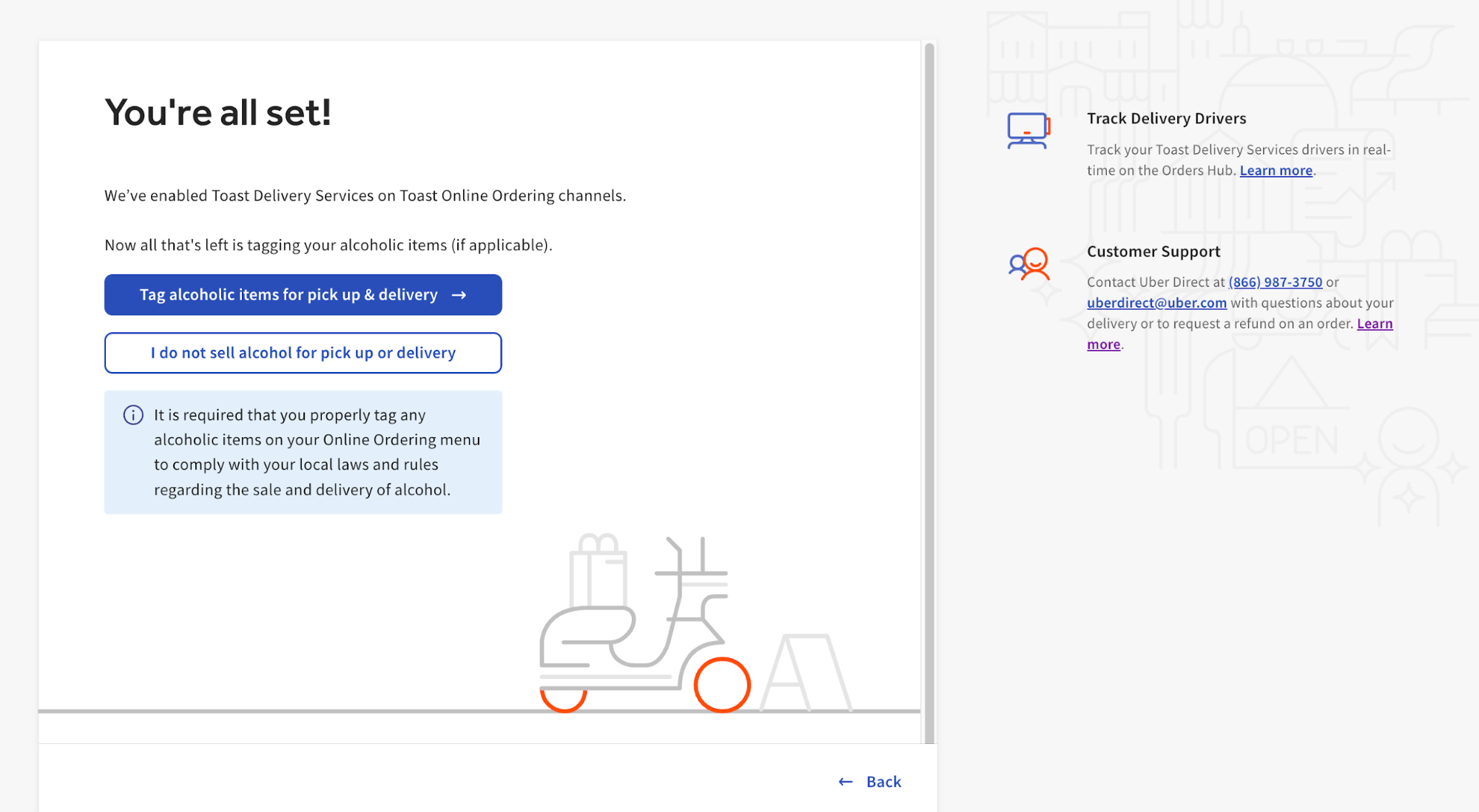
- If your location has alcoholic beverages listed on your online ordering menu, it is required you to label them as menu items containing alcohol. The setup walkthrough will continue with additional steps for offering alcohol delivery. For more information, see Toast Delivery Services® Alcohol Delivery.
- You can turn Toast Delivery Services® on or off in Toast Web, provided you do not have online ordering enabled.

Toast Delivery Services® Configuration
- Unless you already have an existing delivery fee set up, an automatic default guest-facing delivery fee of $3.99 will be added to your delivery orders to help subsidize the Toast Delivery Services fees. This automatic default fee can be changed at any time on the Service Charges page, which you can navigate to in Toast Web by selecting Payments > Service Charges.

- This will take you to the Service Charges page. You'll see an auto-configured delivery fee of $3.99. By selecting the delivery charge, you can edit the amount. The auto-generated Service Charge default is set not to be taxed. If you need to edit, go to the Service Charges page.


- You can also set a delivery threshold, so the fee is waived if a guest orders with a total cost over the set amount. For example, if your threshold is at $60 and a guest's total is $65.50, the fee would be waived for the guest.

- Make sure to Save and Publish your changes!
Back to top
To use Toast Delivery Services, you can add a delivery minimum.
- This can be done by navigating to the left-hand navigational menu of Toast Web and selecting Takeout & delivery > Toast Online Ordering > Online ordering setup.

- Scroll the Approval section and select Use Rules.

- Select Enable Delivery Minimum as Reject at the amount you want to set as the delivery minimum.

- Save and Publish your changes!
Back to top
Toast Delivery Services® Control Center
Enable Toast Delivery Services® (TDS) on the Toast Online Ordering control center in the Toast Web Takeout & Delivery page.
|
For new Online Ordering subscriptions, Toast Delivery Services® will automatically be enabled with the following configurations:
- Default Provider: Uber Direct will be pre-selected as the delivery service provider.
- If your location is not serviceable by Uber, there is an attempt made to activate DoorDash. If successful, DoorDash will be the active partner.
- Pre-set guest fees: Standard guest delivery fees will be applied automatically — $3.99 for the standard delivery radius and $1.75 for the extended radius.
|
- In Toast Web, navigate to Takeout & delivery > Toast online ordering.
- Select Toast Delivery Services.

- Select Publish all changes.
Now that you are set up, it's important to understand that Toast will automatically withhold the delivery fees and driver tips associated with each TDS order. For more information on TDS billing, see Toast Delivery Services® Automated Billing Overview.
We autogenerate a "TDS Driver" so that all Toast Delivery Services® tips are assigned to the delivery drivers and are not paid out to your employees. Please note that you must deduct Toast Delivery Services® tips from credit card tips before tipping out your restaurant staff. See Toast Delivery Services® Tip Payouts for more information.
Note: Once you are fully set up, you will see that Toast has auto-generated a "TDS Driver" and a "Toast Delivery Services" dining option (cannot be edited or deleted). You should not edit the employee name, as doing so would no longer set aside tips you collected on behalf of Uber Eats and DoorDash Drive drivers. We request that you do not edit or remove these auto-generated settings.
Toast Delivery Services® Errors
During setup you may experience error messages if information is incomplete. See below for examples:
Toast Delivery Services® Setup FAQ
You might encounter a few errors when setting up Toast Delivery Services®. Learn more about these errors and troubleshooting steps below.
On the Takeout/Delivery page, I see a red bar at the top telling me to contact Toast Customer Care that reads Invalid Phone Number. How do I proceed?
This means that your phone number wasn't set up correctly in Toast Web. We recommend contacting either your Onboarding Consultant or Customer Care so they can enter a valid phone number.
I followed the steps, but a red banner appears on the Takeout/Delivery page that reads Out of service area. What should I do?
Please contact Toast Customer Care for help.


