In this Article:
Access Configuration Page
- Log-in to Toast Web and navigate to Takeout & delivery > Third party ordering.
- Next, select Menu Settings next to Grubhub.
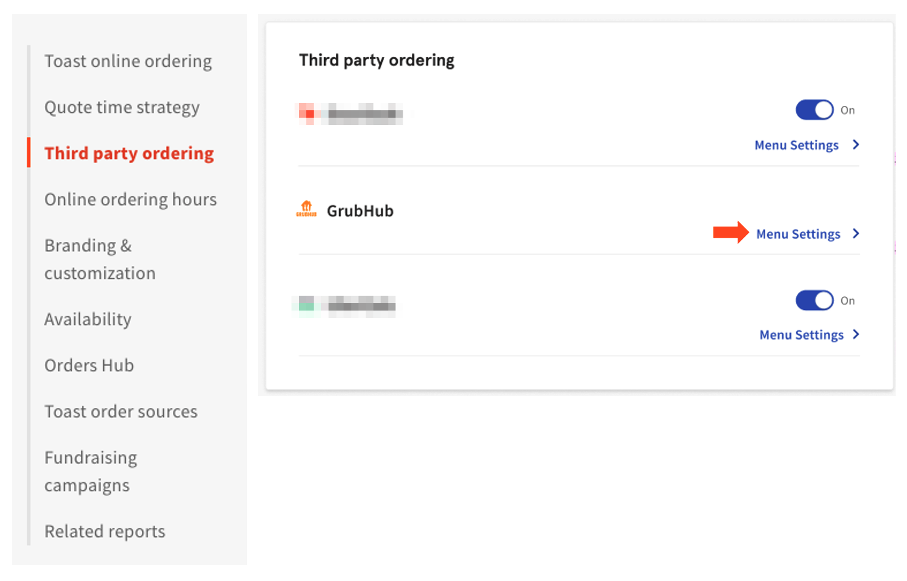
- Once selected, you will see the 3PO configuration page for the chosen partner. This includes the Name and location of the restaurant location being accessed.
Note: Here, you will see the snooze Feature and the On/Off function for Grubhub, which allows you to turn the direct integration on or off, making the integration available or unavailable. For more information on 3PO toggles, see Manage Third-Party Availability Through the Snooze Feature and the On/Off Function.
Back to top
Configuration
- To configure Grubhub for the selected location, select Edit.

- Once selected, the section will expand with the following:
- Name and Location of the restaurant being accessed.
- Hours - guests can order via the 3PO platform from this restaurant location during the hours set in Takeout & Third party delivery. For more information on setting Online Ordering hours, see this video.
- Menus - the list of currently selected menus that guests can see and order from on the Grubhub platform. You can now easily have different menus shown on each partner by selecting them on each partner’s individual configuration page.
- Add Menu - a dropdown list where you can add/select additional menus to surface to guests on the 3PO partner.
Note: Only menus with visibility set to Online ordering partners will be selectable in this dropdown. Customers can set their menu visibility via advanced menu properties or Menu Builder (non-MLM users only).
Name and Location of Restaurant
If you would like to access the 3PO configuration page settings for Grubhub for a different location, select the correct location and re-access the 3PO configuration page with the same steps as above.
Back to top
Hours
The hours shown here are when guests can order takeout and delivery from the 3PO partner guest platform. These hours are set via the Takeout & delivery > Online Ordering Hours menu.
To set or modify these hours, select Hours for Takeout and Third Party delivery for Grubhub. This will send you to the Takeout & Third Party delivery hours menu.

|
The hours set will apply to all 3PO partners and Toast Online Ordering. There is no way to set individual hours for each of these ordering streams at this time. To learn more about setting hours, see this video here.
|
Back to top
Menus
The menus section of the 3PO configuration page is where you will see the list of menus selected for each of the individual 3PO partners. These menus can now be dynamically chosen, allowing you to have different menus available on each individual 3PO direct integration and to change and modify those easily.
Note: For all steps below, you must select Save and Publish All Changes at the top right of the 3PO configuration page to be sure all changes are saved and applied.
Back to top
 Add Menu
To add another menu for guest ordering, follow the steps below:
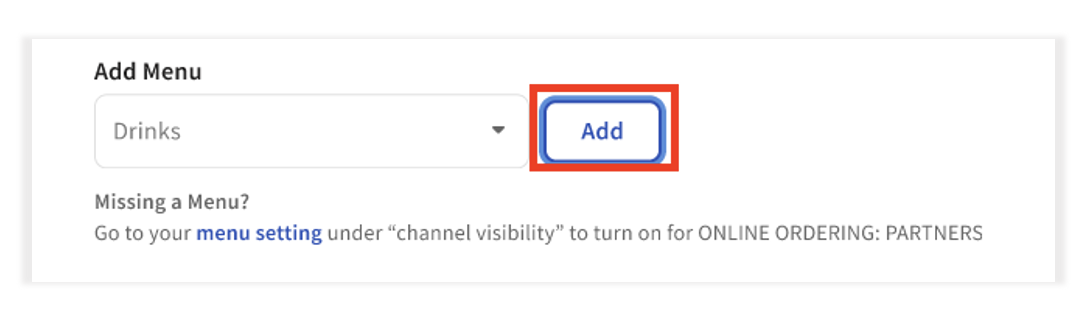
- Select the Add Menu dropdown in the selected partner configuration page.

- Select the menu you would like to be added to the specific 3PO direct integration.
- Note: Only menus with visibility set to Visible to: Online ordering partners will surface in the 3PO configuration page’s Add Menu dropdown. See below the steps in the Adding Menus to Available Menu Selection List section.

- Select the Add button to the right of the dropdown.
Back to top
Menu Incompatibilities
Menu incompatibilities can interfere with proper display and functionality for your menu(s) on your location’s Grubhub site. You can check to see if you have menu incompatibilities by navigating to Takeout & delivery > Third-party ordering > Grubhub > Menu Settings. Select the Edit v dropdown, where you will see an error message describing the incompatibilities present.

When you navigate into the relevant links, you will receive a popup with links that will take you to the item incompatibilities in question if you’d like to see them yourself.

No action is required of you — these incompatibility notices are simply informational, and your Onboarding Consultant will rectify these for you.
Back to top
Adding Menus to Available Menu Selection List
Only menus with visibility set to Visible to: Online ordering partners will surface in the 3PO configuration page’s Add Menu dropdown. If you do not see the menu you want to add, follow the steps below. For multi-location management (MLM) locations, see this section here.
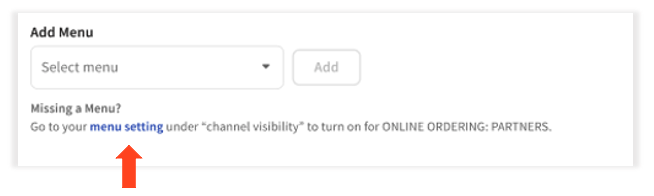
- Select menu setting under the Missing a menu? text directly below the Add Menu dropdown on the 3PO configuration page. This will redirect you to the Manage Menus page in Toast’s back-end.
- Select the menu you would like to add to the 3PO direct integrations.
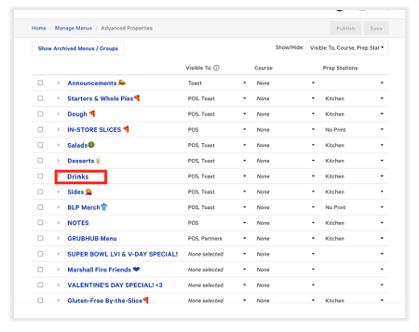
- Scroll down to Advanced properties and find the Visible To: section. Select the checkbox next to Online ordering: Ordering Partners.
- Note: This will automatically add the menu to all third party ordering partners. For steps on removing a menu from your 3PO configuration page, see the How to Remove/Deselect a Menu from a 3PO Partner? FAQ below.
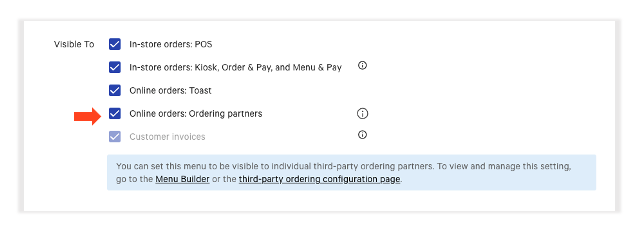
- Select Save and then Publish in the top right-hand corner to publish all changes. You can navigate back to the third-party ordering configuration page where you can see the menu now reflected and available on Grubhub and all 3PO partners.
Back to top
Menu Builder (non-MLM only):
- Select Channel visibility on the left-hand submenu bar or scroll down to Channel visibility.

- Set the toggle next to Online order partners to the On position. This will automatically add the menu to all 3PO partners and check the boxes next to the 3PO direct integration partners below:

- From here, you have two options to manage which partner(s) the menu will appear on:
- Untick the checkbox(s) next to the 3PO individual partner(s) you wish the menu NOT to be available on. Select Save and Publish at the top right once all changes are made.


- Navigate back to the third party ordering configuration pages, and remove the menu on each partner’s configuration page that you don’t wish the menu to be available on. Select Save and Publish.
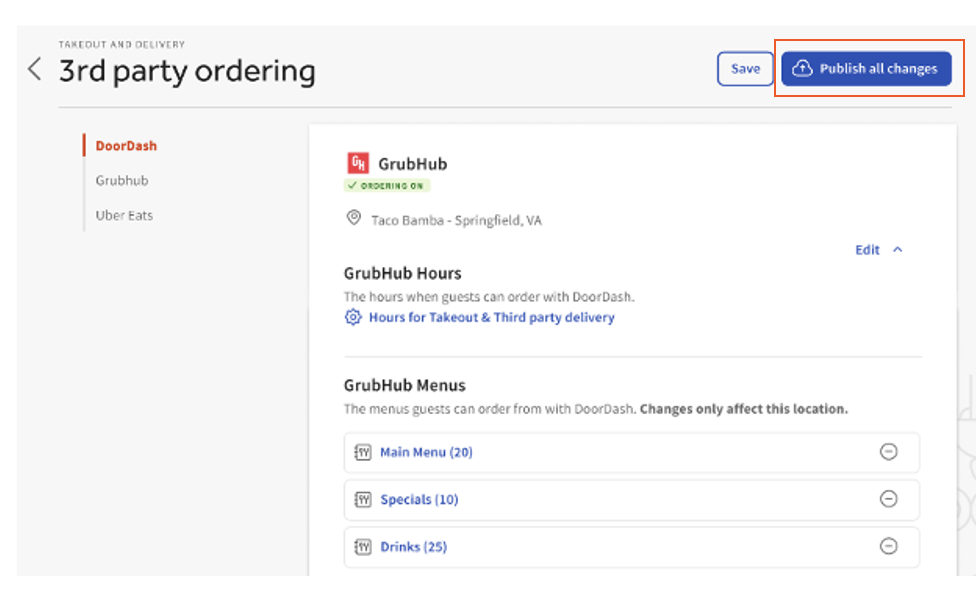
Note: For steps on removing a menu from your 3PO configuration page, see the How to Remove/Deselect a Menu from a 3PO Partner? FAQ below.
Back to top
Multi-Location Management (MLM)
For customers using multi-location management (MLM), follow the steps below:
- Select menu setting under the Missing a menu? text directly below the Add Menu dropdown in the 3PO configuration pages. This will redirect you to the Manage Menus page in Toast’s back-end.
- Select the name of the menu you would like to add to the 3PO direct integrations.
- Scroll to “Advanced properties” and find the Visible To: section.

- Select the checkbox next to Online ordering: Ordering Partners.
- Note: This will automatically add the menu to Grubhub and all 3PO partners. For steps on removing a menu from your 3PO configuration page see the How to Remove/Deselect a Menu from a 3PO Partner? FAQ below.
- Select the blue Save button at the top right and Publish your changes.
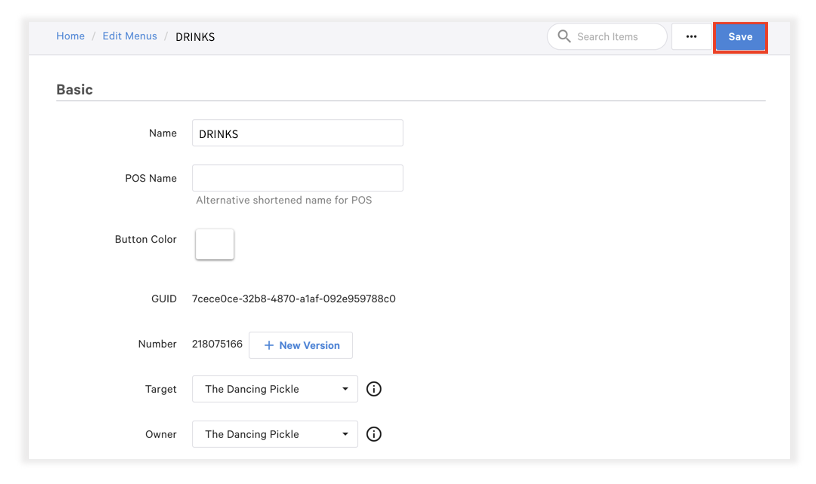
- Navigate back to the third-party ordering configuration page where you can see the menu now reflected and available on Grubhub and all 3PO partners.
Back to top
Frequently Asked Questions About Third Party Ordering
How to Modify a Selected Menu from a 3PO Partner Page?
You can select the menu name to enter the menu builder or advanced menu settings and modify the menu.
How to Remove/Deselect a Menu from a 3PO Partner?
You can select the “-” button icon on the far right to remove the menu from the 3PO platform if desired.

On the popup page, select Remove. Remember to Save and Publish your changes.

You can also select Cancel if they wish to leave the menu.
Note: This will only remove the menu from guest ordering on the selected 3PO. The menu visibility on the menu itself will still be set to Online Ordering Partners. That menu will still be available on the other 3PO partners where it has been selected.
How do I know that inventory added in my POS is reflected in Grubhub?
Your POS and third-party ordering integrations are synced, so whenever you make an update in POS, this will automatically be reflected in your third-party ordering partners.
Back to top
Additional Resources
Back to top


