In this Article:
For information on Marketplace Facilitator Taxes and how they affect your restaurant if you integrate with Grubhub, check out our FAQ guide here.
Get Started Video Playlist
Get Grubhub orders fired straight to your kitchen! Pair Toast with Grubhub to eliminate the need for a separate tablet or printer, free up valuable counter space, and keep your front-of-house staff focused on guests in the restaurant with Grubhub's approved and certified POS integration.
Reach more diners while reducing labor costs through our direct integrations with the biggest delivery brands — no more double entry.
Watch the following video series to learn everything you need to know when getting started with the Grubhub integration:
Grubhub integration overview and onboarding.
Grubhub now directly integrates your Toast POS and Grubhub's marketplace. This connection allows your restaurant to:
- Receive orders placed on the Grubhub app directly on your Toast POS - Eliminated the need to manually enter orders from a tablet into Toast.
- Manage your Grubhub menu via Toast POS - Menus, including 86'd items (an item removed from the menu because it is no longer available), are synced within minutes.
- Reporting into Toast in real-time - Grubhub orders use a unique payment type and dining option for ease of reporting and tracking.
The integration doesn't currently support:
- Prep time delays or throttling
- Time-specific pricing
- Pre-modifiers
- Subgroups
- Prompt for quantity
- Menu modifier pricing (size pricing, sequence pricing, size sequence pricing)
- Viewing of future scheduled orders
Back to top
To integrate Toast with Grubhub, you'll need to follow these setup steps:
- Sign up for a third-party integration via Toast Shop.
- The integration will be automatically added to Toast Web. Complete the onboarding checklist. (You must fully complete this checklist or your integration won't work!)
- Please ensure your restaurant is not in test mode. The Toast team cannot complete your setup if your restaurant is still in test mode.
- You can find this checklist under the setup button on the top right of the Toast Web home page.
- Complete menu and pricing details.
- Click into the checklist and complete your menu and pricing selections.
- The Toast onboarding team will work on setting up your menus, prices and other configurations
- Receive email confirmation from Toast that your menu and pricing configurations are set.
- You will need to complete the final step. Connect your Grubhub account to your Toast account.
- Receive email confirmation from Grubhub when you're all set and ready to start taking orders.
Check out the image below to learn more about the time it takes for each setup step, who to contact for support, and who is responsible for each setup step.
 |
Sign up
|
Complete checklist
|
Complete menu and pricing details
|
Receive Toast confirmation
|
Receive Partner Confirmation
|
|
Process
|
Sign up for a third-party integration via Toast Shop. Note that this step is only needed if the integration is not sold to you by your sales rep.
|
The integration will be added automatically to Toast Web. You will be prompted to start the onboarding process for each integration.
|
When you begin onboarding, you will be prompted to answer questions to set up your menu, determine pricing, and sign the Grubhub contract (if you do not have an existing one). This process is quick to complete from your end.
|
Once Toast completes the menu and pricing configuration from the back-end, you will receive an email showing you the following steps, timelines, and where you are in the process.
|
You will receive a final email from the partner when you're all set with the integration and can start taking orders.
|
|
Time Taken
|
3-5 mins
|
N/A
|
3-5 mins
|
3-4 days
|
1-2 weeks
|
|
Responsibility
|
Restaurant/You
|
Restaurant/You
|
Restaurant/You
|
Toast
|
Grubhub
|
|
Support Contact
|
Submit a Customer Care Ticket
|
Submit a Customer Care Ticket
|
Submit a Customer Care Ticket
|
Submit a Customer Care Ticket
|
restaurants@grubhub.com
Note: Toast support cannot help with partner integration questions once the process is complete from Toast's end (the previous step).
|
|
Toast Central Resources
|
Sign up via Toast Shop
|
This Toast Central article
|
This Toast Central article
|
-
|
Toast sends your account information to Grubhub for them to activate.
|
You can connect your Toast POS with Grubhub's marketplace in a few easy steps:
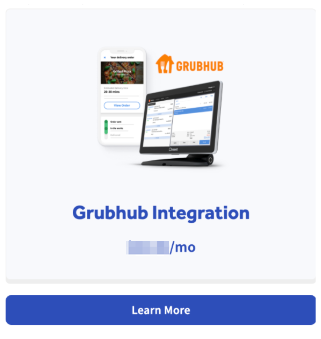
- In Toast Shop, select Learn More next to the Grubhub icon. Complete the purchase process by adding the integration to your cart, and then proceed to check out.
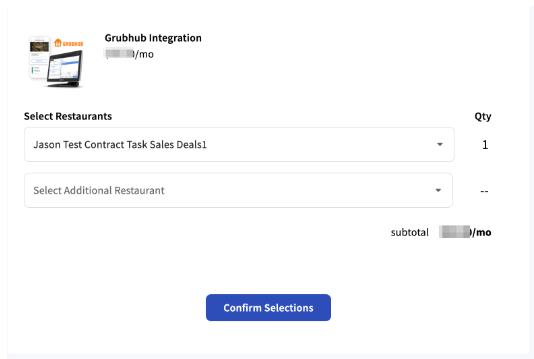
- A confirmation page will appear. Select Confirm Selections to add the integration.
- A new page will outline the Terms and Conditions. Ensure you read through it, select I accept the terms and conditions, and select Submit.
- You will be taken to the setup flow directly in Toast Web. You can select your menus to be used with Grubhub, increase prices if you like, and be prompted to sign the Grubhub contract if needed.
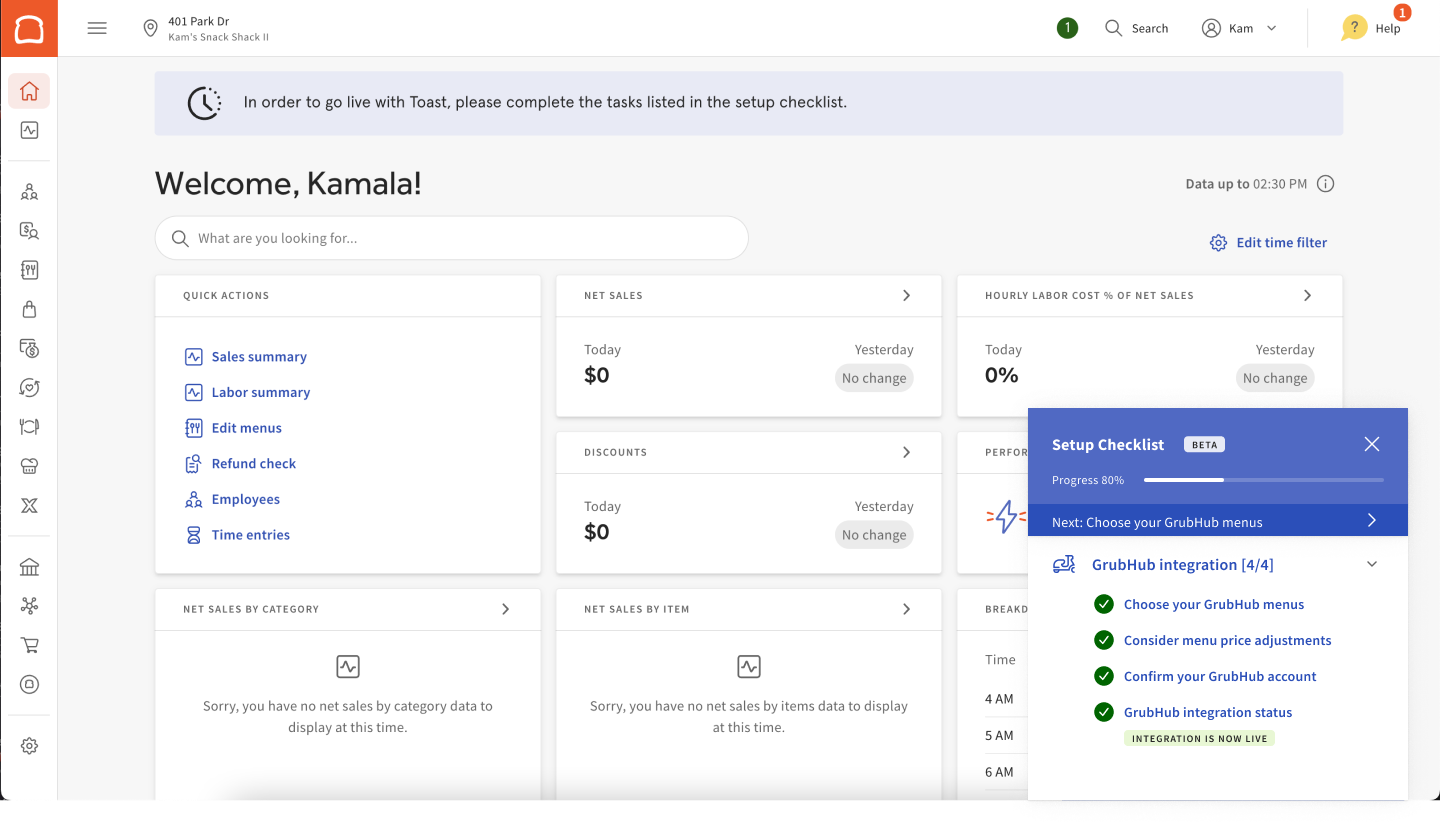
- You can follow the progress of your integration by following the Setup Checklist listed in Toast Web. Grubhub integration status will be unlocked once all items have been completed on the checklist. If you encounter an error page, make sure you have permissions 8.4 and 8.5 enabled on your account as these are needed to access the steps in the setup checklist. (You must fully complete this checklist or your integration won't work!)
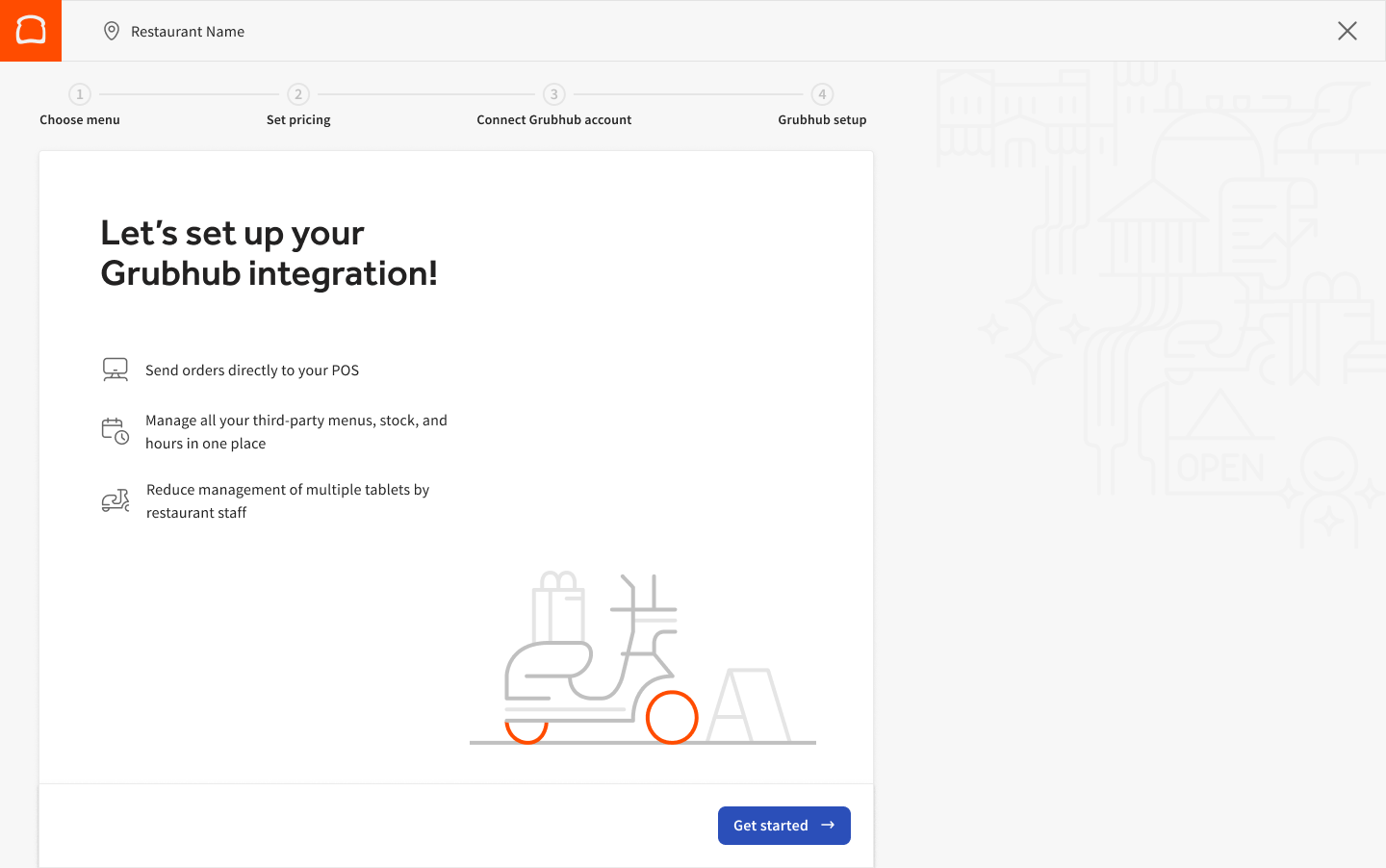
- Select or set up menus and adjust pricing from here.
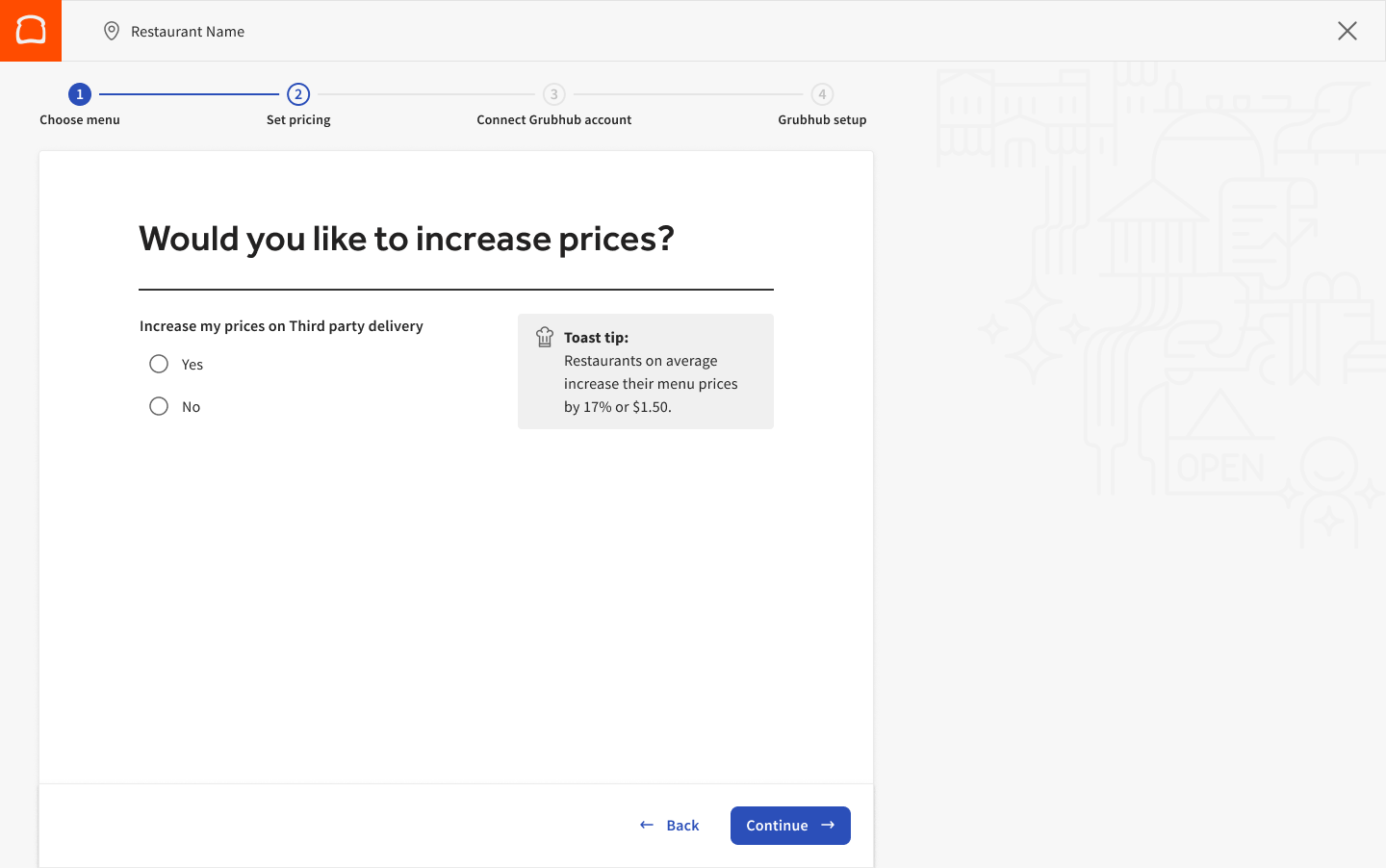
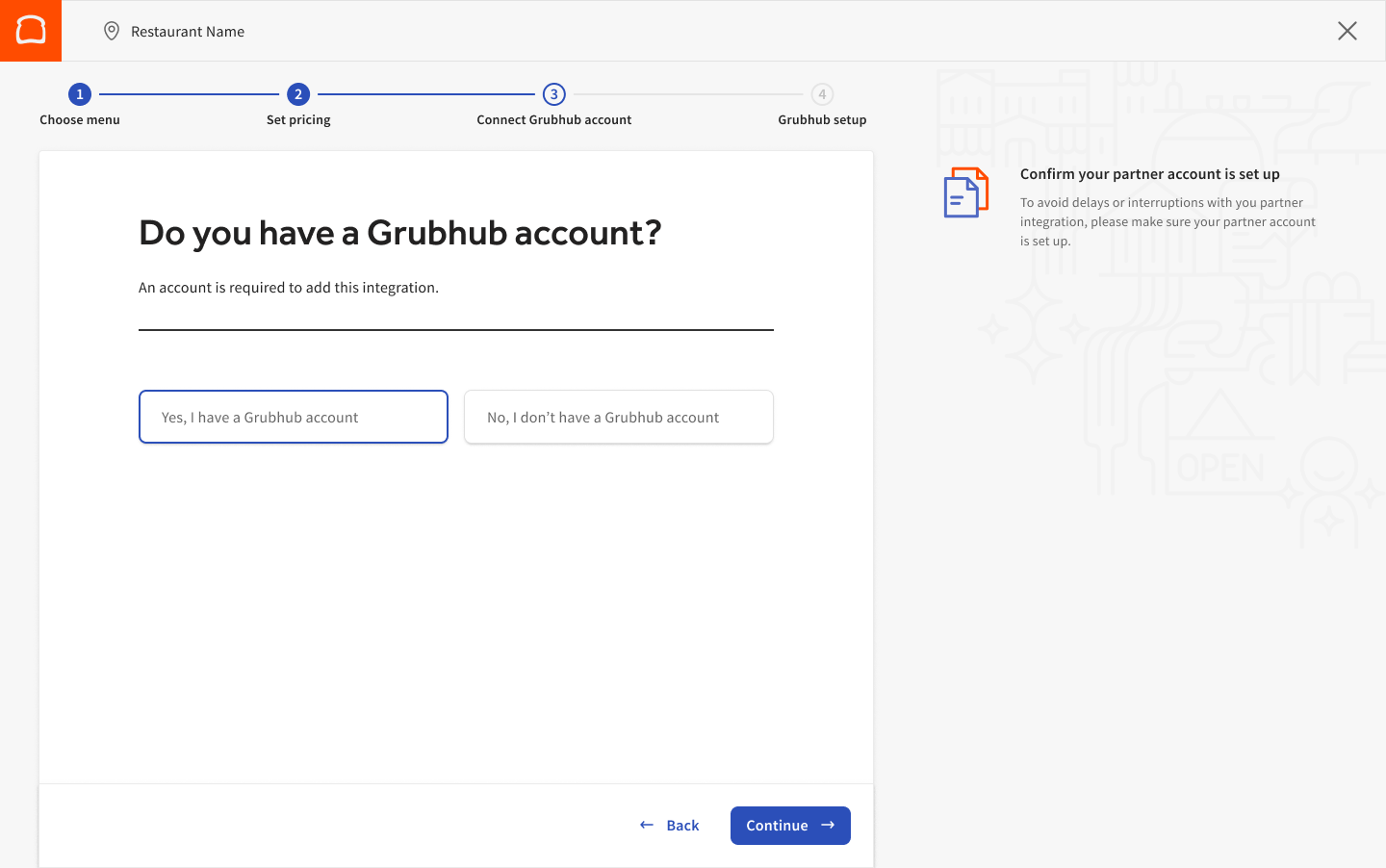
- Next, add your Grubhub account. If you do not have a Grubhub account, select Set up a Grubhub account, and you will be taken to the Grubhub site to create your account. Once your new account has been created, you can select Yes, I have a Grubhub, then Continue.
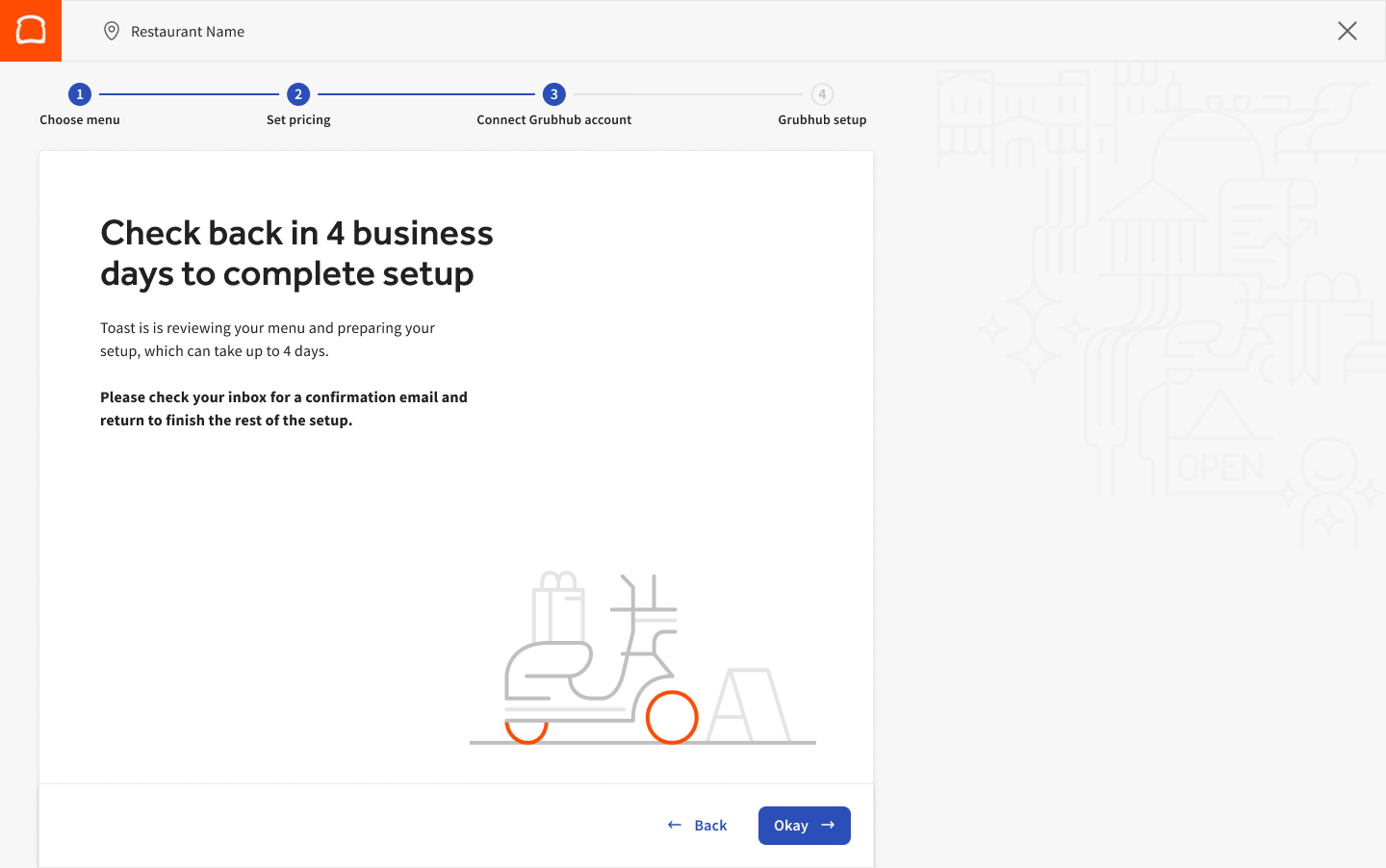
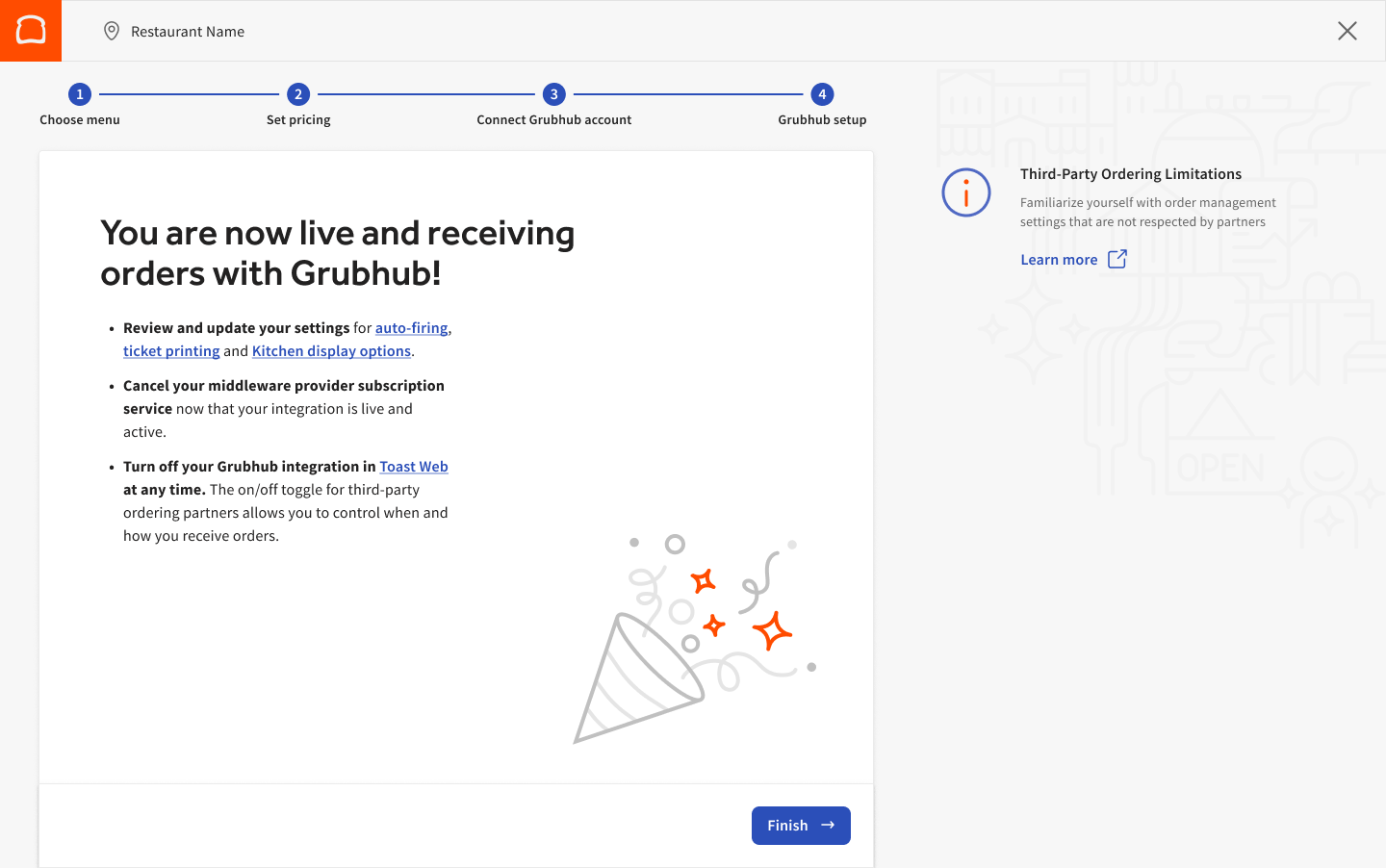
- You will receive the message below stating your integration setup is in progress and suggesting the next steps. This will also unlock the Grubhub integration status step on your Setup Checklist.
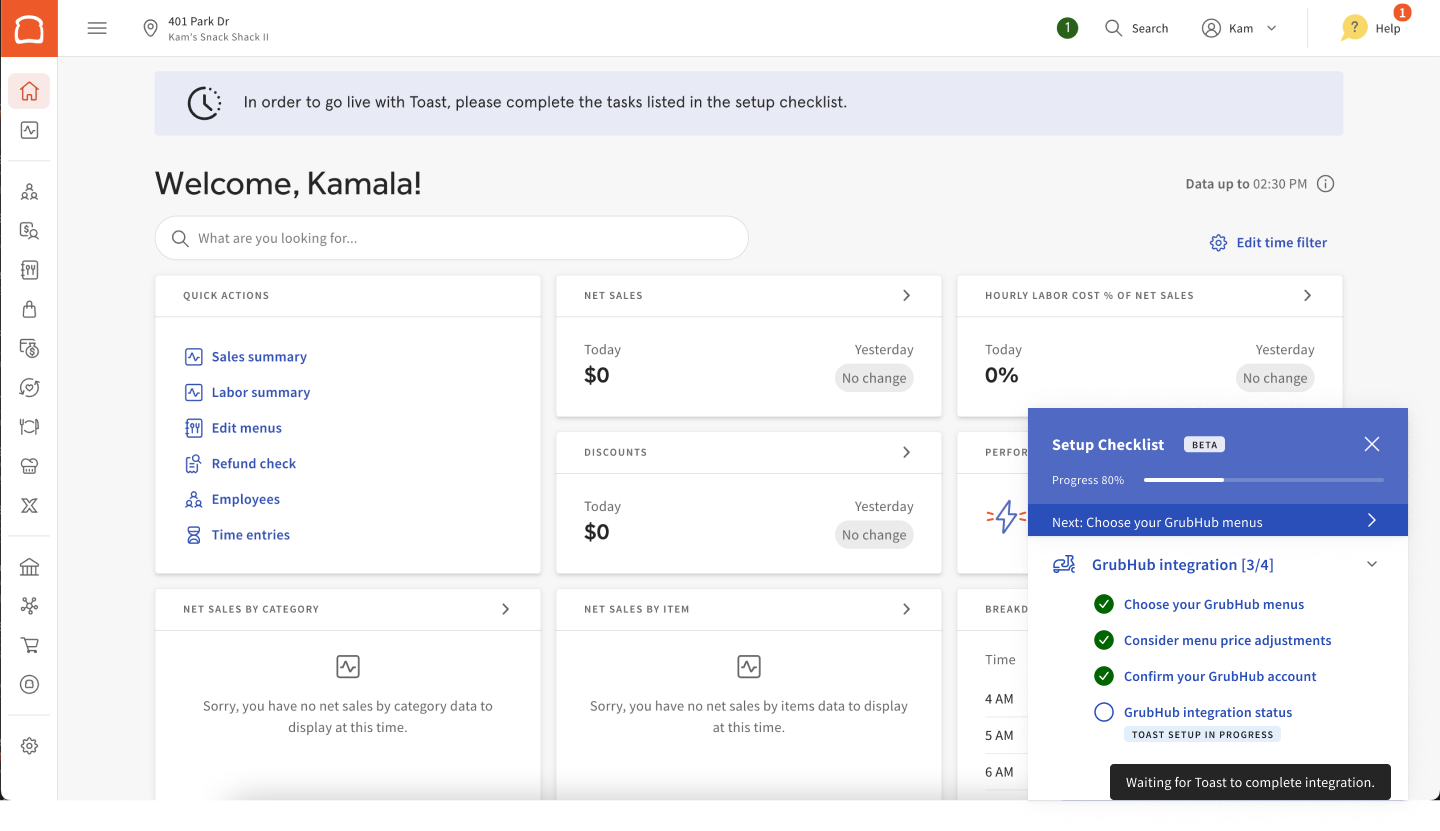
- As progress is made, your checklist will update and reflect the following statuses:
- Waiting for Toast to complete the integration:
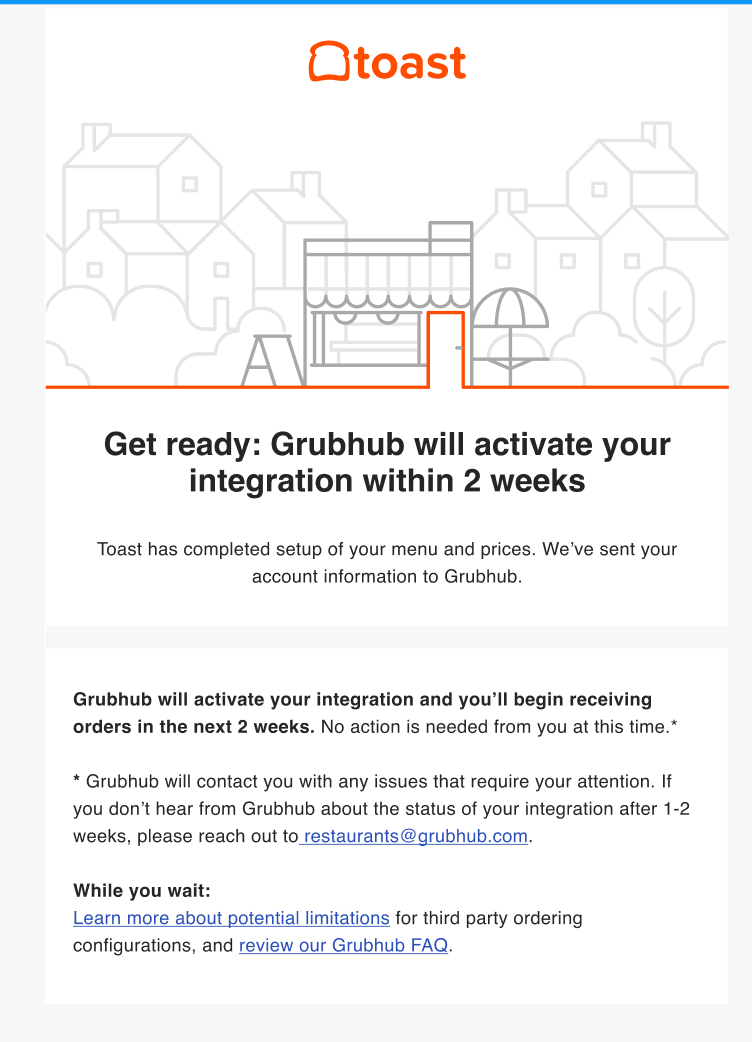
- Once the Toast setup is complete, you will receive a confirmation email from Toast.
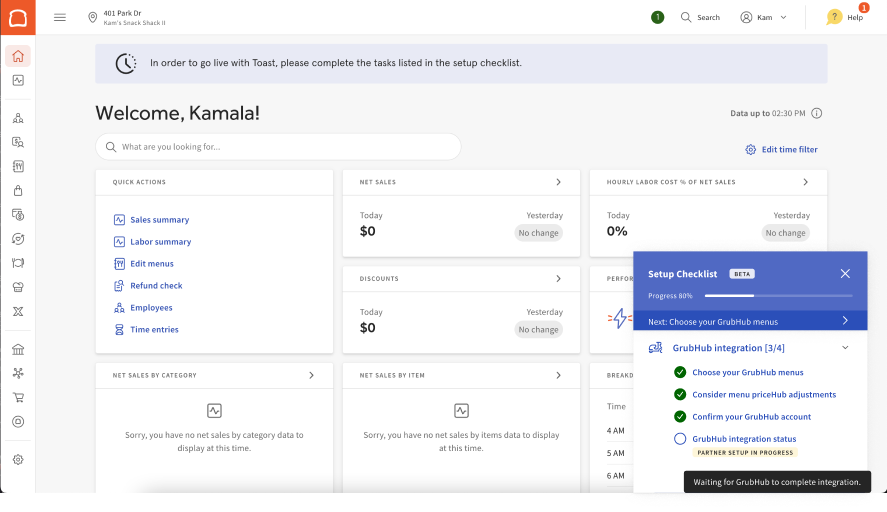
- Next, the Toast team has passed your information to Grubhub for them to complete their side of the set up process. The setup checklist will update to the status to Partner setup in progress
- Waiting for Grubhub to complete integration:
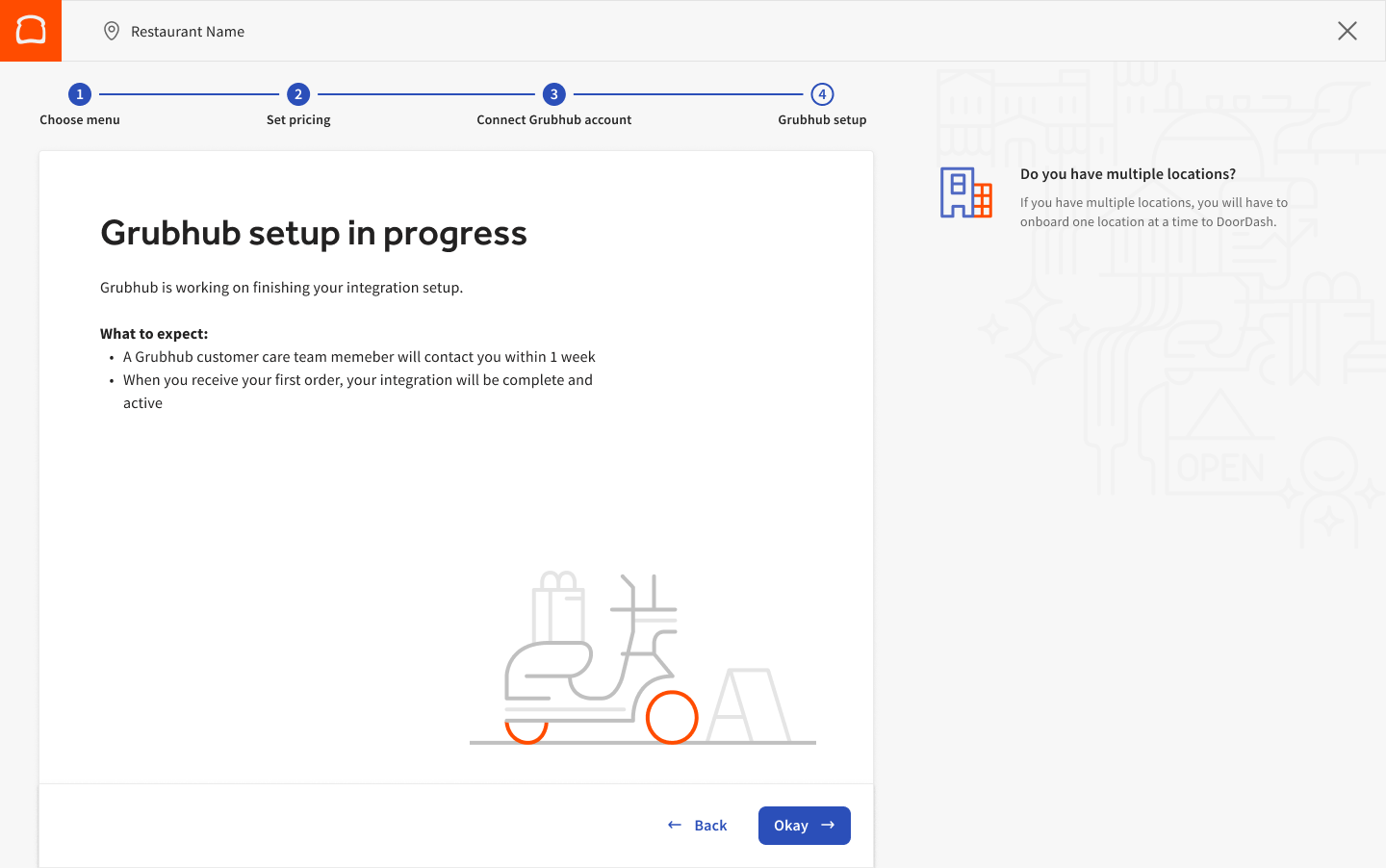
- Once your integration setup is complete and you've received your first order, the landing page will be updated below.
Back to top
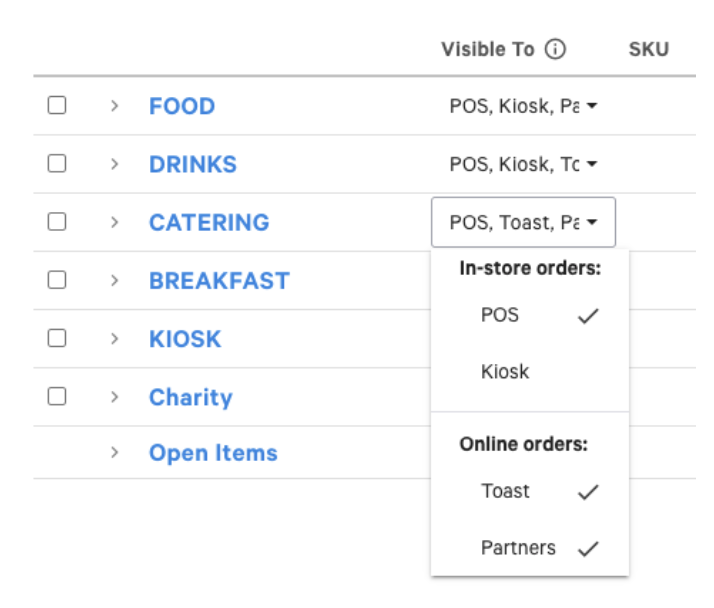
Grubhub can pull your menu directly from Toast. To allow Grubhub to display a menu, make sure the visibility for the menu is set to Online Orders: Partners.
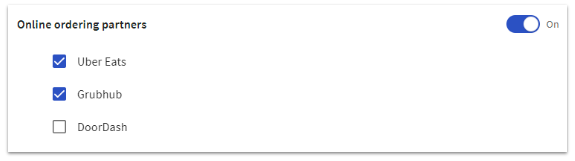
Note: If you use choose to integrate with multiple third-party online ordering partners, you can use the menu builder to control which menus are shared with each specific partner, as shown below. To learn more, check out this Toast Central article: Set Menu Visibility in the Menu Builder.
Additionally, make sure to fill out the questionnaire in the confirmation email you received after you added the integration. A Toast menu specialist will ensure your menu is configured correctly so Grubhub can retrieve it.
If you are already a Grubhub customer, when switching to the Toast integration, you'll lose the ability to add items/categories to your menus through the Grubhub portal. Menu updates will be captured in real-time from Toast Web.
The Grubhub Toast integration currently syncs menu item photos. However, photos for menus, groups, and modifiers are not currently supported.
Note: The following image specifications are needed for the sync to work:
- Images must be <5MB
- Proper format for upload-menu-item-assets command
- Recommended specs for item images:
- 4:3 aspect ratio
- At least 1600 x 1200 pixels
- Format: .png or .jpeg file
Back to top
Manage Availability Through the Snooze Feature and the On/Off Function
Please reference to the following article for instructions on the feature: Manage Third-Party Availability Through the Snooze Feature and the On/Off Function
Back to top
Alcohol Labeling
If you are a Grubhub integration customer, you can now mark items as containing alcohol directly in your Toast menu. This will allow you to leverage labeled alcohol menu items from any of your Visible to: Online ordering: Partners menus.
Once your location is live on the Grubhub integration, please contact your Grubhub Account Advisor to verify that alcohol delivery is available in your area and complete the necessary compliance. Grubhub will use the labeling assigned in Visible to: Online ordering: Partners menus. Visit Labeling Menu Items as Alcoholic for step-by-step directions to label alcoholic menu items.
After you have labeled the alcohol items and completed Grubhub compliance steps, those items will be available for guests to purchase on Grubhub if the menu is visible to partners. If you have not completed the necessary compliance with Grubhub, the items will be hidden from the customer-facing menu until compliance is completed. For more information on menu visibility, see the article How to Manage Your Visibility Settings.
For additional information on compliance and alcohol sales with Grubhub, visit Grubhub Alcohol Delivery.
Back to top
Grubhub will utilize both Take Out and Delivery Dining Options for using Self Delivery and locations using Grubhub Drivers.

Note: These dining options will appear greyed out as they are not editable and cannot be deleted.
Even if you have an existing dining option labeled "Grubhub," a new one will still be created. Grubhub will use the Delivery option for orders delivered to the guest and the Takeout option for pickup orders. If you don't offer pickup orders through Grubhub, the dining option for pickup won't be used.
These dining options will allow you to accurately report the orders and revenue generated by each Grubhub order method.
If your Sales Summary Report doesn't differentiate between Grubhub takeout vs. delivery orders, you will need to contact Grubhub directly to confirm that the dining options are mapped correctly on their side.
Back to top
Grubhub will sync online ordering hours once a day. Any changes to the Online Ordering Schedule that occur after 5 a.m. CT will not be reflected until the following day.
If changes need to be synced immediately, please reach out to your account manager or to Grubhub directly by email at restaurants@grubhub.com.
Back to top
For orders to flow successfully from Grubhub into Toast, a Grubhub Other Payment Option needs to exist in Toast Web. Toast will create your payment type during the initial setup.
|
Learn how to best manage your incoming Gruhbub orders with the Orders Hub!
|
Back to top
Grubhub currently does not automatically assign revenue centers to orders. You can manually apply a revenue center to Grubhub orders to be reported under any revenue center you’ve created if you’d like.
If you’d like to assign a revenue center for Grubhub orders, Grubhub can now accept a one-time request to assign a revenue center of your preference. You can do so by following these steps:
- Pick a revenue center of your choice. If you’d like to learn how to create a revenue center, review the steps in Creating and Assigning Revenue Centers.
- Email Grubhub at restaurants@grubhub.com.
- Provide your Toast Restaurant Location Guid
- Revenue Center you want to use for Grubhub orders
Note: This action cannot be undone. Once Grubhub selects a revenue center of your choice, this can not be deleted in the future.
Back to top
What is Marketplace Facilitator Tax? Grubhub collects tax from the guest and remits it to the state without the restaurant ever seeing the tax money. Additional information can be found in this Toast Central article on Understanding Marketplace Facilitator Laws & How They Affect Your Restaurant.
Please contact Grubhub directly if you have questions regarding marketplace facilitator taxes at restaurants@grubhub.com.
Back to top
I'm part of a restaurant group, do I have to set up the integration separately for each location?
Yes, you'll need to follow the same steps individually for each restaurant you'd like to add the Grubhub-Toast integration to.
I didn't finish setting up the integration and the page timed out. What should I do?
You can easily access the setup steps in Toast Web when you log in. A checklist at the bottom right of your screen will pop up, and there will be a line item for the integration setup.
How will I know my sign-up and onboarding steps were completed correctly?
After signing up for the integration and completing all the onboarding steps, Toast will begin reviewing and setting up the configuration in the backend. (3-4 days). Once the Toast onboarding team has reviewed the configuration, the Toast team will send an email to the email address linked to the Toast account to either (1) confirm the configuration was completed successfully and passed on to Grubhub to finish the activation OR (2) request the restaurant make changes. Note: If you have not received any emails from Toast, please confirm the email address linked to the account with your team, Sales Rep, or Toast Customer Care. All of the onboarding steps need to be completed to trigger the Toast team’s review and confirmation email.
When will Grubhub contact me about my integration?
Grubhub will notify you once they have received your information from Toast and have retrieved your menus. During the setup process, Grubhub will include a preview of your menu for your review. You should expect to hear from Grubhub within 1-2 weeks. If you haven’t heard back from Grubhub after 1-2 weeks but have received a confirmation email from Toast that the configuration was set up and passed to Grubhub, please contact restaurants@grubhub.com. The Toast team is not able to support partner integration questions once it’s passed to Grubhub, given limited visibility. However, if issues remain unresolved please reach out to Toast Customer Care.
I need to make changes to my Grubhub menu. Where should I do it -- in Grubhub or Toast?
Once you are live on the integration, you should make ALL menu changes in Toast, NOT on the Grubhub portal. Menus with visibility set to Online Orders: Ordering Partners are shown on Grubhub and the other online ordering partners you may use. For more information on changing your menu's visibility settings, check out this article.
Please note, menus are refreshed from Toast on a nightly basis, so updates made to Toast during the day will be reflected the following day in Grubhub. When you go live on the integration, your existing menu on Grubhub will be overwritten with your menu and images from Toast. If the menus have not refreshed in Grubhub one day from the publish date, and there are no unpublished changes in Toast, contact Grubhub as they will need to re-sync the menus on their end.
How do I update my hours in Grubhub?
Grubhub uses your Takeout hours set via your Online Ordering Schedule. Should you need to change this schedule at any time, you can do so by selecting Takeout & Delivery using the navigation on the left side of your screen and selecting Online Ordering Schedule under the Availability header. If your restaurant offers self-delivery through Grubhub, then Grubhub would also use the Delivery hours (see two tabs in the image below).
Note: Hours will be updated in real time.
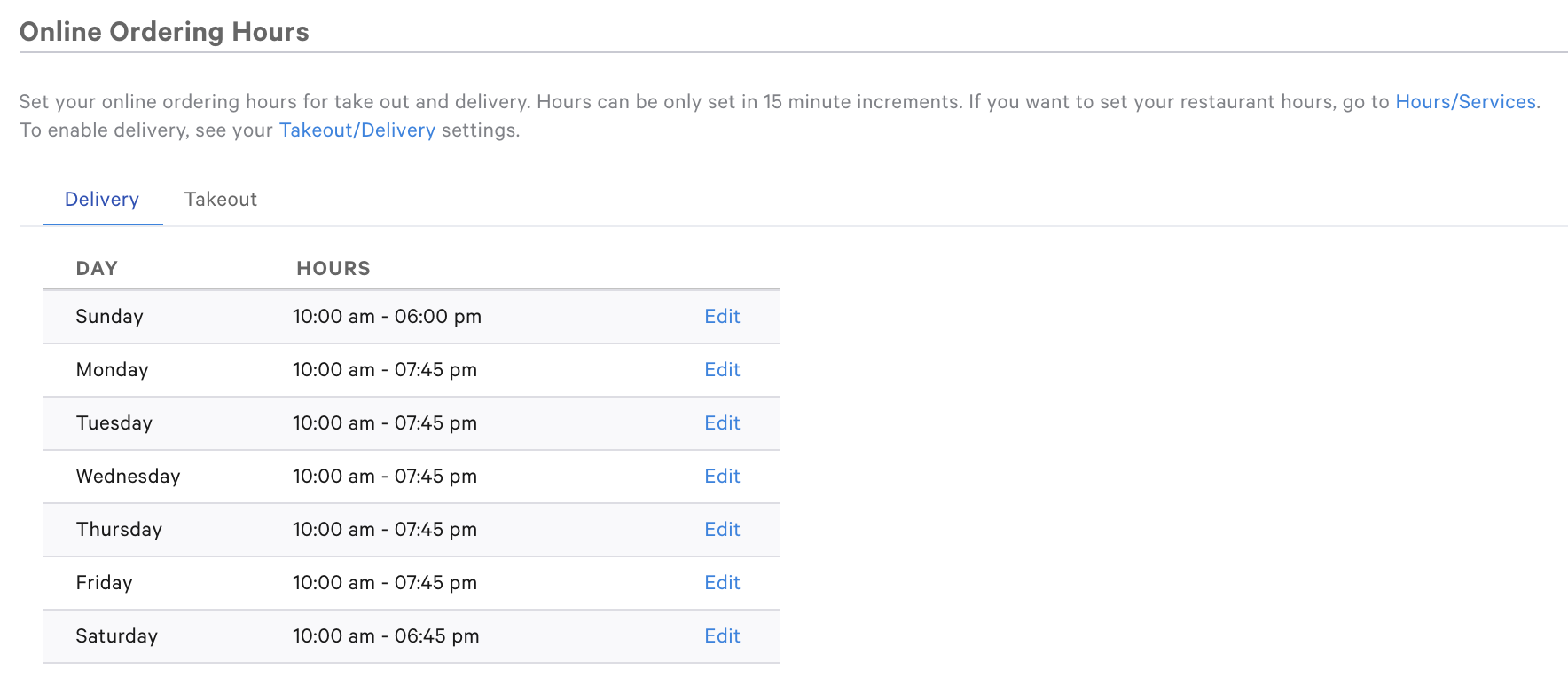
For more information on setting restaurant hours and services, check out Set Up Restaurant Hours and Services or this step-by-step guide in Toast Web.
Will items go out of stock on Grubhub menus when they are 86'd on the POS?
Yes, items will go out of stock on the Grubhub menu in real-time when they are 86'd on your Toast POS. See How to 86 an Item for a refresher on how to 86 an item.
Can I have different menu pricing on Grubhub vs. Toast POS menu?
Yes. Menu-based pricing can be set up where a burger costs $10 on Toast POS and $12 on Grubhub, for example. To change the price settings on your menu, see Building Happy Hour Menus with Menu Specific Pricing or contact our Customer Care team for assistance.
How is the prep time that is quoted to guests calculated?
By default, a given Grubhub store starts with an estimate of 45-55 minutes for delivery and 20-30 for pickup orders. Grubhub then monitors over time and updates estimates based on the restaurant's performance.
I only use the Grubhub-Toast integration for delivery orders, and not pick up. I see two dining options were created when the integration was set up. Does this mean I now will start seeing pickup orders as a result?
If your restaurant doesn't offer pickup orders, the pickup dining option will not be used and you can continue to not offer the option for pickup through Grubhub.
What if I am a Grubhub self-delivery customer or want to use local couriers to complete deliveries?
If you have a self-delivery contract with Grubhub, you are signing up to deliver the orders yourself. You will need to configure your delivery radius and fees in Toast. Grubhub will use these details to determine which orders to accept and the delivery fee to charge guests. For more information on setting up delivery in Toast, check out this article on delivery configuration here and delivery fees here. This setup should be completed as soon as the Grubhub integration has been added.
Please note, you CANNOT use Toast Delivery Services if you are a self-delivery customer for Grubhub.
If I want to pause the Grubhub integration temporarily, what do I do?
Log in to your Grubhub portal (or use your Grubhub tablet) and disable your listing on Grubhub by clicking Stop taking orders.

Please note, you SHOULD NOT remove or delete the integration in Toast if you plan to resume using the integration in the future. If the integration is removed from Toast, you will need to follow the steps above to re-add the integration through the My Integrations page in Toast Web.
If I want to stop using the Grubhub integration permanently, what should I do?
Contact Grubhub by emailing restaurants@grubhub.com or call (877) 799-0790. The team will be able to coordinate transitioning your store to a tablet or another approach for receiving orders. Once Grubhub confirms you have been switched, you will receive orders on the Grubhub tablet. When Grubhub has completed the configuration, you can then login into Toast and delete the Grubhub integration from the My Integrations page under the Integrations section in Toast Web.
If I am using an aggregator to have all my delivery orders integrated, can I still use my aggregator partner?
Toast can integrate your Grubhub and Seamless orders via this integration directly. Please coordinate with your aggregator if you plan to stop using their service. You should call Grubhub to switch to tablet protocol, then stop your aggregator service to prevent losing any Grubhub orders. Once you are on the tablet protocol, you can sign up for the direct integration in Toast Web using the My Integrations page.
Note, if you use other delivery platforms, we recommend you continue to use the aggregators to integrate all orders into your Toast POS.
Can I sell alcoholic beverages on my Grubhub menu?
We currently do not support selling alcoholic beverages on Grubhub marketplace when using this integration. Alcoholic menu items in Toast should not be made visible for Grubhub at this time. If any are made visible by mistake, the Grubhub team will remove them before completing your integration.
Do you support virtual or ghost kitchen brands?
Yes, as long as one brand on Grubhub marketplace maps to one unique location setup in Toast.
Should I contact Toast or Grubhub if I am having issues with my integration?
Menu and configuration-related issues can be addressed by the Toast Customer Care team. However, if you have a question about a driver or past/current order, please contact Grubhub support.
My Toast and Gubhub reporting are not matching what should I do?
If you are a self-delivery customer, make sure to add a delivery fee through service charges in Toast Web here, so it matches what you have configured in Grubhub. This will ensure your Toast and Grubhub reporting match. Use Customize Service Charges and Mandatory Gratuity for assistance creating a service charge.
What should I do if a guest cancels their order?
Contact Grubhub Support at (877) 799-0790 for assistance with guest order cancellations.
Does my Grubhub integration respect manual approval or approval rules in Online Ordering?
No, all Grubhub orders are sent directly to the kitchen.
How do Grubhub direct integration orders appear on my KDS and print receipts?
If you're using Grubhub's direct integration, here's what to expect:
-
-
- Receipts print automatically when an order is placed.
- Orders fire to your KDS immediately (ASAP). Your configured prep time in Toast determines the earliest delivery/pickup time for guests.
- Scheduled orders fire based on your Toast prep time, not the scheduled pickup time (e.g., a 9 PM order with a 30-minute prep time fires at 8:30 PM). These show as ASAP on the KDS.
- Your KDS displays a timer showing elapsed time since the order fired, not the due or scheduled time.
What online ordering schedule does Grubhub's 3PO direct integration use for self-delivery?
We've heard that some restaurants using Grubhub's self-delivery option have noticed incorrect hours displayed on the website. This can happen because Grubhub's system sometimes uses the wrong online ordering schedule from Toast.
-
-
- If you offer self-delivery through Grubhub, the platform should be using your takeout online ordering schedule.
- If you use Grubhub's delivery service, the platform should be using your delivery online ordering schedule.
If you are experiencing this issue, please check that your Grubhub settings are configured correctly to pull the right online ordering schedule from your Toast account. Note: Grubhub 3PO direct integration DOES support Schedule Overrides set in Toast Web.
To set Takeout and Delivery hours, follow the steps below:
-
-
- Select Takeout & Delivery > Availability > Online Ordering.
- Set Delivery hours for self-delivery with Grubhub.
- Set Takeout for delivery by Grubhub.
To learn how to set online ordering hours for takeout and delivery, view this article.
Back to top


