In this Article:
A property management system (PMS) is software that hotels use to manage reservations, operations, and finances. Similar to Toast being the heartbeat of the restaurant operation, a PMS provides core services to keep the hotel running smoothly. The integration between Toast and a PMS streamlines accounting and simplifies revenue recognition between food and beverage outlets and the front desk.
With a PMS integration, you can:
- Search for hotel guest records on the Toast POS
- Post checks closed via room charge payments to the guest folio (an account associated with a single hotel guest) in the PMS
- Depending on the PMS, retrieve additional sales data from leading accounting platforms.
Note: The type of integration described here requires a Hotel PMS Integration subscription, which can be purchased on Toast Shop.
Back to top
There are a few settings in Toast Web that need to be configured in order to get the most out of your PMS integration.
In order for revenue generated from Toast POS to be accounted for accurately within the PMS, sales categories must be assigned to every menu item - whether they’re inherited from the menu or menu group level, or individually assigned to a specific sales category.
All menu items, including open items, must be assigned a sales category in Toast before a PMS integration can be fully configured.
Within the hotel system, sales categories are then mapped to revenue categories, which enable integrated partners to accurately account for revenue generated by the sale of each menu item posted to a guest’s folio. If no sales categories are assigned to an item, no sales are accounted for within the integration.
For detailed instructions, see this Toast Central article: Configure Sales Categories.
Back to top
Toast will create a Room Charge payment option that will appear on your POS. You can find it in Toast Web by navigating to Payments > Payment methods > Other payment options. Here are some settings you should pay attention to for your room charge payment option:
- Allow Paid Check Status - this should be set to Yes for room charges, so that the payment will go from “open” to “paid” until tips are added and the charge is finalized (then the check will be “closed”). Otherwise, any payment types on the Other payment options page will go directly from “open” to “closed” when payment is tendered.
- Show Guest Signature Prompt for Room Charge Payments - this should be set to Yes, show the guest signature prompt in digital receipt mode.
- Allow Hotel Guest Search - learn more in the next section of this article.
From this page, you can also create and manage a Room Charge - Offline payment option by selecting + Add at the bottom of the table. See more on offline mode below.
Note: The room charge search fields that appear on the POS will vary based on your specific PMS integration. Integrations can support searching by guest name, room number, folio/account number, or some combination of those options.
Back to top
| Hotel guest search functionality in limited release for select PMS integrations. |
You can enable hotel guest search to start tabs directly from the ordering workflow—no longer limited to the payment screen.
To configure hotel guest search, follow these steps:
- In Toast Web, navigate to Payments > Payment methods > Other payment options.
- Select your room charge payment option.
- Scroll down to Allow Hotel Guest Search and select Yes.
- Save and publish your changes.
To use hotel guest search on the POS:
- Open the overflow menu (three vertical dots) on the POS and select Hotel Guest Search.
- In Table Service mode, the overflow menu is in the top right corner of the screen.
- In Quick Service mode, the overflow menu is in the top right corner of a check.
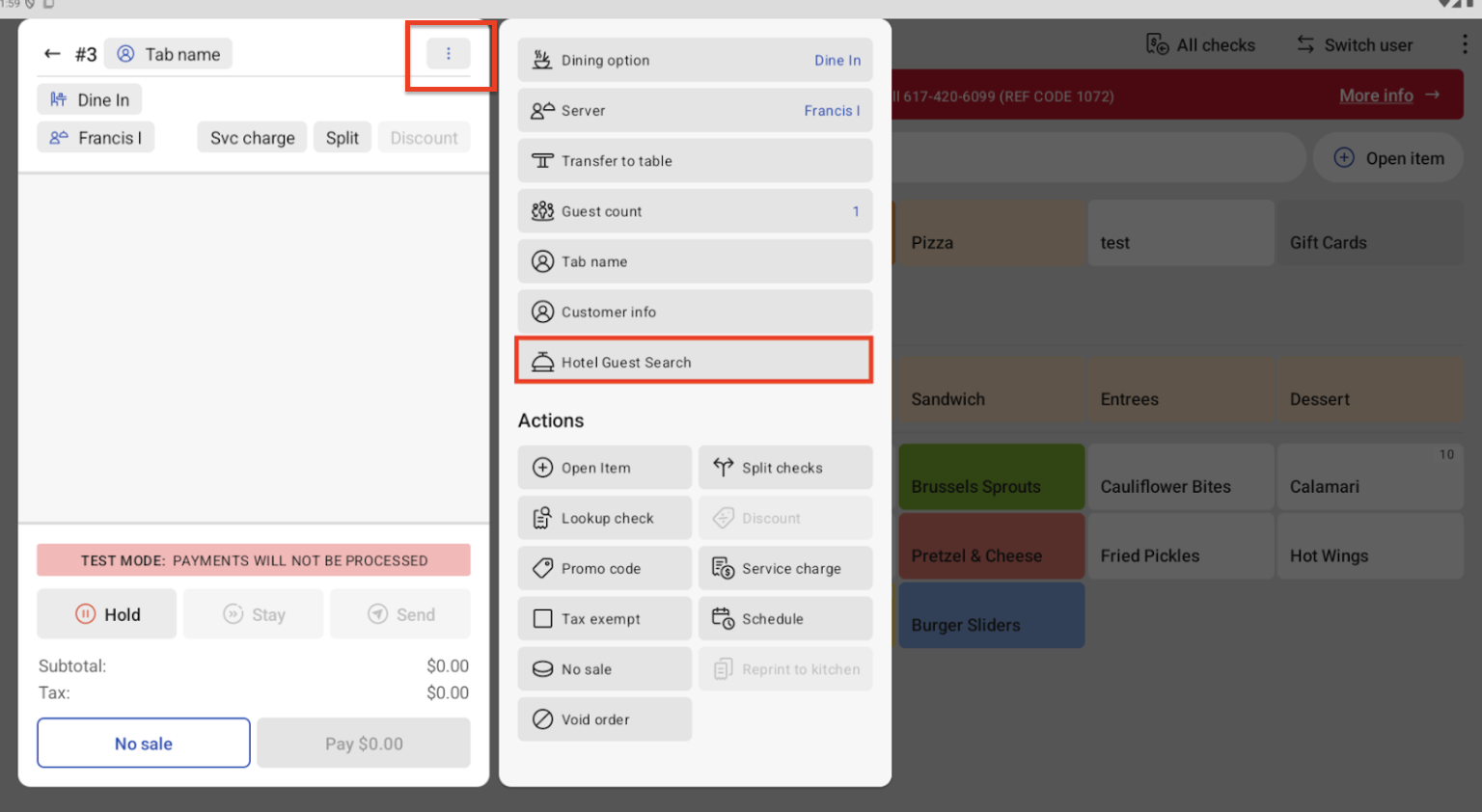
- Enter your guest details and select Search.
- Select the guest name. If no guests match the search criteria, no results will be found.
- Select the blue Select Guest button in the bottom right corner.
After selecting the guest, you will be navigated back to the order screen automatically. On the order screen, you’ll see the guest's information in the top left corner of the check.
Back to top
For PMS integrations, there a few receipt settings you should configure:
- For devices that use digital receipts mode, you can show a guest signature prompt on the device.
- In Toast Web, navigate to Payments > Payment methods > Other payment options and select your room charge payment option.
- For the Show Guest Signature Prompt for Room Charge Payments, select Yes, show the guest signature prompt in digital receipt mode.
- Save and publish your changes.
- Display a room charge prompt on your printed receipts.
- Navigate to Payments > Checks & receipt setup > Guest receipt setup.
- Select the pencil icon to edit your desired receipt.
- Under Advanced settings, scroll down to Display room charge prompt on receipts and select your desired configuration:
- Yes, all receipts
- Yes, after completed room charge payments only
- Yes, on open checks only
- No
- If desired, select Yes for the Display room number on receipts setting.
- Save and publish your changes.
If you choose to display a room charge prompt, this is what you’ll see on the bottom of your printed receipts:

Back to top
Once your payment option has been created and configured in Toast Web, you’ll have the option to close a guest’s check with a room charge instead of taking a separate cash or card payment.
To pay a check with a room charge, follow these steps:
- Input the guest’s order from the POS as usual.
- When the guest is ready to pay, select Pay and then select Other payments > Room charge from the list of options on the payment screen. Note: If you don’t see “room charge” as an alternate payment type, that means it wasn’t created in Toast Web yet. Reach out to Toast for assistance.
- The Guest search screen will appear. You can look up a guest by their room number, name, or a combination of room number and name (this depends on your specific PMS integration).
- Room number searches must be exact and complete. For example, searching ‘1’ would only return room number 1, not 100, 101, 111, etc.
- Guest name searches can be partial, down to a single letter. For example, searching ‘S’ will return names that contain the letter 'S' in the name. However, please note this could vary by PMS partner.
- After selecting the correct guest information, the charge will be processed. If digital receipts are configured, the Toast POS device prompts the restaurant employee to add the tip amount.
The check will be closed to the room charge payment option and posted to the hotel PMS.
Back to top
You can refund a guest’s room charge just like you would for another payment type (learn more: Issue a Refund).
If a room charge payment needs to be updated, the previous payment must be voided, and a new payment added to the check for the new total. Room charge payments do not currently support updates to a previously posted payment, and will not add the additional amount to the guest room bill. Learn how to void a payment here: Void Items, Payments, and Checks.
Back to top
You can review room charges on the Payments report in Toast Web.
- Navigate to Reports > Payments > Payments.
- Select Show/hide columns and ensure Other Type and Room Number are both selected.
- Select your desired location(s), date and time range, and then select Update.
“Room Charge” will appear in the Other Type column for any check closed to a room charge.
Back to top
Hotel PMS integrations are not supported in offline mode because they rely on an active connection between the Toast POS and the property management system to validate a guest’s reservation and post a charge to their folio.
If you’re in offline mode, you may see a notification that says, “Room Charge transactions cannot be processed in offline mode.”
When in offline mode, you should:
- Leave checks associated with hotel guests' checks open until the restaurant is back online. When the restaurant is back online, you can close orders through the PMS integration.
- Alternatively, restaurants operating within hotels can configure another payment option that isn’t linked to a PMS integration (for example, you can create a payment option called “Room Charge - Offline”). While in offline mode, you can close orders to that payment option and note the guest’s room number as the tab name.
- When the system is back online, you can navigate to the Payments report in Toast Web (Reports > Payments > Payments) to view checks that were closed to your “Room Charge - Offline” payment. You can use this report to then manually enter these transactions on a guest’s folio in the PMS.
Back to top


