|
Please note you can not toggle back and forth between Toast Delivery Services® and using your drivers. If you have received Toast Delivery Services® orders for the day and then changed the delivery type to use your drivers, the orders will not be able to be assigned to your drivers until the next day.
|
If your restaurant offers delivery with your own drivers, follow this article to get set up!
If you have the online ordering module through Toast, we recommend reviewing the Takeout/Delivery section along with the Online Ordering: Advanced Settings to program delivery for online orders and to get the most out of the online ordering system.
If you are NOT using your own drivers and are using Toast Delivery Services, see Toast Delivery Services Overview for setup, troubleshooting, and answers to frequently asked questions.
In this Article:
Watch this short video or follow the steps below to set up takeout and delivery:
To offer drivers reimbursements, navigate to Takeout and Delivery and enter a dollar amount in the field provided.
- Enter orders on the POS by choosing the delivery dining option.
- Input guest information like phone number, name, email, or account number.
- Select the guest's address if added to Toast; otherwise, manually enter it.
- Update guest information by selecting the overflow icon and then Change Customer.
- Dispatch a driver after sending the order to the kitchen or completing payment.
- Navigate to the delivery screen from the main menu.
- Select Unassigned tab > Dispatch Driver.
- Assign a driver to the order and move it to the En Route tab.
- Once delivered, select the order and complete delivery from the Delivered tab.
Now that you have activated Takeout and Delivery, see Configure Delivery Fees Using Your Own Drivers to set up Delivery Fees. To access this page, log in to Toast Web and navigate to Takeout & delivery > Availability > Takeout/delivery. If you don't have access to the Availability section, ask your administrator for the following permissions: 3.29 Throttle Online Orders, 6.4 Publishing, and 6.6 Restaurant Operations Setup.
Back to top
Note: It is not possible to deliver orders from third-party integrations like DoorDash, Uber Eats, or Grubhub with your own drivers.
Once in the Takeout / Delivery section, you can turn on the basic settings for takeout and delivery.
Note: If you are setting up delivery using your own drivers, ensure your restaurant has Delivery set up as a Dining Option. From Toast Web, navigate to Kitchen Setup on the left-hand side of the homepage and then select Dining Options to confirm you have Delivery as a Dining Option. This must me completed manually.
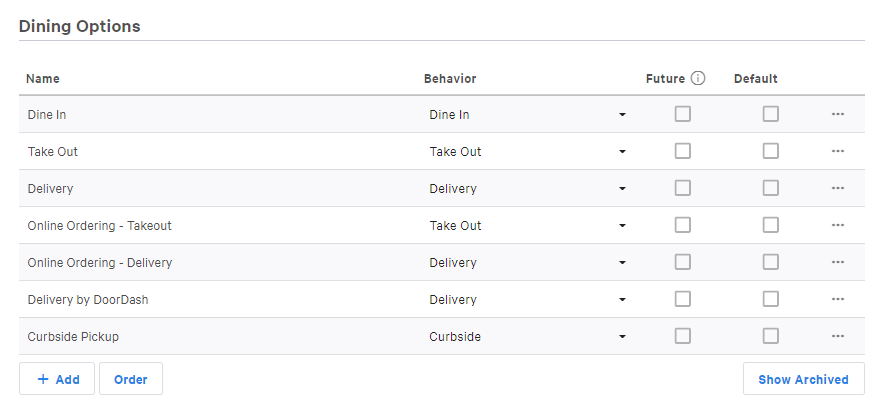
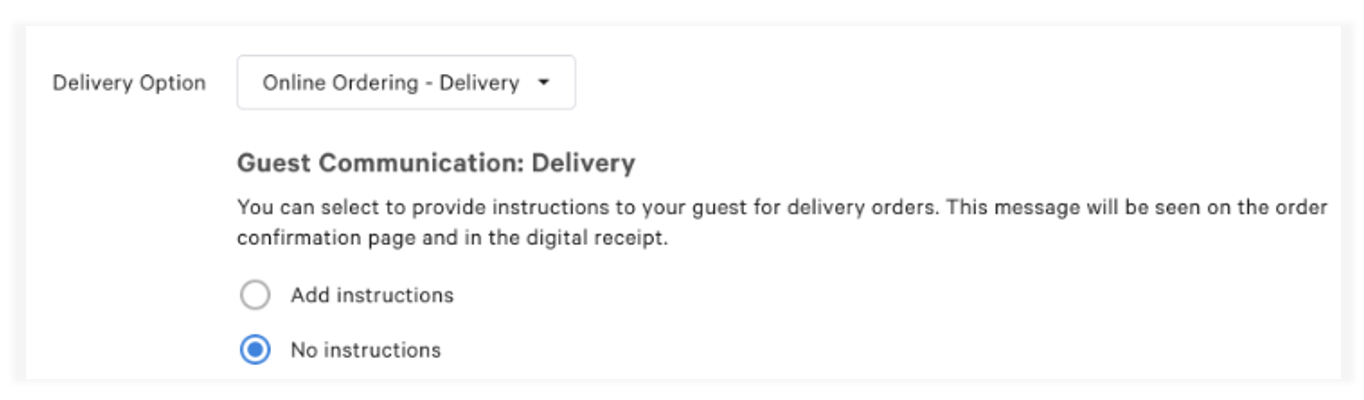
Once you've created a Dining Option, go back to the Online ordering setup page and select a Dining Option for Delivery.
Back to top
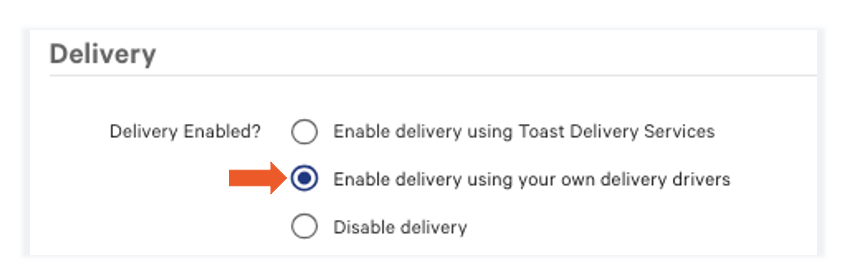
- Under the Takeout/delivery header, locate the Delivery Enabled? section and select Enable delivery using your own delivery drivers. This allows guests to place orders (both in-person and online) for delivery. Note: Enable delivery using delivery services (i.e., Toast Delivery Services) is for restaurants that utilize third-party drivers. Since your restaurant uses Toast's Delivery Solution, you will be dispatching your delivery drivers.
- Toast's Online Ordering system considers takeout a standard default service. Once Online Ordering is enabled, there is no way to disable the takeout dining option.
- Under the Receipt Printing header, you can choose which set of payment receipts you'd like to print for online orders and the set of customer details, if any, you'd like to print for both Takeout and Delivery receipts. Depending on your selection, staff will be prompted to enter this information upon placing takeout and delivery orders. The guest's information will be saved to their customer profile.
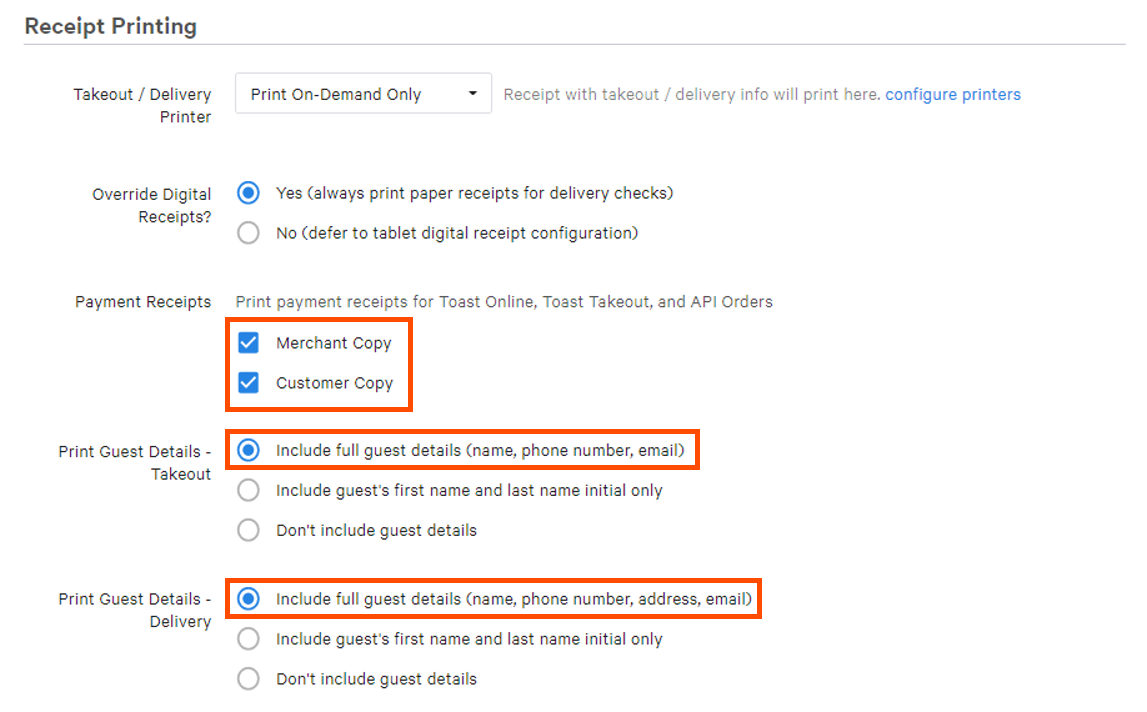
- Note: Depending on your Guest Details selection, staff will be prompted to enter this information upon placing takeout and delivery orders. The guest's information will then be saved to their customer profile.
- Select a rule in the Billing Customer section under the Takeout / Delivery header to collect your guest's billing information. Note that this only applies to Delivery Orders.
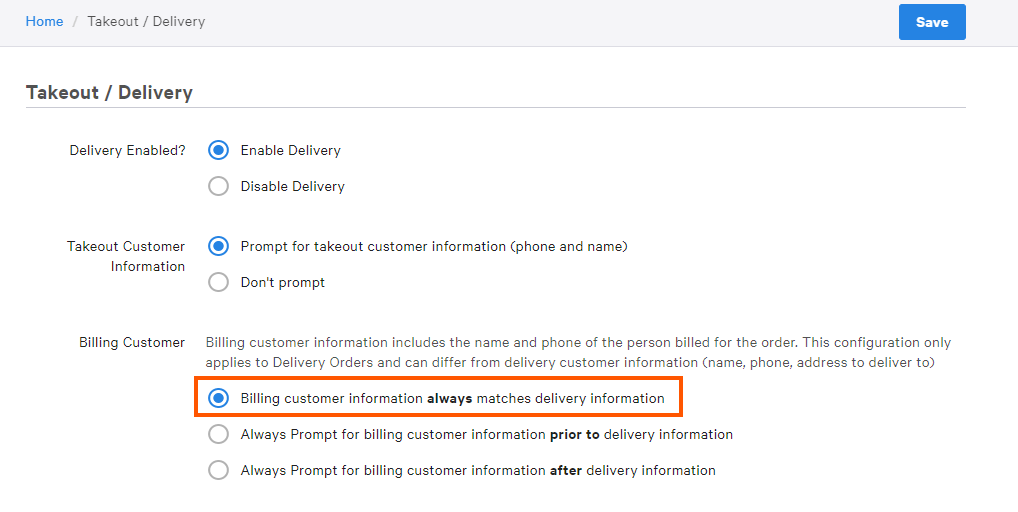
- Billing customer information always matches delivery information - Do NOT prompt for billing customer info and use the same information provided for delivery customer information when placing the order.
- Note: This is the default setting and will cover the majority of orders placed. Another option should be selected if you have customers that typically place orders to be delivered to someone else.
- Always Prompt for billing customer information prior to delivery information - Prompt the guest to enter billing customer information BEFORE delivery customer information.
- Always Prompt for billing customer information after delivery information - Prompt the guest to enter billing customer information AFTER delivery customer information.
- Note: Both the second and third option allows for billing customer information to differ from delivery customer information (name, phone, address to deliver to).
Note:
- Billing customer information includes the name and phone number of the person billed for the order.
- When splitting a delivery check, it will have two orders, both for delivery.
Back to top
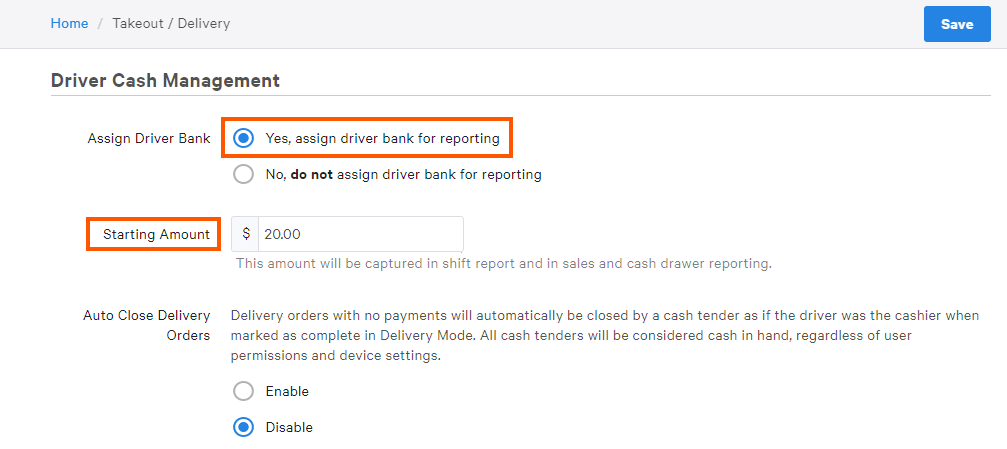
Delivery drivers can be assigned a starting cash balance that acts as a soft bank throughout their shift. At the end of the shift, the driver's cash bank is returned to the house as part of their cash on hand.
- Under the Takeout / delivery header, locate the Assign Driver Bank and select Yes, assign driver bank for reporting. Here you can also set the Starting Amount to the value that the drive will be carrying.
- Next, navigate to UI Options in the Takeout & Delivery section.
- From here, locate the Shift Review Report Configurations section and select Delivery.
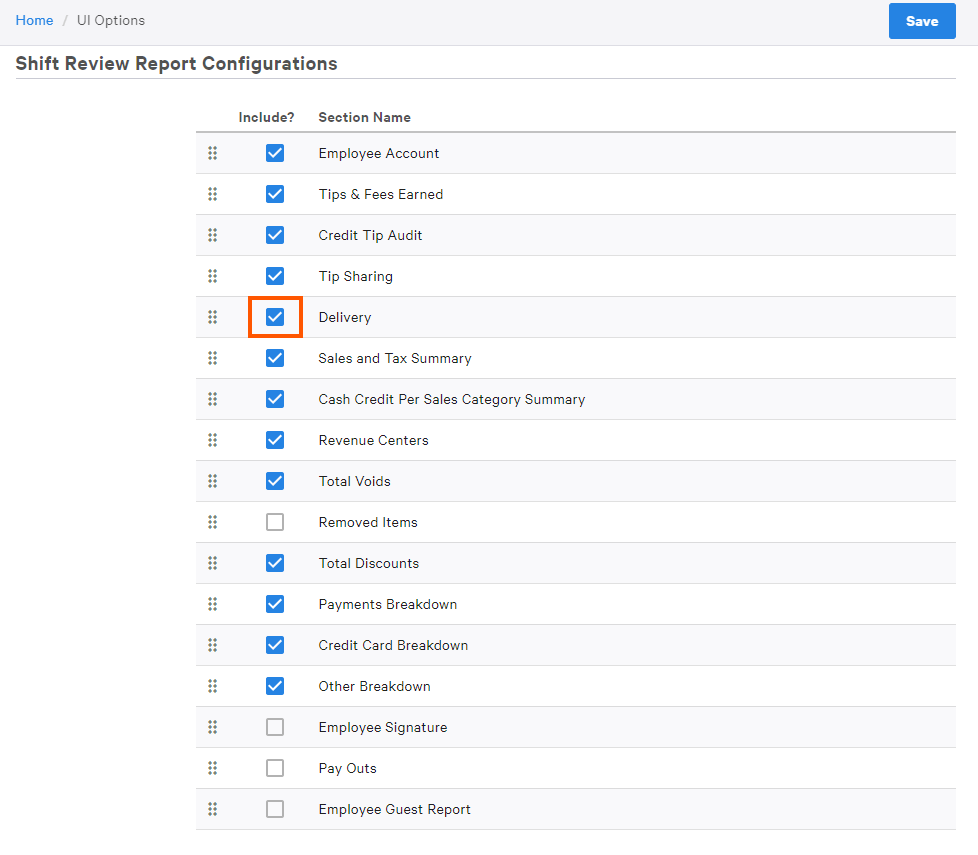
The driver's bank will appear under Cash in Hand. The amount that the driver owes the house will include the driver's bank amount.
Back to top
Quote Time Configuration
Quote times are configured in the Delivery & Takeout page in Toast Web. Quote times are used to tell a guest how long their order will take and to control order firing to the kitchen.
Check out Manage Your Quote Time Strategy to learn how to configure quote times for your takeout and delivery orders.
Back to top
Add a Delay to Takeout/Delivery Orders
Adding a delay (in minutes) allows restaurants to manually adjust their quote time for takeout and delivery orders and, as a result, manage order volume. Note that online order throttling will NOT change the Default Preparation Time.
To add a delay to Takeout and Delivery orders:
- In Toast Web, navigate to the Takeout & delivery page using the navigation bar on the left side of the screen.
- At the top of the page, you will see the Online Ordering dashboard with the option to Add delay in 5-minute increments to Takeout and Delivery orders separately.
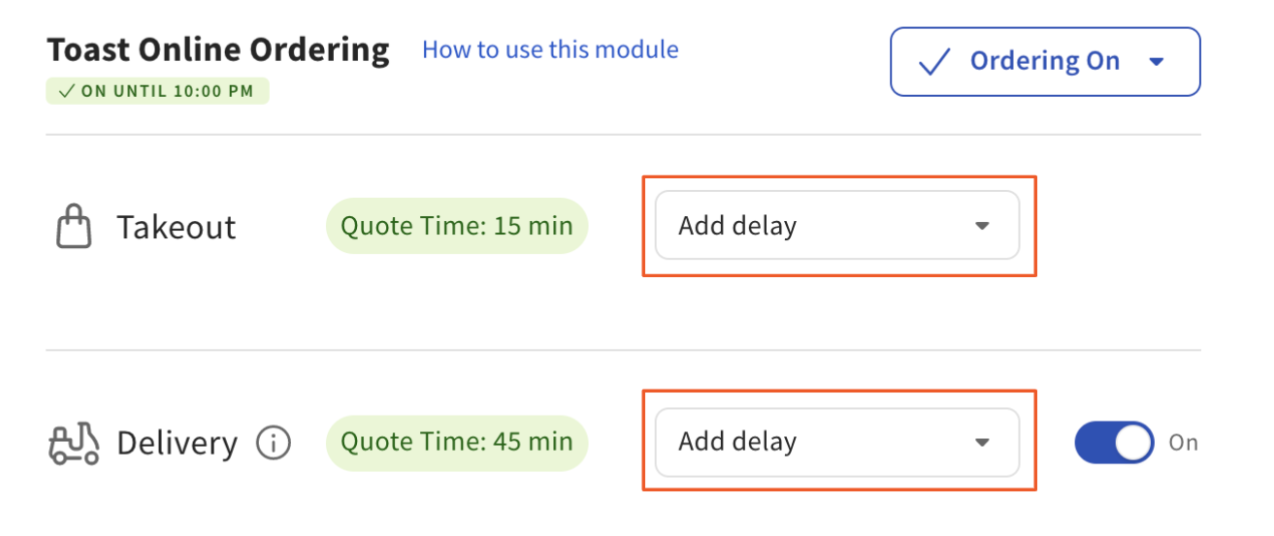
- Once a delay is selected, the Quote Time will change both on the page (next to the drop-down_ and for your guest on your Online Ordering page once Publish all changes is selected.
Toast Web:

Online Ordering page (visible to guests):
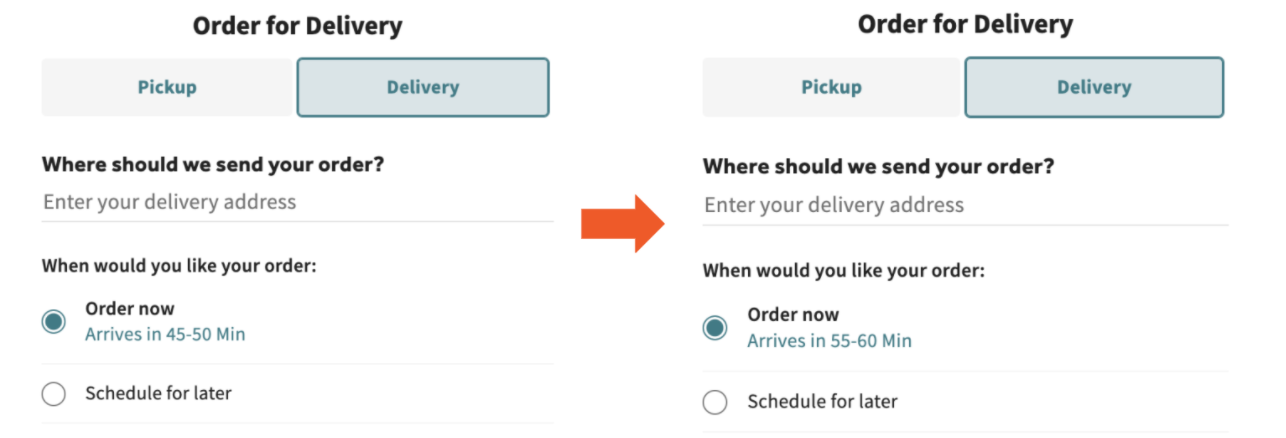
Notice that the quoted time for both guests and in Toast Web has changed to reflect the quoted time (45 minutes) + the 10-minute delay = 55 minutes.
Back to top
Snooze Delivery Orders
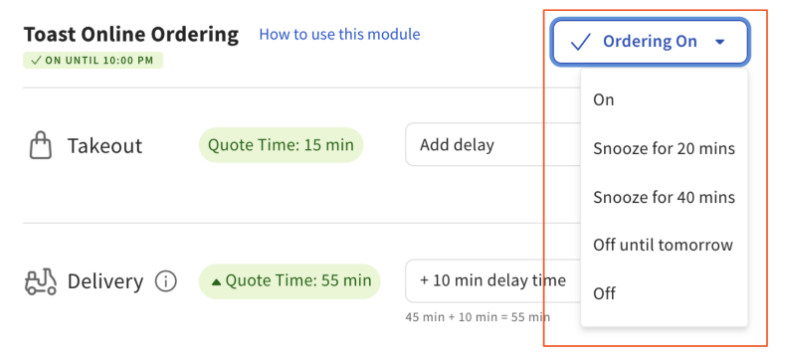
If your kitchen needs to catch up during busy peak hours, you can also easily snooze delivery orders directly from the Online Ordering dashboard in two ways:
Note: If you snooze Online Ordering, it will automatically snooze orders for both pickup/takeout and delivery.
OPTION #1: Using the drop-down on the left side of the dashboard, select one of the options:
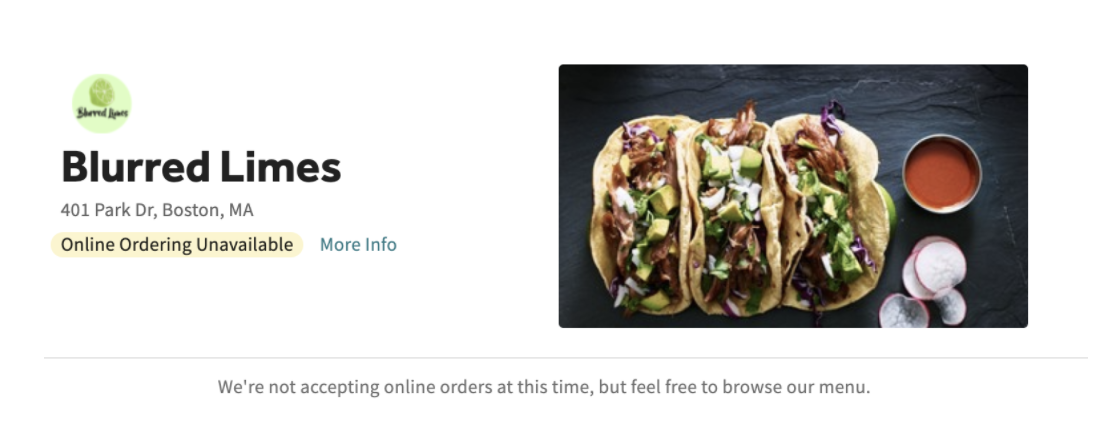
When snoozed, your Online Ordering page will display the following message, and guests won't be able to order.
OPTION #2: You can also easily move the toggle next to Delivery to off. This will allow your restaurant to continue to take takeout/pickup orders but not deliveries.

To start taking delivery orders once again, toggle it back to on.

Back to top
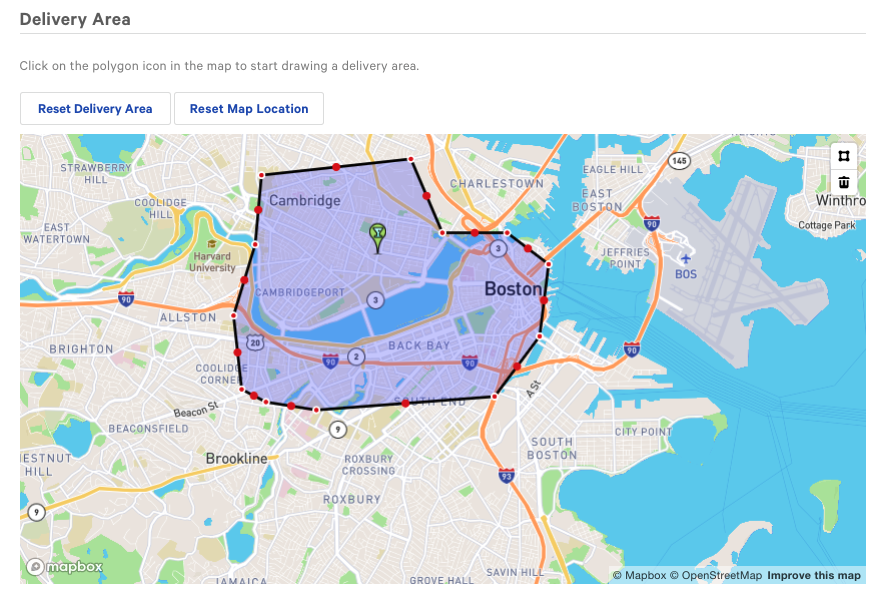
Use the built-in map feature to establish the maximum delivery area. The green pin identifies the restaurant's location. Note: If you find that the location is incorrect, please contact Toast Customer Care to update and verify the address.
- Select anywhere on the map to create a red dot, which is used to designate the delivery area limit.
- You can add as many red dots as needed. Select and drag each dot to adjust the delivery area as needed. The territory within the delivery area will be highlighted as a result.
- Toast will compare the set delivery area to a customer's address when an on-site or online delivery order is created to automatically allow or deny the order from being placed. Note: Use the Reset Delivery Area or Reset Map Location to revert the map to the original location/delivery area.
- Don't forget to Save and Publish your changes.
Congratulations! Now that you have activated Takeout and Delivery see the Configure Delivery Fees article to set up Delivery Fees.
Back to top


