For each live Toast customer, a website is generated automatically upon activation.
There are a couple of places where you can find your Online Ordering link:
- Log in to Toast Web and navigate to Takeout & delivery > Toast order sources > Restaurant info.
- On the right side of the screen, you'll see a section that says Share Your Public Links. The first option will be your Online Ordering link, including a QR code version that you can download to your computer.
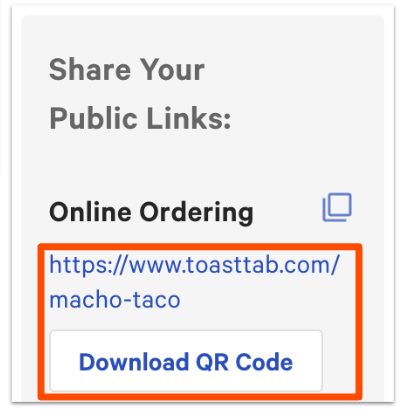
Alternatively, you can find the link to your Online Ordering page on the homepage of Toast's back-end:
Look for the Toast Online Ordering tile on your homepage, and select View website. This will open your Online Ordering page in a new tab.
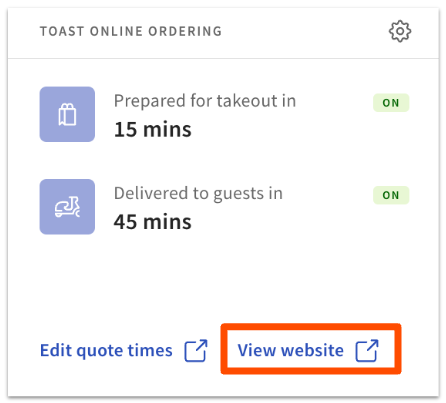
You can also find the link on the Online Ordering configuration page:
- In Toast Web, navigate to Takeout & delivery > Availablity > Online Ordering.
- Your online ordering link can be found at the top left of the page, next to the words Toast Tab Page. Select Copy to copy this link to your clipboard.
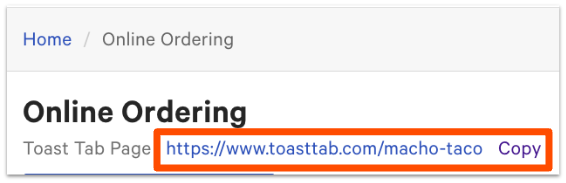
Once this link is copied, feel free to paste it into a social media post, email marketing campaign, or on your personal website.
Note: Following the steps above will give you the link to the Online Ordering page for the restaurant you are currently signed in to. In order to access the multi-location picker, follow the instructions in the last section of this article.
Back to top
If you have multiple restaurant locations in the same restaurant group, the Location Picker link can be used to allow your guests to find the location closest to them.
- In Toast Web, navigate to Takeout & delivery > Toast order sources > Restaurant info.
- In the Share Your Public Links section on the right side of the screen, select the link under Location Picker.
To minimize customers accidentally placing orders for the incorrect location of your restaurant, no restaurants will appear until a location is either manually entered by your guest, or shared through their browser preferences. When your guests use the Location Picker link, they will first be prompted to allow your online ordering website to know their location. Depending on their browser, they will have a version of the following options to pick from:
- Allow while visiting the site
- Allow this time
- Never allow
If they choose to allow the site to know their location, your online ordering page will automatically populate the location closest to them for ordering. If they do not choose to allow this, or your online ordering page is unable to find a location within 50 miles, they will receive a message stating the following:
"No locations nearby. Try searching a different area or click here to browse all locations alphabetically."
If your guest selects a location that is out of their delivery range, but there is a location nearby that offers delivery, Toast will suggest this location as an option that the guest can select.
Your guest can now either add their city, state, or postal code to manually search for their closest location to order from, or select Click Here to view all locations alphabetically and manually select the location they would like to use to place an order. If your restaurant uses Online Ordering Pro, your guests will also have access to a map view with icons detailing your locations. When your guest has located their preferred location, they can select Order Now.
Back to top


