In this Article:
To reopen a employee's closed shift in Toast Web, follow these instructions:
- In Toast Web, navigate to Reports > Employee performance > Time entry management.
- First set the appropriate date range and/or location at the top.
- In the table below, locate the employee in question and select the Time out field for the shift that needs to be reopened.
- Remove the clock-out time from this page and select the checkmark to save. This shift will now be accessible again on the POS.
- If you receive an error saying "[employee] already has a time entry in this time period," this shift cannot be reopened because it is outside the current work week.
Back to top
Once a previously closed shift is accessible from a POS device again, you may reopen it within the current work week, re-calculate its data, and then re-close it. This can help if:
- The employee misdeclares their cash tips
- Tips were paid out of the wrong drawer
- Cash was collected using the wrong drawer
- Tips were missing from a check within the shift when it was originally closed
Note: You may only reopen a shift within the current work week.
By reopening the shift, the Tip Out and Cash Collected entries from before are deleted and you are free to re-do them.
- From the main menu of the Toast app, select Shift Review.
- Select the employee that needs adjusting.
- Select the Edit button beside the field that needs to be edited.
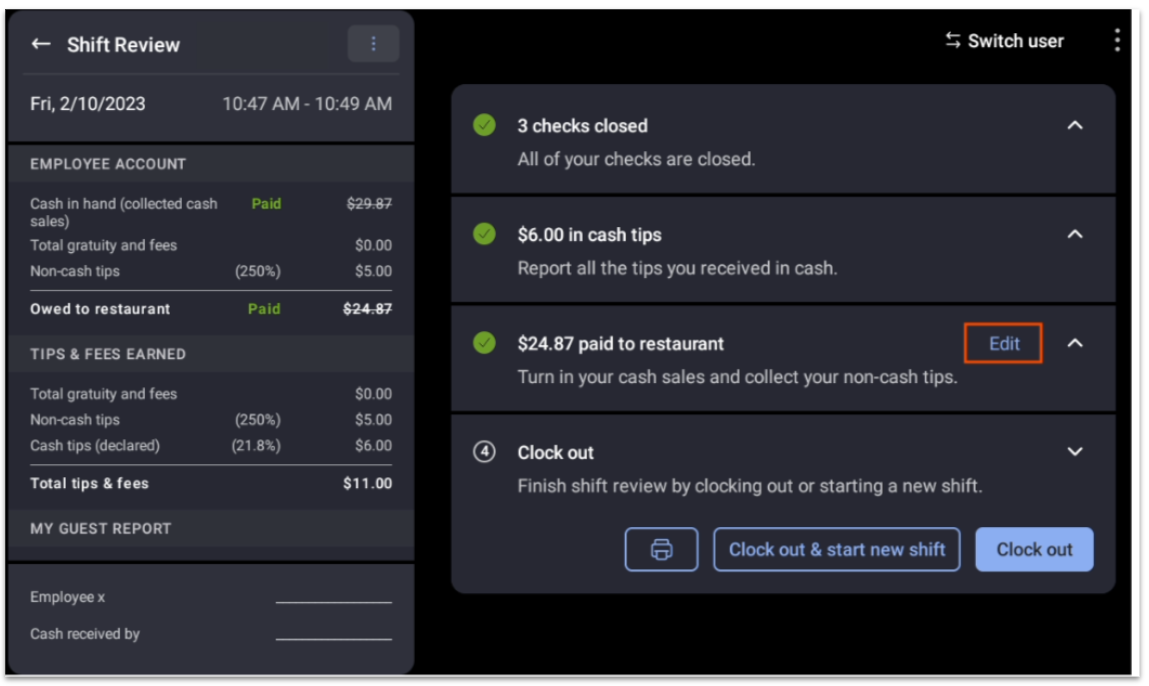
- Select Yes, make edits on the pop-up window to confirm that you want to reopen the shift and undo these previous entries.
The shift is reopened! After making any necessary adjustments, don't forget to re-enter this employee's clock-out time from Toast Web.
Back to top
Managers can reopen employee shifts for the current work week directly on the POS by navigating to the main menu of the Toast app and selecting
Review Employee Shifts under the
Manager Activities section.
For a full description of how to use the
Review Employee Shifts function, see the
Update Time Entries on the POS section of this Toast Central article,
Edit Employee Time Clock Entries.
Back to top 

