In this Article:
| The steps in this article are intended for importing gift cards from another point of Point of Sale (POS) platform or gift card provider to Toast Gift Cards. If you are looking for guidance on third-party gift cards, see the following articles:
|
If you have existing gift cards from another POS (Point of Sale) or gift card provider and are switching to Toast Gift Cards, you'll have to import your Gift Card Liability report to be able to use them with our system. To obtain your Gift Card Liability report, you must contact your previous gift card provider.
If your Onboarding package includes gift card import: follow the instructions for preparing and formatting your CSV files, then send a copy of those files to your Onboarding Consultant and they will ensure that the files are imported properly. If you're importing this data yourself, follow all the steps in this article to ensure you have a successful import.
Note: Not all imported gift cards will be swipe compatible on Toast POS. If you can not swipe your gift cards, you will be able to manually key in the card number for all imported card types.
Back to top
There are two different gift card statuses when importing:
- Active gift cards: Gift cards with a balance.
- Inactive gift cards: Gift cards that have not been sold or have a loaded value.
Active and inactive gift cards must be submitted in separate files. There should be no headers on the columns of these files (Example: Gift Card Balance, Card Number, etc).
- Your Active Gift Card files must include:
- A column with the fully unmasked gift card numbers
- A column with the current gift card balances
- Your Inactive Gift Card files must include:
- A column with the fully unmasked gift card numbers
Note: Fully unmasked means the number must not contain asterisks or letters. It must be a complete numeric value.
Additional formatting requirements:
- Balances must be listed in dollars, not cents.
- Card numbers must be listed in full and should not appear in scientific notation (e.g., as an exponent).
- Any leading zeroes on your cards should be included in the listed card number on your files.
- Each liability report must contain no more than 15,000 rows. If you have more than 15,000 outstanding gift cards, please split the data into multiple files.
- Reports must be submitted in Excel (.xlsx) or CSV (.csv) format. PDFs are not accepted.
Note: If you have both active and inactive gift cards, you'll need to format and import your active gift cards first. Different spreadsheet tools (e.g. Excel, Google Sheets) handle CSV files differently. To learn more, see the Best Practices for CSV Files section of this article to ensure you format your file correctly and avoid any import errors.
To learn how to import gift cards into Toast, watch the following video or read the steps listed below.
Back to top
Often, when you get your Gift Card Liability report from your previous gift card provider, the file will be in a CSV (comma-separated values) format. CSV files can be opened using spreadsheet tools like Google Sheets or Excel, but sometimes this can lead to errors such as automatically rounding numbers, removing zeros at the beginning of a number, or shortening (truncating) certain numbers in the file.
To prevent this, make sure that you import your CSV file into a spreadsheet instead of just opening the CSV file with your spreadsheet tool.
If you're using Google Sheets:
- Open a blank Google Sheet and then select File > Import.
- Select the Upload tab and choose the file you have saved on your computer.
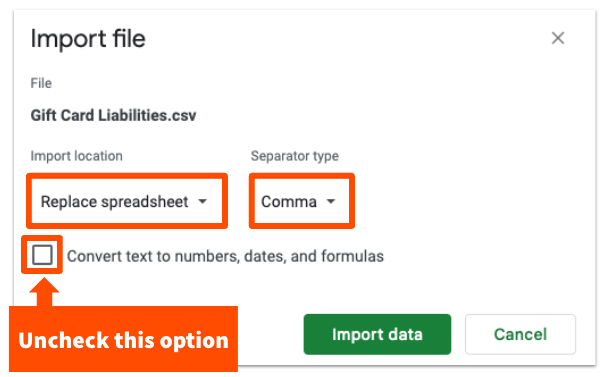
- An Import file pop-up will appear.
- Under Import Location, select Replace current sheet.
- For Separator Type, use Comma.
- Uncheck Convert text to numbers, dates, and formulas.
- Select Import data to continue.
If you're using Excel, you can check out this help documentation (external link) for instructions.
Once you've imported your file, scan your data to make sure that none of numbers were truncated (shortened) and that the data looks like you expect. If you see missing zeros, shortened or rounded numbers, or scientific notation, open a new spreadsheet and try importing your CSV file again following the steps above.
Back to top
- Import the CSV file of Gift Card Liability Report to your spreadsheet tool of choice (e.g. Excel, Google Sheets). Check out the Best Practices for CSV Files section for tips on how to do this correctly and avoid errors with your file format.
Note: It's important to follow these steps instead of just opening a CSV file with Excel or Google Sheets to avoid any changes to your file (like removing leading zeros) that would cause your import to fail.
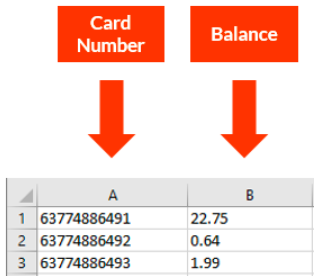
- Make sure the file for your active cards has exactly two columns (without headers) listing each Card Number and its Balance. Delete any other rows or columns with unneeded data. Delete any information about inactive cards.
- Once completed, save the file in Comma Separated Values (.csv) format by selecting File > Download. Select Comma separated value. Note that all card numbers and balances should be on a single tab, and there should not be any duplicate information (or card numbers that were previously uploaded). Otherwise, the import will yield an error. Toast recommends naming your file as "[Restaurant Name] Active Gift Cards [Date]". For example, Blurred Limes Active Gift Cards 8/22/2023.
Back to top
- Import the CSV file of inactive gift cards to your spreadsheet tool of choice (e.g. Excel, Google Sheets). Check out the Best Practices for CSV Files section for tips on how to do this correctly and avoid errors with your file format.
Note: It's important to follow these steps instead of just opening a CSV file with Excel or Google Sheets to avoid any changes to your file (like removing leading zeros) that would cause your import to fail.
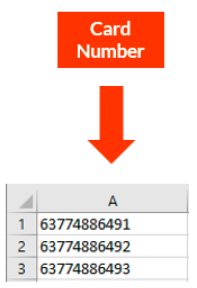
- This file will only have one column for the card numbers (column A). Make sure that you aren't adding inactive data into a separate tab, but instead, create a separate file. Delete any other rows or columns with unneeded data. Delete any information about active cards.
- Once completed, save the file in Comma Separated Values (.csv) format by selecting File > Download. Select Comma separated value. Note that all card numbers should be on a single tab, otherwise the import will yield an error. Toast recommends naming your file as "[Restaurant Name] Inactive Gift Cards [Date]". For example: Blurred Limes Inactive Gift Cards 8/22/2023.
Back to top
First, be sure to import active gift cards into Toast prior to importing your inactive gift cards.
- In Toast Web, navigate to Payments > Gift cards > Import existing gift cards.
- For the Cards Type setting, ensure that Active Cards - Includes identifiers and cash balances for all cards is selected.
- Select Choose File next to Upload CSV and select the first CSV list you created (the list of active cards).
- Enter a value for the Total Expected Balance of the active cards.
Note: You can find the expected balance by opening your spreadsheet, and using a formula to calculate the sum of all of the values in the column that contains card balances. Learn more about the sum function here (external link).
- Select Validate at the bottom of the page so that the system can double-check the data.
- After you receive confirmation that validation has successfully completed, you can select Submit.
- Repeat the above steps for the inactive gift card file, but make sure to change Cards Type to Inactive Cards - Includes only card identifiers. You won't have to enter a Total Expected Balance value since the file should only contain one column with gift card numbers.
After completing your import of active and inactive gift card numbers, a member of the Toast team will need to enable Imported Gift Card lookup for your restaurant. This will allow guests to use your Toast Gift Card Lookup site to look up their imported gift card balance and find the Toast Gift Card number that can be redeemed for online orders. For more information, check out this Toast Central article: Find Imported Gift Cards Through Your Toast Gift Card Lookup Site.
Back to top
Please keep in mind you will not able to do the following:
- Change gift card values in bulk
- Delete gift cards in bulk
- Read any other imported files that are not in .csv format (comma delineated)
If you've made an error when importing gift cards (for example, if you accidentally uploaded all gift cards with zero balance), please contact Customer Care for assistance. You cannot delete or undo a gift card import yourself in Toast Web.
Back to top
I got this error while importing my gift cards: Please fix the following rows in the file, then re-upload. How do I fix it?
The Please fix the following rows in the file, then re-upload error is usually due to incorrect information on your gift card import file. Review the Overview and Best Practices section of this article to ensure you have followed the proper formatting guidelines. Once you have corrected your file, retry your import. If you are still having trouble, contact Customer Care for assistance.
I got this error while importing my gift cards: The active card is missing a balance. How do I fix it?
The Active card is missing a balance error occurs because one of the listed active cards on your CSV file for import does not have a balance listed. Review the CSV you are trying to import to ensure all active cards have an associated balance.
Note: Active and inactive cards must be imported in separate files.
I got this error while importing my gift cards: The total expected balance must have at most two decimal places and must contain only numeric values. How do I fix it?
The total expected balance must have at most two decimal places and must contain only numeric values error means that the number in the Total Expected Balance field in Toast Web is incorrect. First, confirm the number is in proper numerical format and only contains a proper monetary amount. If this is correct and you are still having trouble, please contact Customer Care for assistance.
What does “Toast could not confirm that the imported gift card numbers are non-guessable. Toast does not advise enabling the setting below” mean?
If your gift card numbers have been assigned to your restaurant in a sequential, easily guessable format, you will receive this error upon trying to enable the Search Cards by Imported Numbers on the Public Lookup Page on your Toast Gift Card Lookup Site to prevent fraud. For more information on this setting, see Find a Gift Card Balance.
Back to top
Additional Resources
Back to top


