Printed kitchen tickets can be configured to show an individual prep station's items at the top of the ticket, followed by all remaining items from other prep stations at the bottom of the ticket. This way, an employee prepping an order can see exactly what is being prepared at the prep station where the ticket was printed, as well as any remaining items on the order that are being prepared at other prep stations. This essentially allows any prep station to act as an expediter.
Note: This configuration is only available on printed tickets and not on the Kitchen Display System (KDS).
- In Toast Web, navigate to Kitchen > Kitchen stations > Prep stations.
- Choose which prep station you'd like to edit, and on the Other Stations drop-down, select all other prep stations that should appear on the bottom of the ticket printed at that prep station.
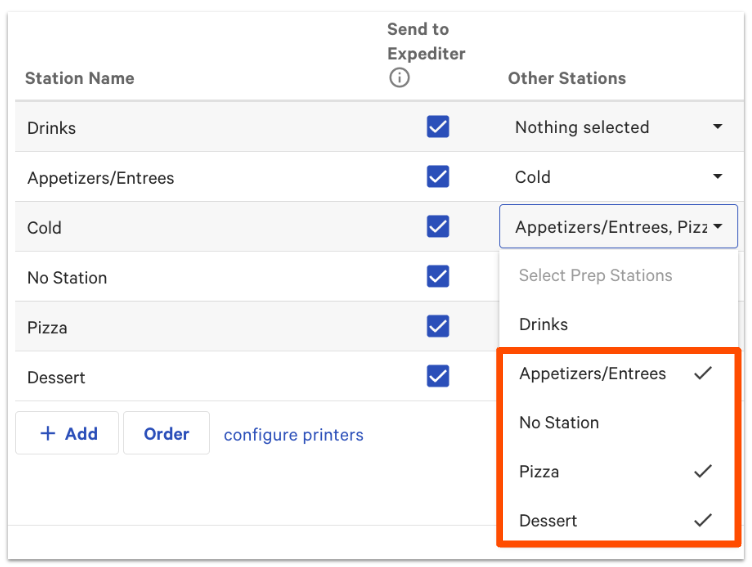
- In this example, tickets at the Cold station will show all Cold items at the top, and any items from Appetizers/Entrees, Pizza, and Dessert at the bottom of the ticket.
- You can also see that for the Appetizers/Entrees prep station, Cold is selected on the Other Stations column. That means tickets printed at the Appetizer/Entree station will have those items at the top, with Cold items added at the bottom of the ticket.
- Repeat this process for any other stations where you'd like items from other stations to print as well.
- Save and publish your changes.
- Then, navigate to Kitchen > Printers, tickets, & KDS devices > Kitchen.
- In the Printed Tickets and Ticket Screens section, for the Other Stations setting, select For each ticket, list other stations working on that ticket.
- Save and publish your changes.
Note: If you don't want a specific prep station's items to print at other prep stations, make sure it is unchecked in the drop-down menu for all other prep stations. For example, it's common for bar/drink prep stations to only print items at that prep station.



