In this Article:
The information in this article will also be relevant if you're using Toast Retail and your guest wants to return an item that was purchased. Learn more in this Toast Central article: Get Started with Toast Retail.
| For Interac customers in Canada, partial refunds are not possible. A full refund is possible if it is submitted by 11:59 pm EST the same day as the original transaction. |
Refunds Overview, Permissions, and Limitations
This video explains how to issue a refund in Toast Web, how to issue a refund on the POS, and how to track refunds in Toast Web reporting.
The refund process allows you to issue refunds to guests using your Toast POS or your Toast Web. Refunds are only supported on checks from previous days. Reversals of credit card, cash, or Toast gift card payments on the same day are considered voids (see Void Items, Payments, and Checks for more info). Until payment is captured, you can void items on the order. After the payment is captured, you must refund the payment on the items. Items and checks should no longer be voided before or after a refund is issued.
For credit card payments, the payment is considered captured when it completes the credit card capture process. Voided credit card payments are displayed in the Reports > Cash and loss management > Voided payments report.
Cash payments and Toast gift card payments are considered captured at the end of that business day. Toast support configures the restaurant business day cutoff for each restaurant. The cutoff typically is set to 4:00 a.m. in your set time zone.
Before an employee can issue a refund, they must be given permission to find checks and refund payments. There are also limitations and recommendations around the types of payments that support refunds, and when you can issue cash and credit card refunds.
Refund processing timelines can vary slightly depending on the financial institution. Generally, refunds are processed within 2 to 5 business days after a request is made.
Refunding checks in Toast may involve various workflows, depending on whether you’re using the Toast POS or Toast Web. Toast POS is ideal for in-restaurant transactions and cash refunds, while Toast Web allows for more detailed searches and workflows via the backend interface.
What Is the Difference Between Voiding and Refunding?
-
Voiding: Reverses a payment on the same day it was taken before it is captured by the bank. Voided transactions are completely removed from the system. Provided the transaction was voided before the payment was authorized, the customer will not be charged however a pending partial amount may appear on their statement depending on the bank.
-
Refunding: Issues a payment back to a customer for captured transactions after the check has been closed. Refunds typically take 1–3 business days to process.
Additionally:
- Refunds can be issued on checks that have a credit card, cash, or Toast gift card payments on them.
- You can only issue refunds on cash payments in the Toast POS app. You cannot refund cash payments from Toast Web.
- Refunds can take three-to-five business days to complete, depending on the financial institution involved.
- You have up to 90 days after the charge to issue a refund.
- Toast support strongly recommends that you issue cash refunds on a Toast POS device that is associated with a cash drawer. This allows the refund to appear in the cash drawer's report (see Closed Drawer Report to learn more). When you issue a cash refund on a device that is not associated with a cash drawer, there is no cash drawer report to log the refund to. There will be no record of the cash refund in your reports.
- Employees must still have the Find Checks permission to locate a check and must still have the Void/Refund Payments permission to issue a refund. Learn more about permissions in our Permissions Reference Guide.
- Refund processed notifications are sent to both the merchant and customer, providing transparency and status updates. Guests are usually contacted via email confirmations stating that the refund has been initiated.
Note: If you're using Toast Retail, you can follow the instructions in this article to locate a check via your POS device or Toast Web to issue a refund. If the retail item needs to be added back into your inventory, you can use Quick Edit to adjust the quantity accordingly.
Back to top
Locate a Check to Refund
To issue a refund, you must first locate the original check on either your POS or your Toast Web. Cash refunds can only be refunded from your Toast POS device, and cannot be refunded in Toast Web.
Back to top
Locate a Check via Toast POS
If you're on the Toast POS, begin by selecting the Toast logo in the top corner until the Toast POS home screen appears and you're on the main menu of the Toast app. Under Manager Activities, select Find Checks & Issue Refund.
This will take you to the Advanced Check Search screen.
To locate the check:
- Select the Check Date in the calendar.
- Enter the Check Number.
- Select Search.
Alternatively, if the check was paid for using a credit card:
- Select Find by Credit Card,
- Enter the last four digits of the credit card number and select Search.
Back to top
Locate a Check via Toast Web
To locate a check in the back-end, begin by logging in to Toast Web.
- Navigate to Payments > Transactions & refunds > Find checks & issue refund.
- To locate the check:
- Select the date in the calendar.
- Enter the check number.
- Select Search.
Alternatively, if the check was paid for using a credit card:
- Select Find by Credit Card,
- Enter the last four digits of the credit card number and select Search.
Back to top
There are two ways to issue a refund directly from the POS:
Option 1:
- After locating the check, select Refund and choose your desired refund type.
- By item(s): For refunding specific items and/or mandatory gratuity/employer-kept service charges
- Entire check: For refunding all items on a check
- Tip only: For refunding some or all of a credit card tip only (this does not include employer-kept service charges). To refund both a gratuity and a tip, use the By item(s) refund type.
- Tax only: For refunding just the tax on a check (for example, in the case of a tax-exempt organization)
- Custom Amount: For refunding a specific amount on a check that is not associated with an item, service charge, or tax amount (for example, I just want to refund this guest $50)
Note: Credit card tip can be refunded as part of the refund types. You are not limited to the Tip only type if you'd like to refund a tip in combination with refunding items, service charges, or tax.
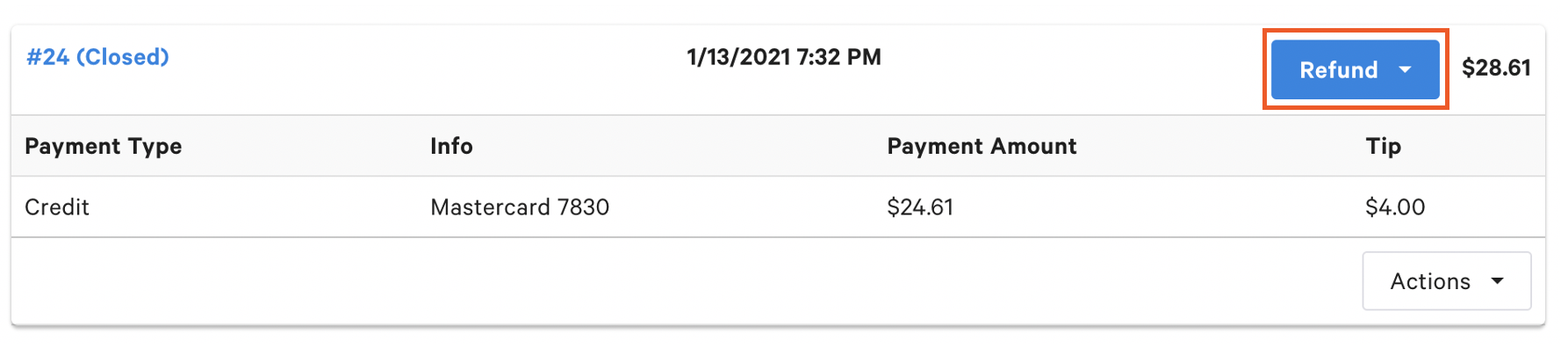
- Follow the steps in the window that appears once your desired refund type is selected. For example, if By item(s) is selected, a new screen will appear, prompting you to select which items are getting refunded to your guest. Optionally, you can specify the quantity to refund for each item. By default, the entire quantity is refunded.
To enable the Quantity field, de-select the box next to the item, then select it again. When an item is selected, (-) and (+) options will appear on either side of the item quantity. You can also manually type in the quantity you want to refund (including decimals for non-whole number item refunds). If you enter a quantity greater than the original quantity sold to your guest, you'll see an error message preventing you from moving on to the next step. - Add the tip amount if it's to be refunded as well. The original tip amount will show up below the box. Select Next.
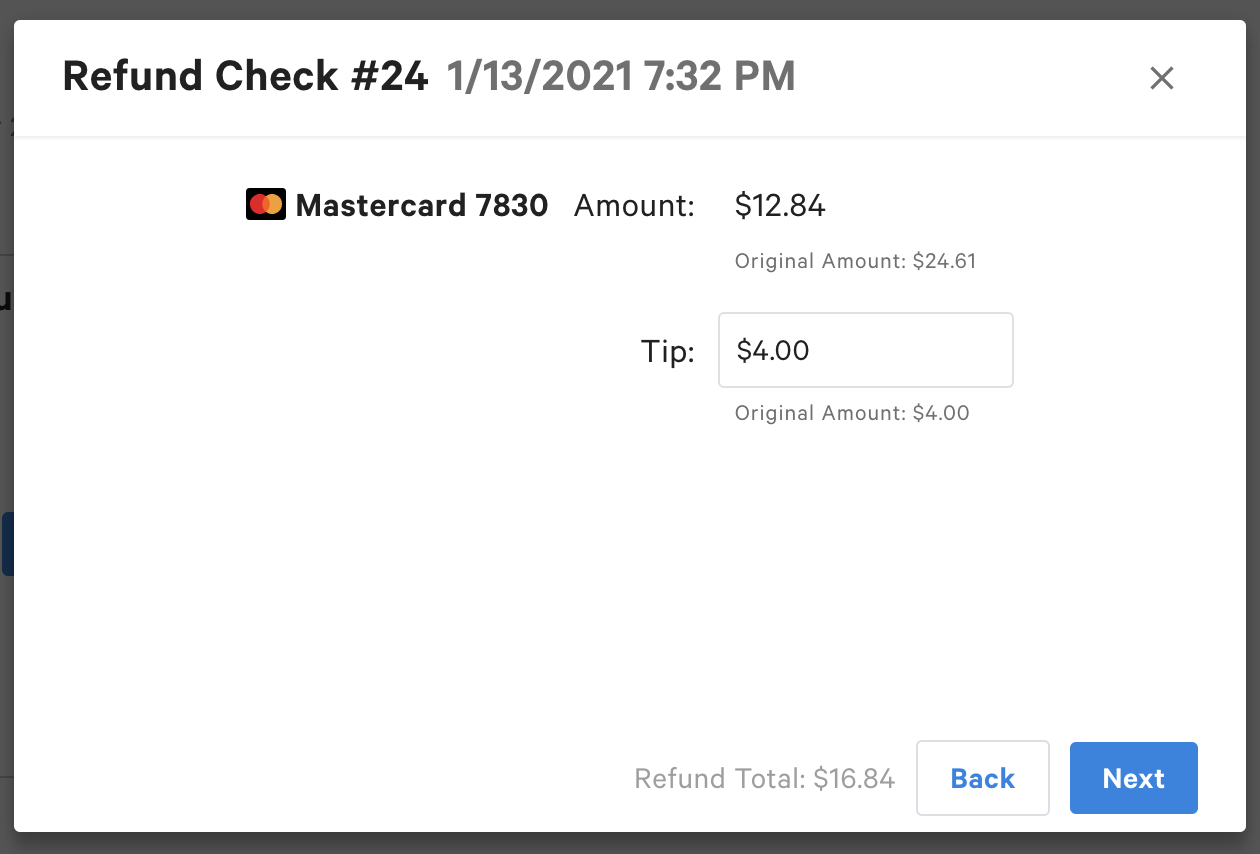
- Add a comment (optional) and select Next.
- Review the refund amount and select Confirm. Note that refunds cannot be reversed or changed without contacting Customer Care so make sure to confirm that the refund amount is correct and use the Back button to make necessary changes.
- Select the desired receipt option. An additional screen will appear if Email or Text is selected so you can enter the guest's information. Note that printed receipts are not available if the refund is issued via Toast Web.
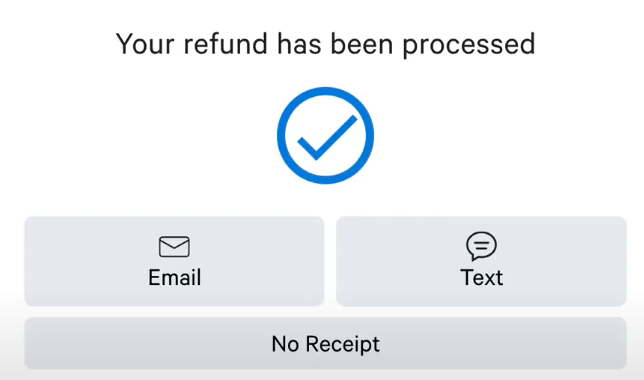
- Select Ok to exit.
After a refund is issued, the check will remain closed and will not appear in the Unpaid Orders report.
Option 2:
Note: This workflow is not available on restricted checks. Restricted checks are checks that have reached a certain age, by default 90 days. Restricted checks cannot be pulled back to the Toast POS app and edited. So after a check passes 90 days, you cannot reverse payments on it. To process a refund on checks that are at a restricted age, contact Toast Customer Care.
- After locating the check, select Update.
- Select the Pay ($) button.
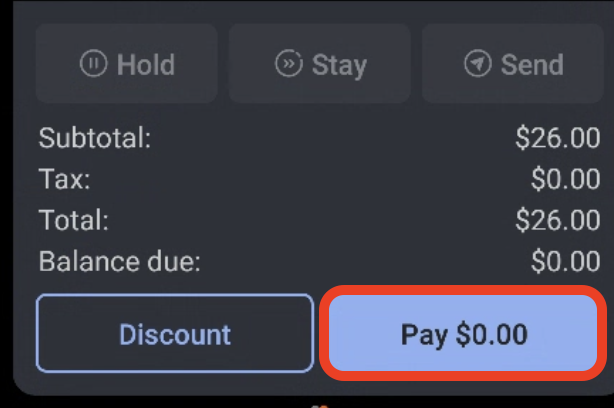
- Select the payment.
- Select Refund and your desired refund type. Note: If you do not see the Refund option as detailed in the picture below and see Void instead, this is because the payment has not yet been captured. Proceed with voiding instead of refunding.
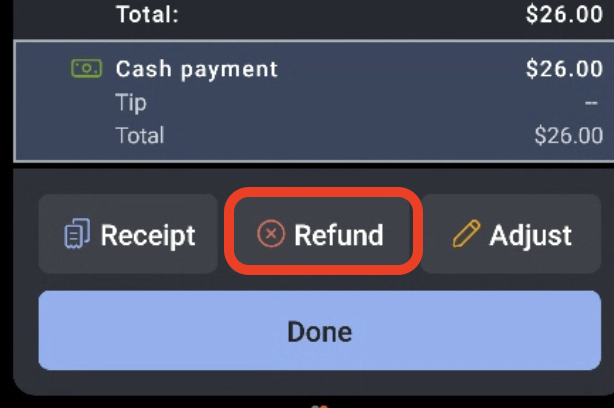
- By item(s): For refunding specific items and/or mandatory gratuity/employer-kept service charges
- Entire check: For refunding all items on a check
- Tax only: For refunding just the tax on a check (for example, in the case of a tax-exempt organization)
- Tip only: For refunding some or all of a credit card tip only (this does not include employer-kept service charges). To refund both a gratuity and a tip, use the By item(s) refund type.
- Custom amount: For refunding a specific amount on a check that is not associated with an item, service charge, or tax amount (for example, I just want to refund this guest $50)
- Follow the steps in the window that appears once your desired refund type is selected. For example, if By item(s) is selected, a new screen will appear prompting you to select which items are getting refunded to your guest. Optionally, you can specify the quantity to refund for each item. By default, the entire quantity is refunded. To enable the Quantity field, de-select the box next to the item, then select it again. In the Quantity field, set the quantity to refund.
- Add the tip amount if it's to be refunded as well. The original tip amount will show up below the box. Select Next.
- Add a comment (optional) and select Next.
- Review the refund amount and select Confirm. Note that refunds cannot be reversed or changed without calling Customer Care so make sure to confirm that the refund amount is correct and use the back buttons to make necessary changes.
- Select the desired receipt option. An additional screen will appear if Email or Text is selected so you can enter the guest's information. Note that printed receipts are not available if the refund is issued via Toast Web.
After a refund is issued, the check will remain closed and will not appear in the Unpaid Orders report.
Note: If you don't specify a refund value for payment when you refund a multi-payment check, then to issue a refund against that payment method later on, you must use the custom value refund method. For example, you issue a refund against a $40.00 check that has two credit card payments. You refund $15.00 to one of the credit cards but do not refund anything to the other credit card. To issue a refund to the other credit card, you must use a custom-value refund.
Back to top
To issue a credit card refund via Toast Web, follow these steps:
- In Toast Web, navigate to Payments > Transactions & refunds > Find checks & issue refund.
- Select the Find by Credit Card tab. Then, enter the last four digits of the credit card number and select Search.
- After locating the credit card transaction, select Refund and choose your desired refund type.
- By item(s): For refunding specific items and/or mandatory gratuity/employer-kept service charges
- Entire check: For refunding all items on a check
- Tip only: For refunding some or all of a credit card tip only (this does not include employer-kept service charges). To refund both a gratuity and a tip, use the By item(s) refund type.
- Tax only: For refunding just the tax on a check (for example, in the case of a tax-exempt organization)
- Custom Amount: For refunding a specific amount on a check that is not associated with an item, service charge, or tax amount (for example, I just want to refund this guest $50)
Note: Credit card tips can be refunded as part of the refund types. You are not limited to the tip-only type if you would like to refund a tip in combination with refunding items, service charges, or tax.
- Follow the steps in the window that appear once your desired refund type is selected. For example, if Entire Check is selected, a new screen will appear showing you what will be refunded and you will want to be able to check and uncheck items if necessary.
- Add the tip amount if it's to be refunded as well. The original tip amount will show up below the box. Select Next.
- Add a comment (optional) and select Next.
- Review the refund amount and select Confirm. Note that refunds cannot be reversed or changed without calling Customer Care so make sure to confirm that the refund amount is correct and use the back buttons to make necessary changes.
- Select the desired receipt option. An additional screen will appear if Email or Text is selected so you can enter the guest's information. Note that printed receipts are not available if the refund is issued via Toast Web.
- Select Ok to exit.
After the refund is issued, the check will remain closed and will not appear in the Unpaid Orders report.
Back to top
Refund amounts on an item, entire check, and tax-only refunds can be distributed across the original payments. Each payment type can be refunded up to its original payment amount. So if a guest paid with a credit card for $50 (with tip), you will only be able to issue a refund up to that dollar amount.
In the example below, the entire check is getting refunded, so the screen will show you what cards will be refunded and the amounts for each. In addition, you will be able to enter a tip amount for each card.
While in this example below, we are refunding by item(s). The top blue bar will show you the amount left to distribute among the cards on the check and include a tip amount as well.
Note: Refund amounts cannot be distributed to "other payments", house accounts, or third-party gift cards. Refund amounts can only be distributed to cash payments using the POS workflow.
Back to top
Toast Gift Cards: Payments made with Toast Gift Cards from previous days can be refunded using the steps above.
Third-party gift cards, house accounts, and other payments: Payments must be voided to be reversed. This will cause the check to re-open and require either a new payment type to be applied, items to be voided, the check to be voided, or a discount to be applied for the check to close. More information on applying discounts can be found here: Discount Items and Checks.
Back to top
View Refunds in Toast Receipts
Refund information is printed at the bottom of the receipt.
The refund information includes:
- Refund date
- Refund items and amounts
- Refund total
- For refunds on items or the entire check, the payment that received the refund
Learn more about how refunds will reflect in reporting in View Refunds in Toast Reporting.
For a more detailed guide on issuing refunds in Toast, check out our Refunds Platform Guide or visit our Refunds FAQ page for additional information.
Back to top
Refunds for Deferred Payments
A deferred payment refers to money received in advance of providing the related goods or services. In other words, revenue is not recognized at the time of payment but only when the underlying obligation is fulfilled or redeemed.
Common examples include:
- Future orders (such as catering paid in advance):
- Day of order – Paid in Total reflects payment, but no sales are recognized. Tips = $0.
- Day of fulfillment – Revenue is recognized in Deposit Sales Collected, and tips (if any) are recognized.
- Deferred items (gift cards, vouchers, and house account credits):
- Excluded from net sales when sold. Revenue is recognized only when redeemed.
- In reporting, they appear in Deferred categories in Sales Summary and Accounting Overview.
- Deposits or credits collected in advance (such as bottle deposits or container returns):
- Cash is collected up front, but revenue is recognized only if/when the deposit is not returned.
- If the customer later returns the item, the deposit is refunded rather than recognized as sales.
Because deferred payments are excluded from sales until recognized, refunds on deferred items require careful handling:
- Refund by item(s) or entire check (recommended):
- Associates the refund directly with the deferred item.
- Maintains correct reporting, since the item never counted toward recognized sales in the first place.
- Refund by custom amount (not recommended):
- Subtracts from recognized sales even though the deferred item was never included in sales.
- Does not properly handle associated taxes, since it is not tied to an item’s tax configuration.
- This can lead to inaccurate reporting and reconciliation issues.
Refund type guidance for deferred items:
- By item(s): Use when refunding specific deferred items or mandatory gratuity/employer-kept service charges.
- Entire check: Use when refunding all items, including deferred items, on the check.
- Tip only: Use for refunding credit card tips only (not applicable to deferred items).
- Tax only: Use when refunding tax only (for example, for a tax-exempt customer).
- Custom amount: Avoid for deferred items, as it inaccurately lowers sales and does not account for tax.
Back to top
Reporting on Refunds
Reporting will look the same whether you issue a refund in Toast Web or on the POS. Navigate to Reports then Sales Summary. When the sales data is loaded you'll see all net sales including any issued refunds for the day.
Back to top
Issue a Refund on the Same Check More Than Once
If you've already issued a partial refund on a check's payment transaction and need to refund more or all of the remaining amount back to the guest, please contact Customer Care to have this done.
Back to top


