| Toast's Self-Ordering Kiosk is a mode that will need to be enabled by a Toast Employee. Please contact our Customer Care Team, via Toast Central, to get set up. |
In this Article:
Kiosks provide your guests with the option to self-serve. They can help cut down on lengthy lines, optimize your labor efficiency, and allow guests to customize their orders easily and efficiently.
Are you in the beginning stages of using your kiosk? These articles cover all of the basics of setting up your kiosk:
Back to top
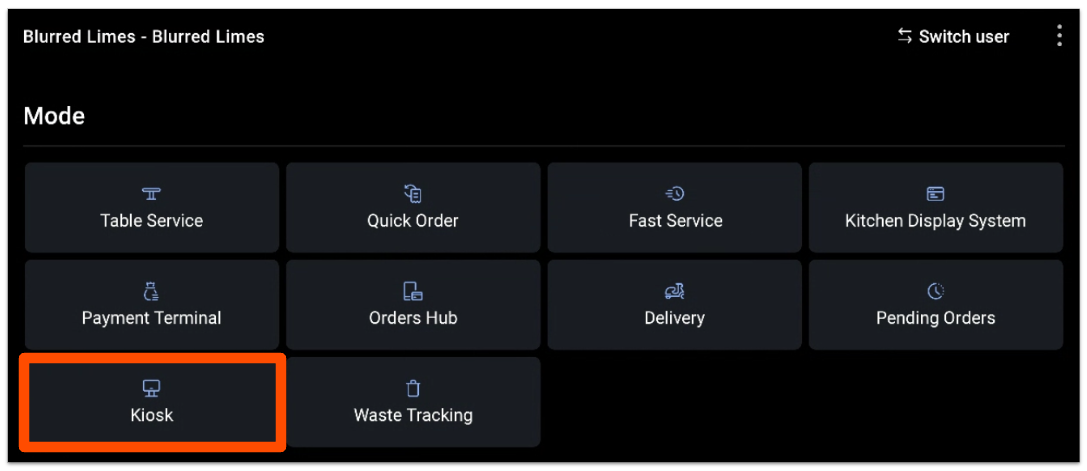
To put a device into Kiosk mode, navigate to the main menu of your Toast app and select Kiosk from the Mode section.
Back to top
Once a device is put into Kiosk mode, a manager or admin must enter their passcode to exit Toast or revert to normal Table Service, Quick Order, Ticket Display Screen, etc. This disables the end-user (your guests) from closing the Toast app, whether intentionally or mistakenly. In order to do this, the 3.7 - Void Items / Orders permission is required.
- Tap and hold the powered by Toast logo at the bottom center of the kiosk start screen.
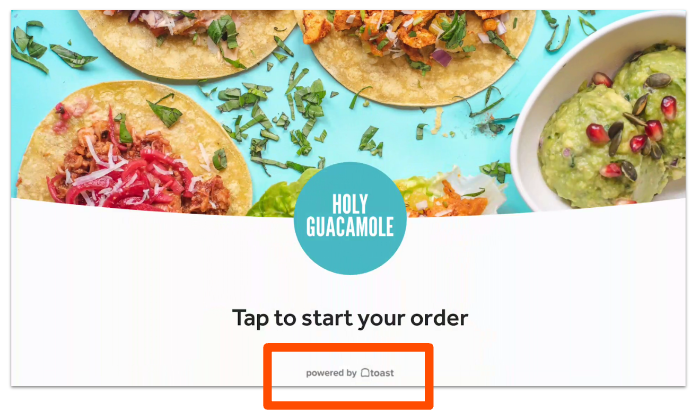
- Enter a manager's passcode on the passcode screen.
- You'll now be returned to the main menu of the Toast app.
To recover the full functionality of the Toast POS app, the current employee needs to be clocked in.
Back to top
When an order is placed on the kiosk, the dining option will print in red at the top of the kitchen ticket and will show the word "Kiosk" to indicate an order was made from the kiosk.
Back to top
Troubleshooting Scenarios for Kiosk Mode
- Network Issues: Check the IP address to verify it matches your Toast network's setup. Ensure Ethernet cables are correctly connected, and the device is linked to the correct router.
- Device Unresponsive: Restart the kiosk and confirm it is on the appropriate network. Verify admin ports and settings in the Toast app menu when necessary.
Back to top
LockTask Mode for Kiosk
Elo V4 terminals and Toast Flex 22" terminals for kiosk may come with LockTask mode enabled on the device. LockTask mode helps streamline the kiosk experience by preventing your guests from accessing the notification and status bars on your device. You can tell if a device has LockTask if there is no home button on the bottom, and if there is a lock icon in the upper-right corner of the welcome screen.

In order to exit LockTask mode and enter Admin mode, follow these steps:
- Press the physical Home button located on the back of the device
- Select the lock icon in the upper-right corner of the display.
- Enter the universal LockTask mode password: toastunlock401park and select Unlock the Device.
- This will take you to the main Android home screen. The blue circle with a white X in the middle will float around the screen. This cannot be removed but can be dragged around the display for convenience. This will be used to exit Admin mode.
Back to top
Now that you've set up your kiosk, take a look at how your guests will use the kiosk to place orders, make payments, and tip.
Back to top
Note: At this time, this feature is only available for restaurants located in the U.S.
If you want to offer your guests the ability to sign up for your Toast Loyalty program on your self-ordering kiosk, follow the steps below. Guests will be able to create an account, accrue points, and redeem rewards on future orders.
- In Toast Web, navigate to Marketing > Loyalty settings.
- Select the Channels tab.
- On the Channel control table, check the boxes for Signup and Redeem for the Kiosk row.

- Save and publish your changes.
Kiosk now supports third-party loyalty integrations.
Back to top
Kiosks can do even more than help you manage a lunch rush! Take a look at adding upsell items, using a barcode scanner, and more with your kiosk(s).
Back to top
Toast's reporting functionality provides you with insight into kiosk-specific activity (such as sales) in the same way it does with in-store orders or Toast Online Ordering.
- In Toast Web, navigate to Reports > Sales > Sales summary.
- Select More filters.
- Open the Source drop-down in the Report filters window, and then select Kiosk.
- Select Apply filters.
To include sales activity broken down by dining options selected from the kiosk, you can select the desired Dining options from the Report filters window.
Back to top
- Credit/debit cards and gift cards are the only payments that guests can use on the kiosk. For anything else (keyed credit cards, cash, LevelUp, etc.), guests will need to select Pay with cash on the payment screen, print their receipt, and take it to the cashier to complete payment.
- Pre-modifiers are not supported.
Back to top


