This article will help you identify common steps to troubleshoot your Toast Receipt Printer. If you're having trouble printing, here are three troubleshooting steps that solve most printer issues and can be done on the floor.
Always try these three steps FIRST:
 |
- Unplug both the power cable and the ethernet cable from your printer. Wait 30 seconds.
- Plug both cables back in and be sure to power your printer on.
- Retry printing.
|
If the problem is not resolved, try the quick troubleshooting steps explained in this Toast Central article, Get Help: My Printer Isn't Working. If you're still experiencing issues with your TM-U220B printer, review the sections below and follow the steps. If the FAQ doesn't help solve the problem, contact Toast Customer Care via Toast Central and mention the reference code for the steps you've taken (below) - we're happy to help!
Unsure what printer you have? Check out the hardware glossary.
In this Article:

The most common causes of printers not functioning are due to some kind of power issue or paper jam. Follow the steps below to troubleshoot. If at any point your printer starts printing tickets, you can stop troubleshooting at that step. Otherwise, continue following the steps so you can determine the issue.
- Restart the printer (sometimes called power cycling) by turning it off and back on.
- Verify the printer is turned on. The power switch will be pushed in on the right-hand side (labeled "I"), and a green light on the printer's info panel towards the bottom will indicate the power is on.

- Be sure the power cord connection to the printer is tightly connected. It's common for the power cord to become disconnected from the power brick in the middle of the cord. Make sure the cord is not only fully plugged into an outlet, but that it's also tightly connected to the power brick.

- Now that you've confirmed that everything is connected and that the printer is turned on, we'll print a test print. Follow the steps below.
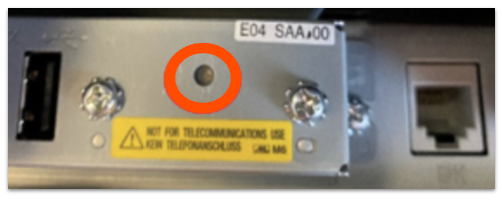
- Locate the reset button in the undercarriage of the printer.

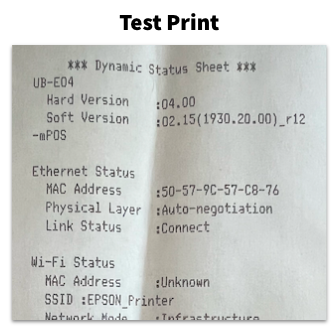
- Hold the reset button for several seconds while the printer is POWERED ON, using a small and narrow object (such as a paperclip or pen tip) until the printer produces a test print. If a test print did not print, move on to step #4.
- Next, we'll verify that the paper roll is installed properly and feeding correctly.

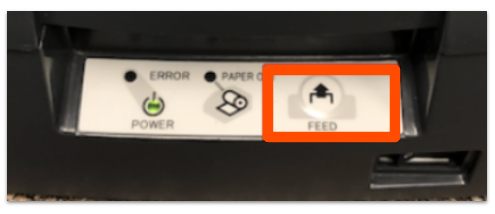
- To check this, hold down the feed button for a few seconds. The paper should feed smoothly through the slot.
- Additionally, you should verify that the printer ribbon is installed correctly. The printer requires an ink ribbon in order to print. The ribbon will need to be replaced soon after receipt printouts start to appear faded or incomplete. When inserting the ink ribbon cartridge, make sure that you press it down evenly on both sides until you hear a click, and then turn the dial clockwise one or two full rotations to wind fresh ribbon into the machine.

- Next, we'll confirm that the ethernet cable is connected and functioning. To do this, open the printer and verify that the ethernet cable is connected to the printer AND that there is a status light illuminated next to the cable. Be sure that the cable is tightly connected. If it's not illuminated, swap out the ethernet cable for another one to check if the cable is damaged.

- Lastly, if you continue to have issues printing, try restarting your router. For more information on this, check out this article.
If you've followed all of the steps outlined above, and your printer still isn't printing tickets, please contact Toast Customer Care and mention reference code #516.
Back to top
If your TM-U220B printer isn't properly cutting the paper of the printouts, follow these instructions:
- Open the paper reservoir and make sure there isn't an extra plastic piece that may have been left inside.
- Securely close the lid, and attempt a test print by locating the reset button in the undercarriage of the printer. Hold the reset button for several seconds using a small and narrow object (such as a paperclip or pen tip) until the printer produces a test print.
- If the printout is partially cut or not cut at all, check for a foreign object such as a push pin or paperclip, or paper debris that may have dropped into the auto-cutter mechanism and caused it to lock up. If there's an object or debris, follow the steps in this Toast Central article to fix the problem: Fix the Cutting Mechanism on Your Printer.
If you continue to have issues with your printer, please contact Toast Customer Care and mention reference code #517.
Back to top
The Epson U220 printer takes ERC-30/34/38 ribbon cartridges and can be purchased at a variety of online sources and vendors, including this vendor (external link).
Back to top
When the printer is used for kitchen tickets using Toast POS, the menu item will print in black and the modifier option (if any) will print in red.
Back to top
- Remove the ink cartridge. Make sure the ribbon is tight, then reinstall the cartridge by pressing down evenly on both sides until you hear a click, and then turn the gray dial clockwise one or two full rotations to wind fresh ribbon into the machine.

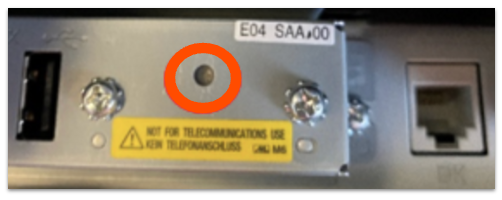
- Next, attempt a test print by locating the reset button in the undercarriage of the printer. Hold the reset button for several seconds using a small and narrow object (such as a paperclip or pen tip) until the printer produces a test print.
- If the test print doesn't produce the desired result, and you've ensured that the ink cartridge is installed correctly, the cartridge may be out of ink. Try printing with a new ink ribbon cartridge.
If you continue to have issues with your printer, please contact Toast Customer Care and mention reference code #518.
Back to top
If other devices in the restaurant are able to print successfully but you are having issues printing from a Toast Go® device, the Toast Go® may be connected to the wrong wireless network.
In order for Toast Go® devices to communicate with the printers, they must be connected to the Toast Secured wireless network. This network SSID is usually named "Restaurant_Name_Secured" with Restaurant_Name being the full or partial name of your restaurant. Follow the steps to forget the SSID in one of the articles below to forget saved networks and ensure the Toast Go® is connected to the correct Toast Secured Network.
Learn quick troubleshooting steps to help fix most Toast handheld issues here: Get Help: My Toast Handheld Isn't Working.
If your Toast Go® 2 handheld device is disconnecting from a Toast-secured network and interrupting the printing process, we recommend "forgetting" these non-Toast networks in order to ensure your device remains connected to Toast's enhanced security network. Without taking action, your devices may run the risk of interruption during service. For additional information on forgetting a network, check out this Toast Central article, Forgetting a Network on a Toast Device.
Back to top
One-ply bond 3-inch wide receipt printer paper roll. Check out this Toast Central article, Printer Paper Rolls and Ink Ribbons, for more information on where to purchase paper.
Back to top
Ensure that your printer is configured to the correct model on Toast Web:
- Navigate to Payments > Checks & receipt setup > Printers and cash drawers.
- Select the name of the printer in question.
- Update the Model of the printer.
- Save and publish your changes.
- Power cycle the printer.
Back to top
To change the currency type that is displayed on receipts, you need to configure the language pack settings in the printer setup section of Toast Web. Learn more in this Toast Central article,
Configure Your Printers to Display Euro.
Back to top
What do I if my printer is printing blank receipts?
From time to time, you may run into an issue where the printer may print, but nothing displays on the receipt, or the printer will continue to jam. This may be caused due to using the Incorrect Paper within the printer.
To ensure you're using the correct paper and it is loaded correctly, please follow the steps below.
- Loading the Paper
- Printer paper naturally has a slight curve. To ensure smooth loading, place the paper in the holding cradle with the curved side facing downwards. This aligns with the design of the paper path.
- If you encounter difficulty fitting the paper, it might be due to using the wrong paper type or inserting it incorrectly (upside down).
- Note: Always load the paper with the curved side down.
- Using the Correct Paper
- A fast way to determine if your paper is compatible with the Epson U220B printer is to perform a simple scratch test.
- Take a piece of the paper and lightly scratch it with the back of your fingernail.
- If a black mark appears, the paper is thermal and is not suitable for use in the Epson U220B printer.
Back to top
What do I do if my printer is printing in one color?
If your Epson U220B printer is only printing in a single color (red or black), this usually means the toner ribbon isn't properly installed. To resolve this, take the toner ribbon out of the printer. On the bottom of the ribbon, you'll find a tension cog wheel. Try tightening this wheel. Once tightened, carefully put the toner ribbon back into the printer.
For the easiest reinstallation, slide the left side of the toner ribbon into the printer first. Then, firmly push down on the right side until you hear a noticeable, louder click, which indicates the ribbon is securely seated.
Back to top


