In this Article:
Enterprise customers using Toast Multilocation Management (MLM) can designate menu items as having varying prices per location. The menu's gatekeeper will have the ability to enable this feature on certain items or groups of items within the menu. Once enabled, a manager with Local Menu Edit permissions will be able to manipulate the prices of items for their location or group of locations only.
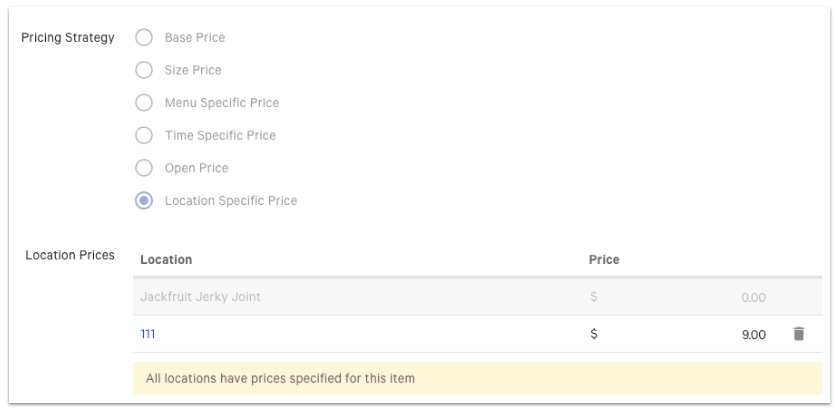
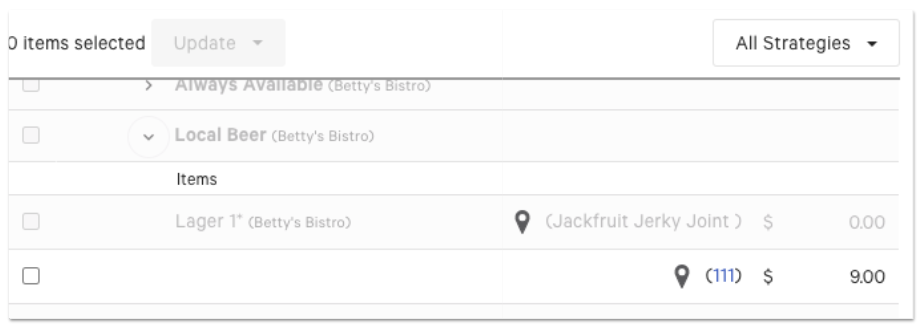
If you don't have the Local Menu Edit permission for a specific location or group, those price settings will be grayed out:
Back to top
To enable location-specific pricing for menu items or menu groups, follow these steps:
- Navigate to the menu item or group of items that will have location-specific pricing. You can do this by navigating to Menus > Bulk management > Advanced properties in Toast Web.
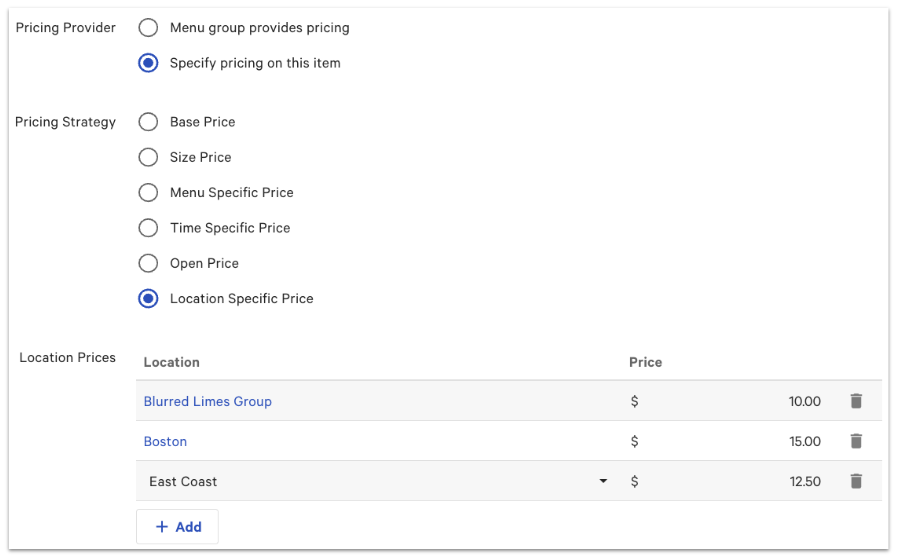
- Scroll down to the Pricing settings, and select Specify pricing on this item for the Pricing Provider setting.
- Select Location Specific Pricing for the Pricing Strategy setting.
- Use the Location Prices setting to select the group or individual locations that will have varying prices. You can select + Add to include any group or location that will have a location-specific price.
- Add the Price next to each group or location.
- Save and publish your changes.
Back to top
To enable location-specific pricing for modifiers, follow these steps:
- Navigate to the modifier group you wish to have location-specific pricing for by going to Advanced properties (Menus > Bulk management > Advanced properties).
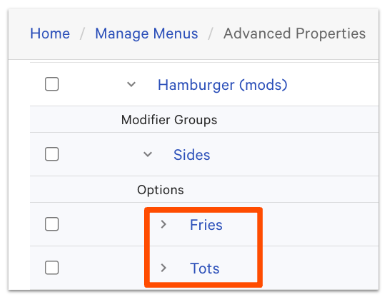
- Then, select a modifier that appears under Options (such as "Fries" or "Tots" in the example below).
- On the option detail page, scroll down to the Pricing section and select Location Specific Price for the Pricing Strategy.
- Use the Location Prices setting to select the group or individual locations that will have varying prices. You can select + Add to include any group or location that will have a location-specific price.
- Add the Price next to each group or location.
- Save your changes.
- Navigate back to Advanced properties and repeat steps 2 - 6 as necessary.
- When finished, publish your changes.
Back to top
If your menu items are set to use the size pricing strategy, you can set location-specific prices to the sizes themselves, just like you would for a regular modifier. Using the advanced properties page, find the item reference of the size-priced modifier and add a location-specific price as described above.
Note: If the size pricing strategy is removed from the item at any point, the location-specific price will need to be reset.
Back to top
You can change the location-specific price for your menus using the Price editor tool in Toast Web:
- In Toast Web, navigate to Menus > Bulk management > Price editor.
- Use the drop-down at the top-right corner of the table to select the restaurant group or location at which you'd like to change the price. Select Update.
- Open the All Strategies drop-down and then select Location Specific Price. This will filter the Price Editor to show you only menu groups/items that are configured to use location-specific pricing.
- Expand the menu group(s) that contain items that have location-specific pricing enabled. The menu item will list the location that has the specific price and the price at that particular location.
- To add more locations with varying prices, select the + sign that appears in the price text field.
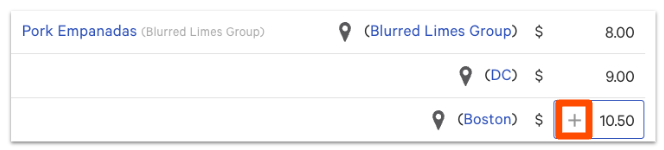
- A drop-down of all restaurant groups/locations will appear. Choose the appropriate location that has a different price, then enter the amount into the text field.
- Select Save. The new location and its price will appear on your price editor table.
To learn more about how to update prices at multiple locations using the price editor, check out this Toast Central article: Use the Bulk Price Editor.
Back to top
Location-specific pricing also supports other pricing strategies that are used within items. For example, a single menu item can be sold for a set price on weekends at only one location within a group. To configure pricing strategy combinations, follow these steps:
- Using the price editor, select the plus sign to add the location and enter a base price.

- Then, use the drop-down to select the name of the location.
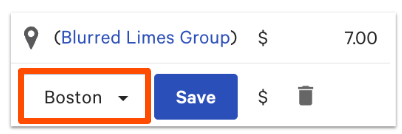
- This will navigate you to the Location-Specific Pricing details page for the chosen location. Choose the appropriate Pricing Strategy. In the example of having a set price on weekends at only one location, you'd choose Time Specific Pricing.
- Make the necessary changes and enter the new price into the text field.
- Save and publish these changes.
If you navigate back to the price editor, you'll see that each location with its individual prices will be listed (and following the example above, it would show both base price + time-specific prices for the chosen location).
Back to top
When copying menu items ("shallow copy") that use location-specific pricing, you can change the location-specific price of the copied item without affecting the original item's location-specific price. This can be helpful for franchisees who create a shallow copy of a menu item for happy hour and need to change the location-specific price without affecting the item's original location-specific price on their main menu. The price editor is an easy way to create and manage the prices of copied menu items with location-specific prices.
Back to top


