| Article Body | | Orders Hub is not supported on Elo V1 devices. |
The Orders Hub mode in your Toast POS displays all off-premise orders into one consolidated screen. This allows you to easily manage your takeout and delivery orders in one place. An off-premise order is any order that has one of the following dining behaviors associated with it: Takeout, Delivery, or Curbside. This includes orders through Toast Delivery Services and third-party partners.
In this Article:
Orders Hub: Video Overview
Back to top
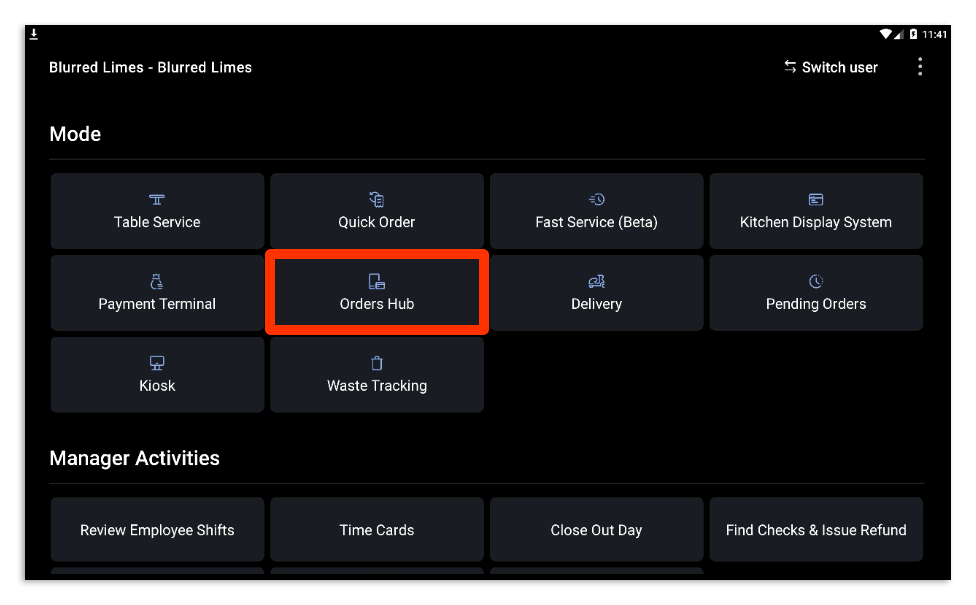
The Orders Hub lives as a mode on your device. To access it, select Orders Hub. You must have the 1.5 Pending Orders/Orders Hub Mode permission in order to access the Orders Hub.
This will take you to your Orders Hub screen (pictured below with both no pending orders).
  Orders Hub can be used on a non auto-fire device, however, at least one Toast POS device in the restaurant must be configured to auto-fire. To learn how to set this up, check out this guide. Orders Hub can be used on a non auto-fire device, however, at least one Toast POS device in the restaurant must be configured to auto-fire. To learn how to set this up, check out this guide. |
On the Orders Hub, the following options will always be displayed on the screen:
- Takeout & delivery quote times: These times are based on the quote times set in your Takeout & Delivery page in Toast Web. If your restaurant also uses Kitchen Capacity Throttling, the time will adjust accordingly based on the status of your kitchen. The delivery quote time is used for restaurants with their own delivery drivers. If you don't offer your own delivery service, then the delivery quote time will not appear on the screen. Toast Delivery Services will use the takeout time for driver pick-up.
- To learn more about how your takeout and delivery quote times work with other delivery services, check out the following articles:
- New Order: Allows you to create a new order.
- When creating a new order, select the appropriate dining option. Only orders using dining options with behaviors set to Takeout, Curbside, or Delivery will appear in the Orders Hub. To change a dining option, select the Dining button in the Quick Order or Table Service screen or set a default dining option for the device.
- Switch User
- Manage Online Orders: Quickly turn on/off, snooze, and add delays to orders from your online ordering page. The user will need permission to access this section: 1.5 Pending Orders Mode and 3.29 Throttle Online Orders. For more information, check out this article: Manage Online Order Volume (Delaying/Snoozing Orders).
- Five Order Status Tabs (detailed below)
- Filter Options: Allows you to view orders in four distinct ways
- Search Bar
Back to top
Orders move among statuses and screens based on the status of the order:
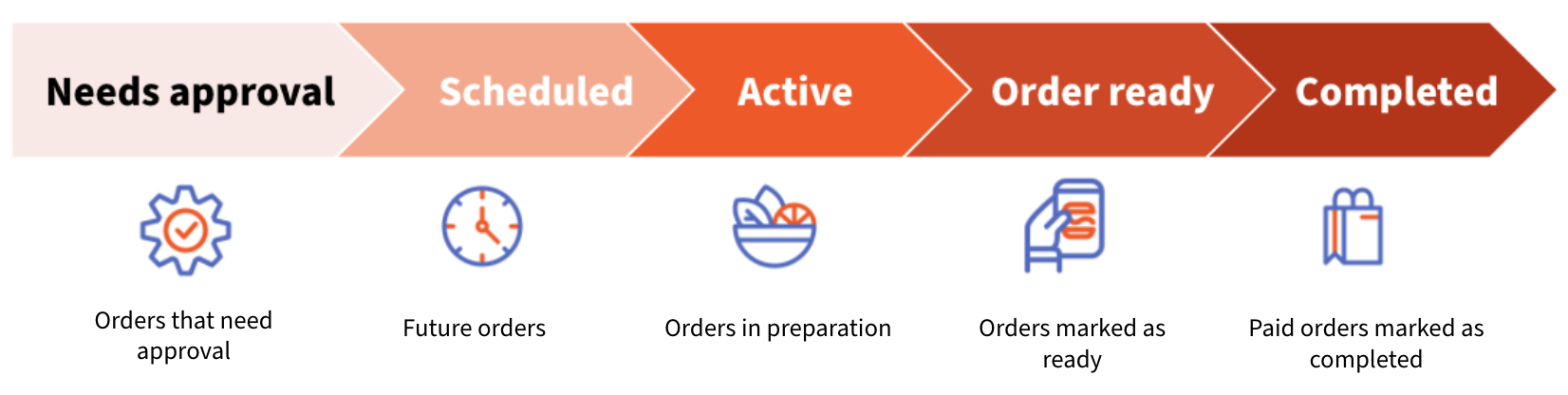
When a new order comes in, a blue dot will appear in the tab next to the order. This dot indicates that the order is unread and that no action has been taken for the order yet. Once the order is selected, the blue dot will disappear. Additionally, if an order has not yet been paid, it will show a red Not Paid icon on the order as well.
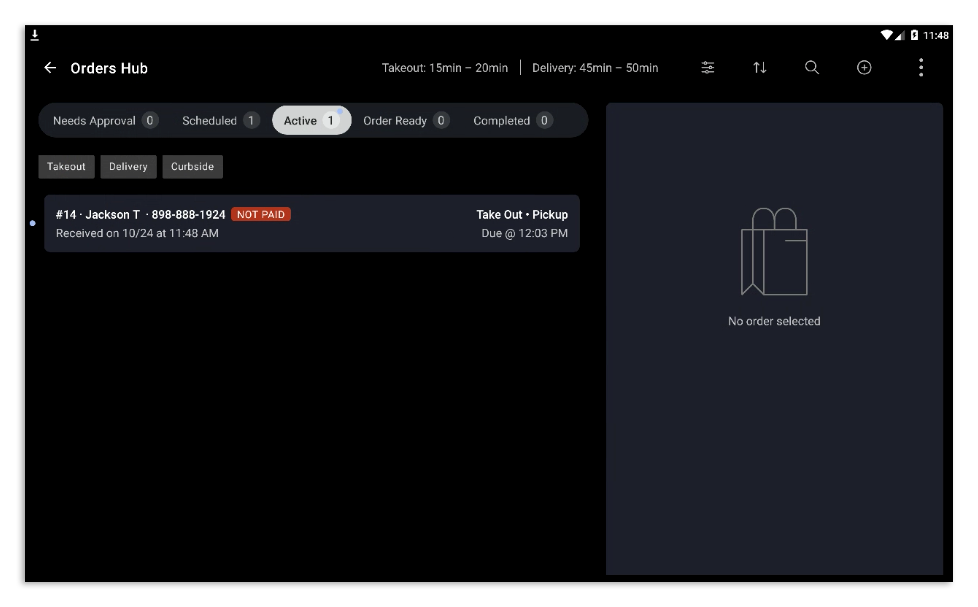
By selecting the order, the following information can be seen:
- Check number
- Guest name
- Guest phone number
- Date and time when the guest placed the order
- Delivery status or payment status
- Dining option (ex.: Take Out, Delivery, Online Ordering - Takeout, Curbside, Uber Eats - Takeout, and others)
- Dining behavior (Take Out, Delivery, Curbside)
- Tab Name (if available)
- Order due time (The time when the order should be ready for pickup or delivery. If the order is scheduled for a future date, the date will appear next to the due time)
- Firing time and date: The firing time is the same as the local device time. The scheduled firing time displayed will change as the order gets closer to firing. Learn more from the table below:
|
Scheduled firing time
|
Text color
|
Example text description
| |
Scheduled to fire in more than 1 hour
|
Grey
|
Firing 4/6, 4:38 PM
| |
Scheduled to fire in 1 hour or less
|
Green
|
Firing in 11 min
| |
Scheduled to fire in less than 1 minute
|
Green
|
Firing any second
| |
Scheduled fire time has passed
|
Red
|
Firing in -4 minutes
|
Back to top
Needs Approval Tab in Orders Hub
The Needs Approval tab displays orders that need to be manually approved before they can be fulfilled. If you have enabled manual approval mode for orders, then orders submitted through your Toast Online Ordering page and Local by Toast will appear here for approval. All orders coming through third-party partners will automatically be approved, even if you use manual approval mode. If a new order comes in that needs approval, a blue dot will appear on the Needs Approval tab. There will also be a ping that will notify the employee that there is a new order, and the Toast notification bell will appear on the top left of the screen.
Back to top
Scheduled Tab in Orders Hub
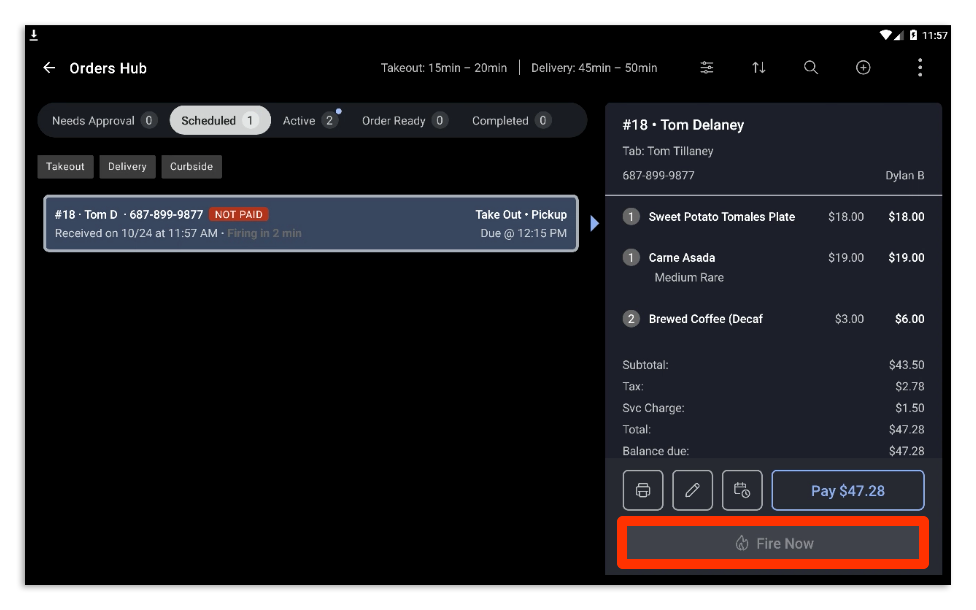
The Scheduled tab will show orders that are scheduled to be fulfilled at a future date and time. A scheduled order will move over to the Active tab automatically when the prep time clock for the order is triggered and as long as there is an auto-fire device set up in the restaurant (see the note above).
Back to top
Active Tab in Orders Hub
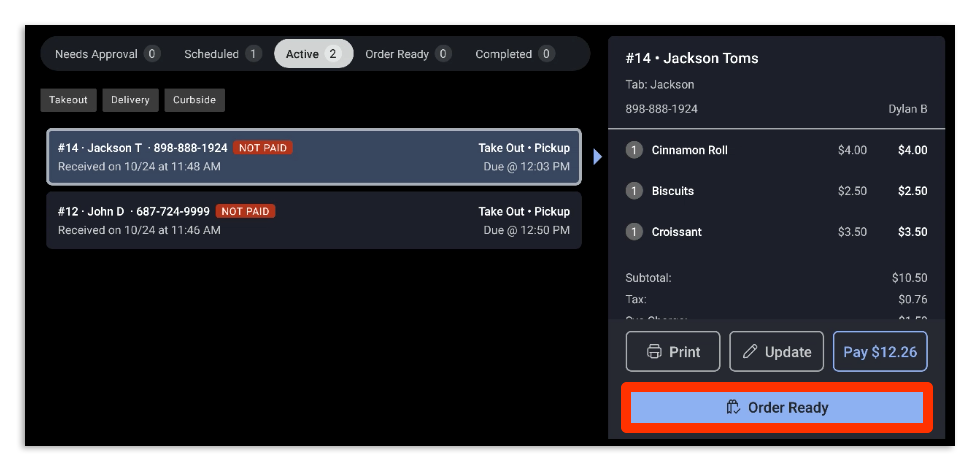
The Active tab is the default view for the Orders Hub and will display all orders that are currently being prepared at your restaurant. The total number of active orders will appear on the tab. By selecting the Order Ready button on each order, the order gets marked as ready and gets moved to the Order Ready tab.
Back to top
Order Ready Tab in Orders Hub
Orders that are marked as ready are displayed in the Order Ready tab. Orders moved to the Order Ready tab during the business day will be purged at the end of the business day. The same will occur for orders that are still in the Needs Approval, Active, Order Ready, and Completed tabs by the end of the business day. To complete an order and move it to the Completed tab, select Complete on the individual order.
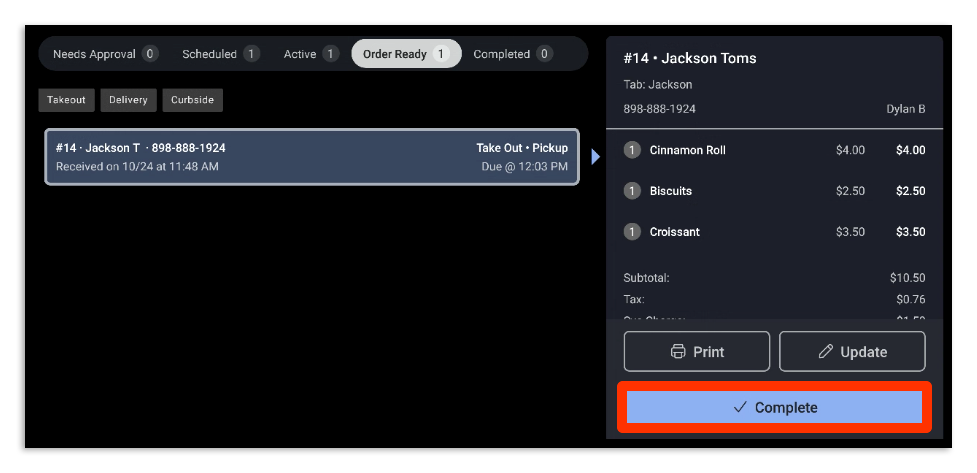
Note that an order will not be able to be marked as complete if there is an outstanding payment on the order. A blue Pay button with the total amount due will appear on the order as a result. Learn more about Order Ready text messaging here: Manage Order Ready Texts From the Orders Hub.
Back to top
Completed Tab in Orders Hub
The Completed tab will display all orders that have been completed.
Back to top
Toast now allows Orders Hub customers to filter and show dine-in orders (or on-premise orders) on the Orders Hub. Customers will be able to filter orders by the Dine In dining behavior, as well as off-premise dining behaviors (including Takeout, Delivery, and Curbside). No behavior means that the dining behavior is set to none. Customers can also select Unassigned as a filter if there is no dining option assigned. Note: The off-premise dining behaviors filters will be selected by default. Orders Hub will only show on-premise orders when you select Dine-in (or unselect all filters). To learn more about how to set up dining options, check out this article Configuring Custom Dining Options. For detailed information on filtering between on and off-premise orders, check out Toast's technical documentation: Filtering Orders.
Back to top
Manage Orders
With Orders Hub, you can easily manage each order individually without leaving the screen. By selecting the order, you can see information regarding the order, including guest name, dining option, order items, payment status, and order fulfillment status. Different buttons will show up on the order depending on the status of the order (or the tab the order is in) and the fulfillment type. The below actions are available depending on the order status:
|
Button
|
Tab
|
Action
|
Button Image
| |
Print
|
Active, Scheduled, Needs Approval, Order Ready, Completed
|
Print a receipt with order information.
|
| |
Update
(important note below)
|
Active, Scheduled, Needs Approval, Order Ready, Completed
|
This allows you to update or edit an order in the Quick Order Screen. Updates to an order are sent to the kitchen as well.
Items and orders can be voided in the Orders Hub by selecting the Update button. To learn more about voiding and how it affects the order status, check out the FAQ below.
|
| |
Order Ready
|
Active
|
Denotes that the order is ready for pickup and/or delivery.
|

| |
Complete
|
Order Ready
|
This moves the order to the completed tab. If the order is unpaid, this button will appear greyed out until the order is paid.
|

| |
Redispatch
|
Active, Order Ready
|
This requests a new driver to deliver the order and can be used for Toast Delivery Services.
|
| |
Fire Now
|
Scheduled
|
Fire an approved order to the kitchen immediately instead of having the system fire it based on quote time and prep time configuration. The Fire Now button will only be used on the auto-fire device (it will appear on other devices, but will be disabled).
|
| |
Pay
|
Active, Scheduled, Needs Approval, Order Ready
|
The Pay button will only appear if the order is unpaid.
|
| |
Approve
|
Needs Approval
|
Approves the order and moves it into the Scheduled tab or Active tab based on firing time.
|
| |
Reopen
|
Completed
|
Reopens the order and moves it to the Active tab. This can be used if the order needs to be remade, updated, or voided.
|
|
|
Important Note on Updating Orders: Though you can update orders through the Orders Hub, you cannot update third-party orders from our partners. Updating an order will cause reporting on Marketplace Facilitator Taxes to change. For refunds, please make sure to contact the partner directly. If a guest would like to add something to an order, please create a new order for them and take a new payment.
|
Back to top
Manage Third-Party Orders in Orders Hub
| Manage Third Party Orders is currently in limited release with select customers. Check back soon for updates! |
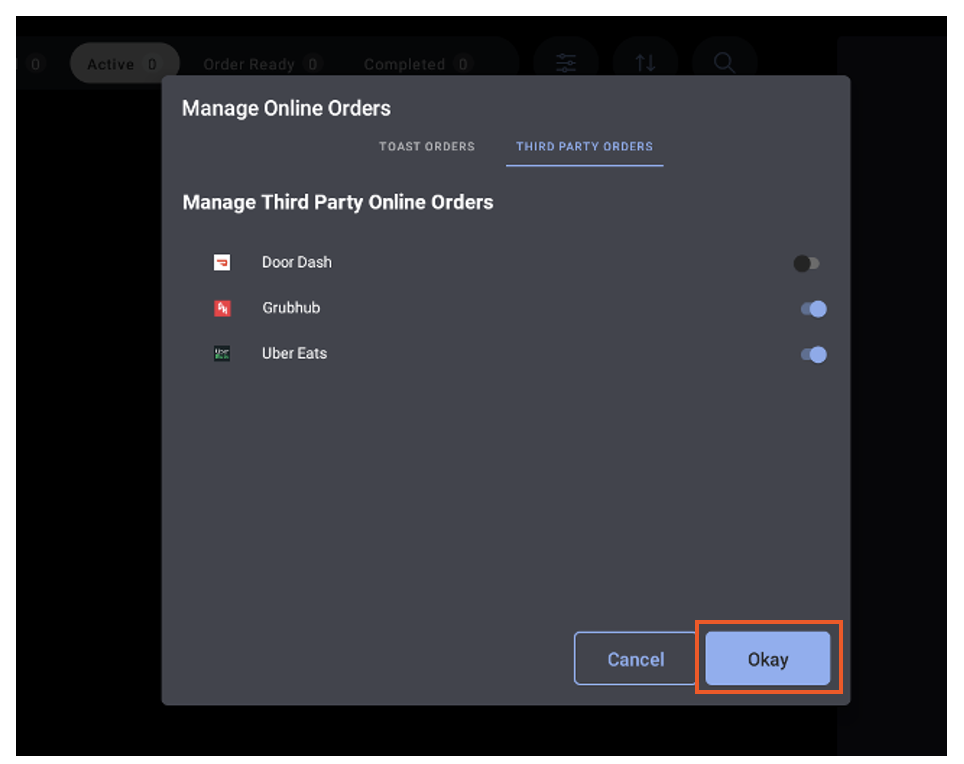
- Select the Manage Online Orders button on the Orders Hub screen.
- Navigate to the Third Party Orders tab.
- Select the third-party online ordering channel you want to turn off or on.
- Select the Okay button to save your changes or the Cancel button to cancel from the dialog box.
Back to top
Contact Your Uber Eats Guest or Driver
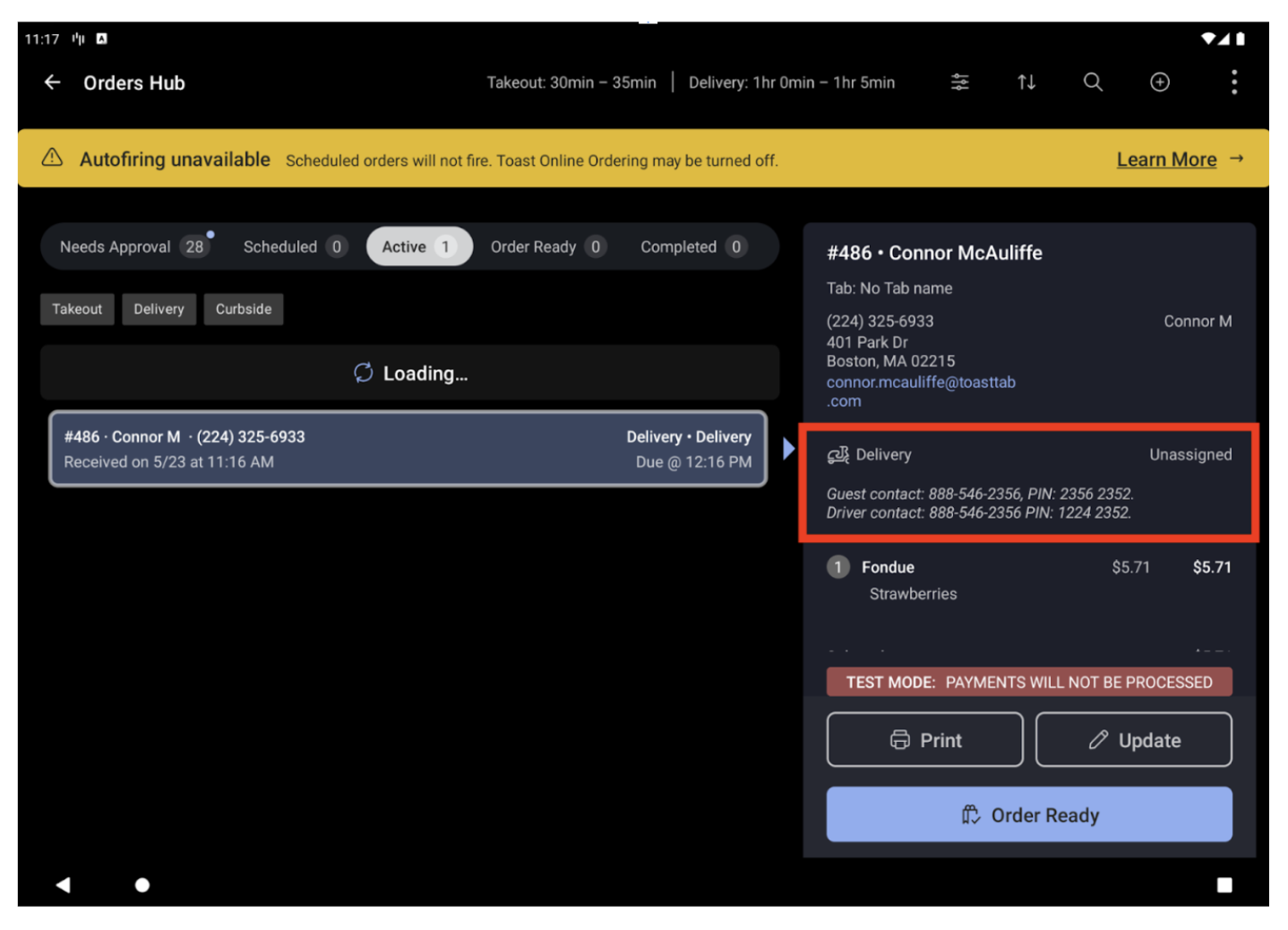
If you need to contact a guest or driver, for example, to notify a guest about an allergy concern or to inform a driver about a forgotten item, you can find their contact information directly in the Uber Eats order details within Orders Hub. Each order includes a phone number and a corresponding PIN. When you call the number, enter or provide the listed PIN to connect with the guest or driver.
 Back to top
Multi-selecting Orders in the Orders Hub
You can multi-select orders in the Orders Hub. You will be able to either bulk print, print to the kitchen, fire tickets to the kitchen, or change Orders Hub status (i.e., changing status from Order Ready to Completed) for multiple orders at once. This will greatly increase the efficiency and productivity in your restaurant, especially for high-volume restaurants that need to do bulk updates. To multi-select orders, long-press on the order to see the actions on the Orders Hub screen. You can tap multiple orders to select them or use Select All. To learn more about multi-selecting orders in the Orders Hub, check out Toast's technical documentation: Multi-selecting Orders.
The Orders Hub will display different colored indicators on the order to show the order's progress:
Status
|
Color
|
Description
|
Driver Requested
|
Blue
|
A new driver has been requested and dispatched to pick up the order.
|
En Route to Restaurant - ETA HH:MM
|
Blue
|
The driver has been assigned to the order and is on their way to pick it up
|
Here for Pickup
|
Blue
|
The driver has arrived at the restaurant and is ready to pick up the order.
|
Dropping off - ETA HH: MM
|
Blue
|
The driver is en route to the delivery address and will drop off the order by an estimated time.
|
Delivered
|
Blue
|
The driver delivered the guest's order. Once this occurs, the order gets automatically completed.
|
Delivered Cancelled
|
Red
|
The driver previously assigned to pick up this order has canceled the pickup.
Select the Redispatch button on the order to request a new driver for the order. An additional delivery fee may be charged.
|
-
When a delivery order in Orders Hub is ready to be dispatched to one of your drivers, select Complete on the order in the Order Ready tab.
-
A new screen will appear, prompting you to select Dispatch Driver. Once selected, the Delivery Mode screen will appear.
-
Select the Dispatch Driver button on the top-right corner of the screen.
-
Then, select the driver you are dispatching the order to and select Ok.
-
Once that's done, the order will move to the En Route tab on the top navigation of the Delivery Mode screen, and the previous Unassigned status on the order will be updated to En Route in the Orders Hub.
-
Once the order is delivered to your guest, select Complete in the Orders Hub. This will move the order to the Completed tab in the Orders Hub, and to Delivered on the Delivery Mode screen.
Note: You must have the 2.2 Update All Delivery Orders or be assigned as a driver to be able to mark the order as complete. For more information on user permissions, see this article: Permissions Reference Guide.
This means you haven't set up an auto-fire device. Scheduled orders will still appear on the tab; however, when the order is ready to be prepped, the order will remain in the Scheduled orders tab, the order won't be able to be fired to the kitchen (as the Fire Now button will be inactive), and the order won't show up on a KDS or print. Toast recommends having one auto-fire device setup. If that's done, that device will have the ability to use the Fire Now button, and the order will automatically print and be sent to the kitchen based on the prep times and quote times configured.
Yes, you can easily use filters to find orders. To do so, select the filter button while on any tab. A new filter pane will appear where multiple filters can be selected. Here you can filter by paid status, dining behavior, and dining option.
When an order is placed online and needs to be canceled, then the order will need to be voided.
To void an unpaid order:
-
-
Select the Update button on the order in Orders Hub. Select Edit Check.
-
The Quick Order screen will appear.
-
Select the three vertical dots (overflow menu) on the top right of the Quick Order screen.
-
Select Void Order and then select the Reason for the void.
-
The order will then get removed from the Orders Hub.
Voiding a paid order:
-
-
Select the Update button on the order in Orders Hub. Select Edit Check.
-
The Quick Order screen will appear.
-
Navigate to the Pay screen and select the payment.
-
Select Void to void the payment first.
-
Once that's done, select the three vertical dots (overflow menu) on the top right of the Quick Order screen.
-
Select Void Order.
-
The order will then get removed from the Orders Hub.
Note: For orders placed through a third-party partner, you can follow the steps above for any orders placed through Uber Eats only. You cannot void or cancel an order from DoorDash or GrubHub within Toast POS. If a guest would like to cancel an order they placed through either of these partners, they will need to contact the partner directly.
Not, currently. Toast recommends having a device dedicated to the Orders Hub to manage all off-premise orders.
Yes, you can easily change to dark mode in Device Setup on your device. Learn more about it here Customize Your POS Experience.
Due to the advanced functionality of the feature, the Orders Hub is not compatible with Elo V1 devices. The Orders Hub will be available if you have an Elo V2 or newer.
|
|
|---|


