During peak business hours (such as the lunch rush), it may be necessary to put a hold on orders coming in from Online Ordering by adding a delay. By using this tool, you will be able to add a delay (in minutes) to online orders.
Learn more about the Online Ordering dashboard here and how to turn off Online Ordering for a specific time period.
In some cases, the number of online orders received cannot be fulfilled even after using order delays to slow down online order intake. Or, you simply may not have enough staff members to handle the added online order activity until your next shift change. When that happens, you can "snooze" your Online Ordering page to temporarily stop guests from placing orders online. Use the snooze feature to disable Online Ordering for 20-40 minutes or snooze Online Ordering for the rest of the day.
Online Ordering will return to its normal function after the selected snooze period. Therefore, if you snooze Online Ordering for 20 minutes, it will return to its normal function after that time. In addition, snoozing Online Ordering for the rest of the business day will mean that Online Ordering will resume function upon opening the following business day.
There are two ways to snooze Online Ordering. Follow the steps below to enable order throttling from a device and from Toast Web.
| Snoozing is only available for orders placed through Toast Online Ordering, Toast Delivery Services, or for GrubHub, DoorDash, or UberEats integrations. For all other providers, visit your applicable third-party delivery support for available options for your restaurant. |
Back to top
Note: The following permissions are needed to snooze online orders: 1.5 Pending Orders Mode/Orders Hub Mod, 3.29 Throttle Online Orders, 6.4 Publishing, and 6.6 Restaurant Operations Setup. See our Permissions Reference Guide for questions about back-end permissions.
You have multiple options to snooze online orders on your Toast POS. Learn how to snooze your orders in Orders Hub, Pending Orders, or Payment Terminal below.
Back to top
Snooze Online Ordering in Orders Hub or Payment Terminal
To snooze your orders in Orders Hub or Payment Terminal the steps are the same:
- From the main menu dashboard on your POS, navigate to either Orders Hub or Payment Terminal.
- From here, select Manage Online Orders in the upper right corner.
- Select Snooze and the corresponding time increment, or select Off instead.
- Select OK to save your changes.
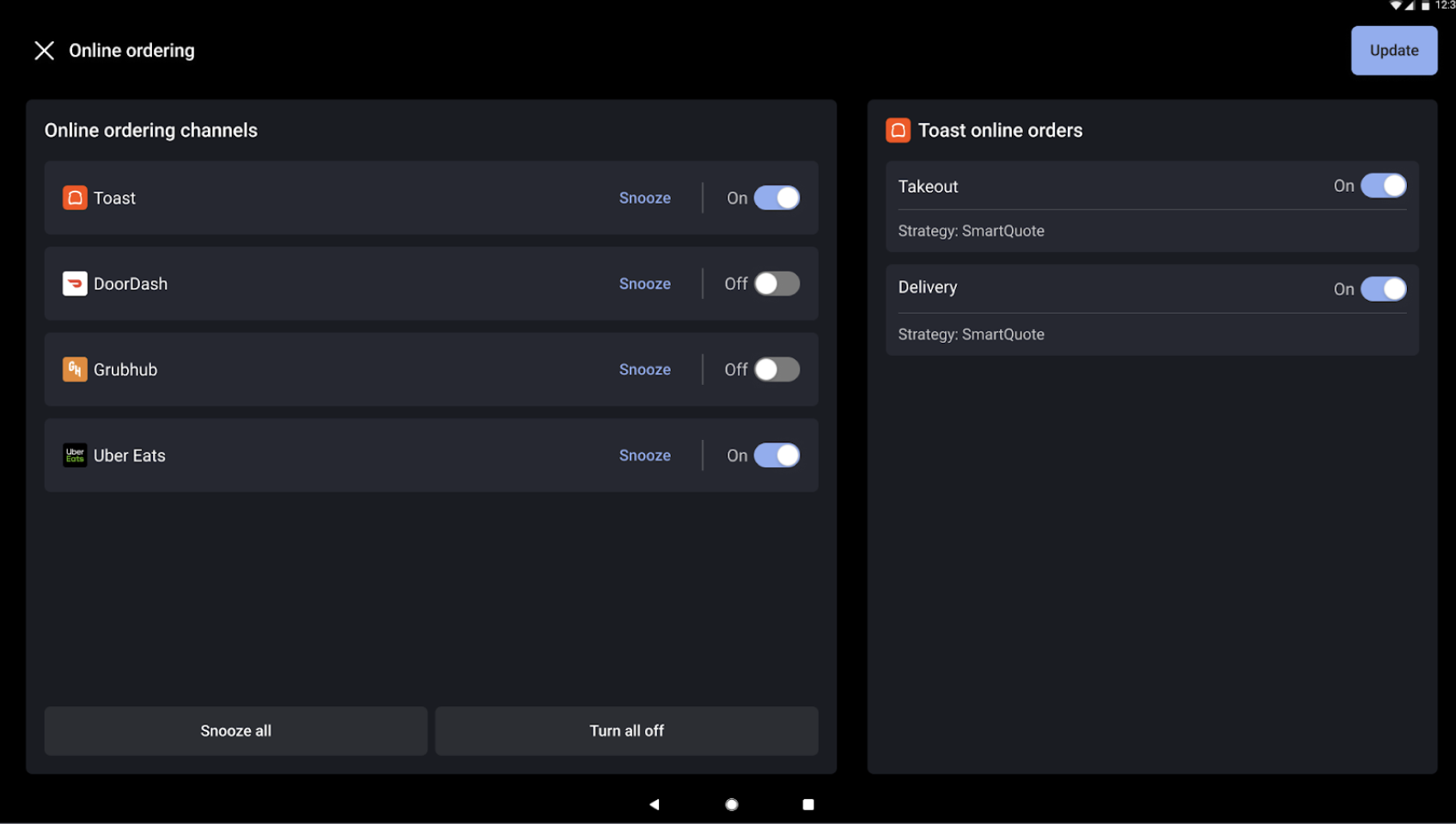
Select customers can also snooze online orders and access Delivery Details such as guest information and their selected dining option within the Payment Terminal. If you do not see this option (as described here) at this time, check back soon for updates!
If you do see this option, you can snooze your orders within Payment Terminal by following the same steps above for snoozing in Orders Hub. To view Delivery Details within the Payment Terminal, select the overflow menu (three vertical dots) on any order within the Payment Terminal. |
Back to top
Snooze Online Ordering in Pending Orders
To snooze your orders in Pending Orders:
1. From the main menu dashboard on your POS, navigate to Pending Orders.
2. From here, select Throttle Online Orders in the upper right corner.
3. Select Snooze and the corresponding time increment, or select Off instead.
4. Select OK to save your changes.
Note: If you are snoozing orders from a handheld device, the Manage Online Orders option will appear in your overflow menu (three vertical dots) in the top right corner of your device when you have navigated to Orders Hub, Pending Orders, or Payment Terminal.
Back to top
1. From Toast Web, navigate to the Takeout & delivery page.
2. At the top of the page, the first option on the Online Ordering dashboard consists of a dropdown menu. Select the desired option.
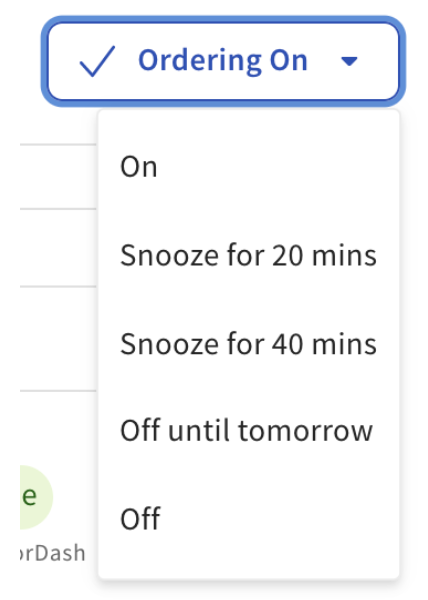
Changes made to the settings for Online Ordering using the dropdown will automatically be saved and published to your Online Ordering page and the Local by Toast app.
Back to top
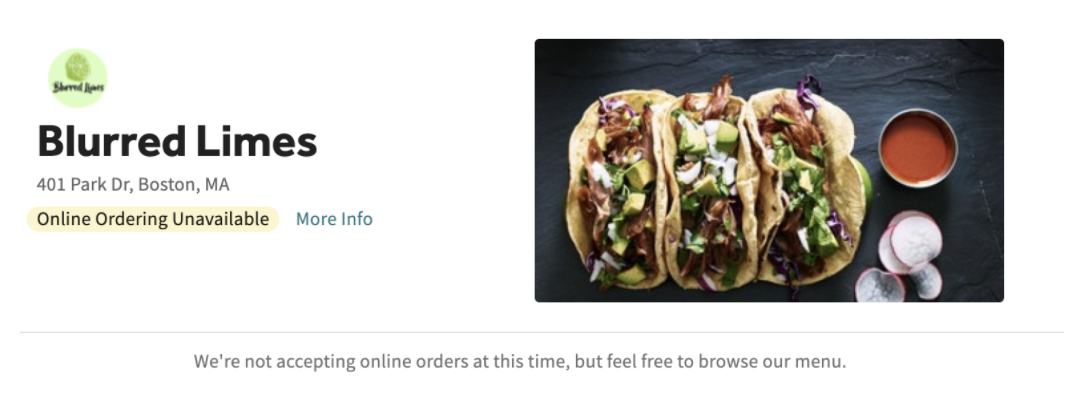
When snoozed, your Online Ordering page will display the following message and guests won't be able to order.
Back to top
Add Delays from a Device
Note: The following permissions are needed at this point: 1.5 Pending Orders Mode/Orders Hub Mod, 3.29 Throttle Online Orders, 6.4 Publishing, and 6.6 Restaurant Operations Setup. See our Permissions Reference Guide for questions about back-end permissions.
1. From the main menu dashboard, navigate to either Pending Orders or Orders Hub.
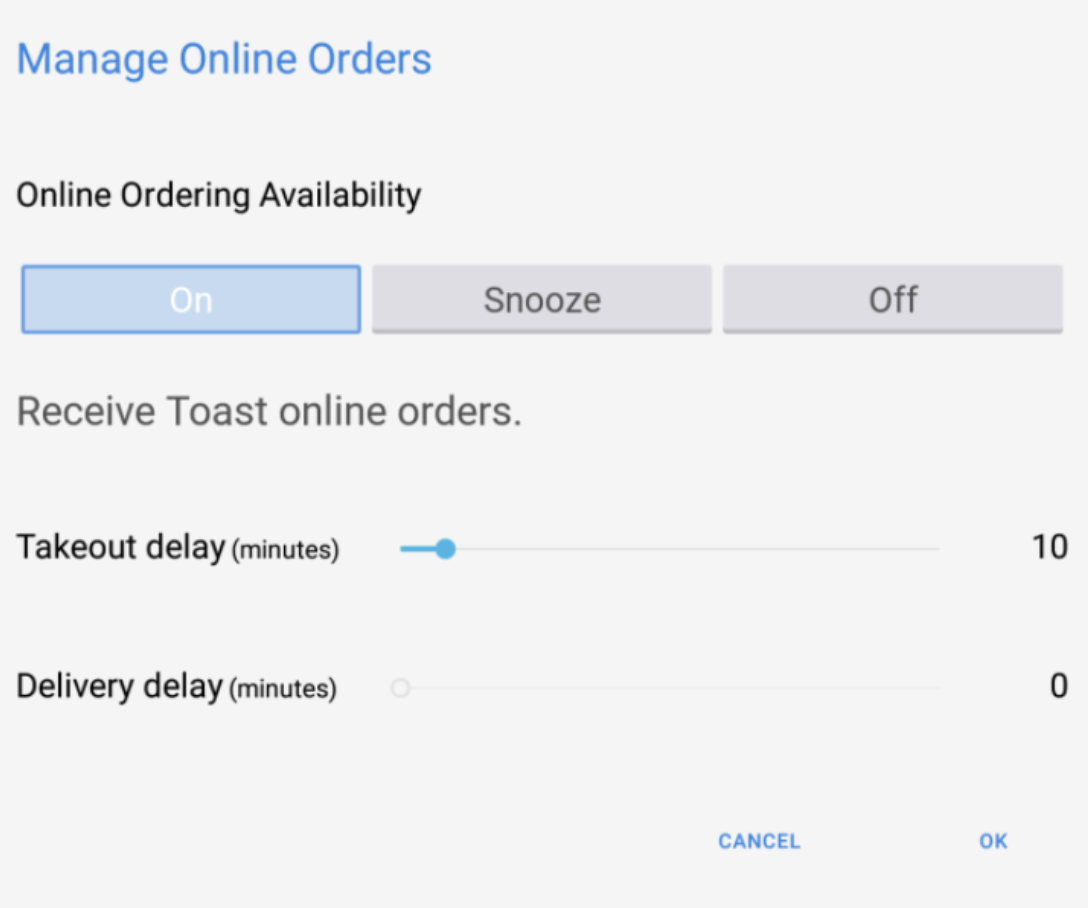
2. From here, select either Manage Online Orders (in the Orders Hub) or Throttle Online Orders (in the Pending Orders screen) in the upper right corner.
3. Under On, select the delay (in minutes) for either Takeout or Delivery. Note that if you use Toast Delivery Services, the takeout delay here will also be applied to the quoted time for guests for deliveries.
4. Then select Ok to save your changes.
Back to top
1. From Toast Web, navigate to the Takeout & delivery page.
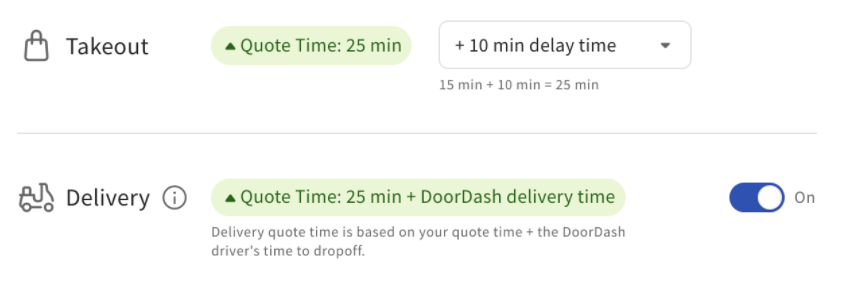
2. On the Online Ordering dashboard, add a delay to the Takeout section for takeout and pickup orders. If you use Toast Delivery Services, a delay added here will also affect the quoted time for delivery orders (see the image below for example).
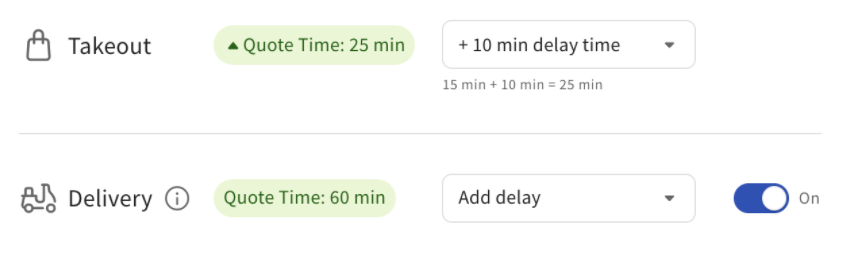
If you manage deliveries with your own drivers, you will be able to add a delay specifically to the quoted time for guests.
3. You must select Publish all changes at the top of the page to apply these delays to your Online Ordering page and the Local by Toast app.
Back to top
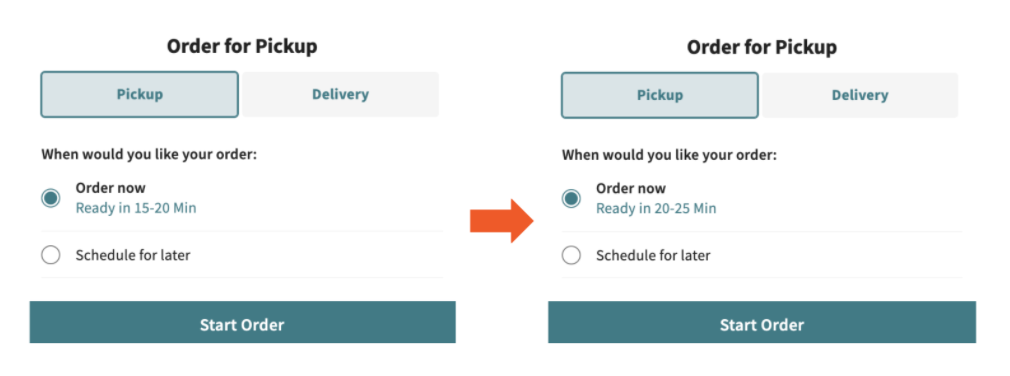
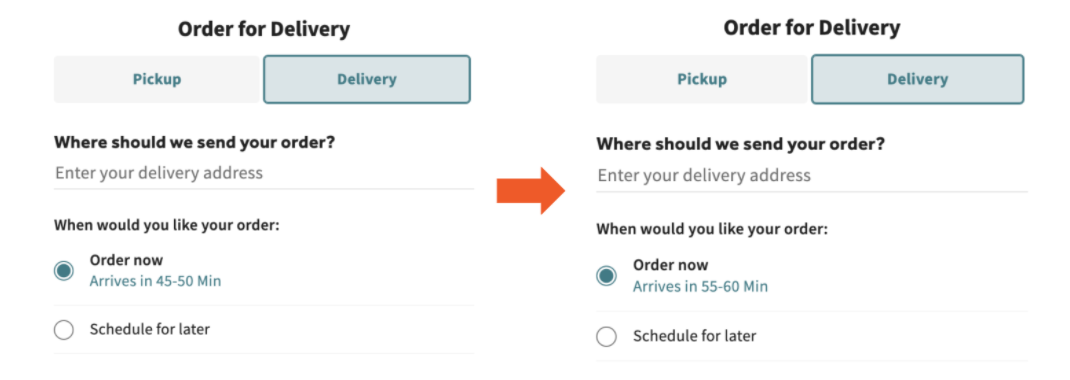
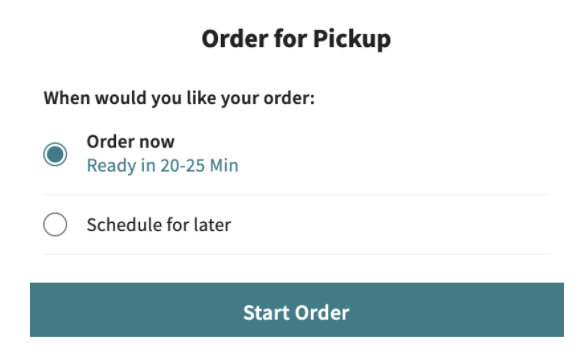
Guests will just see the quoted time on the Online Ordering page account for that delay. They won't see anything to indicate that throttling is in effect, or that the "restaurant is busy."
Adding a delay to takeout (pickup) orders:
Adding a delay to (self-managed) delivery orders: (see note about Toast Delivery Services below)
Turning off delivery (for both self-managed delivery or Toast Delivery Services):
When delivery is turned off, your Online Ordering page will not display the delivery option to guests:
|
Note on Toast Delivery Services: If your restaurant uses Toast Delivery Services and you'd like to add a delay, you will need to add a Takeout delay to adjust the quote time for Toast Delivery Services. The takeout/pickup quote time will adjust automatically as a result.
|
Back to top


