In this Article:
Permissions Hierarchy for Multilocation Restaurants
Toast Multilocation Management (MLM) restaurant groups must have at least one gatekeeper or superuser at the corporate level who has access to all Toast permissions at all locations. This access is granted by a Toast employee, usually during onboarding.
The permissions granted to the managers at individual locations are at the gatekeeper's discretion. For example, the gatekeeper may not want a location's manager to have access to certain Account Admin Access permissions such as 8.1 Financial Accounts or 8.5 Toast Shop Purchases.
Location managers can grant the appropriate permissions to their staff in two ways:
- By adding a job to an employee's profile (which comes with a set of permissions)
- By overriding and setting individual permissions
Back to top
Locate Employee Jobs and Permissions for Multilocation Restaurants
To review an employee's assigned job and permissions, follow these steps:
- In Toast Web, navigate to Employees > Employee management > Employees.
- Search for your desired employee by name. In the Actions column on the right, select the pencil icon for the appropriate employee to edit their information.
- This will bring you to the employee's Jobs and Permissions section (which contains wage rates). The jobs listed here are only applicable to the location you're logged into.
- Scroll down to find the employee's Permissions. Inherited permissions were granted when an employee was assigned to a job, whereas Override permissions were given individually.
Note: For an overview of all available access permissions, check out the Permissions Reference Guide.
Back to top
Jobs and Wages for Multilocation Management
To adjust a staff member's wage, you must have the 4.10 Employee Jobs & Wages permission at the restaurant location of the rate they're trying to adjust.
The ability to add or remove job roles for an employee is based on the 4.10 Employee Jobs & Wages permission and also on the permissions within the job role. The user granting a job to another user must have all the permissions that the job they're granting has, plus permission 4.10. The user granting a job does not necessarily need that job themselves, as long as they have the permissions associated with that job.
This applies to locations as well. Let's say a user is looking to grant the Key Employee job to another user. If the user granting the job has the permissions associated with the Key Employee job at location A, they can grant that job to users at location A. But if the user granting the Key Employee job does not have the Key Employee permissions at location B, they will not be able to complete their task.
To add or remove a job from a user, simply select or deselect the checkbox associated with that job. You only need to press Save since these changes are automatically published once they are saved.
Back to top
Grant Permissions to Other Locations
Users are typically granted permissions based on the jobs they're assigned to, so adjusting permissions outside of adding or removing jobs typically only happens on a one-off basis. In order for you to add or remove a staff member's permissions, you must meet these two requirements:
- You must have the 8.2 User Permissions permission at the same restaurant location you're trying to adjust another user's permissions
- You yourself must have the same permission(s) that you want to adjust at the same location where you want to adjust another user's permissions
Check out these examples:
- A user has the permissions for 3.7 Void Items / Orders and 8.2 User Permissions at location A, but not at location B.
- This user will only be able to grant other users access to the 3.7 Void Items / Orders permission at location A.
- A user has the permissions for 3.7 Void Items / Orders and 8.2 User Permissions at location A, location B, and location C.
- The user can grant the 3.7 Void Items / Orders permissions to other users at locations A, B, and C.
Commonly, multilocation restaurants will open a new location and will need to assign permissions to existing employees at the new location. To add or remove a permission for an individual employee (rather than for the job as a group):
- From an employee's Jobs and Permissions tab, scroll down to the Permissions section.
- Select the location for the permission(s) you want to add or remove.
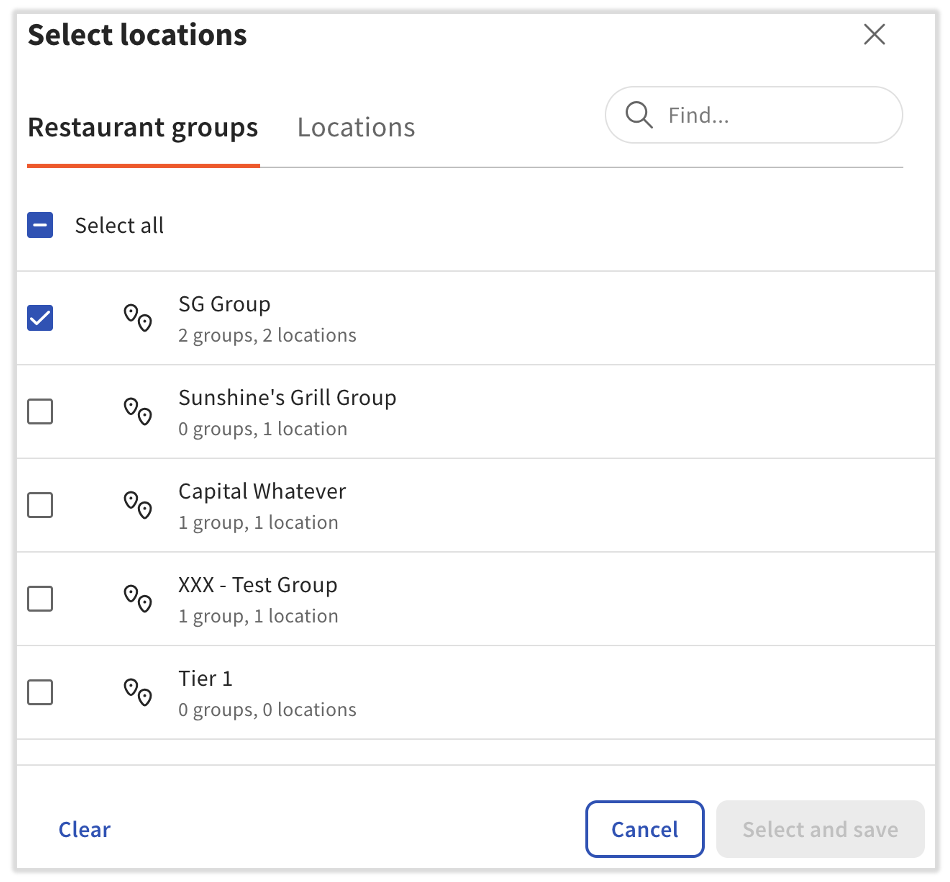
- Once the location is expanded, you may need to toggle to Override to gain access to the checkbox, depending on how this user's permissions have been set in the past.
- When the checkbox is no longer grayed out, you may either enable (blue check) or disable (empty box) the permission.

- Save your changes by selecting Save in the bottom-right corner of your screen. Changes made to permissions are automatically published.
Back to top
Edit Employee Information With Multilocation Management
The ability to edit a user's basic information (including name, contact information, and POS access code) is included in the 4.9 Employee Info permission. If an account has been created for this profile, the email address and password cannot be edited by anyone besides the individual themselves.
In order for you to make changes to your own employee information or to another user's employee information, you yourself must have the 4.9 Employee Info permission granted to you.
To make changes to a user's employee information at another location, you must have the 4.9 Employee Info permission granted to you at your original location and at the location where the user's employee information needs to be changed.
Back to top
Additional Resources for Permissions & Multilocation Management
Back to top


