Looking for a live training experience with a Toast Training Expert? Sign up for a live Toast Classroom session to help you set-up and get started with Online Ordering! Select the button below to sign up.
Toast Classroom - Getting Started With Online Ordering
Own your profits and guest relationships by allowing guests to easily order pickup or delivery directly from you, commission-free.
Want to boost revenue with Toast Online Ordering? Add the Toast Digital Ordering Suite to your account by navigating to Toast Shop now!
In this Article:
No, not unless you think it's necessary or your pricing is different for items sold in-store vs online. We recommend using the Online Ordering Visible To settings outlined in this Toast Central article, Set Menu Visibility in the Menu Builder. In the Menus section of that article, you'll also see how you can control your menu visibility settings for individual third-party online ordering partners.
If you would like to have a separate menu for Online Ordering in case your pricing is different or you don't need modifier groups to show up for your guests, you will need to deep copy your menu. Using this method allows you to make changes to the menu without changing the original. Learn more in this Toast Central article: Reuse or Copy Menu Items and Modifiers.
Create a menu titled "Specials Menu" and add your desired menu items with images to show off your specials. Alternatively, you can create a menu group titled "Specials" within an existing menu, that includes a description indicating that the items within the group are discounted or seasonal for your restaurant. In order to ensure that the menu or group is placed at the top, use the order tool to rearrange that menu or menu group above the others in Toast Web. See this Toast Central article on Menus, Menu Groups, and Subgroups for more detail.
Subsequent menus will now be populated on your Toast Online Ordering page using a continuous scrolling function. This will ensure guests can peruse your menu easily without needing to use the dropdown feature to select specific menus.
-
- Consider creating a menu or menu group and title it "Catering."
- Enter your catering options as items and use the item description field to enter instructions for placing an order.
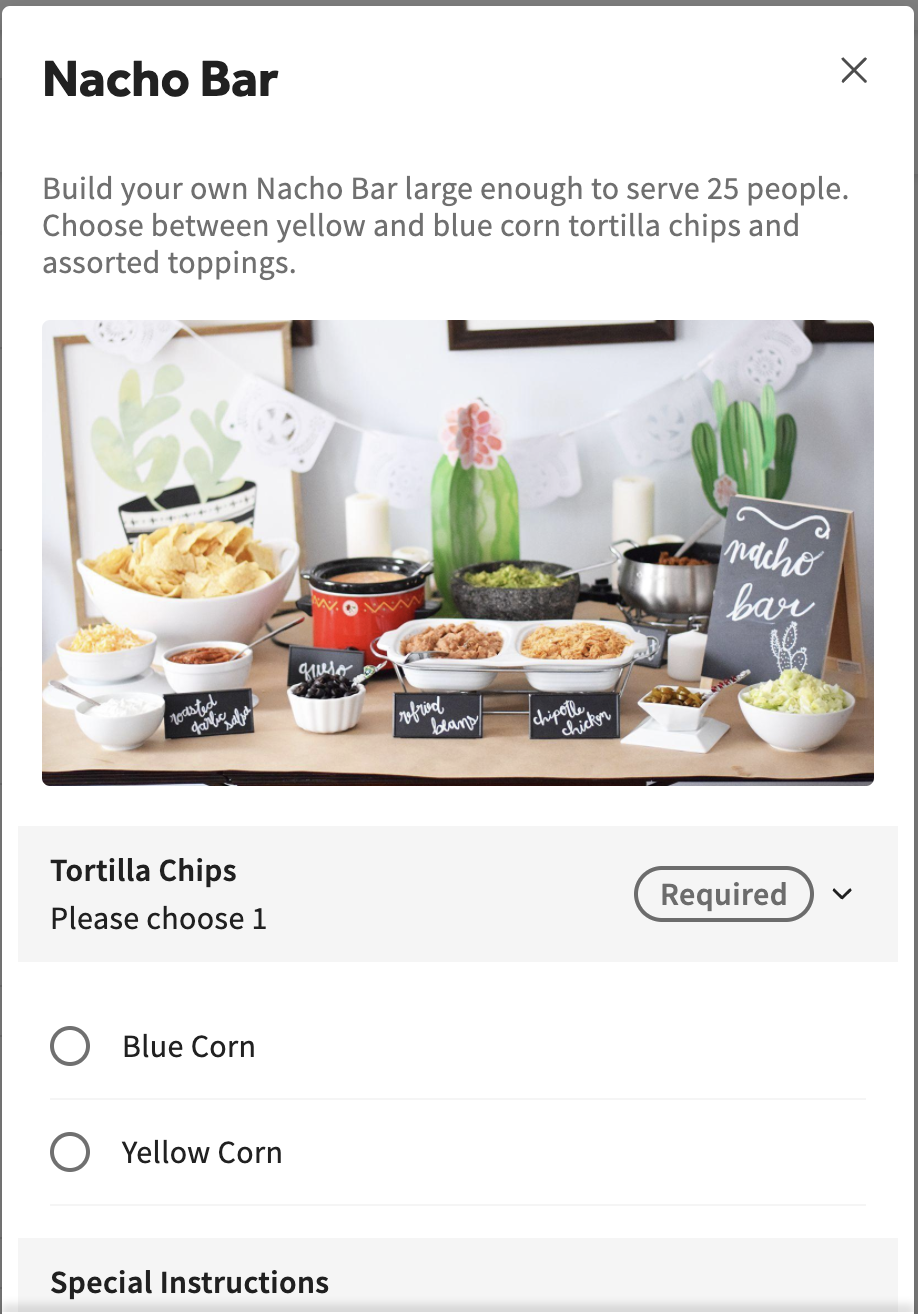
- Add any required selections as modifiers to that menu item. For example, "Select your pickup time from these limited options" or "Include a gift box?"
-
- Consider using an infographic image (recommend MAX height 400 px) for the menu item and include ordering instructions in the item's description.
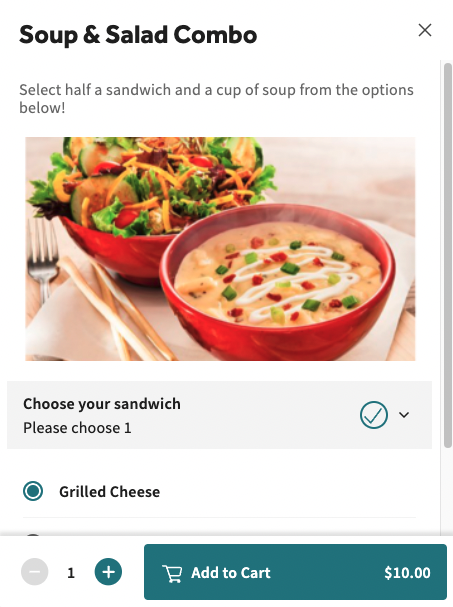
- Create required modifier groups for the item with titles like "Step 1: Choose your Bread" to instruct your guests on the choices they need to make for their order. List all required options choices as modifier options and be sure to use the order tool to arrange the modifier groups into the correct order so the kitchen can easily assemble the item from the ticket.
Once configured, items with Prompt for Quantity and a Unit of Measure enabled can be ordered in fractional quantities. See this Toast Central article on Items Priced by the Pound or Unit or more information on how to configure these settings in your menu.
No. To make setup easier we recommend adding images and descriptions at a later time. While adding these later on will enhance your menu, they are not required for setup.
Your images should follow these guidelines:
-
-
- Restaurant Logo - Square, 180px by 180px (minimum)
- Banner Image - Rectangle, 1920px by 1080px
- Menu Item Images - Rectangle, 750px by 450px
Note: All images must be in a .PNG file.
It’s not possible to make specific items available depending on the time of day, however, you can make menus available depending on time of day and day of the week. For example, if you want to have a menu of coffee and bagels available from 7:00 a.m. - 11:00 a.m. and then a regular lunch menu available at 11:00 a.m., you can set up a separate menu for the coffee and bagels. This means that if a guest places an order at 8:30 a.m., they will be able to see the coffee/bagels menu. If they place an order for 11:00 a.m., the coffee/bagel menu will not be visible. Learn more in this Toast Central article on Setting Menu Availability.
Note: Make sure the Visible To setting is set to Online Ordering! Learn more in this Toast Central article on How to Manage Your Menu Visibility Settings.
No, the order time and scheduled pickup time must both be within the time frame of the discount. So for that example, the pickup time would need to be between 2:00 p.m. - 4:00 p.m.
Yes, they do. The items need to be the same in order for the discount to be applied to all items. For example, two cheese pizzas with 1 topping need to have the same topping in order for the 2x cheese pizza discount to be applied to the item(s).
No, price adjustments will not go through on a paid check. They will only apply to orders that are placed after the adjustment.
Toast Retail customers have the option to hide out-of-stock items from their online ordering page. To do this, navigate to Retail > Settings > Online ordering > toggle Hide out of stock items on in Toast Web. For Digital Storefront Pro subscribers:
- Navigate to Websites > Edit Site (blue button) > Online Ordering.
- From the left navigation, select Global > Menu styles and colors.
- Scroll down to Show out of stock items. Here is where you can toggle this feature on or off.
- Save and publish your changes.
Is there a way for guests to add individual menu items that they have previously purchased through our Online Ordering page?
Yes. Guests are able to conveniently add previously ordered individual menu items into their cart through your Online Ordering page, provided that they are logged in to their account at the time of purchase.
These menu items are displayed under the “Order Again” carousel as shown in the sample screenshot below. Here, guests can add previously ordered items to their cart seamlessly. The item cards will show the individual item’s current menu image and pricing. If a guest selects a menu item that has a modifier, their previously chosen modifier will automatically be selected. If an item is not available, it will not be displayed in the “Order Again” carousel.

Back to top
A list of "Popular Items" will appear on your Toast Online Ordering page, enticing guests to try items that are most frequently ordered among your guests.
Items are featured based on 30-day order activity. This is a great feature to automatically showcase what you do best based directly on customer ordering trends. This feature does not require any setup.
Suppose you do not wish to display Popular Items. In that case, you can turn the feature off in Toast Web by navigating to Takeout & delivery and selecting Online ordering setup at the bottom of the Toast Online Ordering section under Related settings.
Scroll to the Highlight Popular Menu Items section and turn the feature off.
Be sure to Save your changes.
Toast's Menu Item Upsell feature allows you to automatically suggest items for guests to purchase and is an easy way for you to boost your average order value. Check out this Toast Central article on Online Ordering Menu Item Upsell to learn how to set this feature up for Online Ordering, or Get Started With Menu Upsells On The POS to learn how to set this feature up for your devices.
Back to top
For frequently asked questions regarding your online ordering schedule, see this Toast Central article on Managing Your Takeout and Delivery Schedule.
Choose one device to send all online orders to the kitchen. See this Toast Central article on Setting Up Order Auto-Firing to enable Order Auto-Firing on that device from the device menu.
If your auto-fire device is logged out of Toast, online orders will not be sent directly to the kitchen. The orders would need to be manually approved. Your auto-fire device must be turned on and logged into Toast for orders to be sent directly to the kitchen.
Navigate to the Other Setup section in Toast Web and select Takeout / Delivery . Under Delivery Enabled? select Enable Delivery to turn on delivery as an option for guests ordering online. See this article for more details.
Yes! When filling out Delivery Info, there will be an optional field where a guest can write exactly how they'd like the driver to deliver their order.
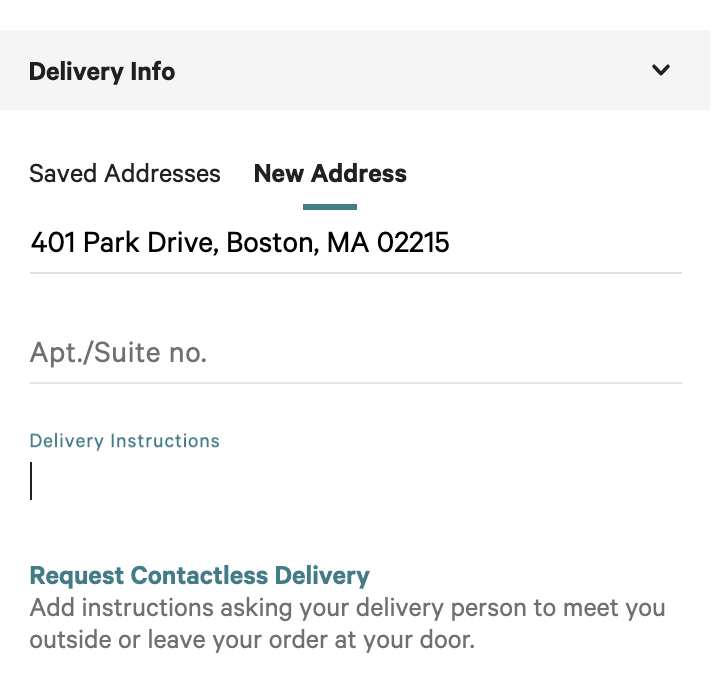
For example, they could write "Ring the doorbell when you arrive and leave the food on the porch". The driver will get the instructions when the order is placed. Both Online Ordering and Local by Toast offer these options.
This feature will automatically be there to use as long as you have delivery enabled for your restaurant.
A dining option will need to be updated or created with the Curbside behavior and then added to your online ordering settings page under the Dining Options section. To learn more about this workflow, check out this Toast Central article on Setting Up Curbside Pickup for Online Order.
Yes! Once you have selected Yes, guests may schedule orders under Online Ordering Scheduling Settings on your Online Ordering setup page, an additional field for Max Future Scheduled Order Date (days) will appear immediately below. Selecting Custom Date Range and inputting a value of '0' will allow your guests to schedule orders, but will restrict those scheduled orders to same-day only.
Currently, first-party delivery for online orders is unavailable in Canada, Ireland, and the U.K. Please check back for updates.
Toast Gift Cards are redeemable as payment for online orders. To use a gift card as payment, guests can select the check box Pay with a Gift Card at checkout and enter their gift card's 16-digit code. Additional forms of payment can be added to cover any outstanding balance on the check. To learn more, check out this Toast Central article on Redeem a Toast Gift Card for Online Order.
Note: Currently, gift card payments for online orders cannot be used in Canada, Ireland, and the U.K.
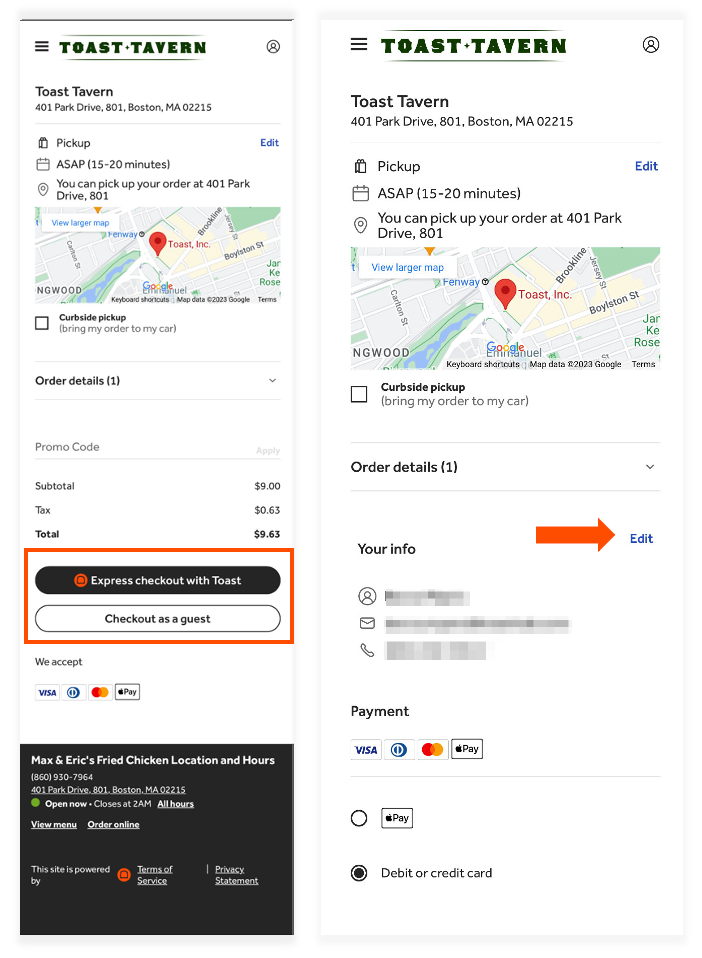
Yes, guests have the ability to create an account before or during checkout. They can save a credit card (among other information) to their account for future use. When guests place orders, they can select Express checkout with Toast or Checkout as guest. On the next screen, the guest will enter, review, and/or edit their personal and payment info before submitting the order.
Guests are ordering items and adding extras without being charged. How can I be sure they’re being charged for adding certain extras to items?
Under your Modifier groups for this particular item, you may have Multi-select? checked on, which allows guests to select multiple choices without incurring an extra charge. To ensure they’re being charged, you’ll need to make a new modifier group and add a charge to each selection. Check out Create a New Modifier Group for how to do this.
Yes, when a guest creates an account, they can view their order history directly on their account page.
Note: Currently, guest order history is not available in Canada, Ireland, and the U.K.
Guests are experiencing issues when ordering. What should I do?
Oftentimes, the factors that impact guests while ordering have largely to do with the web browser. If you have guests indicating an issue with the page, advise them to close the browser entirely and try again. We also recommend checking the online ordering page yourself to confirm that it is working as expected.
Why aren't we receiving online orders?
Try toggling your online ordering availability in Toast Web off and on, then saving and publishing this change. If that doesn't work, browser-related factors can impact ordering. Ask your guests to close their browser completely and try again. If the problem persists, we recommend checking that your email notifications for incoming orders are set up correctly. Ensure that support emails aren't being filtered to spam folders, and add no-reply@toasttab.com to your contacts to prevent this. If this still doesn't work, chat with Customer Care by selecting the blue support icon in the bottom right corner of any page, then select Contact support or reach out through your preferred support channel.
Yes! Check out the Email Notification Setup section of this Toast Central article on Online Ordering: Advanced Settings for instructions.
Note: Notifications for incoming orders via text or phone call are not available at this time.
When used online, Apple Pay transactions are charged the same as any other Card-Not-Present transaction. When Apple Pay is used in-store by tapping at a terminal, for example, that transaction is billed as Swiped.
Please note, Apple Pay for Online Ordering is only available in Safari.
Is Online Ordering available for Canada, Ireland, and the U.K.?
Yes, Online Ordering is available for these locations. See Get Started With Online Ordering for more information.
Why does the fire time become negative for online orders?
Firing in time refers to when an online order should be sent to the kitchen for preparation. If an order has a firing in time and doesn't automatically send to the kitchen when the countdown reaches zero, there might be a problem with your order Autofire device.
To resolve this, we need to check the settings.
-
- Navigate and check the auto-fire device settings.
- Disable Wi-Fi and ensure an Ethernet connection.
- Toggle the Auto Fire off and on in Device Setup.
- Check the Online Order settings for the Approval settings.
For more thorough troubleshooting steps, check the Troubleshoot Your Autofire Device article.
Back to top
Common Online Ordering Problems and Solutions
There are times when your Online Ordering web page may be exhibiting unexpected or unwanted behavior. These are common issues that may come up if the settings on your Toast Web are not set correctly.
Back to top
Online Ordering Is Not Available at This Time
These are the likely settings that prevent online ordering altogether: the Online Ordering Schedule, online ordering being turned off, and the auto-fire device not being configured to receive online orders.
- The quickest way to tell if online ordering is turned off is through the Online Ordering Dashboard at the top of your Toasttab web page.

- The Online Ordering schedule is the second leading setting that dictates if online ordering is available. This usually becomes an issue when the restaurant is expanding hours and days of service. Detailed information about the Online Ordering Schedule can be found here: Get Started With Online Ordering.
- For customers to start receiving online orders, they will need to enable the order auto-firing feature. For more information, please refer to Set Up Order Auto-firing.
Back to top
The Menu Is Not Showing for Online Ordering Page
Every level of the menu has visibility that dictates where that menu can be accessed from. This feature allows certain menus to only be available in-store or online. Visibility affects everything in a menu that follows below the setting.
- If a menu is set for POS, then every group inside that menu will only be visible to the POS, regardless of the Group Visibility.
- If a menu is set for both POS and Toast (online ordering/Local by Toast app), but a group is set to POS only, the group and items in the group will only be visible on the POS, regardless of the item's visibility setting.

Back to top
Guests Are Placing Orders but Orders Aren’t Being Fired to the Kitchen Immediately
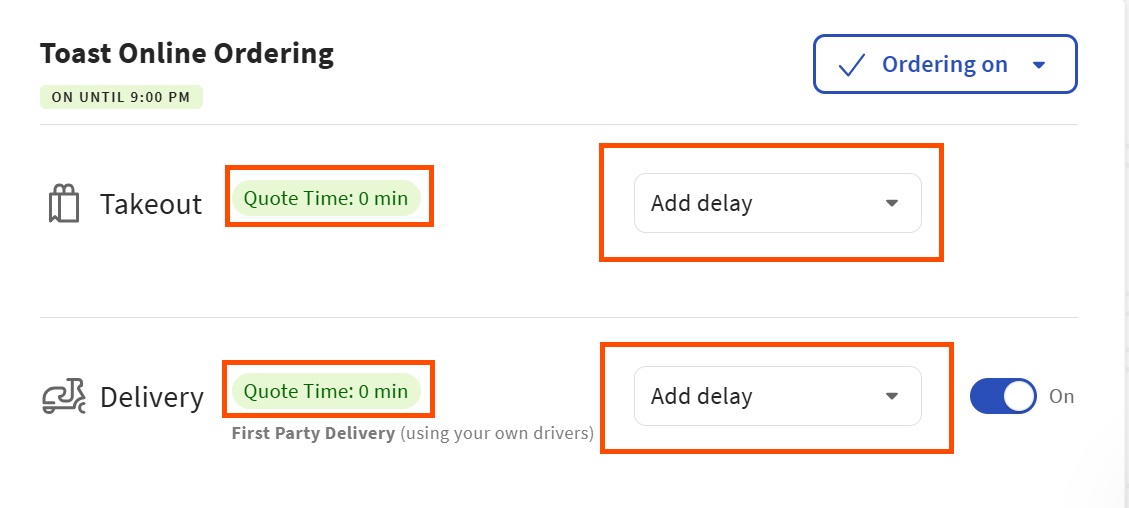
There may be times when an online order does not fire as soon as it should. The leading factor in cases like this is the Order Delay feature that allows restaurants to add the expected time to the pickup or delivery order.
Order Delay does not stop orders from being placed. It functions as a delay that allows the kitchen to finish orders that they are working on before new orders are fired. This should be the first setting to look for when orders do not seem to be firing immediately.
This feature is accessible through the POS and the Online Ordering Dashboard on the Toast Web.
Back to top
Guests Are Experiencing Issues When Ordering
Having trouble with our Online Ordering page? Sometimes, temporary browser issues can cause interruptions. Try closing your web browser completely, then reopening it and visiting our online ordering page again. This simple step often resolves common display or loading problems.
If you continue to experience issues after trying this, please don't hesitate to contact Toast Customer Care Support.
Back to top
Guest Sees Error Message
If your guest is attempting to place an online order and sees an error message, check out the following common error messages and solutions.
Address Mismatch Error Message
If the guest sees an error stating, "The address information provided does not match the billing address on file.", this means that the billing address they entered doesn’t match what their card issuer has on file. This verification check helps prevent unauthorized use.
To fix this: Make sure your guest has typed their full address exactly as their bank has it, including unit or apartment number. They should use their billing statement or online banking as a reference. Have them try a different card if they're unsure which address is on file.
Back to top
Unverified Card Information Error Message
If the guest sees an error stating, "Your card information could not be verified. Please check the card details or provide a different card.", this means Toast couldn’t verify their card details. This usually happens when the card number, expiration, CVV, or billing info doesn’t exactly match what their bank expects.
Steps to take: Have the guest double-check that everything is typed correctly. They should look for typos, especially in the card number and expiration date. If the issue continues, have them try using a different card or contact their bank to confirm their card is active and valid for online transactions.
Back to top
CCV Mismatch Error Message
If the guest sees an error stating, "The card code (CCV) provided does not match the code on file.", this means that the CVV (Card Verification Value), a.k.a. CCV, that the guest entered doesn't match the one their bank has on file. This three- or four-digit code proves they physically have the card.
Where to find it: Let the guest know that for Visa, Mastercard, and Discover, it’s the three-digit number on the back of the card, and that for American Express, it’s the four-digit number on the front, above the card number. What to do: Have your guest recheck the digits carefully, and make sure they're not entering their ZIP code or PIN by mistake.
Back to top
CCV Required Error Message
If the guest sees an error stating, "The card code (CCV) is required.", this means that your guest hasn't entered the CVV code from their card. This security code helps verify that your guest has the physical card.
As described above, have your guest look for a three-digit number on the back (Visa/Mastercard/Discover), or a four-digit number on the front (American Express). If their card doesn't have a CVV, it may not be eligible for online payments.
Back to top
CCV Required to Update Information Error Message
If the guest is attempting to update stored card information and sees an error stating, "The card code (CCV) is required to update your information.", this means that your guest hasn't entered the CVV code from their card as well. To update their card details, they’ll need to enter the current CVV. This helps ensure only the cardholder can make changes.
Tip: Your guest should use the physical card in their hand to locate the security code. If they’ve lost your card or it’s unreadable, they'll need to request a replacement from their bank.
Back to top
Expiration Date Required Error Message
If your guest sees an error stating, "The card expiration date is required.", this means that they need to provide the card’s expiration date to continue. The expiration confirms the card is still valid.
Find it here: Usually printed on the front of the card in MM/YY format (e.g., 04/27). Some cards use embossed dates; have your guest check carefully.
Back to top
Credit Card Number Required Error Message
If your guest sees an error stating, "The credit card number is required.", this means that to process their payment, we'll need their full credit card number.
Tips: Enter all digits with no spaces or dashes. Have your guest ensure they’re using a supported card (Visa, Mastercard, American Express, Discover).
Back to top
Invalid Credit Card Number Error Message
If your guest sees an error stating, "That credit card number is invalid. Please check the card details or provide a different card.", this means that the card number they entered doesn’t match a valid credit card format.
To fix this: Have your guest double-check for typos or missing digits. Remove spaces or dashes — just enter the full number as it appears. Make sure the card is active and supported.
Back to top
Billing Zipcode Error Message
If your guest sees an error stating, "The billing zipcode is required.", this means that they haven't entered their billing zipcode. Their billing ZIP code is required to verify the card.
What to do: Have your guest enter the five-digit ZIP code associated with their billing address. If they're unsure, have them check a recent bank statement or their online banking profile. This helps protect against unauthorized card use.
Back to top
The Pickup / Delivery prompt should appear automatically when a guest goes on your online ordering page. However, if a guest starts an order and then refreshes the page, they will not get the prompt because the system thinks they already made a selection. The guest can open the prompt back up by selecting this button at any time:
Once you've completed setup (see this Toast Central article on Getting Started with Online Ordering for details) navigate to the Takeout & delivery page in Toast Web If the toggle for Toast Online Ordering is set to Ordering on, you will be able to accept orders placed online.
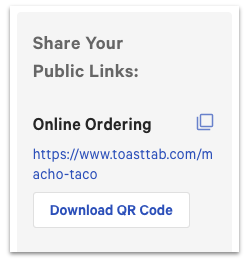
The Online Ordering public link on the Restaurant Info page is the link to your online ordering website. You can also easily select Download QR Code to make it easy for your guests to scan and access your Online Ordering page.
Guests will be able to create and log in to their account once they are ready to check out with a mobile number (not an email address). Once a mobile number is entered, guests will then receive a one-time SMS code to enter to complete their login.
Note: Currently, guest online accounts are unavailable in Canada, Ireland, and the U.K.
Upload a new Restaurant Logo and Banner Image on your Restaurant Info page. For more detail, see this article.
All images must be in .PNG format.
Check out this article to download a button you can use for your personal website. Then, attach your online ordering link to the button so guests are directed to your online ordering page when they click it. To find your online ordering link (URL), navigate to your Restaurant Info page and copy / paste the Online Ordering Public Link.
Yes, to display social media links follow these steps:
-
- Navigate to the Takeout & delivery section in Toast Web and select Restaurant Info.
- If you scroll down, you will find a section to add your desired social media links.
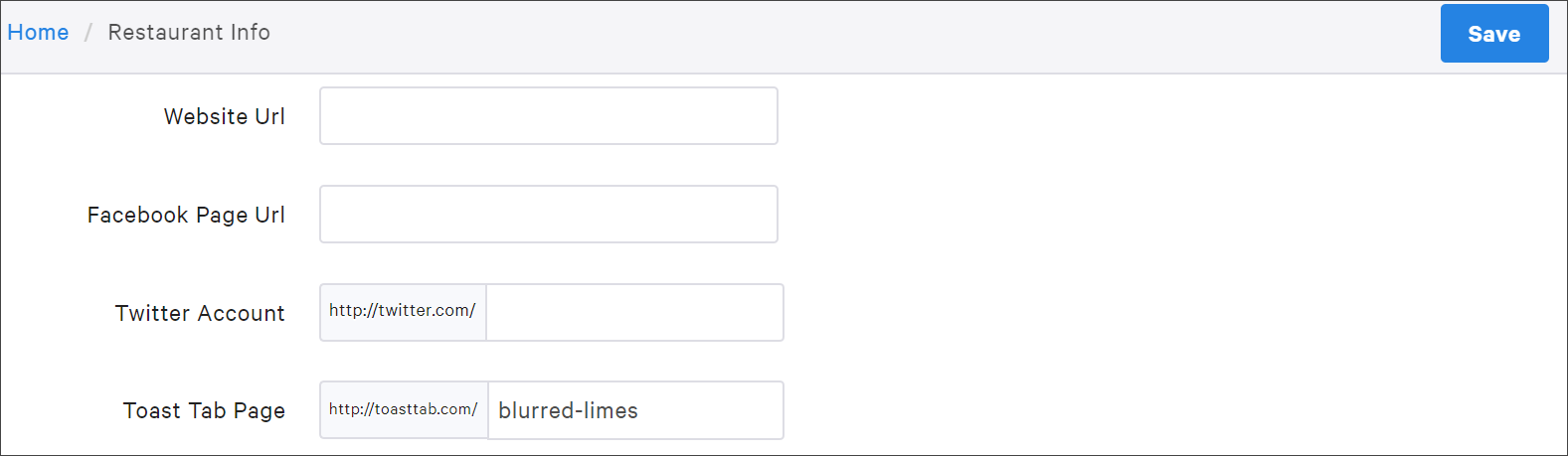
- Make sure to Save and Publish your changes!
Currently, Toast does not support this. However, you can add your restaurant's online ordering URL to your restaurant's main website. To do this:
-
- Navigate to the Takeout & delivery > Toast order sources > Restaurant info.
- Copy the Online Ordering link in the Share Your Public Links section. Then, paste the URL and insert the link to your website as desired.
You can also add digital ordering buttons to your website! To learn how, check out this Toast Central article on Adding Digital Order Buttons to your Website.
What features are included in the next generation version of digital ordering?
We’re introducing the next generation of digital ordering that’s built to help increase sales with access to millions of guests and a customizable digital presence, designed to help you save money with integrated ordering channels that are commission-free, and turn first time guests into regulars with tools that upsell your guests and keep them coming back. For more information, visit Customizing your Online Ordering Page.
Can I see web traffic analytics for my Toast Online Ordering webpage?
Currently, we do not have reporting available for web traffic analytics on your Toast Online Ordering site.
We highly recommend that you check to see if your credit card surcharging settings are configured accordingly. Moreover, there are various possible scenarios in which Toast’s surcharging solution may not be suitable for your business. To learn about Toast’s credit card surcharging eligibility and limitations, including how to set it up, check out Get Started With Credit Card Surcharging.
I have email marketing and online ordering. Can guests who order through my online ordering page be added to my email marketing list?
Yes, your guests can be added to your email marketing list. To be added to your email marketing, guests will need to opt-in or opt-out using the checkbox during the order checkout process.
Back to top
Additional Resources for Online Ordering


