| This article covers legacy Cash Drawer functionality. An updated version of Cash Drawer functionality is currently in limited release with select customers. If the Cash Drawer experience on your Toast POS differs from what is described here, please refer to the Cash Drawers Technical Documentation for details on the new functionality. |
In this Article:
A pay out removes cash from active or open drawers to pay for goods or services and can be done by any manager with the 3.22 Pay Out user/job permission.
- On the main menu of the Toast app on your POS, select Pay Out from the Cash Management section.

- On the pop-up window, use the drop-down menus to select the Cash drawer that money is being removed from, and a Pay out reason (if configured at your restaurant). If needed, instead of a cash drawer you can select No drawer (House). Leave a Comment if desired.
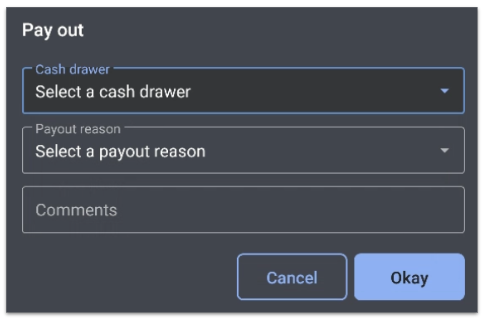
- Select Okay.
- After entering a pay out, the following information will be printed on a receipt:
- Date and time
- Employee or user name
- Reason for pay out
- Comment (if applicable)
- Cash drawer that the pay out was taken from
- Total amount of pay out
Note: Functionally, pay out and cash out do the same task. The difference is that when performing pay out on the POS, users are mandated to select a reason (e.g. “groceries” or “window cleaners”) if configured in Toast Web.
Back to top
-
From the main menu of the Toast app on your POS, select Cash Drawers from the Cash Management section.
-
Choose the cash drawer from which the pay out was taken.
-
Any pay outs from this cash drawer will be listed on the screen. Select the pay out you'd like to reverse.
-
Select Undo entry.
For pay outs that have been reversed on the same day, a chit will be printed at the receipt printer.
Follow these steps to reverse a pay out in Toast Web:
- Navigate to Reports > Cash and loss management > Drawer history.
- Choose the date that the pay out was conducted, then select Update.
- Your cash drawers and house account will appear on this report as separate columns. Scroll down to the bottom of the cash drawer or house column, and select View on the Cash Entries row.
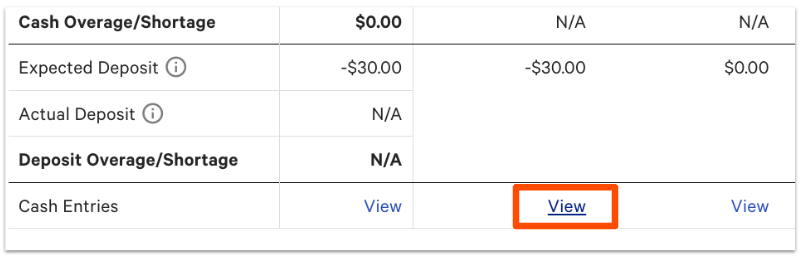
- Find the pay out you'd like to reverse, and then select the undo icon on the right side of that row.

Once a pay out is reversed, a new cash entry will appear to add the pay out entry back into the cash drawer's reporting.
Note: Pay outs can only be reversed if the drawer has not yet been closed. If the drawer has been closed, you can complete a Cash In transaction to track your cash correctly. For more information, see Use Cash Drawers.
Back to top
To undo a house pay out, follow these steps:
- Navigate to Cash Drawers > Cash Management.
- Select the upper right page icon to view the cash drawer report, then select View under house column > Undo pay out.
Back to top
You can create reasons for pay outs as a way to track where money is going when cash is taken from a drawer using the pay out button.
-
In Toast Web, navigate to Payments > Transactions & refunds > Pay Out Reasons.
-
Select + Add.
-
Enter a name for your pay out reason and a short description. Make sure the checkbox in the Active column is checked.
You can also set up each pay out reason to go to specific GL Accounts. See this Toast Central article for more information: Create and Map General Ledger Codes for Toast POS.
Back to top
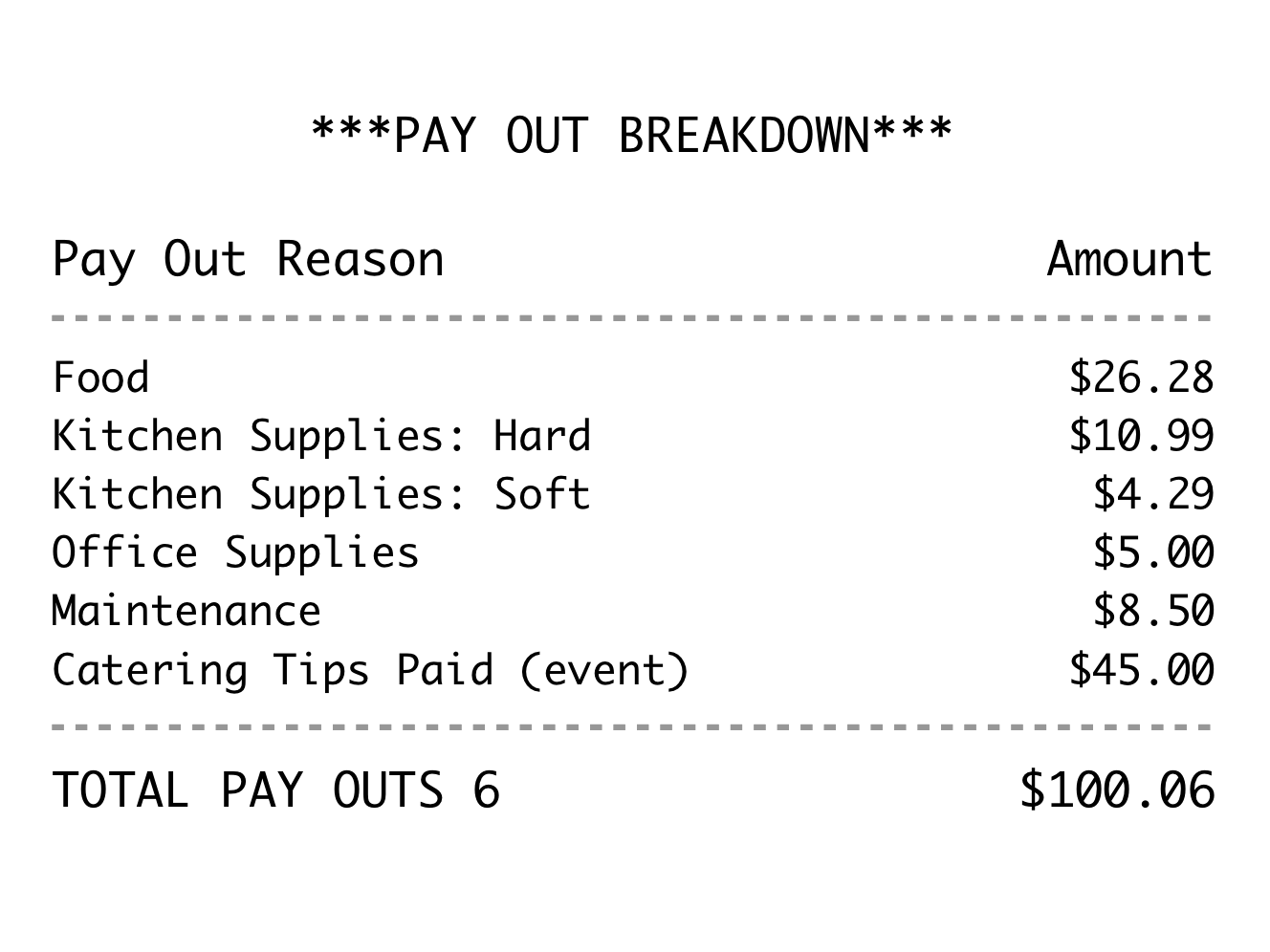
Currently, the details of your pay outs are not available in the Sales Summary Report. However, you can configure it to appear on your end-of-day Z Report. This pay out breakdown will show an itemized list and the amount of each pay out that was issued.
To add this to your Z Report, follow these steps:
- In Toast Web, navigate to Employees > POS report configurations > Manager end of day report.
- On the Z Report page, use the column Show? checkbox to enable the Pay Out Breakdown option.
- Once done, select the Publish all changes button at the bottom of the page.
Back to top
Cash In
Cash in entries add cash to active and open drawers. Think of using pay out for withdrawing money from an active cash drawer, and cash in to add money in an active drawer. To learn more about how to enter a cash in, read this Toast Central article, Use Cash Drawers.
Back to top


