Some restaurants prefer to pool tips for delivery orders. If you are using your own drivers and have set up Delivery as a dining option for your guests in Toast, here is how you can pool tips from completed delivery orders.
When a delivery order is dispatched to a driver, the assigned driver will receive any tips and/or gratuity associated with the check. However, if a delivery order is not properly dispatched to a driver, the server that initially opened the order will be assigned any associated tips and/or gratuity. To learn more about dispatching and completing delivery orders, check out Delivery Mode, Dispatching Drivers, and Completing Deliveries.
Back to top
If you want to pool tips associated with delivery orders in your restaurant, follow the steps below.
- Ensure that Declare Cash Tips and Negative Declared Tips are enabled in your restaurant. To do so, in Toast Web navigate to Employees > Timesheet management > UI options: Shift review.
- Within the section Shift Review / Closeout, enable Declare Cash Tips and Negative Declared Tips.
- Save and Publish your changes.
- Then, navigate to the Labor section in Toast's Web and select Jobs. If you haven't already, create a "Driver" job that can be assigned to all employees delivering orders. This job must be set to Yes for Driver, Yes for Tipped, and also include the user permission, Negative Declare Tips further down the page.
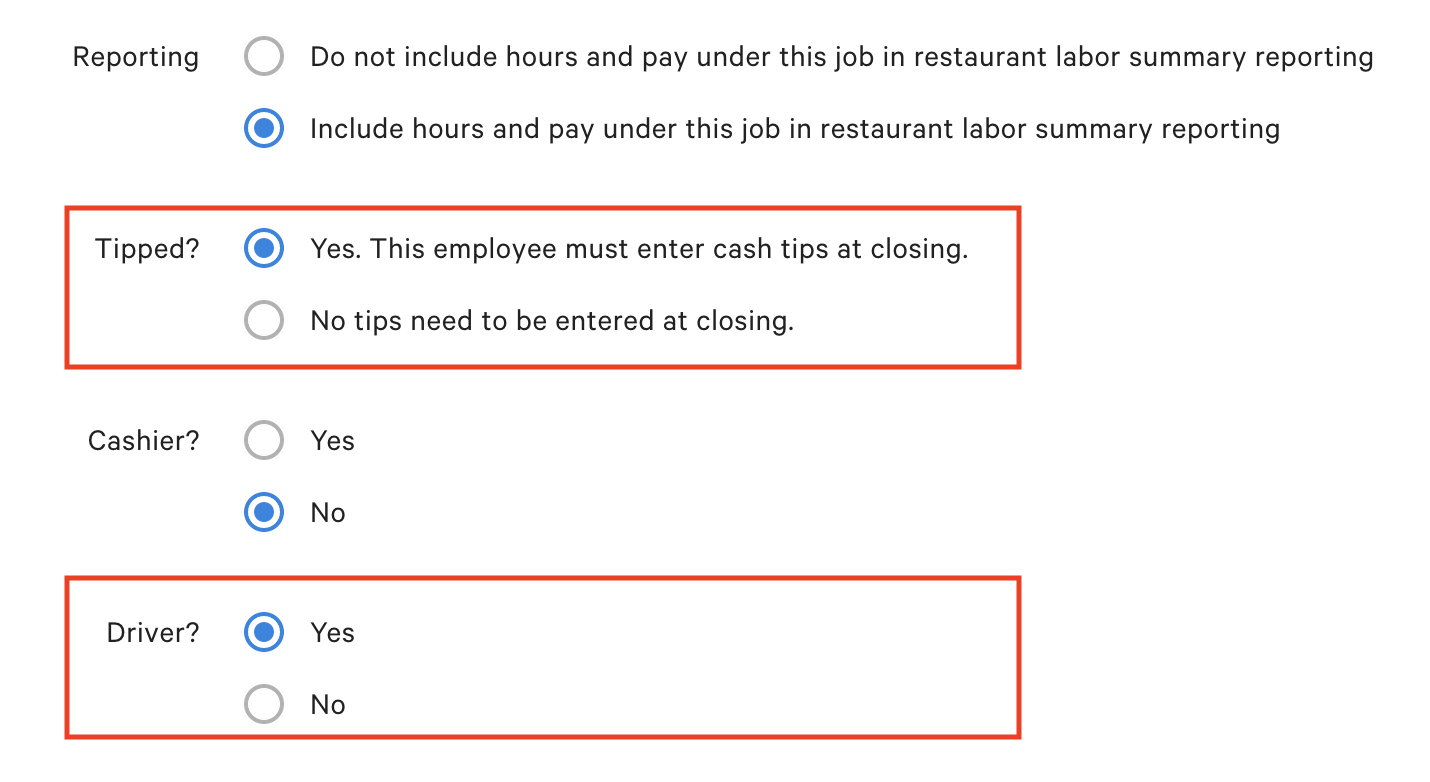

- Save and Publish your changes.
- Next, navigate to Employees under the Labor section of Toast Web.
- Select + Add New Employee and Create New User to create a shared user for delivery orders with a recognizable name. In this example, we'll use "Delivery Tips."
- Deselect the check box to access Toast Web and select Create. Note that this will create the user and assign a passcode to this user automatically.
- Select the Jobs and Permissions tab at the top of the page.
- Select the checkbox next to Driver, then Save and Publish your changes.
Note: If you have Toast Tips Manager, you will need to set up a tip pool for your drivers using the steps outlined here.
Nice work! Now, before you begin accepting delivery orders, be sure to sign in your Delivery Tips user onto your Toast device. On the Pending Orders screen, be sure to dispatch all incoming delivery orders to the Delivery Tips user.
At the end of the night, you'll need to complete a shift review for the Delivery Tips user. See the example below.
To distribute $13.39 evenly to applicable staff, perform the following:
- Select Declare cash tips.
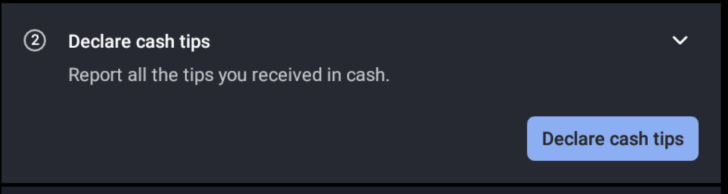
- For labor reporting to identify redistribution has occurred, you must declare the total tips and gratuity as a Negative Cash Tip.
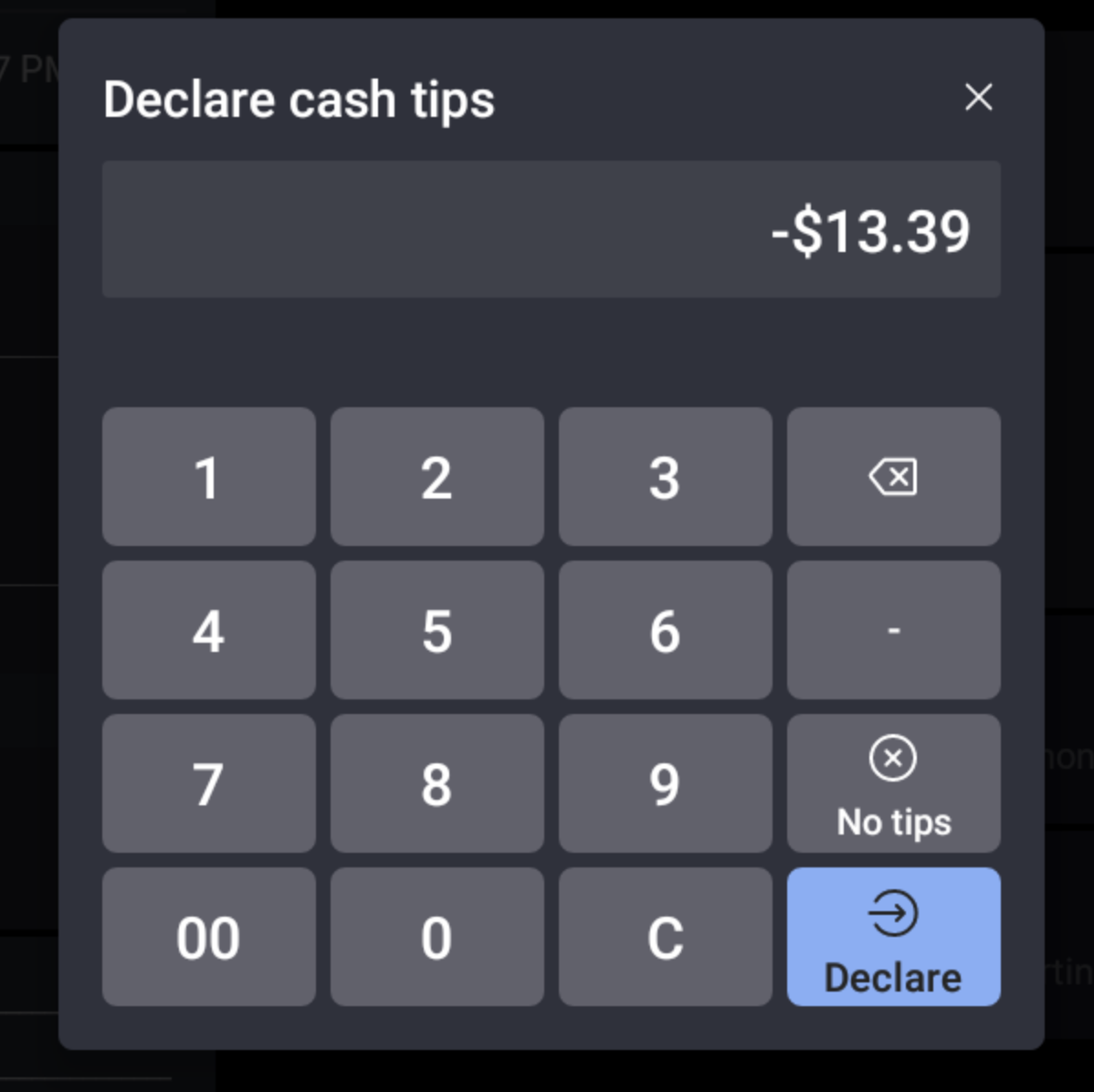
3. Then, tip out normally by selecting whether tips are paid from a cash drawer or the house. Complete the shift review for Delivery Tips.
4. When another clocked-in driver who has received their tip portion completes their shift review, they would declare their allotment as a positive cash tip. For this example, the employee will declare $6.69 as a cash tip when they complete their shift review.
5. Your payroll summary will now display the redistribution of tips. Delivery tips are recorded as returning $13.39 in tips to the house and the employee is receiving half of that in the amount of $6.69.


