Create a button directly on your profile or add interactive stickers to your Instagram stories that can be shared to help spread the word and drive revenue through online orders.
Note: You will need to have a business account on Instagram or Facebook to use these features. If you don’t already have one set up, create your Instagram business account here (external link) or your Facebook business account here (external link).
- Log in to Instagram and navigate to your Instagram business profile.
- Select Edit profile.
- Under Public business information, select Action buttons.
- Under Select a button, choose Order food.
- Select Toast as your partner for Online Ordering.
- Enter your Toast Online Ordering link. This can be found in Toast Web by navigating to Takeout & delivery > Toast order sources > Restaurant info.
- When you're finished, select Done.
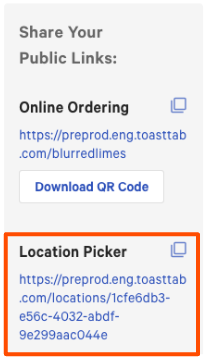
Note: If you have multiple locations using Toast Online Ordering, enter your Toast Online Ordering Location Picker link. This will give your guests the ability to choose the location closest to them to submit their order.
Back to top
- Log in to the Instagram application and navigate to your Instagram business profile.
- Note: You must log in via the application and not the web browser version of Instagram.
- Select Edit profile.
- Under Public business information, select Action buttons.
- Under Select a button, choose Gift cards.
- Select Toast as your partner to sell gift cards.
- Enter your Toast eGift card purchase link. This can be found in Toast Web by navigating to Payments > Takeout & delivery > Toast order sources > Restaurant info.
- When you're finished, select Done.
Back to top
- Select a photo or video to upload to your story.
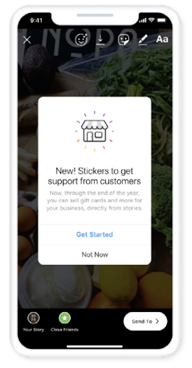
- Select the FOOD ORDERS sticker, then Food Order once again.
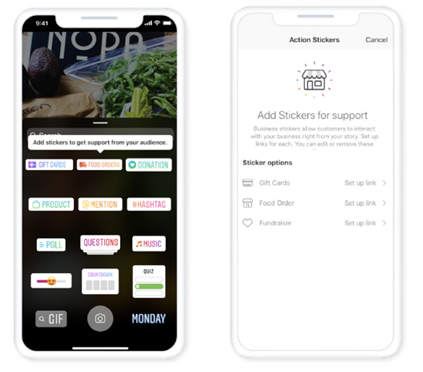
- Select Toast as your partner to sell food online.
- Enter your Online Ordering public link. This can be found in Toast Web by navigating to Payments > Takeout & delivery > Toast order sources > Restaurant info. If you have multiple locations using Toast Online Ordering, enter your Toast Online Ordering Location Picker link. This will give your guests the ability to choose the location closest to them to submit their order.
- Note: Use the toggle button to add a Profile action button with the same link. This will add a button to your profile page that will allow guests to order food using the same link you've entered for your sticker.
- When you're finished, select Done.
- Move the Online Orders sticker on top of your picture to where you would like it to appear on your story. You can also tap the sticker to change its color.
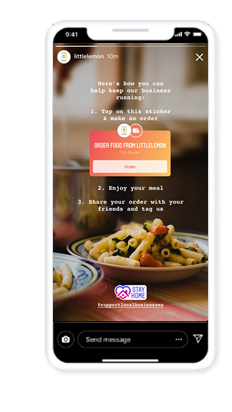
- Share your story. Your guests will be directed to your Toast Online Ordering page when they select the Order button on the sticker.
To keep your story visible to guests for longer than 24 hours, navigate to your profile and select Story highlights. Choose the story you just created and it will be pinned to your profile above your posts.
Back to top
- Select a photo or video to upload to your story.
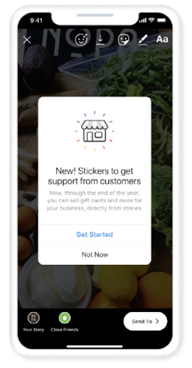
- At the top of the screen, select the Square Smiley-face icon. Select the GIFT CARDS sticker, then Gift Cards once again.
- Select Toast as your partner to sell gift cards.
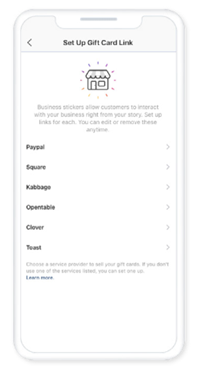
- Enter your eGift Card Purchase link. This can be found in Toast Web by navigating to Payments > Takeout & delivery > Toast order sources > Restaurant info.
Note: Use the toggle button to add a Profile action button with the same link. This will add a button to your profile page that will allow guests to purchase eGift cards using the same link you've entered for your sticker.
- When you're finished, select Done.
- Move the gift cards sticker to where you would like it to appear on your story. You can also tap the sticker to change its color.
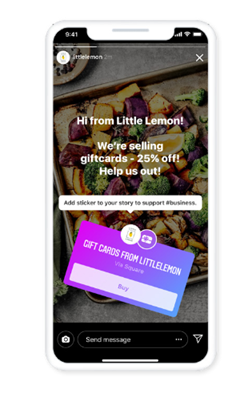
- Share your story. Your guests will be directed to your Toast E-Gift Card Purchase page when they select the Buy button on the sticker.
To keep your story visible to guests for longer than 24 hours, navigate to your profile and select Story highlights. Choose the story you just created and it will be pinned to your profile above your posts.
To change the action button on your Page on Facebook, you'll need to have Facebook access.
- Log into Facebook, then select your profile photo at the top right.
- Select See all profiles, then select the Page you want to switch into.
- Select your Page in the left menu.
- From your Page, select the three dots, then select Add Action Button.
- Select a button, then select Next.
- Follow the instructions on the screen.
- Select Save.
Once the button has been created, you can test your button:
- Hover over your button.
- Select the Test Button.
Back to top
To change the action button on your Page on Facebook, you'll need to have Facebook access.
To change your Page's action button:
- Log into Facebook, then select your profile photo at the top right.
- Select See all profiles, then select the Page you want to switch into.
- From your Feed, select your Page's name in the left menu to go to your Page.
- Select the three dots on the right below your cover photo.
- Select Edit Action Button, then select Change Button.
- Select a button, then select Next.
- Follow the instructions on the screen.
- Select Save.
- Select Start Order and then paste your Toast Online Ordering URL into the field that appears.
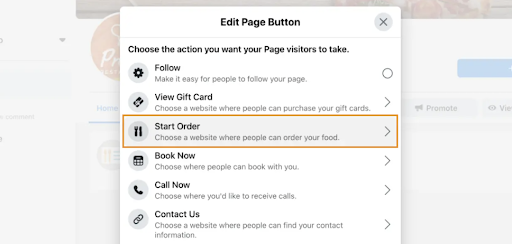
- Once you select Save, the button will be updated.
Back to top


