In this Article:
Pre-Modifiers Overview
Pre-modifiers give you the ability to add text either before (prefix) or after (suffix) a modifier. For example, with a Tomato modifier, you can set up pre-modifiers to enter variations such as:
- NO Tomato
- EXTRA Tomato
- Tomato ON SIDE
- etc.
Pre-modifiers are a standard feature of the Toast POS system. When you create a modifier group, you can create a set of pre-modifiers such as NO, SUB, ADD, EXTRA, or ON SIDE to easily notify the kitchen of modifications to an item that has many ingredients, such as a burger or a salad.
Watch the video overview or read the instructions in this article to set up and use pre-modifiers for your menu.
Note: Pre-modifiers are not supported in the Toast Online Ordering module. Pre-modifiers will print on kitchen tickets and are best used in-house to quickly modify orders and reduce the number of modifier groups a server will interact with.
How to set up and use pre-modifiers in your menus.
Back to top
Create Pre-Modifier Groups and Options
First, you'll need to create a pre-modifier group. This process is similar to creating regular modifier groups.
- In Toast Web, navigate to Menus > Settings > Pre modifiers.
- Select + Add to create a new pre-modifier group.
- Enter a Name for this group. This name will be used to differentiate between different groups of pre-modifiers (for example, you might have "Sandwich Mods" and "Pizza Mods" if you offer both types of menu items at your restaurant).
- Save your changes.
- After you've saved a new group, [Click Here to Define] will appear under the Members column for that pre-modifier group. Select the link to start creating your pre-modifier options for that group.
- Select + Add Pre/Post Modifier.
- Select your desired properties for each pre-modifier, including:
- Name: Name as it will appear on the check for the customer (we recommend you spell out "on side" instead of abbreviating to "OS")
- Multiply Price?: Select this checkbox if you want to multiply the price. If you choose this option, you'll have to enter in a value for the Multiplication Factor.
- Fixed Price: The fixed price for each pre-modifier option (e.g. "Extra" might cost $0.50). You cannot choose a fixed price if you've selected the Multiply Price option.
- Display Mode: Choose whether the pre-modifier should be shown before (prefix) or after (suffix) the modifier. (prefix would be "ADD Bacon" and suffix "Bacon ON SIDE")
- Color: Button color as it will appear on your device.
- POS Name: Name as it will appear on the POS. You can have a different Name and POS Name if you want to use abbreviations for your staff (e.g. "OS" for "ON SIDE")
- Kitchen Name: Name as it will appear on the printed kitchen ticket or the Kitchen Display System (KDS) device.
- Continue adding pre-modifiers as desired. Be sure to save and publish all your changes when you're finished.
Note: If you have a pre-modifier that should remove the price of the modifier it's attached to (such as NO or LIGHT), make sure that the Multiply Price? setting is set to zero (0). For example, if a guest would like to exclude cheese from their sandwich, create a pre-modifier group that includes "NO" as an option. If cheeses are $2.99, selecting NO as the pre-modifier would multiply the $2.99 cost by zero, which would mean that the guest would not be paying money for cheese.
In the same way, you could increase the price of a modifier if you want to use "EXTRA" or "DOUBLE" as a pre-modifier option. If the Multiply Price? setting is set to two (2), it would double the price of a modifier when the EXTRA pre-modifier is selected. If the Pickles modifier costs $0, EXTRA Pickles would still cost $0. If the Cheese modifier costs $1, EXTRA Cheese would cost $2.
Back to top
Assign Pre-Modifier Groups to Modifier Groups
After creating pre-modifier groups and options, the next step is to assign them to a modifier group.
- Navigate to the modifier group you'd like to add a pre-modifier group to (you can do so from advanced properties, the menu manager, or the items database).
- Scroll down to the Modifier group settings section, and select your desired group for the Pre-Modifier Group setting.
- If you're unable to see an option to update your modifier group's pre-modifier settings, try the following:
- Save and publish all the recent changes that you made.
- Review your modifier and/or modifier group settings and ensure they are properly configured. Learn more here:
- Save and publish your changes.
If you'd like the ability to select multiple pre-modifiers, be sure to enable multi-select on the modifier level by indicating that more than one option can be chosen and, enable duplicate modifiers. This will allow you to select multiple pre-modifiers and modifier options should a customer say they want both "NO Pickle" and "Ketchup ON SIDE". For more instructions, see Set Up and Use Duplicate Modifier Selections.
Back to top
Use Pre-Modifiers on Your Devices
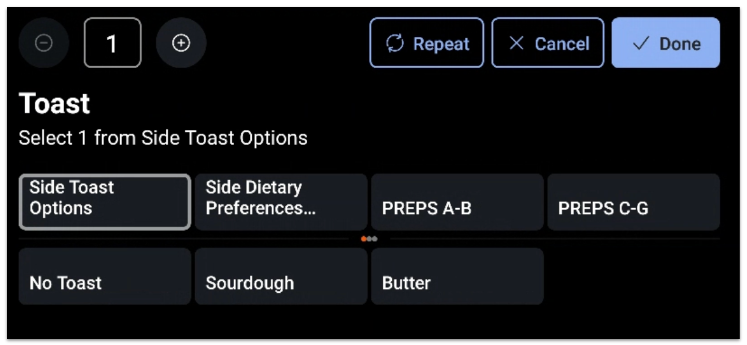
Here's an example of a menu item that has no pre-modifiers configured:
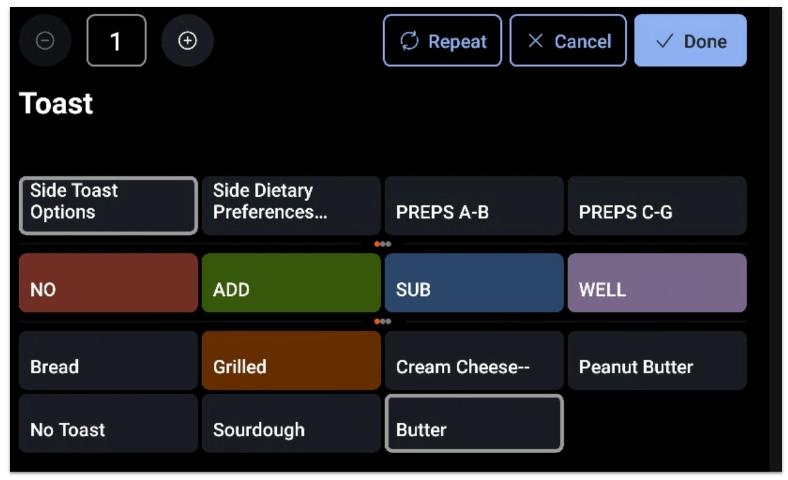
This is what it would look like to servers if pre-modifiers are configured:
Back to top


