This article will help you identify common steps to troubleshoot your Toast Receipt Printer. If you're having trouble printing, here are three troubleshooting steps that solve most printer issues and can be done on the floor.
Always try these three steps FIRST:
 |
- Unplug both the power cable and the ethernet cable from your printer. Wait 30 seconds.
- Plug both cables back in and be sure to power your printer on.
- Retry printing.
|
If the problem is not resolved, try the quick troubleshooting steps explained in this Toast Central article, Get Help: My Printer Isn't Working. If you're still experiencing issues with your TM-T20ii Printer, review the sections below and follow the steps. If the FAQ doesn't help solve the problem, contact Toast Customer Care via Toast Central and mention the reference code for the steps you've taken (below) - we're happy to help!
Unsure what printer you have? Check out the hardware glossary.
In this Article:
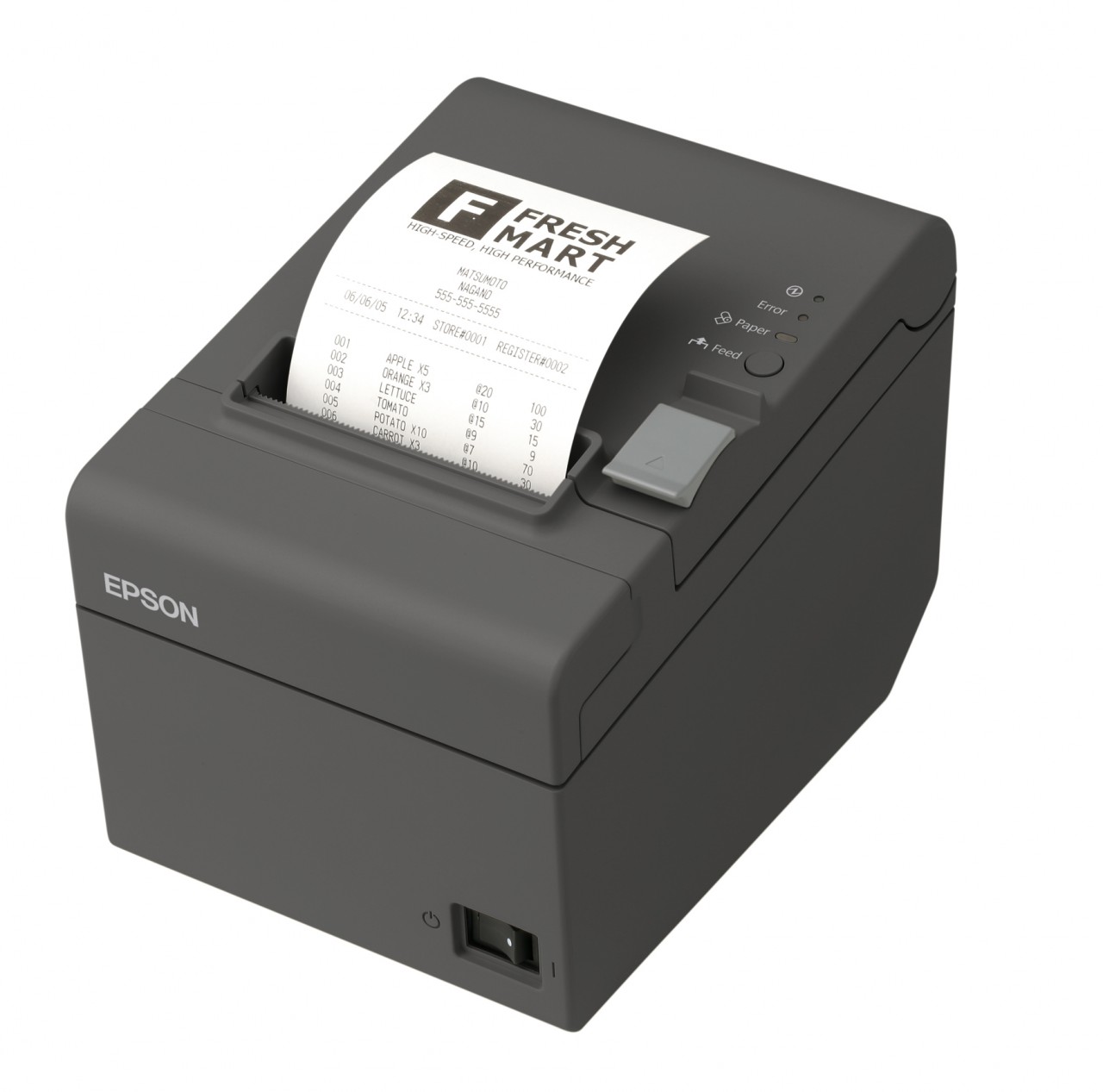
The most common causes of printers not functioning are due to some kind of power issue. Always start by:
- Restarting the printer (sometimes called power cycling).
- Securing cables.
- Verifying paper is installed properly and feeds.
- Re-seating cables (re-seating simply means to unplug or remove and then plug back in).
Follow the steps below:
- Try restarting the printer by locating the power switch, turn it off and back on.
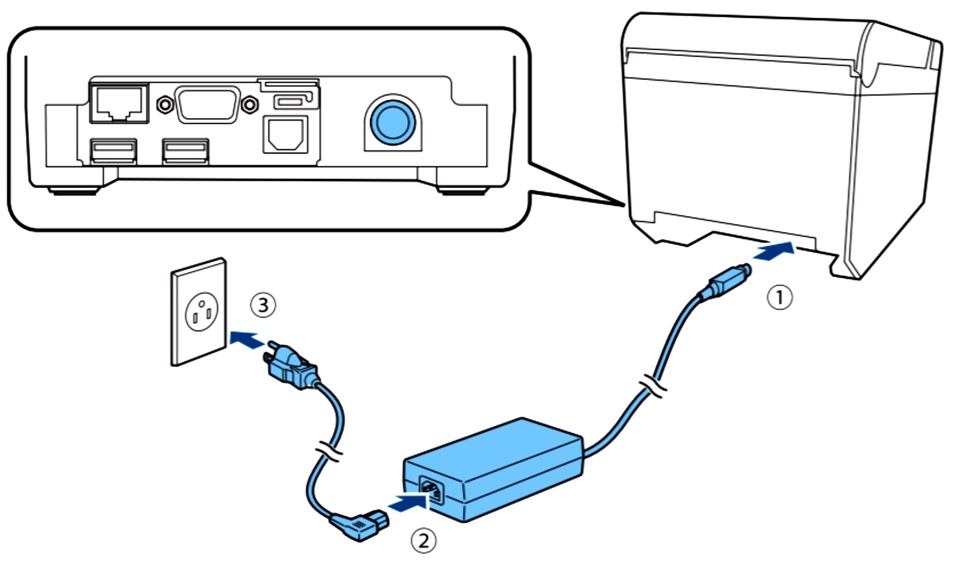
- Check whether the AC adapter is correctly connected. It is VERY common for the power cord to become disconnected from the power brick. Make sure the cord is not only fully plugged into the outlet, but that it is also tightly connected to the brick in the middle of the cord.
- Verify the paper is installed properly by holding down the feed button for several seconds
| If the Error LED is on: | If the Error LED is flashing: |
|
Check whether the roll paper cover is correctly closed.
If the Paper LED is on, check whether the roll paper is correctly installed.
|
Check whether the paper is jammed. If it's jammed, remove it. Note that printing stops if the thermal head overheats and resumes automatically when it cools.
For other cases, turn the printer off, and after 10 seconds, turn it back on.
|
- Check and make sure the paper was installed correctly.
- This printer requires thermal paper in order to print.
- This printer does not require ink.
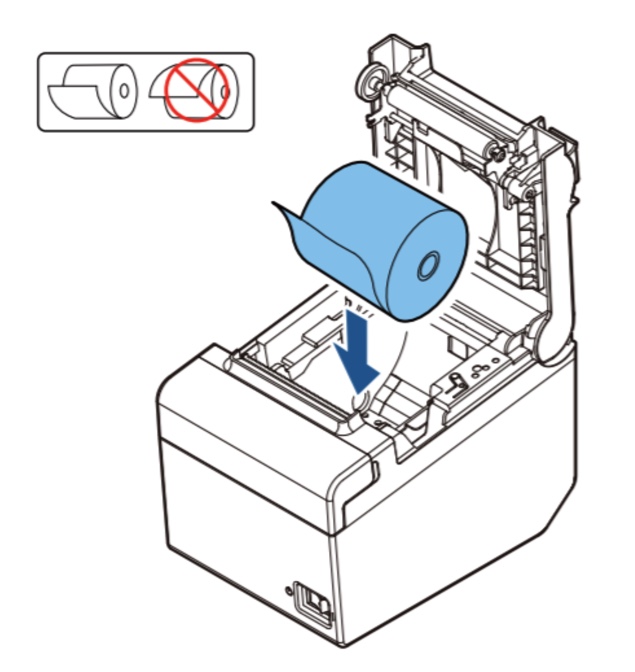
- Verify the Ethernet cable is connected to the printer by opening the printer and verifying that the Ethernet cable is connected to the printer AND that there is a status light next to it indicating power. This cable needs to be tightly connected.
You can also try restarting the router. For more information, see the article Verifying your Internet Connection.
Back to top
What should I do if my printer is offline?
If your printer is offline and you've already tried reseating the ethernet cable (disconnecting and reconnecting), first make sure the ethernet port's indicator lights are both green.
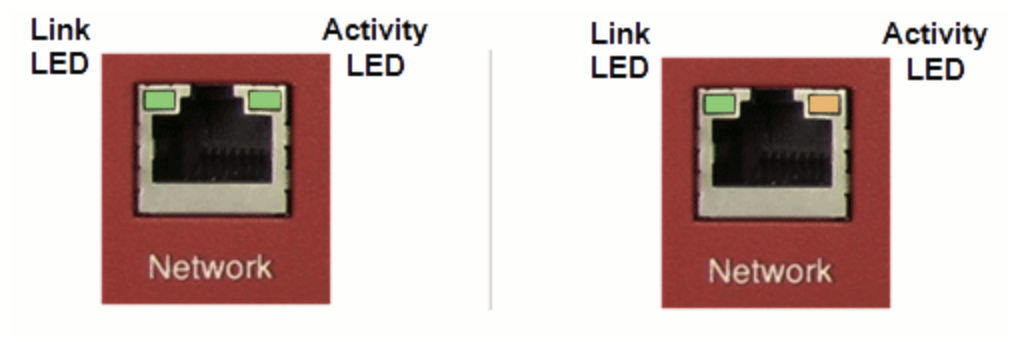
If one of the lights shows as orange, it may be a cabling issue. Try using a different ethernet cable and make sure it's securely plugged into your router.
If both lights are green and you're attempting to establish a connection between the printer and a terminal station that's hardwired to your network, make sure that the terminal has disabled the Wi-Fi option. Learn how to toggle your Wi-Fi off by visiting this Toast Central article, Disable Wi-Fi on Hard-Wired Devices.
Back to top
If you’re having trouble connecting your printer to the cash drawer, try reseating all the connecting cables and restarting the printer. You may also need to set up the cash drawer either through your POS system or through Toast Web. Visit Setting Up Cash Drawers for more information on how to do both, and make sure you’ve deselected or deleted old printers that you no longer want connected to the cash drawer.
Back to top
Your printer uses 3 1/8 Inch 80mm Thermal Black Image Receipt Printer Paper. If you need paper for a different printer supported by Toast, check out the article Printer Rolls and Ink Ribbons.
Back to top
You do not need an ink cartridge. This printer does not require ink and uses heat to print.
Back to top
If you're still having issues with your Epson TM-T20 printer, reach out to Toast Support via Toast Central - we're always happy to help!


