The following questions pertain to the Sales Summary report, which can be accessed in Toast Web by navigating to Reports > Sales > Sales summary.
In this Article:
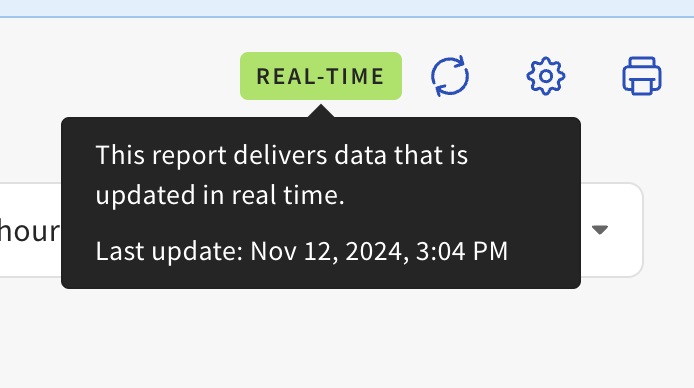
Note: The freshness of your Sales Summary data is displayed at the top right corner of the report.
If you’re seeing orders categorized as “No Service”, that means they were either placed outside of a scheduled service time, or that no service times are assigned. You can check out your restaurant’s hours and service times by navigating to Reports > Settings > Hours/services in Toast Web. To learn more, check out this Toast Central article: Set Up Restaurant Hours and Services.
If you’re seeing items listed with “No Sales Category Assigned”, it means that those items haven’t been set up with a Sales Category in your menu setup. You can pull up a list of items with no sales category using the new Product Mix (PMIX) report, and then use the menu editor to assign a sales category to those items. To learn more, see Configure Sales Categories.
Non Taxable Sales on the Tax Summary section of your Sales Summary report can include tax-exempt sales as well as non-taxed items.
You can locate tax-exempt orders by navigating to the Tax Exempt report (Reports > Cash and loss management > Tax exempt). Adjust the date range to view any orders that are tax-exempt, along with their tax exemption number.
To find non-taxed items, navigate to Accounting Overview report (Reports > Accounts > Accounting overview). Select the date range and location(s) and select Submit. The data for accounting reports take around 48 hours to generate, so you may not be able to select the most recent day or two. Once the page loads, select the Taxes tab and you'll see a table named Non-Taxed Items.
“Paid in total” includes payments collected within your selected date range for orders outside of the date range. For example, if a customer places an order on 10/19 and pays for it, but will pick it up on 10/24, the Sales Summary on 10/19 will show that payment as deferred revenue labeled as "Paid in total." Paid in total sales count towards your Sales Summary total, but won’t appear in net sales that day. For more information check out this Toast Central article, Scheduled Future Orders Reporting.
Deposit Sales Collected includes payments taken outside of your selected date range for orders completed within the date range. For example, if a customer picks up an order on 10/24 but paid for the order on 10/19, the Sales Summary will show that payment as Deposit Sales Collected on 10/24. Deposit Sales Collected sales will appear in your net sales for the day the order was completed. For more information check out this Toast Central article, Scheduled Future Orders Reporting.
For information on Marketplace Facilitator Taxes and how they affect your restaurant, check out this Toast Central article: Understand Marketplace Facilitator Laws.
Third-party deliveries do not always display tips in the Sales Summary or Sales Analytics report because they are paid out at the end of the month. If you think that there are discrepancies or are unsure, you can reach out to integrations-support@toasttab.com.
Depending on the order fulfillment date, it may take some extra time for order modifications to be reflected in Toast reporting – and this can be why some numbers look different between the old and new versions of the Sales Summary report.
- Any modification on orders with a fulfillment date up to 11 days in the past and 4 days in the future will sync within 2-4 hours in Toast reporting.
- Any modification on orders with a fulfillment date more than 11 days in the past or more than 4 days in the future can take up to 4-6 days to reflect in reporting.
Note: The new Sales Summary experience is currently in limited release with select customers.
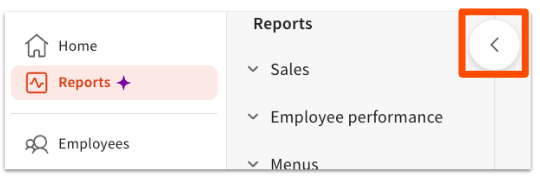
You may have noticed that the tabs for some reports like Group Sales Overview, Cash Drawer Overview, Orders, Order Details, and more, are no longer visible as tabs at the top of the new Sales Summary report. All Toast reports can be found using the left-hand report navigation.
Note: The new Sales Summary experience is currently in limited release with select customers.
The Sales Summary can show data from the past 15 months. For an emailed export of data older than 15 months, contact Customer Care.
In the Sales Summary report, you'll see both gross sales and net sales:
- Gross sales - The regular price of all non-deferred items and all service charges on the order, not including tax or tip.
- Net sales - Gross sales minus discount and refund amounts.
Why can't I see the correct location's Sales Summary?
There could be a few different reasons for this. First, make sure you're logged into the correct Toast Web account. Second, the Sales Summary has a location drop-down menu at the top. Make sure you have the appropriate location selected and no other locations are checked (see image below). You might also wish to check the
Restaurant groups tab in the pop-up. Lastly, verify that your
user permissions are correctly set to access the sales data for the intended location (the
4.1 Sales reports permission is necessary). If you have the proper permissions, make sure you're using Google Chrome, as other browsers aren't optimal for viewing this report.
If the sales figures on your Z Report and Sales Summary don't match, check the following:
- Does the date range on the Sales Summary match the Z Report?
- What time was the Z Report printed? Were there same-day sales that occurred after the report was printed? You can also try reprinting the report to see if the numbers match.
Why is the page blank?
You may be viewing the Sales Summary on the Safari browser, which has some incompatibility issues with the Toast Web experience. We recommend using Chrome for an optimal experience.
How can I resolve sales discrepancies between Toast and third-party delivery services?
When using third-party delivery services through an integration service (like Stream), sales discrepancies may occur between the delivery platform and Toast's end-of-day sales. Here's what you need to know:
-
- Third-Party Integration Management: Order synchronization issues should be addressed with your integration service provider. Sales discrepancies between systems need to be resolved through the integration platform.
- Troubleshooting Steps: If you notice discrepancies in your end-of-day sales:
- Verify the orders in both your Toast system and the third-party platform.
- Reach out to your integration service provider for resolution.
Remember that Toast cannot directly access or modify third-party integration data, so any synchronization issues must be addressed through your integration service provider.
On the day that a gift card is sold, the value will show up as a Deferred (gift cards) line on the Revenue Summary card. When the gift card is used by your guest, it will show up in the Payment Summary card as a gift card payment.
If you’re seeing a dollar amount for Non Taxable items in the Tax Rate section of your Sales Summary report, it means that there are items on your menu that are not subject to tax, and/or that do not have tax rates configured.
To find the menus or items with missing tax rates, follow these steps:
-
-
- Navigate to Menus > Bulk management > Advanced properties.
- Open the Show/Hide drop-down and select Applicable Taxes.
- Expand all menus and groups to see how tax rates are applied. Make sure you check any open items as well. You can use the drop-down under the Applicable Taxes column to select the appropriate tax rates for menus and items.
- When finished, be sure to select Save and Publish.
The Sales Summary report is a real-time record of your sales based on when a check was opened, not when the payment was processed.
If you are filtering the report by specific restaurant hours and service periods (e.g. lunch service or dinner service), any sales from checks opened outside of that time frame will not be included. For example, if your lunch service is between 12:00 p.m. and 3:00 p.m., a guest's check is opened by a server at 11:50 a.m., and the payment is processed at 2:15 p.m., that sale will not appear in your lunch service reporting because the key action—opening the check—happened before the filtered time.
Back to top
Back to top


