In this Article:
| SMS for order fulfilment is available for +1 phone numbers in Canada , +44 phone numbers in the U.K. and +353 phone numbers in Ireland ONLY. |
Toast can be configured to send an automatic text message to servers and/or guests when an order is fulfilled on the Kitchen Display System (KDS). This feature is referred to as order ready messaging. This allows your guests and servers to know immediately when their food is ready. To take advantage of this feature, you'll need a KDS.
- To enable texts to be sent when an order is fulfilled, navigate to Kitchen > Printers, tickets, & kitchen display system (KDS) > Kitchen in Toast Web.
- Scroll down to Order ready text messaging and select a Text message trigger. Select which stage of the order fulfillment should trigger the "order ready" text message.
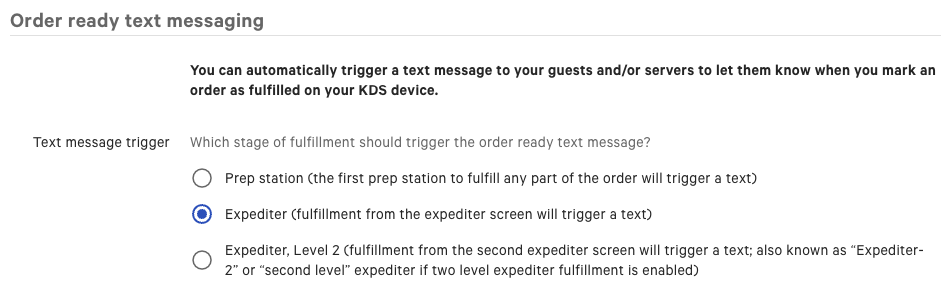
Note: With multi-level fulfillment (Expediter 1 & Expediter 2), the text message will send when an order is fulfilled on Expediter 2 only if Expediter Level 2 is selected as the text message trigger. You can find out more about multi-level fulfillment using two levels of expediters in this Toast Central article, Set Up an Expediter. If you don't have any expediters set up, select the Prep station option (above).
- Navigate to Send Text Message and select who will be notified when the order is ready by selecting To Guest and/or To Server for each mode relevant to your restaurant.
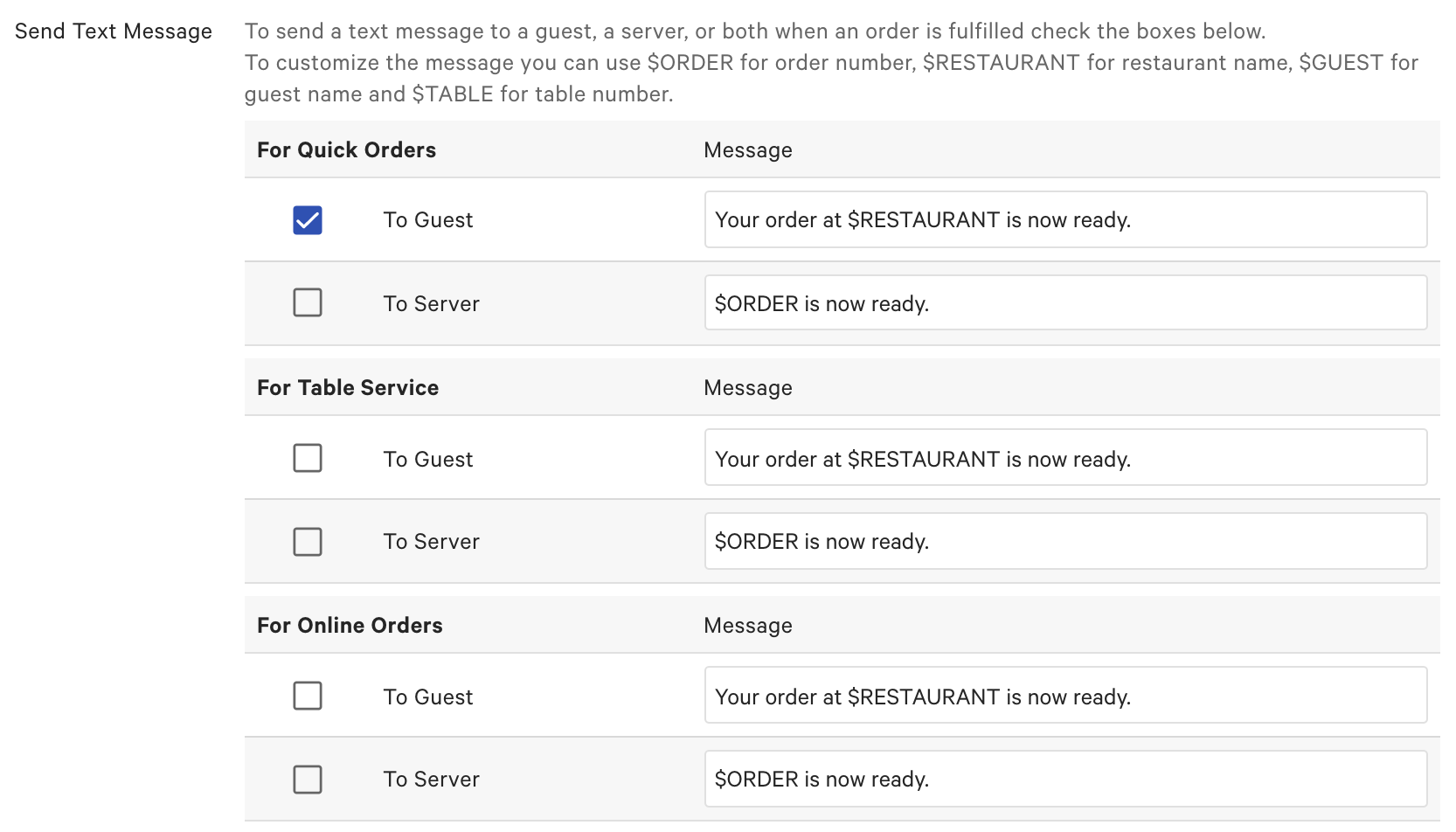
- Once you've determined who will receive a text message for a fulfilled order, confirm that the outgoing message is appropriate for your restaurant, or customize the text. The default messages are as follows:
- Default To Guest Message: Your order at $RESTAURANT is now ready.
- Default To Server Message: $ORDER is now ready.
The following names can be used to customize order fulfilment messages: - $ORDER - Order number
- $RESTAURANT - Restaurant name
- $CUSTOMER - Guest name
- $TABLE - Table number
If you've selected text notifications to be sent to servers, ensure their phone number is entered correctly on their employee account, found in Toast Web. For assistance in updating an employee account, please review Add and Edit Employees and Wages for Toast POS.
Note: It is important to ensure a server's phone number is configured and correct in their employee account if you'd like your servers to be notified of an order's fulfillment. If a phone number isn't configured in an employee's account, they will NOT receive a text message that an order is ready for their guest.
Back to top
| When collecting customer information, it's important to comply with all privacy, regulatory, and phone carrier requirements. Toast expects all merchants to comply with all applicable federal, state, provincial, local, and foreign laws, rules, regulations, regulatory guidance, and industry best practice. As such, Toast requires that its merchants train all staff to obtain appropriate customer consent when collecting a phone number for the purposes of sending order-ready messaging. When inputting a phone number for SMS messaging, a privacy disclaimer will display on the POS device with the information that servers should communicate to their guests. |
- If you've enabled the guest to receive a text for Quick Service or Table Service orders when their order is fulfilled, enter the guest's phone number in the prompt. Once the order is marked as fulfilled on the KDS, they will receive the message that their order is ready.
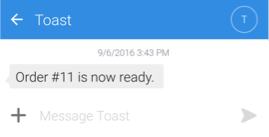
- If you've enabled the server to receive a text for Quick Service or Table Service orders when an order is fulfilled, they will receive the message when the order is marked as fulfilled on the KDS. The server will only receive text messages for orders they're associated with as the server. They will receive the following notification when their table's food is ready:
- When Takeout is selected as the dining option on the POS, Toast will automatically prompt the server for the guest's phone number. You can turn off the prompt by navigating to Takeout & delivery > Availability > Takeout / Delivery and selecting Don't prompt for the Takeout Customer Information setting.
- This prompt will not appear if Takeout is the default dining option -- only when changing to a Takeout dining option. If you want the prompt to appear, you can deselect Takeout as the default dining option (learn more in Set Up Custom Dining Options).
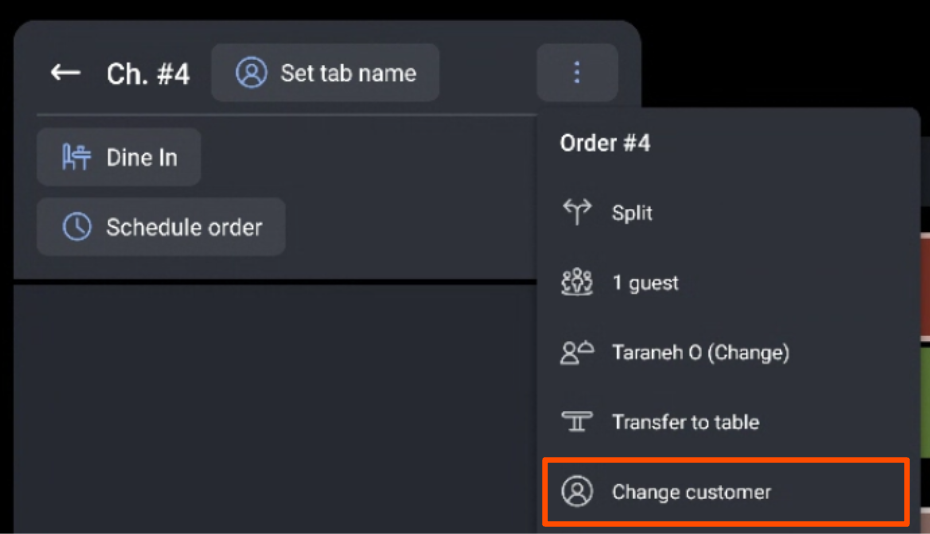
- When placing a dine-in order on the POS, you can select Change Customer in the overflow menu. You will then be prompted to enter the guest's phone number.
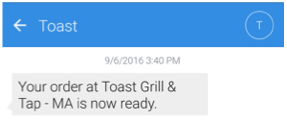
- For both takeout and dine-in, the guest will receive a text similar to the following message when their order is ready, if enabled:
Back to top
- The guest will be prompted to enter their phone number after payment. Their phone number can be saved as part of their Toast Online Ordering account and used for future order notifications. Once the order is marked as fulfilled on the KDS, they will receive the message that their order is ready if you've enabled the setting in Toast Web.
- If enabled, servers will receive texts when online orders are fulfilled on the KDS. The server will only receive text messages for orders they're associated with as the server.
Note: If you prefer to use the Orders Hub to manage order ready messaging for orders placed through your online ordering website, it's recommended to turn off text messaging for online orders in your Kitchen configuration settings to prevent guests from getting duplicate text messages. For step-by-step instructions, see Order Ready Text Messaging from the Orders Hub.
Back to top
When you enable the text messaging feature for your guests who order on a kiosk, you must also configure the phone number prompt that you want to appear when the guest places their order. For step-by-step instructions, see Set Up Your Kiosk.
- The guest will be prompted to enter their phone number after payment has been entered. The phone number is associated with the guest permanently to enable lookup by card swipe in the future.
- You can configure the kiosk to prompt the guest for both their name and phone number, if you'd like. If you've done so, but the kiosk is only prompting one or the other (or neither), try toggling the new kiosk experience on, as the old version has some limitations.
- For subsequent visits, the guest can simply swipe their card when they start their order to retrieve the saved phone number that has been associated with their credit card. They will receive a prompt to confirm their phone number to receive a text message when their order is ready.
Note: If the guest does NOT swipe their credit card before beginning an order, they will be prompted to enter their phone number.
- Once the order is marked as fulfilled on the KDS, the guest will receive the message that their order is ready, if you've enabled the setting in Toast Web.
Back to top
- If you've enabled the guest to receive a text for Toast Mobile Order & Pay® orders, your guests will be prompted to enter their phone number when placing an order on their personal mobile device.
- Once the order is marked as fulfilled on the KDS, the guest will receive a text message (example below). Guests will receive one text message per ticket even if your restaurant uses pre-authorization or tabs.
For more information about text messages upon fulfillment with Toast Mobile Order & Pay®, see Toast Mobile Order & Pay® Text Fulfillment.
Back to top
If a server or guest doesn't receive a text message when an order is fulfilled on the KDS, you can try the following steps:
- Check the configuration in Toast Web to ensure that text messages are enabled for servers and/or guests for the appropriate order type.
- For servers:
- Confirm the server's phone number is entered correctly in their employee account.
- Confirm the server is associated with the order.
- For guests:
- Confirm that the correct phone number was entered for the order.
- For customers in Canada, confirm the number used was +1 only
- For customers in Ireland , confirm the number used was +353 only
- For customers in the U.K. , confirm the number used was +44 only
You can also try creating a test order using a known phone number for the guest's phone number and completing the fulfillment process on the KDS. If you're still experiencing issues with servers or guests receiving the text message, contact Customer Care.
Back to top


