In this Article:
| There are two types of cash drawers. An older cash drawer will have an APG label on the bottom. A new cash drawer will have the Toast logo printed on the front. The two different cash drawers require different cables that are not compatible with one another. |
Before getting started, make sure that you have a printer already set up in Toast. If not, connect it to your network now and follow the on-screen instructions within the Printer Wizard (see below). Then choose between installing this drawer via the Printer Wizard on a Toast POS (recommended) or using the Toast back-end to complete the steps.
Back to top
If you have permission 6.2 Kitchen/Dining Room Setup enabled, the new 6.10 Printer and Cash Drawer Setup will automatically be enabled for you. If permission 6.2 is disabled, the 6.10 setup will be disabled by default. However, if you want to disable all features under permission 6.2 but still keep access to the Printer and Cash Drawer Configuration page, you can do so by enabling the new 6.10 Printer and Cash Drawer Setup option.
- Using the cable provided, plug the cash drawer into a Toast printer and be sure the printer is powered on.
- Tap the Toast icon in the top-left corner of the POS screen until you arrive at the Settings menu. Scroll down and select Printer Setup.
- Tap on which printer the cash drawer is connected to.
Note: If you still have not connected a printer, you will see a different screen. Follow the steps on your screen to continue with the printer setup.
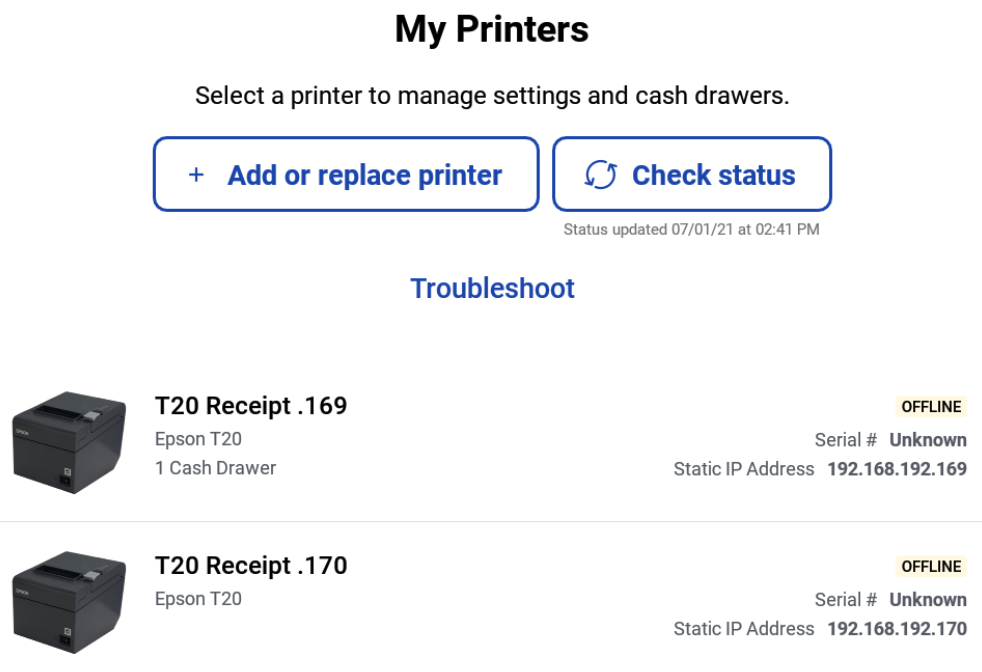
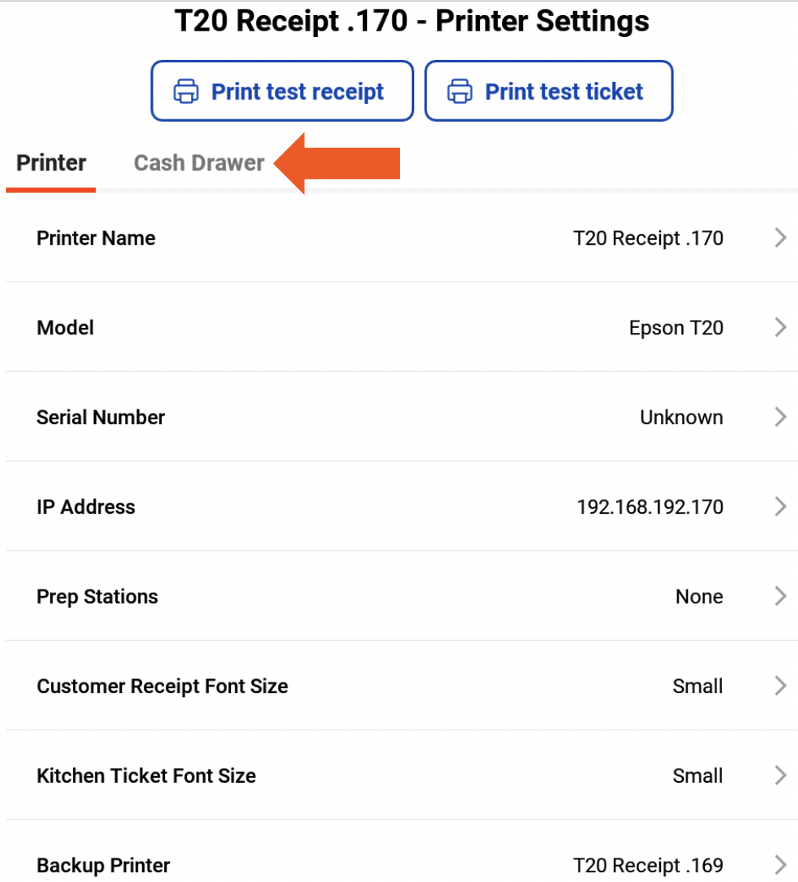
- Select the Cash Drawer tab first, then select Drawer Count. Choose if one or two cash drawers will be connected to this printer and tap Save Changes.
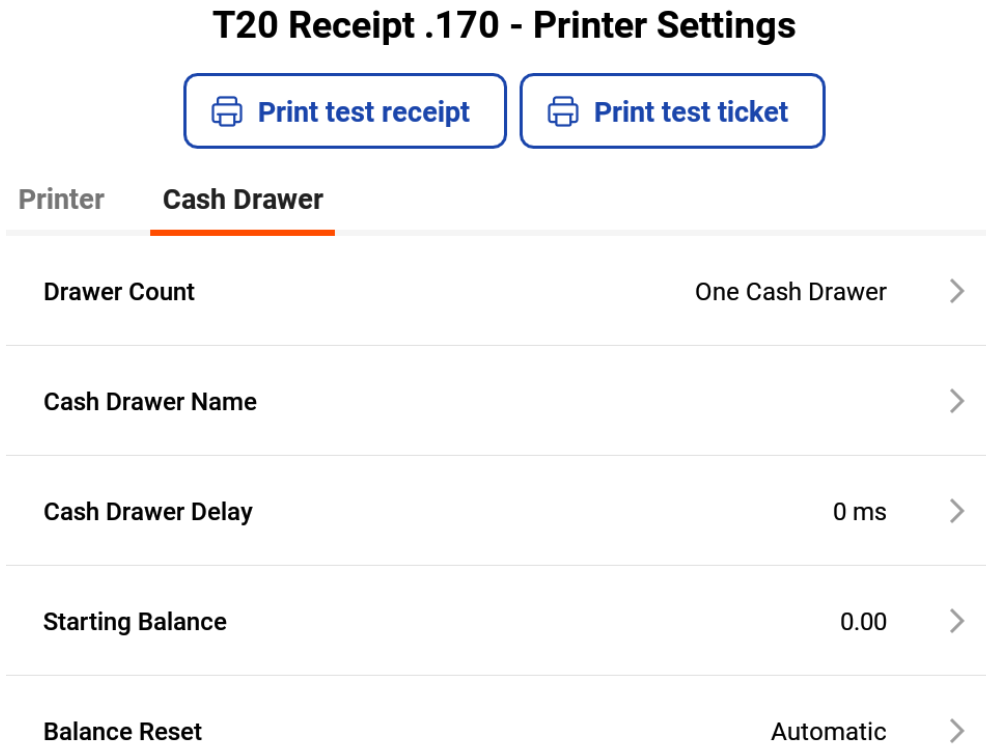
- The Wizard will bring you back to the Cash Drawer tab. You may now select Cash Drawer Name, Cash Drawer Delay, Starting Balance, or Balance Reset to further configure your cash drawer settings. Then check out this article to see how cash drawers are used during a shift.
Note: If you are having issues with your cash drawer opening, make sure the receipt printer in Device Setup has a cash drawer selected. To troubleshoot, follow the steps below.
- First, check your device settings under Device Setup.
- Make sure the receipt printer with the drawer you'd like the cash reported to is selected.
- Also, verify the correct option for Open Cash Drawer is selected.
Back to top
- In Toast Web, navigate to Payments > Payment Methods > Cash Overview > Cash drawers > View cash drawers.
- Choose the Printer that is attached to the cash drawer.
- On the Printer Configuration page, scroll down to the Cash Drawers Configuration section and select One Cash Drawer or Two Cash Drawers.
- Under Primary Cash Drawer, set the Starting Cash Drawer Balance to the amount of cash the drawers will start with each day.
- Set Reset Balance Type to Automatic or Manual.
- Automatic: When you close a cash drawer, a new cash drawer will be opened preset with your defined starting cash drawer balance. Additionally, all open cash drawers are automatically closed and new ones are opened with your defined starting balance each night at 4 am.
- Manual: When you close a cash drawer, you are prompted to enter a new starting balance in order to open the new cash drawer. Overnight, no open cash drawers will be automatically closed.

Note: If you have dual cash drawers set you'll have to set steps 4 and 5 for both drawers.
- Save and publish your changes! Your cash drawers are ready.
For a printable setup guide for the Toast cash drawer, including instructions on setting up two cash drawers, check out this PDF.
Back to top
This is an optional feature that requires employees to lock themselves to a drawer and does not allow other employees (except managers) to perform any cash-related activities in their drawer. Learn how to set this up and assign drawers to employees in Cash Drawer Lockdown.
Back to top
- Full: User has access to view expected cash amounts in cash drawers during and at the end of shifts.
- Ability to Cash In, Cash Out, Open a New Drawer, and Close Drawers.
- Recommended for a manager or "shift leader" role.
- Blind: The user cannot see expected cash amounts.
- Recommended for a cashier who closes a shift by counting cash in the drawer and not knowing what the expected amount should be, while also being able to do other cash adjustments.
- This is a great tool to prevent theft.
Back to top
Two cash drawers are commonly used in situations where a single terminal has two separate cash drawers, like in a busy bar.
If you want to use two cash drawers, follow the setup instructions listed below. Note that the splitter cables are different and not interchangeable.
Back to top
APG Cash Drawer
This configuration will require the use of a splitter cable to connect both drawers. You will need a CD101A and a CD101B cable connected to the splitter. You cannot use two of the same cables (two A or B cables). The primary drawer should be connected to the A cable and the secondary drawers should be connected to the B cable. If the setup uses two of either A cable or B cable, it will always open both drawers.
Back to top
Toast Cash Drawer
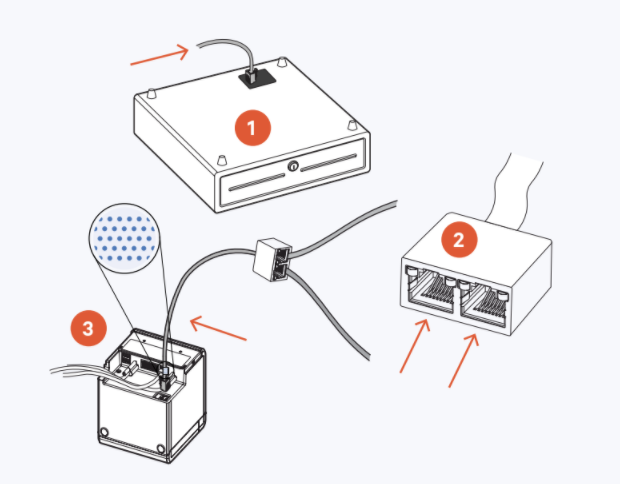
- Take the cash drawer kick cables and connect one to each cash drawer. Each end of the cable does not have a color-coded label on it and the port will be found on the bottom of each drawer housing.
- Take the end of both kick cables and plug them into the cash drawer splitter cable. This end of the cable has a color-coded label that is grey with blue dots and is labeled with the numbers 1 and 2. The number 1 represents the primary cash drawer and the number 2 represents the secondary cash drawer.
- Take the other end of the splitter cable and plug it into your printer. This end of the cable has a color-coded label that is grey with blue dots.
- In Toast Web, select the printer attached to the terminal in question. Scroll down to Cash Drawers and set Cash Drawers? to Two Cash Drawers.

- Set the Starting Cash Drawer Balance for both the Primary and Secondary drawers. Learn more by reading Starting Cash Drawer Balance below.
- Drawers will now be able to be locked to individual users. Learn more about that in Cash Drawer Lockdown.
Items to note about Two Cash Drawers
- If neither drawer is locked to an employee, Drawer 2 will not open.
- If Drawer 1 is locked to one employee, other employees will be able to access Drawer 2
- If both drawers are locked to different employees and a third employee uses the POS, they'll be designated to cash on hand instead of either drawer.
For a printable setup guide for the Toast cash drawer including instructions on setting up two cash drawers, check out this PDF.
In the Cash Drawer Configuration settings, you'll see an option to name your Cash Drawer. This can be helpful if you have multiple drawers throughout your business and can be useful when looking over the Cash Drawer Reports.
To name the drawer, simply enter a name into the box. The name will be limited to 30 characters or less.
Note that if you leave the field blank, the cash drawer will defer back to the printer name it is linked to.
Be sure to Save and Publish your work!
Any cash drawer can be set to automatically open with a set amount. To set a starting balance:
- In Toast Web, navigate to the printer attached to the drawer and scroll down to Cash Drawers.
- Under Primary Cash Drawer, enter the default Starting Cash Drawer Balance.

- Set the Reset Balance Type.
-
-
- Manual - Requires a user to manually set the cash drawer starting balance each time the drawer is opened.
- Automatic - Automatically sets the cash drawer to the starting cash drawer balance at the end of each night. This is recommended by Toast.
Back to top
When closing out a drawer and entering the Actual Cash Balance, a warning can pop up alerting the user that the balance is either over or under the expected amount. A manager override can also be set for balances that are over/short.
To use these settings:
- In Toast Web, navigate to Payments > Payment methods > Cash overview > Cash drawers > then select Cash drawer variance.
- Enter values into either of these fields to set an override or warning.
- Closeout Over/Short Max lets you set a threshold that will require a manager's signature if the drawer is over/short that amount.
- Closeout Over/Short Warning will prompt the employee to confirm their entered balance if the drawer is over/short the set threshold.
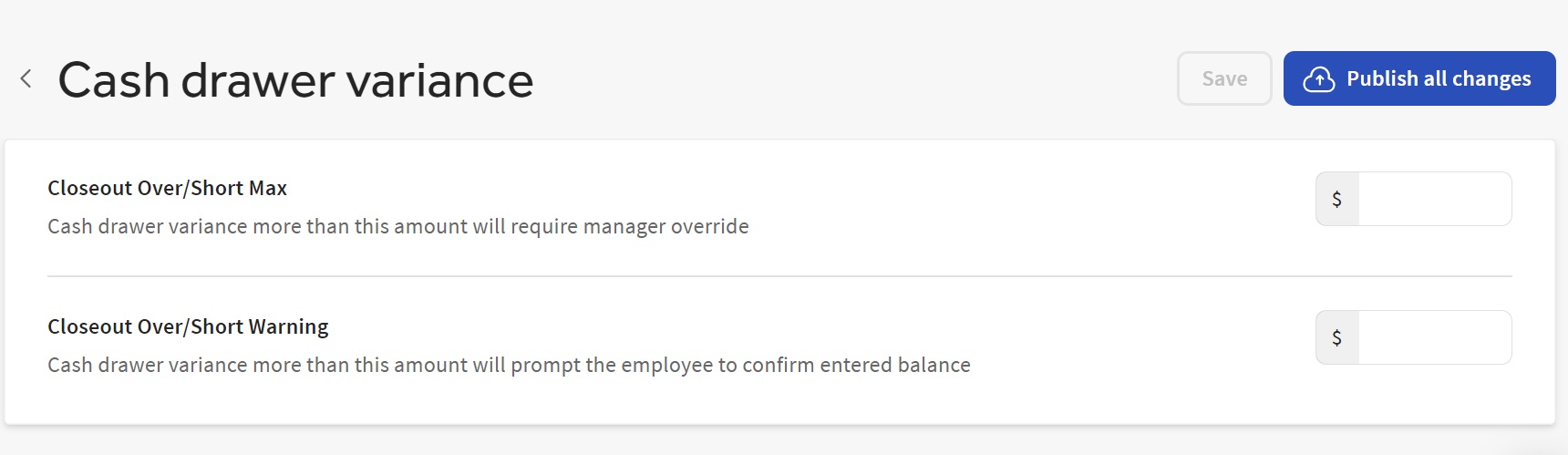
Note: - If these fields are left blank, the feature will be disabled.
- Closeout Over/Short Warning will only be visible to those with Full Cash Drawer permissions. Users with Blind Cash Drawer permissions will not see the warning, even if they are over or short of the threshold amount.
- Save and Publish your changes.
Back to top
The No Sale button opens the cash drawer without the need for a cash transaction. It is often used to make changes for customers or count the cash in the drawer. If a manager wants their employees to log why the drawer is opening when selecting No Sale, they can configure No Sale Reasons.
To set up No Sale Reasons:
- In Toast Web, navigate to Payments > Transactions & refunds > and select No Sale Reasons.
- Select the + Add button to input the No Sale Reason name and description. Some common examples are Making Change or Counting the Drawer.
- Save and publish your changes!
Back to top
There are two ways your employees will manage their cash: using a cash drawer for all cash payments or using a personal cash bank (usually their apron or black book).
- Cash in Hand - Employees use a personal cash bank for cash payments and do not use a cash drawer during their shift. These employees will have to pay the restaurant the total amount of cash payments at the end of their shift.
- Cash in Drawer - Employees use a cash drawer for all cash payments and do not carry cash. Tips must be held separately from the cash drawer.
Back to top
Sometimes you may need to keep a printer but remove a cash drawer. To retain the printer and remove the cash drawer follow below:
- Navigate to Payments > Payment methods > Cash overview > View cash drawers > and select View all printers.
- Uncheck the Cash Drawer? next to the printer that no longer needs the cash drawer.
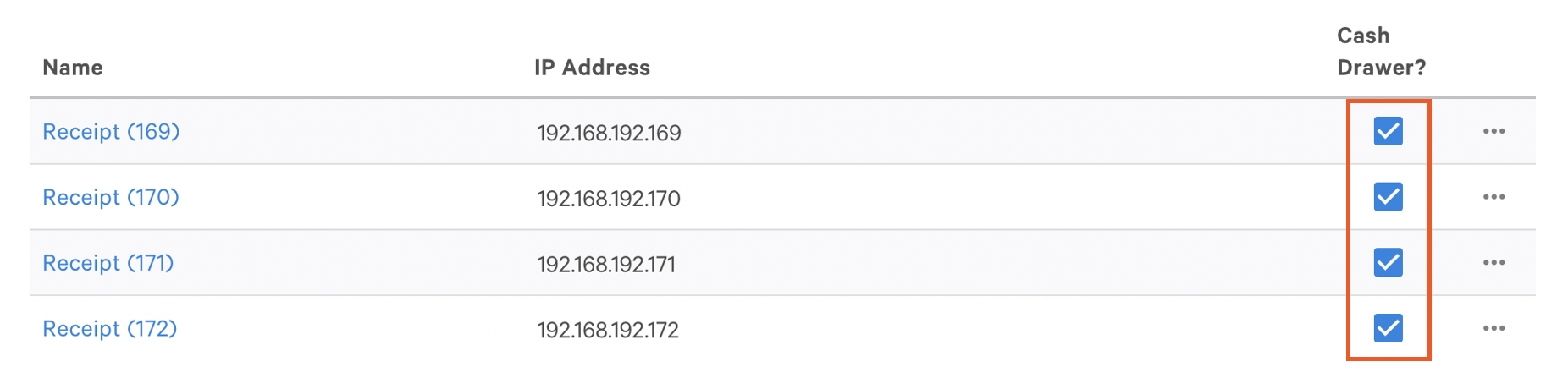
- A confirmation pop-up will show up alerting you that removing the cash drawer in the middle of a shift/day will cause any existing cash entries and balance information to get removed as well. We recommend removing a cash drawer at the end of the day.
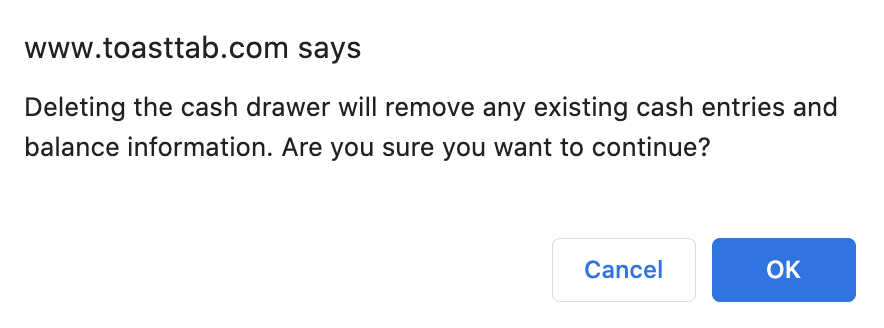
- Save and Publish.
Back to top
Additional Resources


