Offer your guests a safe and convenient order pickup experience by delivering meals directly to their vehicles. This new dining option prompts for guest's make, model, and color of the vehicle during the ordering process, so the information can be displayed on the order screen or on a printed receipt for your staff to use.
In this Article:
Note: Before creating a curbside pickup dining option, you must ensure you already have a takeout dining option created. Curbside pickup cannot be the only dining option enabled in your restaurant.
- In Toast's Web , navigate to the Kitchen > Dining Options.
- Select + Add to create a new dining option and enter Curbside Pickup in the Name field.
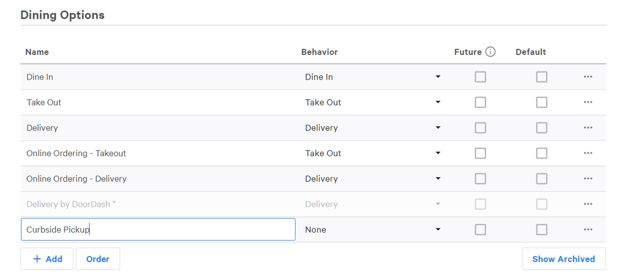
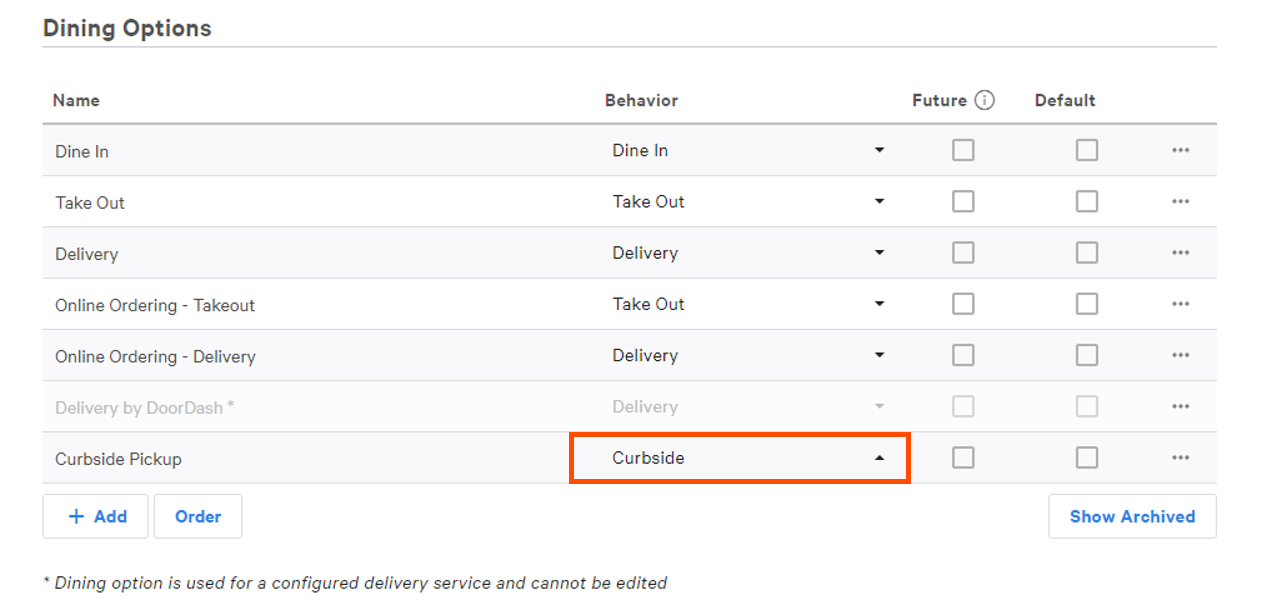
Alternatively, if you'd like to change the behavior of an existing dining option, skip to the next step. - Select Curbside from the Behavior dropdown menu.
- When finished, select Save and Publish Now to finalize your changes.
Note: If you already have a curbside dining option configured using the Takeout behavior, it will be treated as a takeout order and not prompt guests for vehicle information or arrival notifications.
Back to top
Once a dining option with curbside pickup behavior has been created, you'll need to select that dining option within your online ordering settings.
- In Toast Web, navigate to the Takeout & delivery > Online ordering setup.
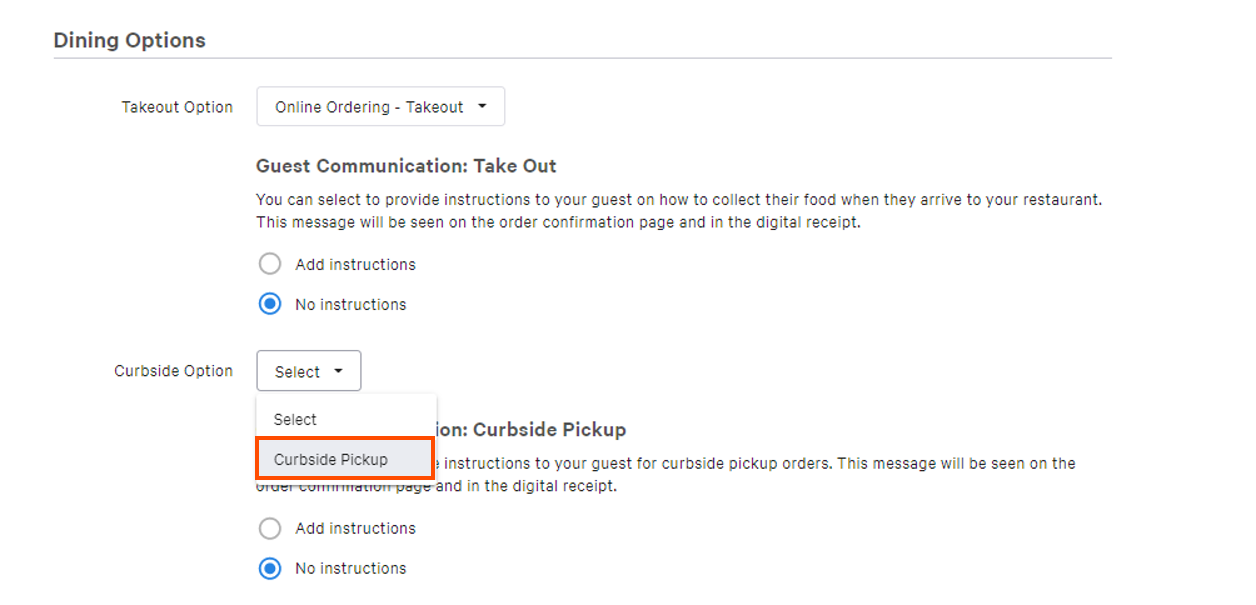
- Scroll to Dining Options and select the dropdown menu next to Curbside Option. Choose a dining option from the list with curbside pickup behavior.
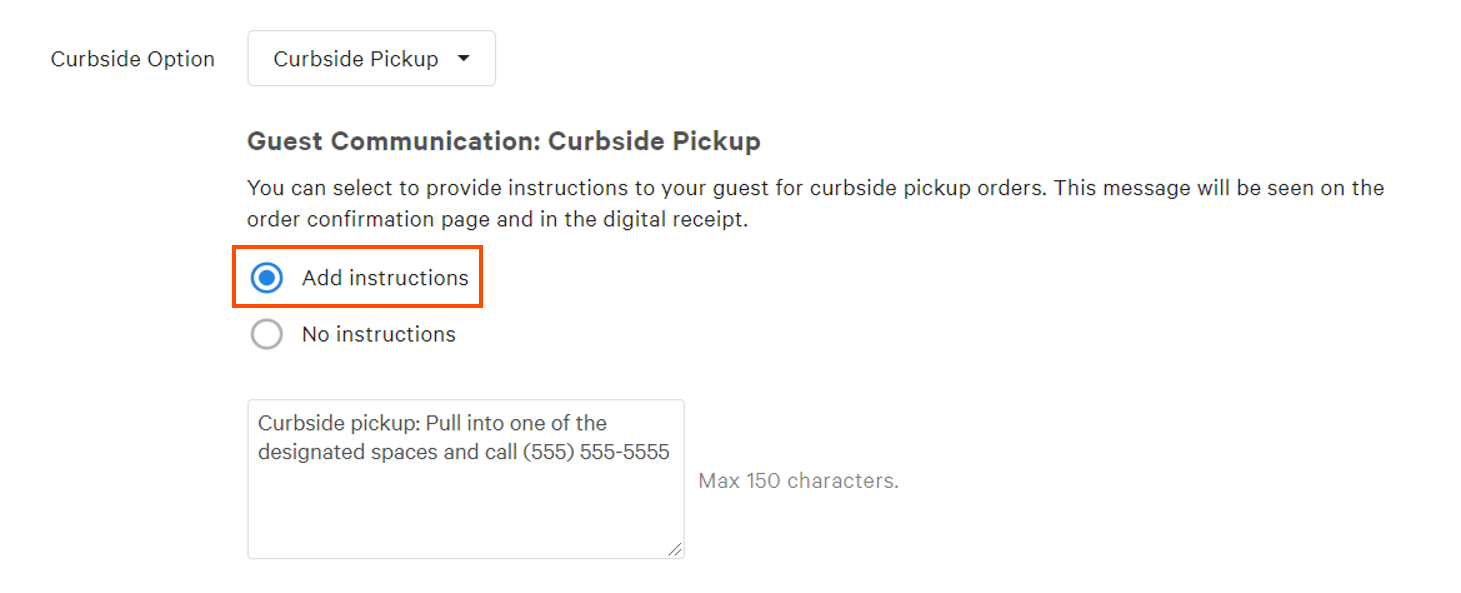
- Optional: Select Add instructions to enter a custom message for guests placing orders for curbside pickup. For example, this can be a reminder to call the restaurant upon arrival or to open the trunk of your car for a contactless delivery to your vehicle.
- Select Save and Publish Now to finalize your changes.
Back to top
Disable Curbside Pickup
To disable curbside pickup under the Dining Options category:
- In the Curbside option, choose Select from the dropdown menu.
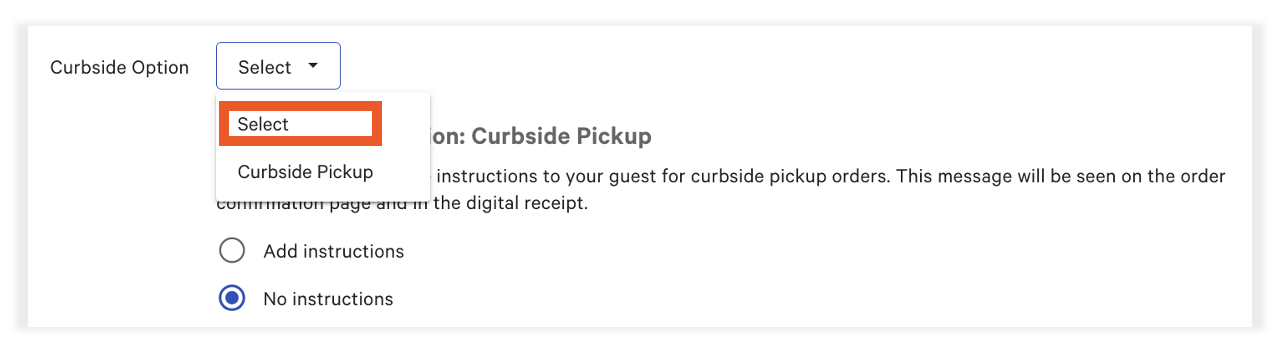
- Save and Publish your changes.
If you'd like to remove Curbside as an available option altogether, navigate to Kitchen > Dining options > locate Curbside and select the three horizontal dots and Archive. Be sure to Save and publish any changes.
Back to top
Send guests check-in instructions via text and give them a contactless way to notify you once they arrive at the restaurant.
- In Toast Web navigate to the Takeout & delivery > Takeout / delivery.
- Next to Curbside Pickup SMS, select Yes.
- Choose whether you want to use our preset check-in message or enter a custom text message for your guests.
- Then, choose our preset check-in confirmation page or enter custom instructions for your guests to receive their orders.
- Select the printer where you want the curbside check-in alert ticket to print. If no printer is selected, arrival tickets will print at the auto-firing device's receipt printer.
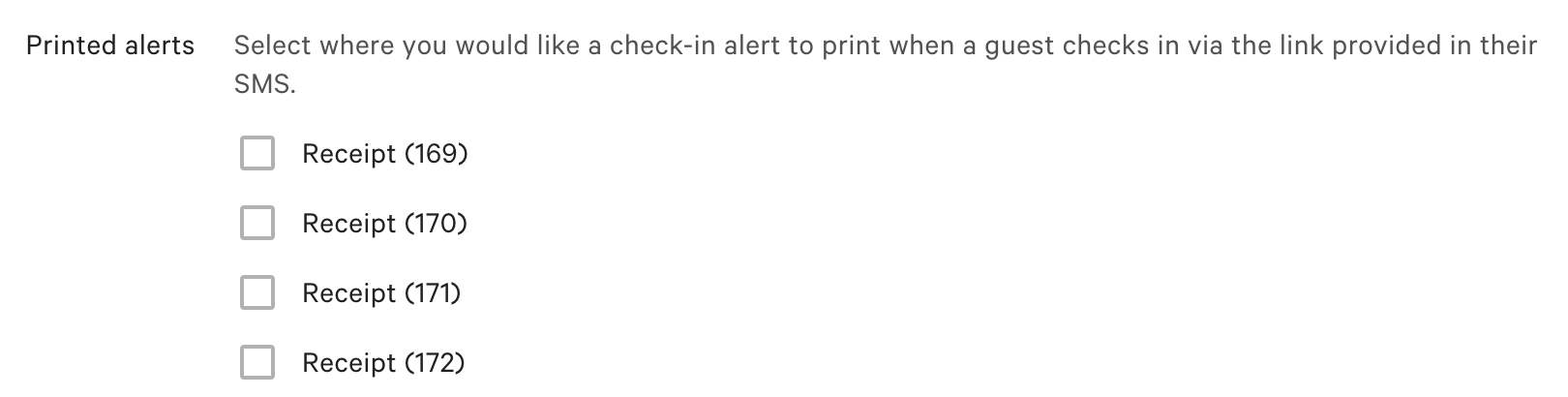
- Save and publish your changes.
- Once a guest has arrived to pick up their order and checked in, a guest check-in ticket will print at the printer selected above.
Back to top
The following is what your guests will see during checkout when opting into curbside pickup online.
- In the Curbside Pickup section, this option will appear as a checkbox when a guest is placing their order online or through the Local by Toast app:
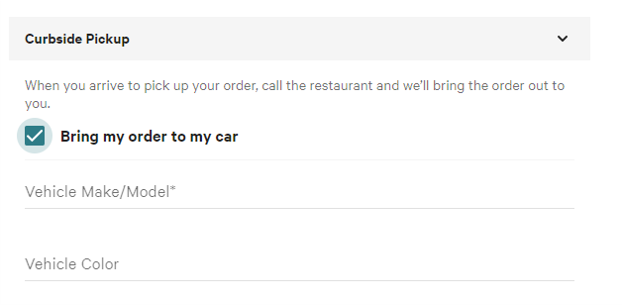
- They will be prompted to enter their vehicle's information and proceed to submit their order online.
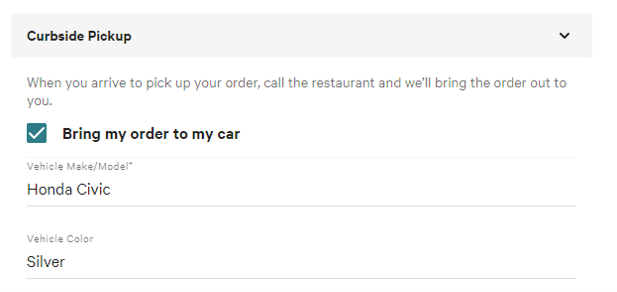
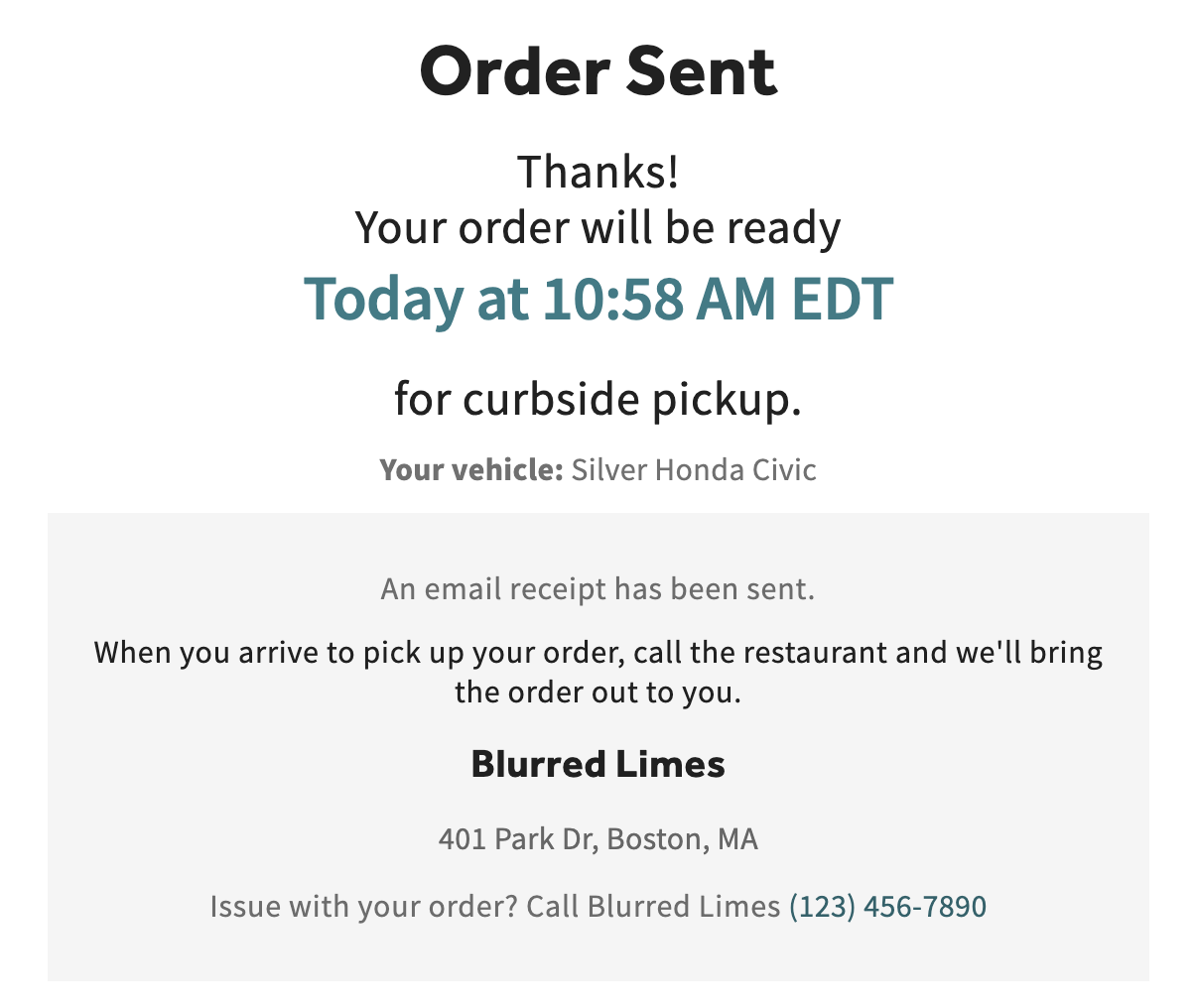
- After placing the order, guests will be shown a Curbside Pickup confirmation, when the order will be ready, and any check-in instructions you have configured. Below is an example of how this confirmation could appear:
Order confirmation:
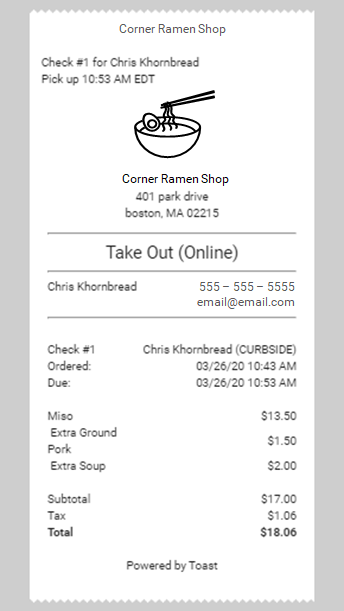
Guest receipt:
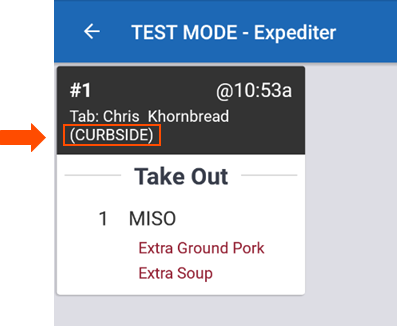
Kitchen ticket:
- Upon arrival, the guest will call the restaurant. A restaurant employee will then use the information entered during checkout to identify the correct vehicle and deliver the order.
Back to top


