|
If your business is part of a Toast Multi-location Management (MLM) or Enterprise account with Toast, use the Toast Platform Guide instead to assign and adjust your taxes.
Per the terms of the Merchant Agreement between you and Toast, you acknowledge and agree that Toast has no obligation to determine whether taxes apply to your business or transactions, or to calculate, collect, report, or remit any taxes to any tax authority arising from any payment.
|
The Toast POS allows you to customize state and federal tax rates as well as take advantage of various options allowing you to adjust tax rates for specific menus and dining options.
In this Article:
Note: Per the terms of the Merchant Agreement between you and Toast, you acknowledge and agree that Toast has no obligation to determine whether taxes apply to your business or transactions, or to calculate, collect, report, or remit any taxes to any tax authority arising from any payment.
Follow the steps below to create tax rates in Toast Web:
- In Toast Web, navigate to Menus > Settings > Manage tax rates. The Tax Rates setup page allows you to create new tax rates or edit the rate and name of already established tax rates. Checking the Default? option will attach the tax rate to all newly created menus and menu items. Any tax rate changes that are updated and saved will publish automatically to your POS devices.

- To set up a new tax, select + Add Tax Rate. On the setup page, you'll have options to configure this tax. Here you can name your tax, choose what type of tax it is, and enter the rate. To learn about Tax Tables, check out the following Toast Central article: Configure Tax Tables.
- Use the Takeout Tax section to enable a separate takeout tax, if applicable. Some states require an alternative tax rate for takeout items, so select Yes to enable takeout tax rate and set the value.
|
The Dining Option Tax (no tax for takeout) setting is not supported when combined with a takeout tax rate. If you want to use the takeout tax rate, please make sure that the menu items in question have a Dining Option Effect set to "No Effect." You can use the Advanced Properties page to show the Dining Option Tax setting for all menus, groups, and items, to verify that it is set to "No Effect" for any menu objects that have a separate takeout tax.
|
- In the Advanced Settings section, you can choose how pennies will be rounded in this tax. The tax will default to Half Even Rounding. Use the reference tables at the bottom of the section to see examples of how pennies will round with each choice. This option is not available when building tax tables.
- Consult your state laws and tax professionals to choose the correct penny-rounding method.
- Save and publish any changes.
Back to top
Follow these steps to access menu-specific tax rate settings.
- Navigate to Menus > Bulk management > Advanced properties.
- Select the name of the menu you want to edit to open the setup page. Taxes will be the last section.
- You can now enable the following settings:
- Inherit Tax Rates from Restaurant?
- If you select No, you'll have the option to select the applicable taxes for this menu
- If you select Yes, the menu will use the tax rates you specified for the restaurant.
- Tax Inclusion Option
- Tax Not Included - The item's price does not include tax, and Toast should add the applicable taxes for this item to the check. This is standard practice for most items, sometimes referred to as "additive tax".
- Tax Included - The item's price does include tax, and Toast should not add any additional tax to the check. Toast will then calculate what portion of the menu price is the item cost and what portion is the sales tax and report accordingly, which is why it's important to still select which taxes should apply to this item. This allows you to present your customers with a flat price for the menu item. To learn more, check out this Toast Central article: Configure Tax Inclusion Option.
- Smart Tax - The smart tax feature allows a restaurant to specify that a menu item's price includes tax when it's ordered in one section of the restaurant and does not include tax when it's ordered in another section of the restaurant. To learn how to add and use this tax inclusion option, check out this Platform Guide: Smart tax.
- Dining Option Tax (Note: If you have Takeout Tax rates enabled, ensure that the Dining Option Tax is set to No Effect. These two settings cannot be enabled at the same time.)
- No Effect - The item has no dining option-specific tax exemptions. Toast will add tax to all orders regardless of the dining option selected. This means orders for Dine-In, Takeout, and Delivery are all taxed normally.
- No Tax for Takeout and Delivery - The item is tax-exempt when served for takeout and delivery.
- Save and publish your changes.
Toast also has item-specific tax rate settings that are similar to menu-specific tax options. You can access item-specific tax settings by selecting the desired item from the Advanced properties page and reviewing the Taxes section.
For each tax setting, you'll have the option to inherit settings from the menu group (default) or select the configuration for that specific item. This can be helpful if you need to create a fixed tax rate for specific items, such as bottle deposits like the California Redemption Value (CRV) fee.
Back to top
Toast provides a quick and easy way to view and modify basic tax settings for all menu items through the Advanced Properties tool.
- Navigate to Menus > Bulk management > Advanced properties.
- Select the Show/Hide drop-down menu and enable the three Taxes columns located at the bottom of the list.

- You should now see the three tax-related settings columns on your Advanced Properties page. Use the arrow (>) icons on the left side of the page to expand menus to view menu groups and items, if necessary.
- Use the drop-down menu to change a menu, menu group, or item's tax settings as desired. Menu groups and items will inherit settings from their parent unless otherwise configured.
- In the example below, the Tax Inclusion Option for Pork Empanadas is changed from Tax Not Included (the inherited setting) to Tax Included.

- Save and publish any changes.
Back to top
It's recommended that you split up each separate tax rate so it's easy to look at reporting. For example, you would set up a liquor tax rate separate from a sales tax and the local (county) tax rate if that's the case in your area.
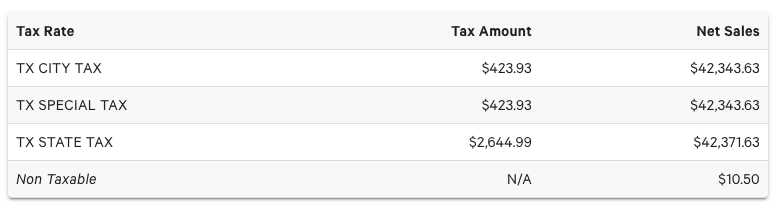
Once the tax rates are separate from one another, it will make it easier to look at reporting.
- In Toast Web, navigate to Reports > Sales > Sales summary.
- Adjust the date range for the report as desired. In the Tax Rate section, you'll be able to view the tax amount and net sales for each of the separate tax rates you have set up.
Back to top
Back to top


