Get expert-led Toast menu configuration training through Toast Classroom. This classroom-style experience gives you the knowledge to optimize your Toast operations. These remote sessions will be led by a Toast expert and will cover topics such as basic menu configuration, online ordering, manager training and more.
In this Article:
Every menu component has an item number. These unique identifiers help keep track of individual menu components within Toast.
Why you might want to reuse or copy:
- Reduces menu clutter - fewer individual instances of "Tomato" or "Cheese" when you simply reuse what you have.
- Accurate reporting - Easier to keep track of how much of certain ingredients you're using.
- Reduces work in terms of menu maintenance - If the price of a certain ingredient goes up or down, you'll only have to change it in one place.
Why you might want to create new:
To reuse an item or modifier, you can:
- Add an existing item or modifier elsewhere in your menu. This is useful if the exact same item/modifier group/modifier appears in several places on your menu. For example, you may have a Side Salad item with a Dressing Choice modifier group that is the same for both your Lunch and Dinner menus. See more details in the section below.
- If you need information about what happens when you archive a menu, or if you want to learn how you can restore previously archived menus, please see the following Toast Central articles:
To copy an item or modifier, you can:
- Make a copy or a deep copy of an item or modifier. This option is useful if there will be some differences between the item or modifier.
- Copying creates a new version of the item/modifier group/modifier, but all of the associated menu components are still linked to the original version.
- Deep copying creates a new version of the item/modifier group/modifier, with all of the associated menu components – none of which are linked to the original version. In this case, the copy is completely independent of the original.
- See more details in the Copy a Menu, Item, Menu Group, or Modifier section of this article.
Back to top
Reusing an existing menu entity ("add existing") will keep the item number the same. If you add an existing burger to another menu group, the Burger and the Burger Topping modifier group will all have the same number.
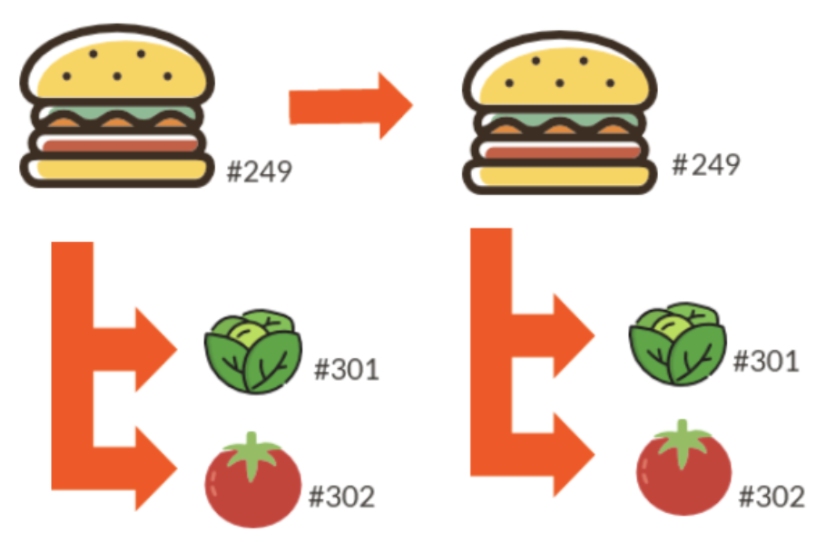
This means that if any changes in name or price are made to one of these components, the changes will be made everywhere. This can be helpful when managing changes to items or modifiers as you will only need to make the change once and the updates will take effect everywhere else the same item or modifier is used.
If you want some of your menu items to appear on multiple menus (for example, items on your POS menu will also appear on your special third-party ordering menu), consider reusing those menu items so that they will remain the same for consolidated reporting and updating.
To reuse an item (add an existing item to a different menu, menu group, or subgroup):
- In Toast Web, navigate to Menus > Menu management > Menu manager.
- Use the arrow icons to expand your menus until you find your desired menu group.
- Once in the menu group, scroll to the bottom of the Items list and select + Add item. This will allow you to type a new name or search for an existing item.

-
Select Save and Publish all changes when you're done.
To reuse an existing modifier group:
- In Toast Web, navigate to Menus > Menu management > Menu manager.
- Use the arrow icons to expand your menus until you find your desired menu group, subgroup, or item. Select the name of the entity where you'd like to reuse an existing modifier group.
- A settings panel will appear on the right side of the screen. Scroll down to the Modifier groups section.
- Select the drop-down arrow next to the + Add modifier group button and select Add existing modifier group.
- Search for your desired modifier group, and then select Add modifier groups.
- Select Save and Publish all changes when you're done.
To reuse an existing modifier:
- In Toast Web, navigate to Menus > Menu management > Menu manager.
- Use the arrow icons to expand your menus until you find the correct modifier group. Select the name of the modifier group where you'd like to reuse an existing modifier.
- On the modifier group details page, scroll down to the Modifiers section.
- Select the drop-down arrow next to the + Add button and select Add existing.
- Search for your desired modifier, and then select Add modifiers.
- Select Save and Publish all changes when you're done.
Back to top
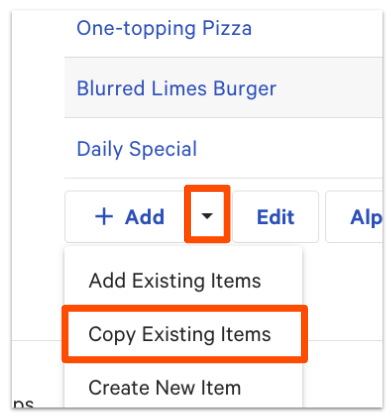
In Toast, you can create a copy of an existing menu, item, menu group, or modifier that you have built in your menu. Using Copy Existing in the drop-down next to the + Add button, you may select multiple items or modifier groups to copy at the same time. Note there are two types of copies that can be made:
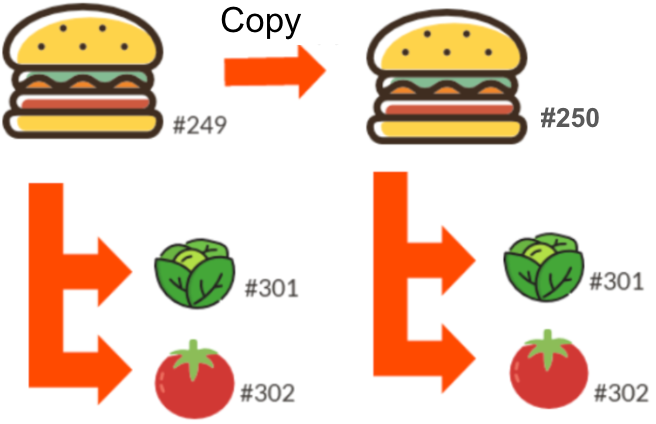
- Copying a menu component (sometimes referred to as "shallow copying") will change the item number of the group/item/modifier you're copying, while maintaining the item number of all associated components. If you copy a burger to another menu group, the burger will be new, but the burger toppings modifier group will be the same.
This means that if any changes in name or price are made to one burger, the changes will not affect the other burger. You can see in the image below, the item number for the copied burger has changed. However, if any changes are made to the toppings, the changes will be made to all burger toppings.
Copying is helpful when creating a Happy Hour menu. Simply copy your alcohol groups and utilize menu-specific pricing. That way, because you’ll be reusing the same items and modifiers from the original group, you’ll have cleaner reporting on item sales.
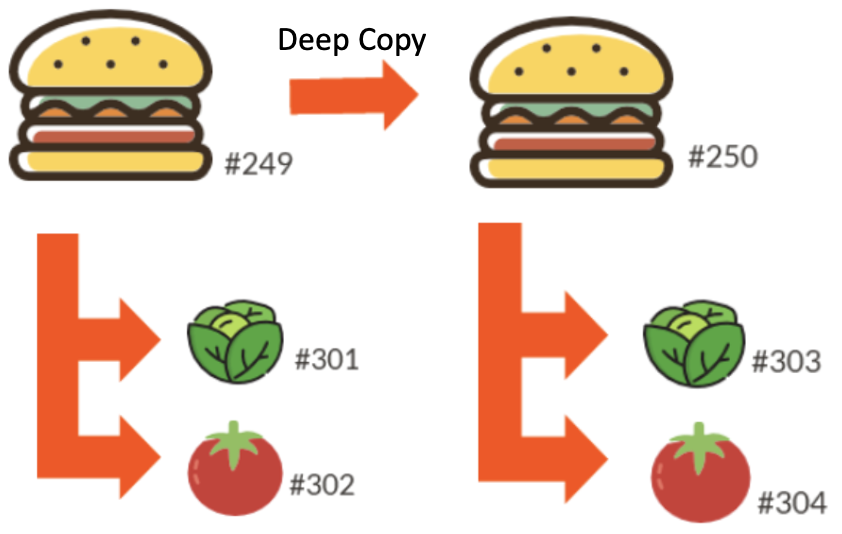
- You can make a deep copy if you want to create an independent copy of the group/item/modifier. For example, if you deep copy a burger to another menu group, the burger and all associated modifier groups will be copied, and each of those components will have a new item number. Deep copying is done by selecting the Make Deep Copy checkbox on the Copy Existing Items pop-up window, as shown below.
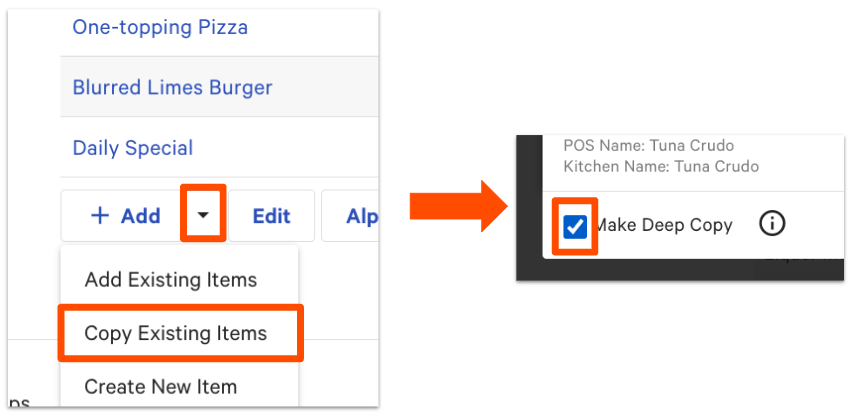
With a deep copy, if any changes in name or price are made to one original component (like the Cheese modifier group on the original burger), the changes will not affect any of the newly created components (the Cheese modifier group on the new burger). This applies to both items and modifier groups.
It is very important to be careful when deep copying, as duplicates of everything will be created. You can see the different item numbers in the image below. Deep copying is helpful if you're creating a dinner menu that matches your lunch menu where the portions (for inventory) are all different.
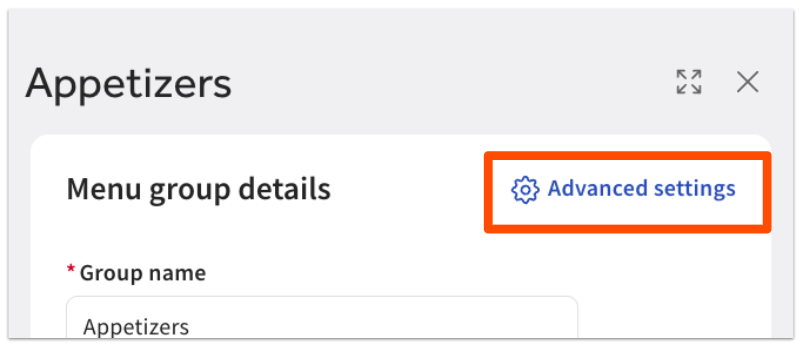
To access the Copy existing items feature from the menu manager, select the name of the menu group where you'd like your copied item to be added. Select the Advanced settings button in the top right corner of the settings panel, and then scroll down to the Items list.
If you can't find the menu/menu group/item/modifier you are trying to copy in the list, check in the items database to be sure it is not archived.
In addition, after you've saved your changes, the word "Copy" will appear after each shallow copied item and "Deep Copy" will appear after each deep copied item.
|
Be careful: it is possible to create an endless loop with nested modifiers where it will endlessly ask guests or staff to make a selection. This happens when an existing modifier group is used for a nested modifier option, while the modifier nested is a modifier choice in the modifier group used to create the nested options.
Take for example, a side salad with dressing choice. An item has a modifier group called “Side Choice,” with one option for “Side Salad.” Side Salad has a nested, required modifier group called “Dressing Choice” with all dressing options listed out, and one option for “Extra Dressing.” “Extra Dressing” is nested, with the original “Dressing Choice” modifier group. Every time someone chooses “Extra Dressing,” they have the option to continuously select “Extra Dressing,” with no stopping point.
In order to not have this happen, make sure to shallow copy (a copy that's not a deep copy) the modifier group you are looking to nest.
|
Back to top
If you’d like to create a version of one or more menu groups with special pricing (for example, for third-party ordering or a happy hour menu), consider copying your menu group and applying a menu-specific price.
Learn more in this Toast Central article, Build Happy Hour Menus With Menu-Specific Pricing.
Note that while deep copies can be created to reprice a menu item without affecting the original menu item's price, we do not recommend this configuration as it will result in duplicate items in your items database. Additionally, if the pricing method used in the original menu is not the base price, you'll be unable to convert the pricing to menu-specific pricing. For this reason, we recommend using the copy function (instead of deep copy) so that the menu group is copied but the items, modifier groups, and modifiers associated with the menu group are reused.
Back to top


