Looking for a live training experience with a Toast Training Expert?
Sign up for a live Toast Classroom session to help you set-up and get started with Front of House! Select the button below to sign up.
Toast Classroom - Front of House
In this Article:
Shift review is an optional end-of-day task that employees can complete before leaving for the day. Shift review provides employees with an overview of their sales transactions, tip amounts, and other information.
Shift reviews can only be completed for employees who are clocked in. For instructions, see Clock In and Out for Shifts and Breaks.
You can choose if shift review is required or optional for employees on the Shift review setup page in Toast Web. In Toast Web, navigate to Employees > Shift review > Shift review setup > Select the Customize shift review button. Keep in mind that enabling the shift review will require employees to close all checks and declare cash tips before clocking out. For more information, see Toast's technical documentation: Require shift review.
Back to top
Configure Shift Review in Toast Web
Shift review walks hourly employees through all the steps that need to be completed before clocking out and closing their shifts. Shift review provides employees with an overview of their sales transactions, tip amounts, and other end-of-shift information.
The shift review setup wizard will quickly help managers configure what needs to be done during their employee's shift review at the end of their shift. This is ideal for new Toast customers setting up their shift reviews for the first time.
You can access the setup wizard and enable/disable shift review by navigating to Employees > Shift review > Shift review setup > and selecting the Customize shift review button in Toast Web.
Back to top
The Shift Review report is on the left side of the screen, and the steps to complete the shift review are on the right side of the screen. When a step is completed, a green checkmark appears next to the step.

To access shift review in the Toast app's main menu, select Shift Review under My Account. Managers can view employees’ shifts under Manager Activities > Shift Review.
 | In order to access My Account > Shift Review on the main menu of the Toast app on your POS, a job must have at least one of these permissions enabled: 1.1 Table Service Mode, 1.2 Quick Order Mode, or 1.4 Payment Terminal Mode. These are required for an employee to complete shift review and tip out. For more information on permissions, check out Toast's permissions reference guide. |
Note: The steps listed below are in chronological order, but based on configurations in Toast Web, the additional optional tasks of Declaring cash tips and Closing cash drawers may be required for shift review.
Back to top
Review and Close Checks During Shift Review
| For detailed instructions, check out Toast's technical documentation: Close Checks . |
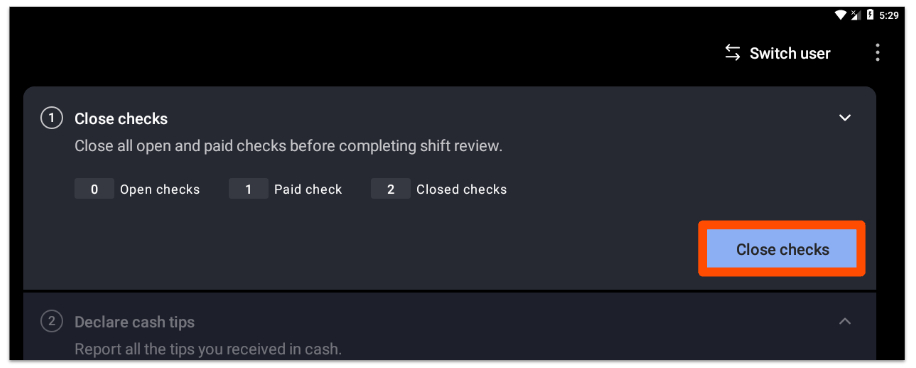
In this step, hourly employees will close, adjust, or view all checks they own during their shift. This step shows:
- Number of open checks
- Number of paid checks
- Number of closed checks
If all checks are already closed, this step is automatically skipped and marked with a green checkmark. If there are unpaid or open checks, employees have to close them or transfer them to another employee before moving on.
- On the main menu of the Toast app, navigate to My Account > Shift Review.
- Check to see if there is a green checkmark for the Close checks task.
- If not, select the Close checks button to go to the payment terminal where checks can be closed.
Back to top
Declare Cash Tips (Optional) During Shift Review
|
For detailed instructions, check out Toast's technical documentation: Declare cash tips.
|
In this step, tipped employees are required to enter cash tips collected throughout the shift.
Depending on the configuration enabled in Toast Web, employees may either:
- Be required to declare a minimum % of their cash sales as cash tips (e.g. a server to takes $200 in cash sales might be required to declare 10%, or $20), or
- Be required to declare negative cash tips. This requires manager approval and can be useful for tipping out bussers and dishwashers.
If a tip requirement is required, the window appears. Enter the minimum amount to declare your cash tips.
Once cash tips are declared, employees will select the Close shift button on the shift review screen to continue closing their shifts. This indicates that they are no longer taking payments.
If you would like to adjust a declared cash tip, check out this Toast Central article: Declare Cash Tips Overview.
Back to top
Reconcile Cash & Tips During Shift Review
In this step, employees are prompted to turn in any cash sales and collect non-cash tips from their shifts. Depending on the configuration enabled in Toast Web, employees may either:
- Be able to skip this step, or it may be required, or
- Collect their non-cash tips and gratuities in cash during this step, or they may be paid out during payroll.
- Employees may see a Pay or Collect button. Employees must turn in any cash they owe to the restaurant OR collect the tips owed to them at the end of the shift. This step is recommended if your restaurant's preferred method of collecting cash and tipping out does not need to be accounted for in separate cash drawers or safes.
- Employees may see a Pay and collect button. Employees must turn in any cash they owe to the restaurant and then collect tips owed to them at the end of the shift. This step is recommended if cash is collected and tip out should be accounted for in two separate locations. For example, cash collected should be accounted for in a cash drawer while tip out might come from the server's own cash bank or safe.
Back to top
Close Cash Drawers (Optional) During Shift Review
| For more detailed information, check out Toast's technical documentation: Close cash drawers . |
In this optional step, employees who are locked to a cash drawer are required to close the drawer. Please note that this step only shows up if it’s been enabled in Toast Web, otherwise, the step will be hidden. When enabled, this step is only shown to employees who are locked to a cash drawer.
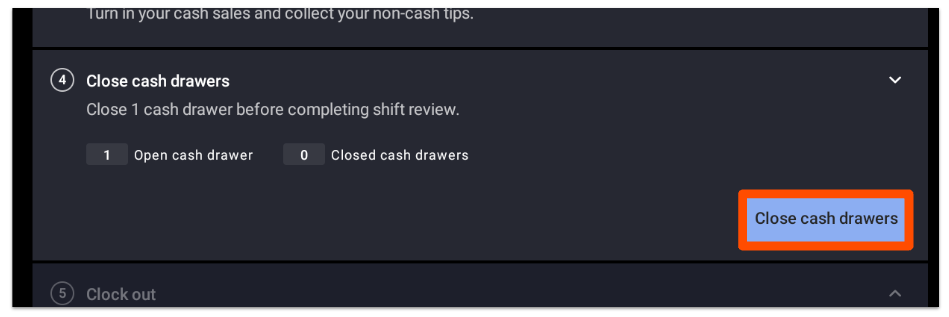
Selecting the Close cash drawers button takes the employee to the cash drawer screen where they can count all cash in the drawer and enter the total amount into the Cash Actual field. If the employee has the 3.17 Cash Drawers (Blind) permission, they won't know how much cash is supposed to be in the drawer.
Back to top
Clock Out After Shift Review
In this last step, the employee clocks out. They can choose to:
- Print the shift review report,
- Clock out and start a new shift, or
- Clock out
Reopen a Shift
You can reopen previously closed shifts within the current work week, re-calculate its data, and then re-close. You may want to reopen a shift if:
- Tips were paid out of the wrong drawer
- Cash was collected using the wrong drawer
- Tips were adjusted on a check after the shift was closed
- Customer added a tip to a check after the employee had clocked out and closed their shift
- Make any adjustments to checks that were closed or swap checks to a different server
- A check was closed to the wrong employee (The shift of each employee needs to be reopened to make this change).
By reopening the shift, the Tip Out and Cash Collected entries from before are deleted, and you are free to redo them. When a shift is reopened, previous cash and tip entries will be overwritten, meaning that you will have to turn in your cash and collect your tips again. Follow these instructions to reopen a shift:
- From the shift review screen on your POS, select Edit.
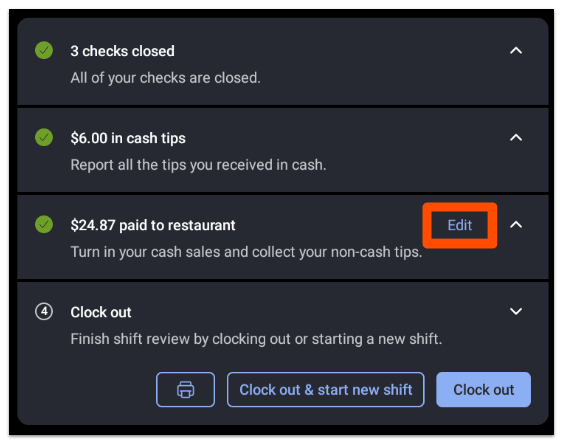
- This will bring up a confirmation pop-up. Select Yes, make edits to confirm that you want to edit your cash sales.
- The Cash Collected and Tips Paid entries can be allocated to and from another cash drawer or the house. In order to update the shift review to include changes made to checks, such as added tip amounts, the shift must be completely reopened. To completely reopen a shift, the employee must still be clocked in. This may require temporarily removing the Out Time and then re-entering the time after the changes have been made.
- If the employee is still clocked in, on the shift review page, the option to Re-open shift will appear above the Reconcile cash & tips section.
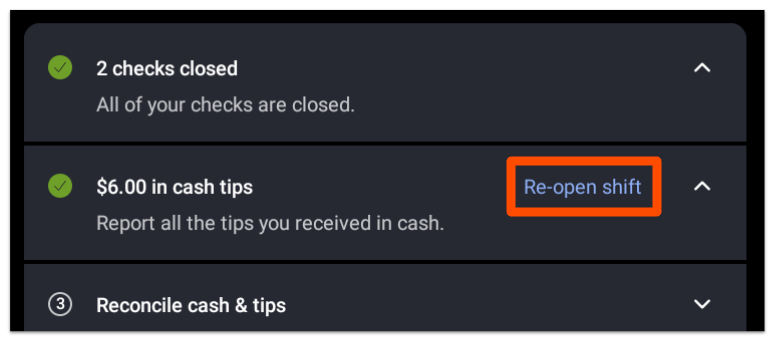
- Once you select the Re-open shift option, you'll see another confirmation pop-up.
- Select Re-open shift to confirm your action.
In the event a cash drawer was incidentally closed out at the beginning of the shift, on your POS, you can navigate to Manager > Cash Drawer > Closed > Re-Open.
Back to top
Shift Review for Delivery Drivers
Delivery drivers with the 2.1 Delivery Mode permission must complete a shift review. Delivery drivers follow the same workflow as other employees who need to complete shift reviews.
In Toast Web, you can configure your Driver Cash Management settings by navigating to Takeout & delivery > Availability > Takeout/delivery and scrolling down to the Driver Cash Management section.
When a delivery driver completes a shift review, this helps in calculating delivery fees, reimbursements, gratuities, and other information. This information appears in the driver’s shift review report.
Back to top
| The 3.12 Shift Review permission is required in order to access the Review Employee Shifts feature on the POS. For more information on permissions, check out Toast's permissions reference guide. |
With the manager Review Employee Shifts function, you can easily check on the status of shifts and ensure that all shift reviews are completed prior to the end of the day. You can also use this feature to adjust clock-in and clock-out times for employees (learn more: Edit Employee Time Clock Entries).
On the main menu of the Toast app on your POS, navigate to Manager Activities > Review Employee Shifts. Here, you can see an overview of all of the open and closed shifts at any given time.
The status of each employee's shift will be shown in the column to the left of each employee's name. The icon list below shows the possible shift review statuses.
If needed, you can select the row for an employee and complete the shift review. This is a great tool in case the employee has left for the day and forgot to complete their shift review.
Back to top
Additional Resources


