This article will help you identify common steps to troubleshoot your Toast Receipt Printer. If you're having trouble printing, here are three troubleshooting steps that solve most printer issues and can be done on the floor.
Always try these three steps FIRST:
 |
- Unplug both the power cable and the ethernet cable from your printer. Wait 30 seconds.
- Plug both cables back in and be sure to power your printer on.
- Retry printing.
|
If the problem is not resolved, try the quick troubleshooting steps explained in this Toast Central article, Get Help: My Printer Isn't Working. If you're still experiencing issues with your TP200 Toast Printer, review the sections below and follow the steps. If the FAQ doesn't help solve the problem, chat with Toast Customer Support via Toast Web or Toast Now and mention the reference code for the steps you've taken (below) - we're happy to help!
Unsure what printer you have? Check out the hardware glossary.
In this Article:
Hardware Step-by-Step Guide
|
|
Use this guide to troubleshoot when your printer:
- isn't printing
- can't print a test print
- won't turn on
- has a flashing red light
| Start hardware troubleshooting |
Networking Step-by-Step Guide
|
|
Use this guide to troubleshoot when your printer:
- isn't printing
- isn't connected to a terminal or Toast Go
- is offline
| Start hardware troubleshooting |
Configuration Step-by-Step Guide
|
|
Use this guide to troubleshoot when:
- tickets are printing to the wrong printer
- too many receipts or tickets are printing
- tickets are printing to the wrong prep station
| Start troubleshooting your settings configuration |
Use the images below to learn more about your TP200 Toast Printer components, buttons, and ports.
Back to top
The LED above the Power button has two conditions. An amber LED means the power adapter is plugged in but the printer has not been turned on. A green LED means the printer is turned on and is ready to print. If you're seeing other lights, it could point to specific issues. Check out the scenarios below.
If you see a red flashing light: This could mean three possible things:
- There is an error with the cutter. Clean the paper cutter of any debris.
- The Toast Printer's top cover is open. Make sure the cover is completely closed.
- The print head is overheated. Turn off the printer and wait for the print head to cool down.
If you see a red flashing light and hear buzzing sounds: This could be a serious malfunction with your printer. Reach out to your Toast representative if the printer is still under warranty.
If you see a blue light: This means your printer is in sleep mode. In order to exit sleep mode, simply tap the power button.
Back to top
Frequently Asked Questions
Make sure the printer's light is on (blue/amber/green). If this is the case, the power hub has power and will just need to be switched on.
If there's no light at all, then take the following steps:
- Double-check that the power cable is fully plugged into your printer and the Toast hub. Also, make sure the thumb screw is tightened so the cable is fully secured to the printer. Ensure that there is a green light on the power adapter.
- If there's a green light on the power adapter, then there is power from the wall and the power adapter is working.
- If there is an amber or blue light, this means that the power hub has power and the printer itself needs to be switched on. Press and hold the power button on the printer to turn it on until you see a green light on the printer itself. You can also try your power outlet in another working outlet.
- Next, we'll check the Ethernet cable. Ensure that your Ethernet cable is plugged into your printer and also connected to your router.
- Turn off both your printer and terminal. Note: All in-progress orders will remain in the print queue. However, this reset will temporarily interrupt your restaurant flow.
- Unplug both the power and Ethernet cables. Replug and turn it back on.
- Once your device terminal is back on, re-sync all data on the terminal side. Log in to Toast and select the three-dot icon in the top right of the passcode screen. Select Re-sync Orders and confirm the selection when prompted.
- Select the three-dot icon and choose Re-sync ALL Data. Confirm when prompted on the following screen.
- Perform a test print by selecting the feed and power buttons simultaneously.
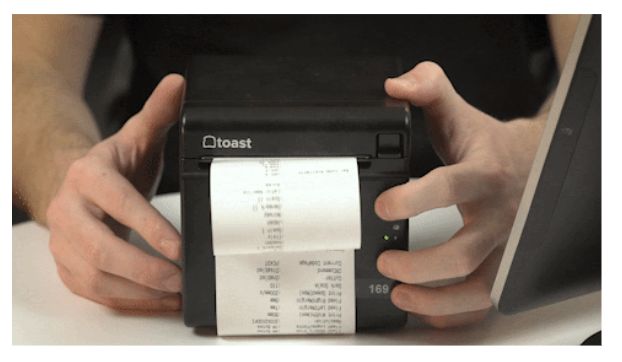
If the printer doesn't power on and it has no light, or if you notice the power cable is damaged, please chat with Customer Support and mention code #510. Start a live chat here with our Customer Support team. Chat is available in Toast Web and Payroll Web (blue support button in bottom right of every page) and the Support tab in the Toast Now app.
For more information on how to contact support view "How to Contact Customer Support" or go to support.toasttab.com.
Back to top
- Start by confirming that your printer is properly powered on by following the steps above.
- Now, make sure the paper roll is in there and placed in the correct orientation (check out the image below).
- If your printer does print a test slip but is not printing from a Toast device, try resetting the Ethernet switch on the printer by opening the printer door and pressing the feed button 5 times. The power light will flash when the reset is complete.
- Next, unplug and replug all cables from your Toast printer and try to print another test slip. If you are printing from a handheld device, make sure it is connected to the Toast secure Wi-Fi. If you are printing from a terminal, make sure the terminal has wireless LAN turned on and the correct printer is selected in printer setup.
- Next, perform a hardware test print by powering off the printer and then simultaneously pressing and holding the feed and power buttons until you hear the printer make a noise. It should print up a test page within a few seconds.
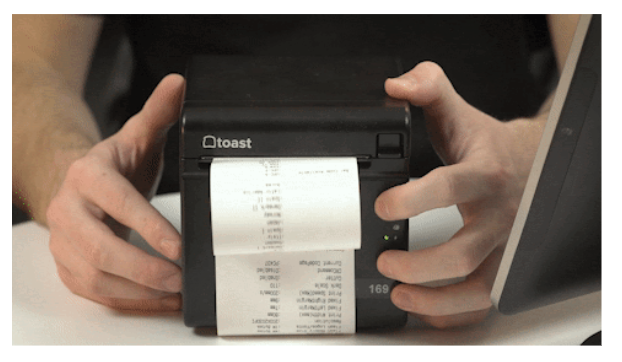
- If the printer has a green light, but is unable to test print, please chat with Customer Support and mention code #511. Start a chat in Toast Web by clicking the blue button on the bottom right corner of any page or by selecting the Support icon at the bottom of the screen in the Toast Now App. Don’t have the app yet? Download it today on Apple App Store or on the Google Play Store.
- If the printer successfully prints, we will need to check a few things.
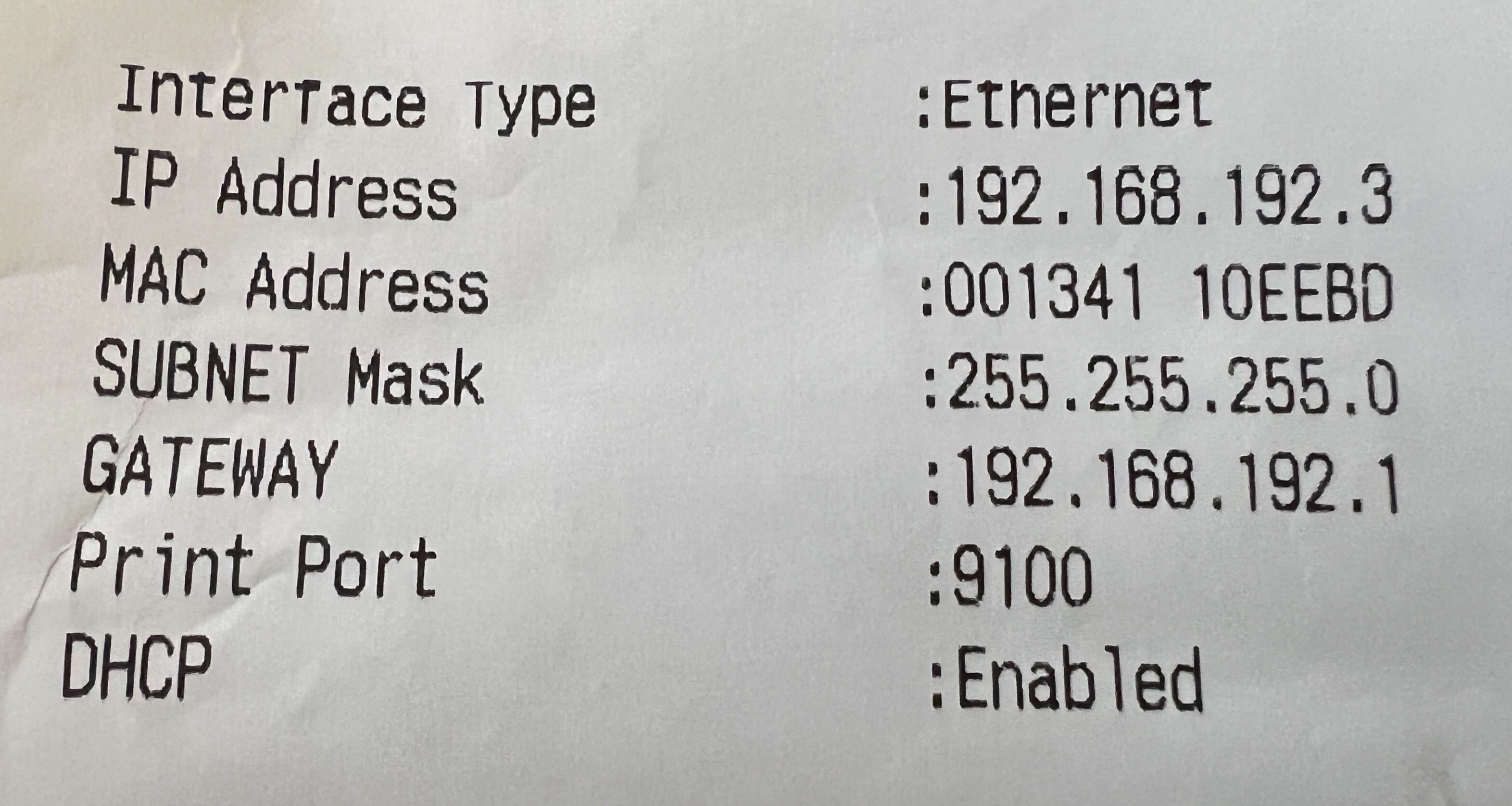
Is DHCP Enabled or Disabled?
| DHCP Enabled | DHCP Disabled |
|
If your test receipt shows that DHCP is Enabled, your printer is set up for a dynamic IP address. All printers shipped from Toast since June 2021 are DHCP enabled.
On the Printer and Cash Drawer Configuration page in Toast Web, confirm the serial number field is populated (with the serial number of the device) and the IP address field is empty. Note: Some serial numbers may include the model number (ex., TP200250106900668). In these instances, enter the entire number in the Serial Number field.
Example:
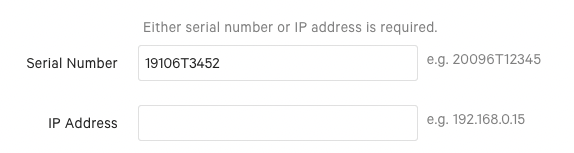
If you see both fields filled, delete the IP address. Don't forget to save and publish your changes.
|
If your test receipt shows that DHCP is Disabled your printer is set up for a static IP address.
On the Printer and Cash Drawer Configuration page in Toast Web, confirm the serial number field is empty and the IP address field is populated (with the IP address listed on your test ticket). Note: Some serial numbers may include the model number (ex., TP200250106900668). In these instances, enter the entire number in the Serial Number field.
Example:
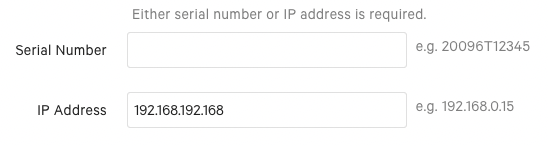
If you see both fields filled, delete the serial number. Don't forget to save and publish your changes.
Need to change your printer's static IP address? Visit Changing Your TP200 Toast Printer's Static IP Address.
|
Is there an IP address (with multiple numbers) on the test print?
If the IP address is showing a series of "0's", it means your printer isn't connected to the network. If there's an IP address on the test print, it means it's a configuration issue. Follow the steps below to solve for either issue:
| Network Issue (IP address on test print shows a series of "0"s) | Configuration Issue (IP address was printed on the test print and has a series of numbers like the image above) |
- Navigate to the terminal connected to your device. On the Device Setup screen, select Printer Setup.
- Check to confirm that the printer shows up on the My Printers list. Most likely, the printer will show up as Offline.
- Select the printer you're troubleshooting and select Print test receipt. If you're using this printer in your kitchen, select Print test ticket.
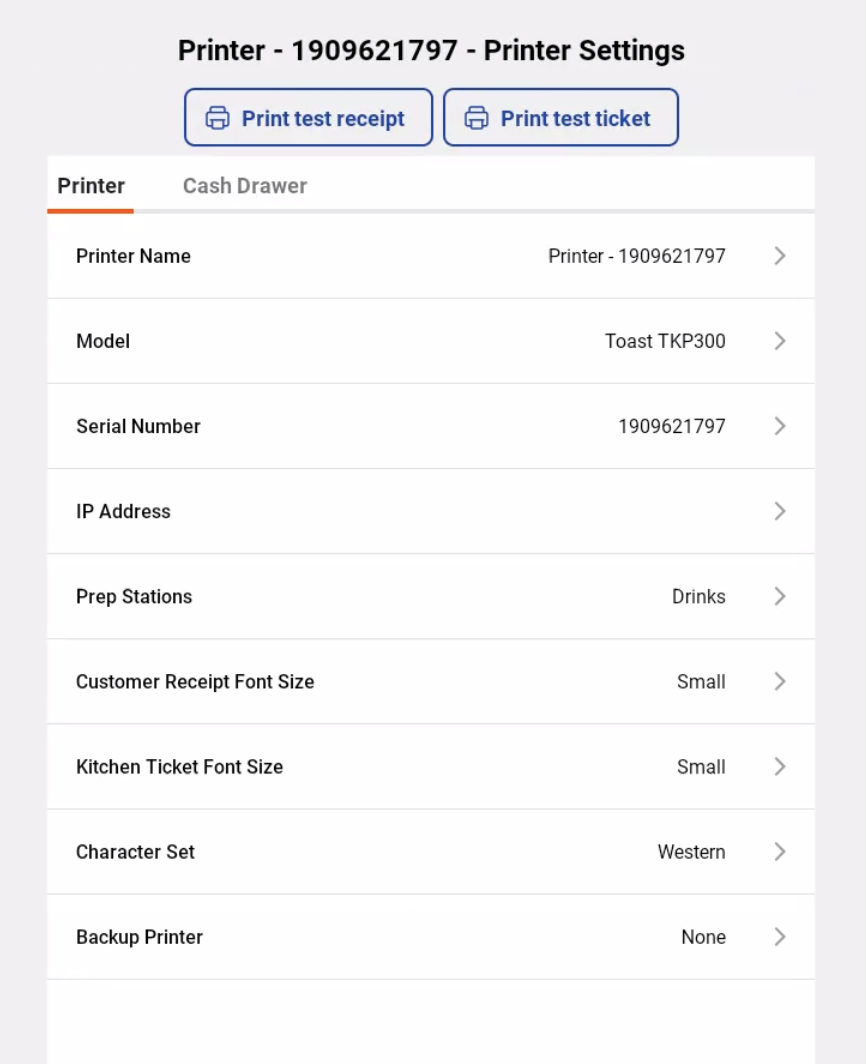 - A receipt should print from the printer. If it does, follow the steps on the column to the right. If it doesn't print, continue to the step below.
- If nothing prints, make sure the printer and terminals or handhelds are on the same network. Learn more about how to check and/or forget a non-Toast secured network on your terminal in this Toast Central article, Forget a Network on Your Toast Device.
- If you're printing from a Toast Go™, make sure to connect the device to the Toast-secured WiFi. If you're printing from a terminal, make sure the terminal has WLAN turned on and the correct printer is selected on the device via Device Setup.
- Attempt to print a test receipt following the steps under step 3 once more.
- If nothing prints again, reset the Ethernet switch on the printer. To do this, open the printer door and press the feed button 5 times. The printer light will flash to indicate the reset is complete. Reseat (unplug and replug) the ethernet cable that goes into the printer on both ends and power cycle the printer by turning it off for 2 minutes and turning it back on.
- Next, check to see if the green light is flashing on the printer ethernet port. If not, go ahead and reset your Meraki router to refresh your network connection.
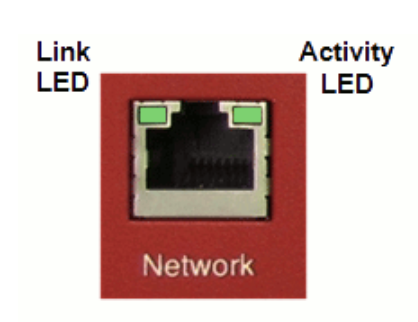 If you're still not seeing flashing lights and you've taken all of the steps above, please chat with Customer Support and mention code #514. Start a chat in Toast Web by clicking the blue button on the bottom right corner of any page or by selecting the Support icon at the bottom of the screen in the Toast Now App. Don’t have the app yet? Download it today on Apple App Store or on the Google Play Store.
| Take the following steps to check on the configuration for the printer:
- On your terminal, under Device Setup, make sure that the printer in question is set as the receipt printer for that terminal or device.
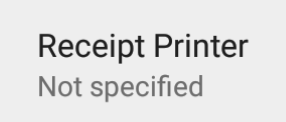
- If the printer is used for a pep station, make sure the printer is assigned to a prep station. See this Toast Central article for more information: Prep Station Basics.
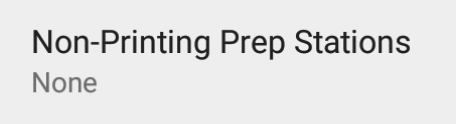
- If your restaurant uses non-printing prep stations, such as for a bar terminal, tickets will not print as a result. Check to confirm that's the case. Navigate to Device Setup on the terminal and confirm if that's true. If you would like to use this printer for a prep station, but would like the tickets to print, select None here.
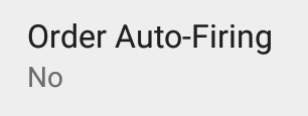
- Make sure you don't have more than one auto-fire device at your restaurant. To check, navigate to Device Setup on the device(s) and confirm you only have one. To learn more, check out this Toast Central article: Set Up Order Autofiring.
At any point during these steps, it's recommended that you attempt to print a test receipt or ticket from your printer once again and make sure it's printing correctly.
|
Back to top
The printer is either out of paper or there is a paper jam. Check out the following steps:
- Open the printer cover and check and see if the paper roll is empty. If so, replace it with a new one.
- If there's still paper remaining on the roll, check for debris on the cutter or print head.
- Clean out any debris, readjust the printer paper, and close the cover.
Remove and reinsert the paper roll into the printer correctly based on the image below (the paper should be exiting the opposite side of the cover). Ensure the latch is also fully closed (you heard a snap)and cleared of all debris.
If the Paper Feed light still lights up, please chat with Customer Support and mention code #512. Start a chat in Toast Web by clicking the blue button on the bottom right corner of any page or by selecting the Support icon at the bottom of the screen in the Toast Now App. Don’t have the app yet? Download it today on Apple App Store or on the Google Play Store.
- Open up the paper reservoir and check to make sure that there isn't an extra plastic centerpiece for a paper roll left behind.
- Close the lid and attempt a test print by powering off the printer and then simultaneously holding down the power and feed buttons.
- Sometimes paper or other debris can form inside the printer. We recommend cleaning any debris from the cutting mechanism, the paper itself, and the print head.
If the printout has either a partial cut or no cut at all, please chat with Customer Support and mention code #513. Start a chat in Toast Web by clicking the blue button on the bottom right corner of any page or by selecting the Support icon at the bottom of the screen in the Toast Now App. Don’t have the app yet? Download it today on Apple App Store or on the Google Play Store.
The printer's print head or platen roller may be dirty. Note that the Toast Printer doesn't use ink cartridges.
- Clean the print head gently with a cotton swab and rubbing alcohol. Clean the platen roller (highlighted below) as well. Make sure to dry it, then close it back and retry to print a ticket.
Printhead (image):
This may be due to a configuration in Toast Web.
- Log in to Toast Web and check that the TP200 configuration is selected for the printer. To learn more about this, check out this Toast Central article: TP200 Toast Printer Quick Start Guide.
- Additionally, make sure the paper roll is installed correctly and isn't crooked.
Back to top
- Make sure you're using 80 mm thermal paper.
- Additionally, the printer paper may have been loaded in backward. The paper should exist on the opposite side of the cover. Use the images below to see how to position the paper correctly.
Back to top
My printer is not working after a power outage. How can I fix that?
After a power outage, it is common for printer functionality to be disrupted. Please note your Toast network MUST be online before troubleshooting any printers or terminals. For more information on this visit this Toast Central article: What To Do After a Power Outage.
Once your Toast-provided Meraki router has a solid white light and has successfully recovered from the power outage, it is time to power cycle your printers.
- Turn off all printers.
- Turn all printers on one at a time. Leave the printer off for about a minute before powering back on.
- Use the Printer Setup to confirm that the network has assigned unique IP addresses for each printer. See this Toast Central article, Printer Setup Overview for more information.
Note: If your printer still has an IP address ending in .168 or .169, repeat steps 1 through 3 once more.
If you have tried the steps above and your printers are still not functioning correctly, please chat with Customer Support and mention code #515. Start a chat in Toast Web by clicking the blue button on the bottom right corner of any page or by selecting the Support icon at the bottom of the screen in the Toast Now App. Don’t have the app yet? Download it today on Apple App Store or on the Google Play Store.
Back to top


