Looking for a live training experience with a Toast Training Expert? Sign up for a live Toast Classroom session to help you set-up and get started with Front of House! Select the button below to sign up.
Toast Classroom - Front of House
In this Article:
How to take cash payments on the POS.
- Navigate to the check for which you want to process a cash payment.
- Select the Pay ($) or Fast cash (Fast $$) button.
- To enable the Fash cash (Fast $$) button, login to Toast Web and navigate to Front of House > Quick order. Then, toggle the Fast cash button setting to the On position. Learn more here, Configure Cash Payments.
- On the payment screen, you can enter a cash payment in a few ways:
- Use the keypad to enter the amount of cash given by the customer, and then select the Cash button. You could also select Cash first and then enter the amount of cash.
- Select one of the quick cash options on the right of the number keypad. In the example below, you can pick from $21, $25, or $30. The quick cash buttons are always based on the balance due. Learn more here, Configure Cash Payments.
Back to top
How to take a card payment on the POS.
-
Navigate to the check for which you want to process a credit card payment.
-
Select Pay ($).
-
Swipe/insert the card or select Card to key in the card information.
-
If you're keying in information, select Key in card number and fill in the information. A prompt for zip code will appear next. This will help in reducing the risk of a chargeback.
-
Depending on your restaurant configuration, guests can either select the tip and receipt options on the device, or a standard receipt will print.
Note: Toast recommends cleaning your card readers every month to ensure successful functionality when swiping cards.
Back to top
How to take gift cards and alternate payment types on the POS.
-
Navigate to the check for which you want to process a gift card payment.
-
Select Pay ($) from the ordering screen.
-
On the payments screen, select the Gift card payment method button on the right-hand side.
-
On the Enter Gift Card Number window, you can key in the number or swipe the card with the card reader. Similarly, selecting Scan will activate the front-facing camera on the tablet to read the QR code on the gift card (if applicable).
- You will see a confirmation screen for the gift card payment detailing the available balance on the card, amount to charge, and the amount that will be remaining after the charge is processed. If this looks accurate, select Charge.
-
When the payment is complete, select the Receipt Type to close the order.
You can adjust your gift card settings in Toast Web, including the option to allow guests to tip with a gift card, accepting gift cards as payment for gift card purchases, and allowing gift cards to be discounted. Learn more in the Adjust Your Gift Card Settings section of this Toast Central article, Get Started With Toast Gift Cards.
Back to top
Prepaid credit cards, such as Visa gift cards, can be used as payment in the Toast POS system. In some ways, prepaid credit cards are similar to traditional credit cards:
- Prepaid credit cards are branded and supported by major credit card processing networks.
- You can select Credit and swipe or enter a prepaid credit card to accept it as a form of payment.
Prepaid credit cards have a limited available balance and each purchase deducts money from that balance. As a result, you need to be aware of the following processing differences.
If you apply a prepaid credit card to a guest's check that has less available value than the total due, the Toast POS system performs a partial authorization. A screen will show that there are insufficient funds on the card and there will be a prompt to Pay Remaining Balance.
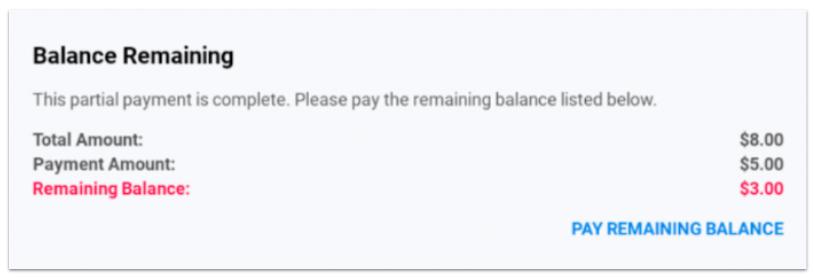
Note: If the available credit on a traditional credit card is less than the amount of the check, that card is declined. The guest must provide some other form(s) of payment for the check.
After all the funds are deducted from a prepaid credit card, no additional amounts are authorized. For example, if a tip adjustment exceeds the available balance on a prepaid credit card, the card provider will not pay the additional tip amount. Additionally, prepaid cards often cannot have money added back onto them, so they cannot process a voided payment or refund. In this case, you may have to refund a customer in cash or through another payment method.
Back to top
Using Apple Pay, Google Pay, and Samsung Pay with Toast is simple and requires no additional setup. These payments are accepted on Toast Go® 2, Toast Go® 3, and Toast Tap® (on-counter or direct-attach).
These mobile wallet payments are not accepted on Toast Go® 1 and the Toast tablet (POS), because these devices use Magtek eDynamo, which does not support Near Field Communications required to read mobile wallets.
Want to learn more about Toast Tap™? Check out these resources:
Back to top
Toast can support an unlimited number of additional and alternative payment options (non-cash/non-credit) to be accepted by your restaurant. Popular options include third-party order & delivery sites like GrubHub and Eat24, coupon and deal sites like Groupon and LivingSocial, and paper gift certificates. Learn more about setting up alternative payment options in the Set Up Other Payment Options article.
Here is how you apply other payment types to a check:
- Navigate to the check you'd like to process an alternative payment for.
- Select the Pay ($) button.
- From the payment screen, select Other payments.
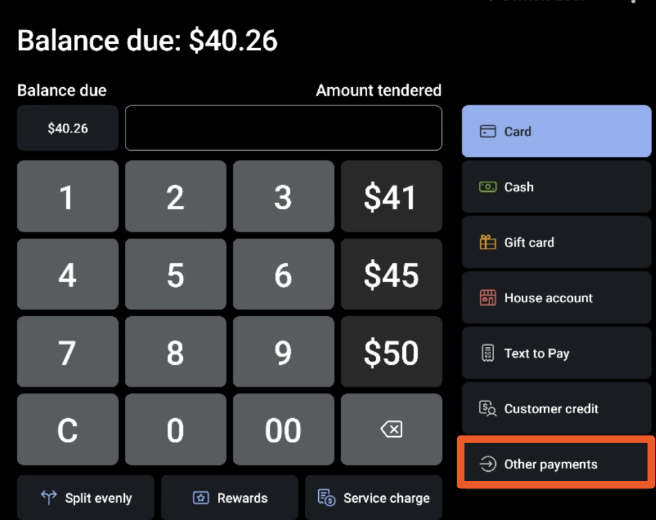
- Select an alternative payment type from the list that appears, and then select Done. The list of options available will depend on what has been configured in Toast Web. This could include things like deposit redemption, paper gift certificates, and more.
- Depending on your restaurant configuration, guests can either select the tip and receipt options on the device, or a standard receipt will print.
Back to top
To learn how to split checks, check out this article: Split Checks on the POS.
Back to top
Payment options are configured in Toast Web on the Payment options page (Payments > Payment options > Payment methods). Learn more in this Toast Central article: Configure Payment Options.
Back to top
Troubleshoot Payments
If your terminal isn't accepting payments, this may be caused by having Fast Processing enabled. You can disable this mode by navigating to Payments > Payment Options; if Fast Processing is enabled, change this option to Yes, Offline Mode, then be sure to Save and Publish your changes.
If that doesn't work, ensure your terminal's wifi is off by following these steps:
- Swipe the screen up and select the circle icon.
- Select Settings.
- Select Network and Internet.
- Toggle wifi off.
- Toggle Internet USB-C on.
Back to top
If you wish to disable advertisements that are on the bottom of your guest receipts, please contact Customer Care so we may assist you further.
Back to top


