In this Article:
Tax Inclusion Options
Tax inclusion refers to whether a menu item's price includes the applicable sales taxes, or if the taxes should be added to that price as a separate line item on the check. Toast lets you customize how menu taxes are handled with three tax inclusion options:
Back to top
Tax Not Included - Tax Inclusion Option
This option is used when the item's price does not include tax. Toast adds the applicable taxes for this item to the check. This is standard practice for most items; also called "additive tax".
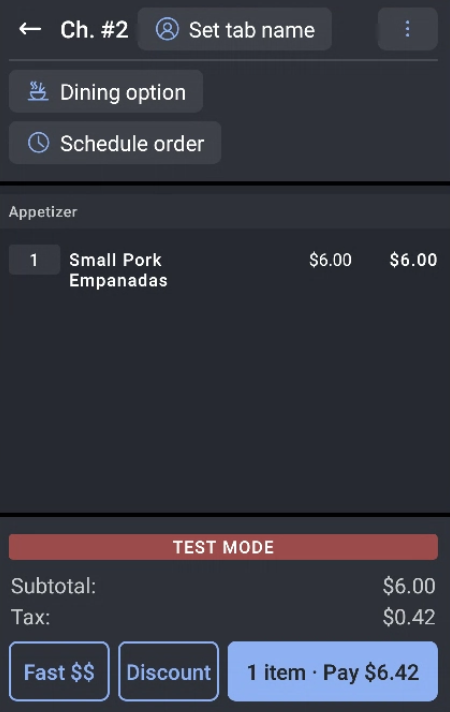
In this example, the Small Pork Empanadas' price does not include tax. The tax is added as a separate line item on the check for a total of $6.42
Back to top
Tax Included - Tax Inclusion Option
This option is used when the item's price does include tax and Toast does not add any additional tax to the check. Instead, Toast calculates from the menu price what portion of the price represents the item's cost and what portion covers sales tax. These amounts are included in your sales reports. It's important to still select the taxes that apply to this item.
Tax inclusion allows you to present your customers with a flat price for an item, and can make check calculations easier because you can ensure your customer's checks come to whole dollars or round numbers.
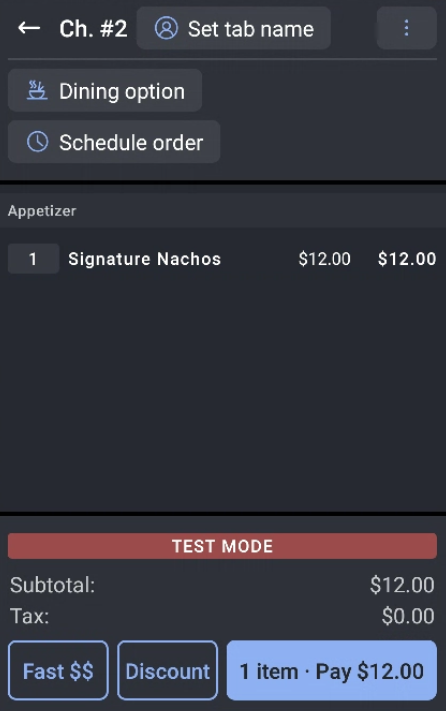
In this example, the Signature Nachos' price includes tax for a total of $12.00.
Back to top
Smart Tax - Tax Inclusion Option
The smart tax feature allows a restaurant to specify that a menu item's price includes tax when it is ordered in one section of the restaurant and does not include tax when it is ordered in another section of the restaurant.
For example, a guest can order an item that has a price of $10 and a tax rate of 7% at either the bar or in the main dining room. To prevent bartenders from having to handle coins, which can slow down service, and to make tipping easier, you want the price of the item to be a round number that includes tax when it is ordered at the bar. In the main dining room, where speed of service is less of a concern, you don't want the item's price to include tax, so that you don't lose out on the extra revenue. With smart tax enabled, the guest pays $10 for the item at the bar and Toast calculates that $9.35 of that amount is revenue for the item and $0.65 is allocated for the tax (these Toast-calculated numbers appear in your sales reports). In the main dining room, the guest pays $10.70 for the item, $10 is revenue and $0.70 pays for the tax.
See Platform Guide: Smart tax for more details.
Back to top
Configure Tax Inclusion
Tax inclusion can be set at the menu, menu group, or item level, and can be inherited accordingly. Smart Tax is enabled elsewhere (learn more in Platform Guide: Smart tax).
- In Toast Web, navigate to Menus > Bulk management > Advanced properties.
- Select the Show/Hide drop-down and select Tax Inclusion Option.
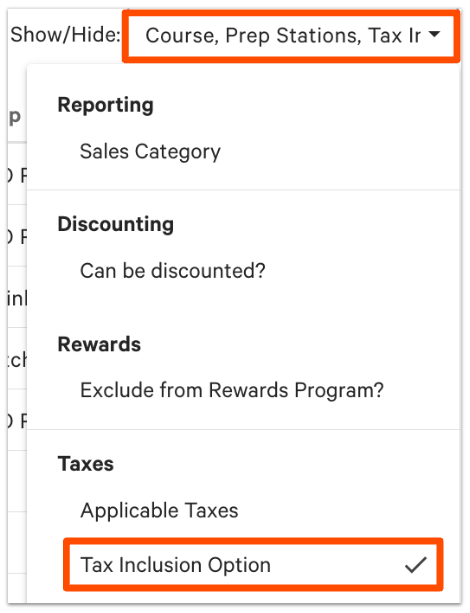
- You should now see a column for Tax Inclusion Option on your Advanced Properties page. Use the arrow (>) icons on the left side of the page to expand menus to view menu groups and items, if necessary. Use the drop-down menu to change a menu, menu group, or item's Tax Inclusion Option to Tax Included or Tax Not Included as desired. Menu groups and items will inherit settings from their parent unless otherwise configured.
- Save and publish any changes.
You can also choose to make this change to a specific menu, menu group, or item by selecting its name from the list on the Advanced Properties page and scrolling down to the Taxes section at the bottom of the settings page.
Back to top
Additional Resources for Tax Rates


