Offer your own contactless delivery without having to hire drivers, so that you can minimize overhead costs while providing a better guest experience. Add Toast Delivery Services now and start taking orders within 30 minutes!
Add Toast Delivery Services
In this Article:
Watch the above video for an overview of Toast Delivery Services in action.
Toast Delivery Services Reporting Overview
DoorDash Drive or Uber Eats will invoice you for the delivery fees and the driver tips you collect at the end of your billing cycle. This report will be emailed to the finance contact assigned to your account. You will be receiving monthly invoices from Toast for two concepts:
- Delivery fees: You must monitor order volume from the Sales Summary.
- Driver tips: These should be removed from your employee tip pool, if applicable.
See Toast Delivery Services Automated Billing Overview for more information.
Back to top
You can look up order counts, sales volume, and tips from the Sales Summary.
- In Toast Web, navigate to the Reports > Sales > Sales summary.
- On top of this report, select the date range for your reporting.
- Select More filters, open the Dining options drop-down on the slide-out on the screen's right side, and check off Toast Delivery Services.
- Select Apply filters to update the Sales Summary report.
Back to top
How to Calculate Driver Tips
After following the steps above, check the total tips collected from orders that DoorDash Drive or Uber Eats will invoice you for.
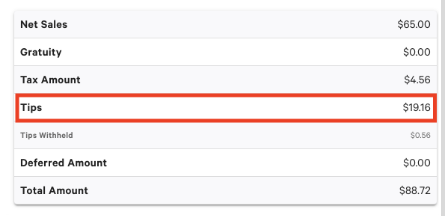
We auto-generate this "TDS Driver" so that all Toast Delivery Services tips are assigned to the delivery drivers and are not paid out to your employees. Note: Once you're fully set up, you'll see that Toast has auto-generated a "TDS Driver" and a "Toast Delivery Services" dining option (cannot be edited or deleted). You should not edit the employee name, as doing so would no longer set aside tips you collected on behalf of DoorDash Drive or Uber Eats drivers. DoorDash Drive or Uber Eats will charge you for these tips directly in their monthly invoices. We'd like for you to please not edit or remove these auto-generated settings.
For more information on tips, see the following articles:
Back to top
How to Calculate Delivery Fees
After following the three steps above, scroll down and locate Dining Option on the left side of the Sales Summary.
- Locate the number of delivery orders placed for Toast Delivery Services (in this case, 42).
- Multiply that number by the flat fee per order amount. The flat fee per order can be found in your DoorDash Drive or Uber Eats contract.
Back to top
There are two additional ways to see the amount of tips owed to DoorDash Drive or Uber Eats for driver tips:
- Close Out Day/Z Report
- Labor Summary Report
Back to top
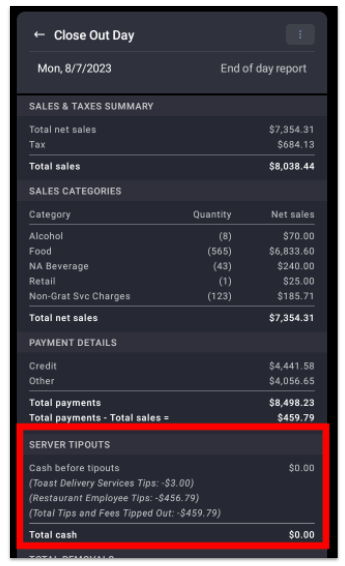
The Toast Delivery Services tips section of the Close Out Day/Z Report shows the total number of Toast Delivery Services tips.
Back to top
- To see the amount of tips owed to TDS drivers at the end of a shift, navigate to Reports > Employee performance > Labor summary.
- From the Employee dropdown, select Driver, TDS.
- Select Update to apply this filter.
- In the Employee Summary section, you will see Net Sales and Tips for TDS deliveries.

Back to top
You can view and access your restaurant’s Toast Delivery Services (TDS) historical withholding data by downloading the TDS billing report in Toast Web. To download this report:
- First, navigate to Takeout & delivery > Toast Delivery Services in Toast Web.
- Then, select the Set time range and download link.
- From the pop-up window, select a date or a custom date range, then select Apply.
- Once desired filters are selected, select the Download button to export your .csv file.
Back to top
Additional Resources


